
loading.. Please Wait
To schedule a work order, go to MENU > MANAGE > WORK ORDERS and find the order you want to schedule on the list. Use the filters to guide your search. Click on the line of the order to open and edit it.
You can also schedule it right after creating the order, clicking on the tab "Schedule."
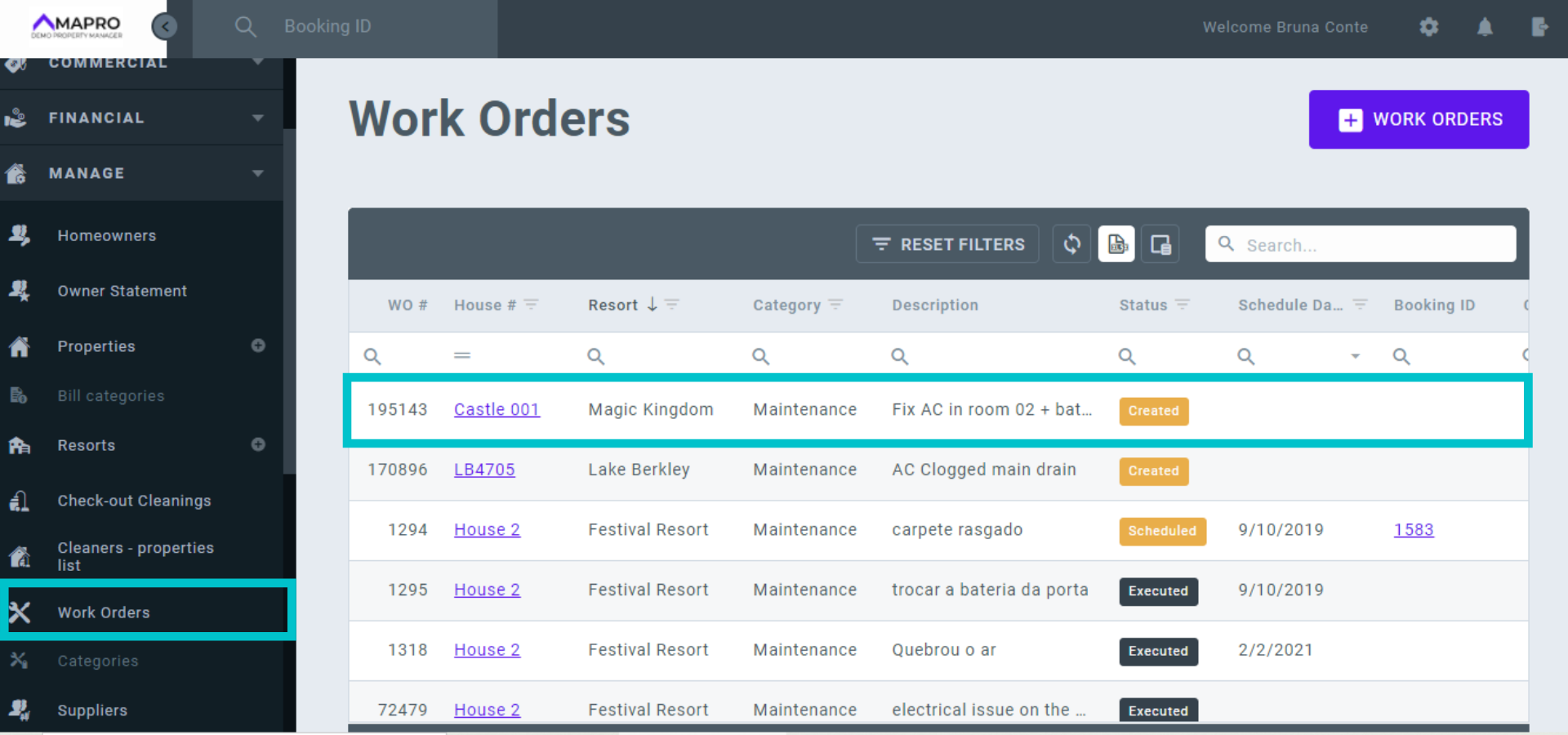
On this screen, you find details like number, property, urgency level, etc., the other tabs (Create, Execute, Financial, and Finalize), and the option to transfer this order to another property (modify).
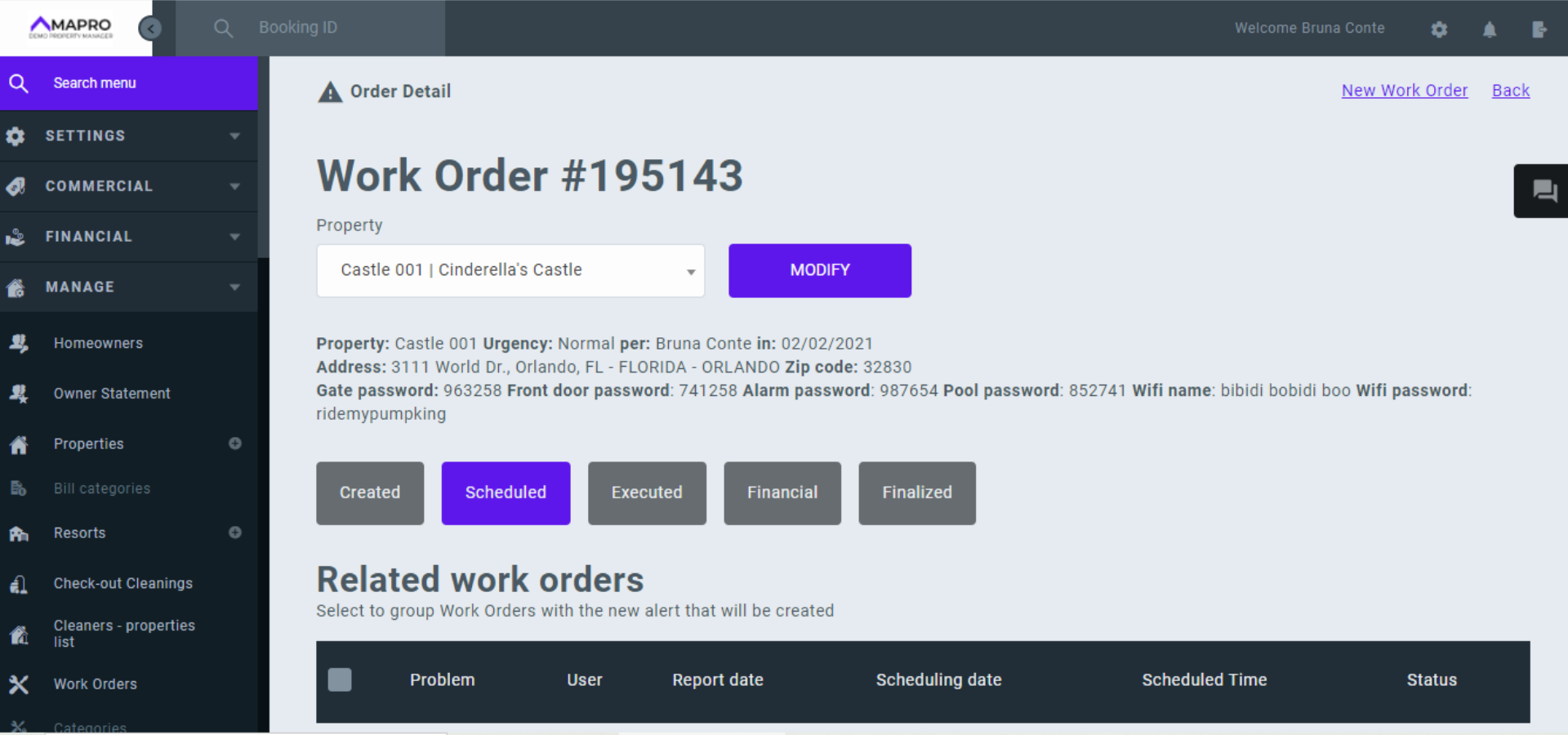
Scroll down and find a list of other work orders to this property, if there are any. Below this list, find the "Add Alert" button.
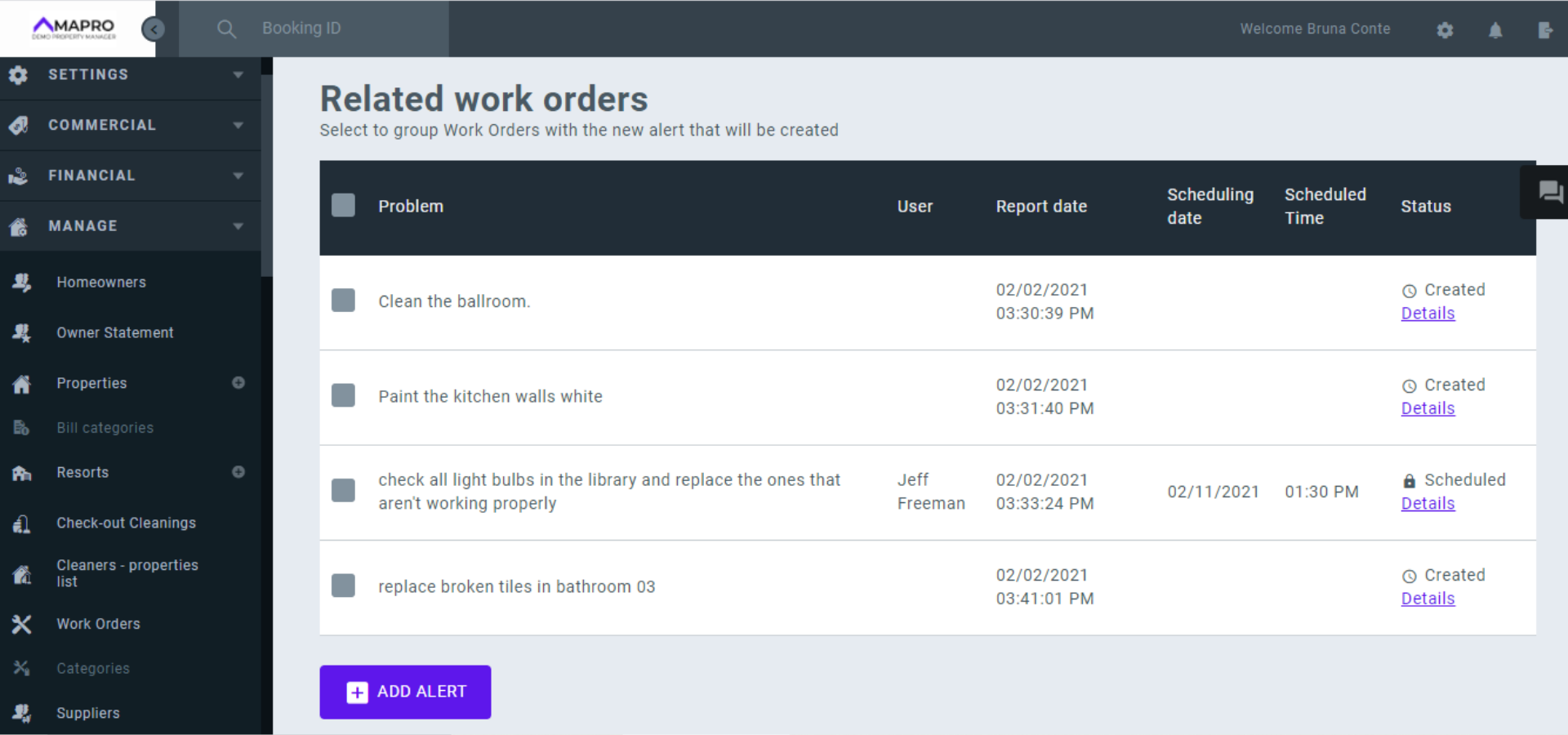
If there are other work orders to be executed by the same person or company, you can schedule the new order to the same date as the previous ones or select those and reschedule them to the same date as the new order.
On the image, you can see we already have an order scheduled for Jeff Freeman on February 11 to check the light bulbs, and we are going to ask Mr. Freeman to execute this order the same day as the new one (to fix the AC and bathtub). By clicking on the checkbox to select the register on the list, and then on "Add Alert," we can schedule both orders to a new date: February 13.
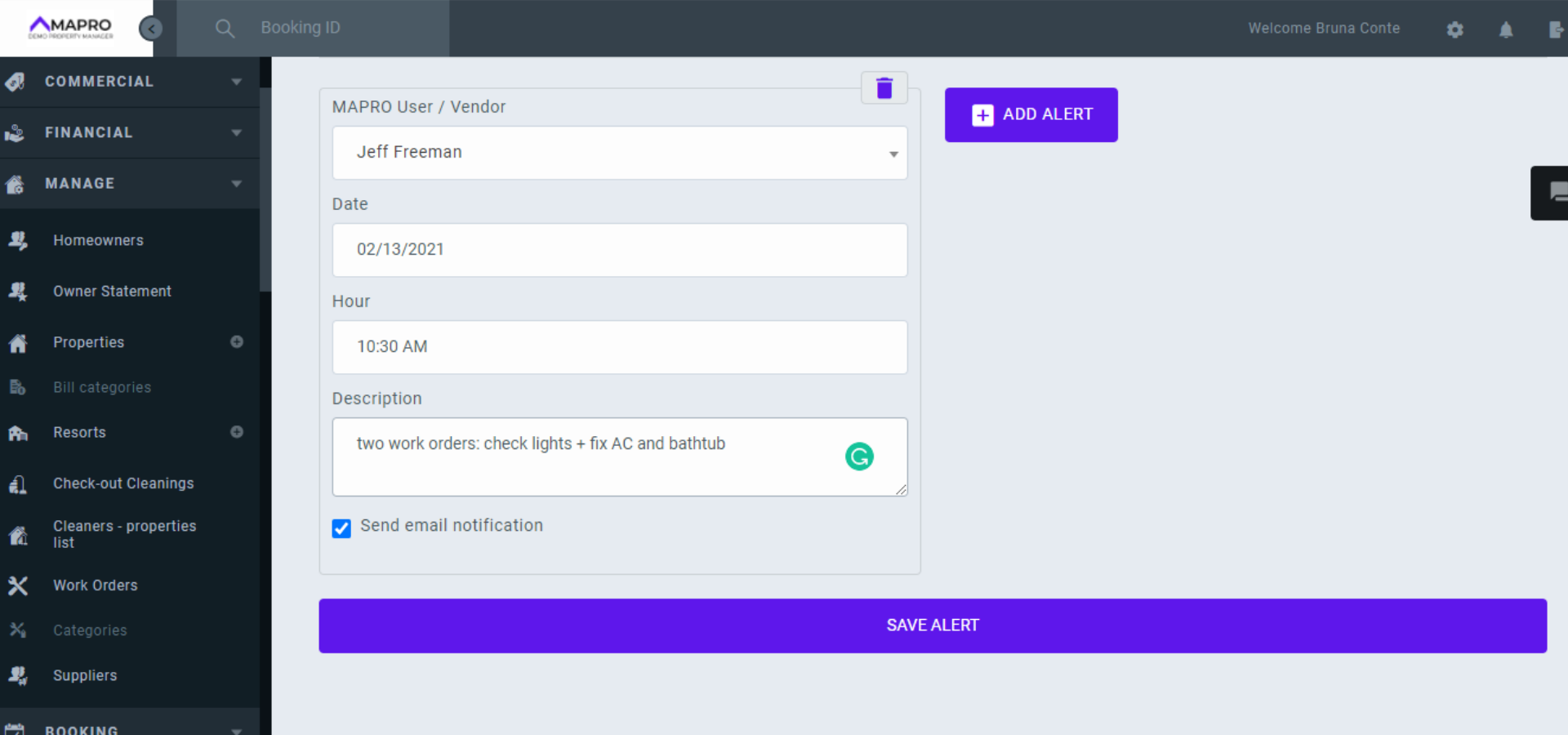
If you do not intend to join the new order to others, or if there aren't any, go straight to "Add Alert" and enter the following information:
Click on "Save alert."
On MENU > MANAGE > WORK ORDERS, both orders will have their status changed from "Created" to "Scheduled."
Read more:
How to enter the financial details and finalize a work order



