
loading.. Please Wait
You can set MAPRO to send automatic SMS* to guests and chat messages on the sales channels. They need no action from your staff after set - the guest will receive an SMS on their phone or a message on the chat, at the time you choose.
*Check SMS costs
You can also save default answers to respond to chat messages with a click. Write answers for frequently asked questions, and then every time someone asks one of those questions on the chat, just click a button to choose the answer from a list!
First, you have to register the messages on the software by accessing MENU > TEMPLATES > MESSAGING TEMPLATE > New Messaging Template.
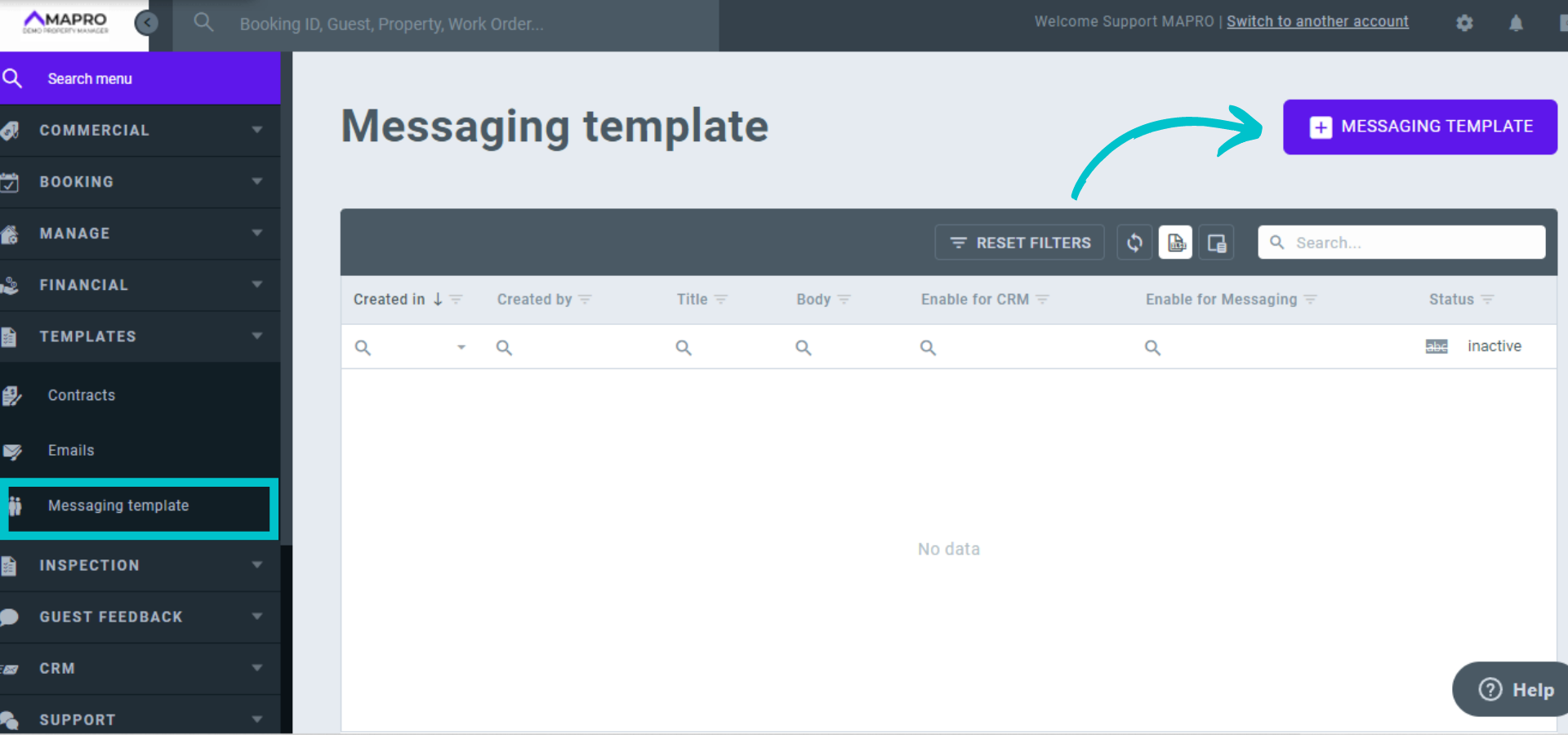
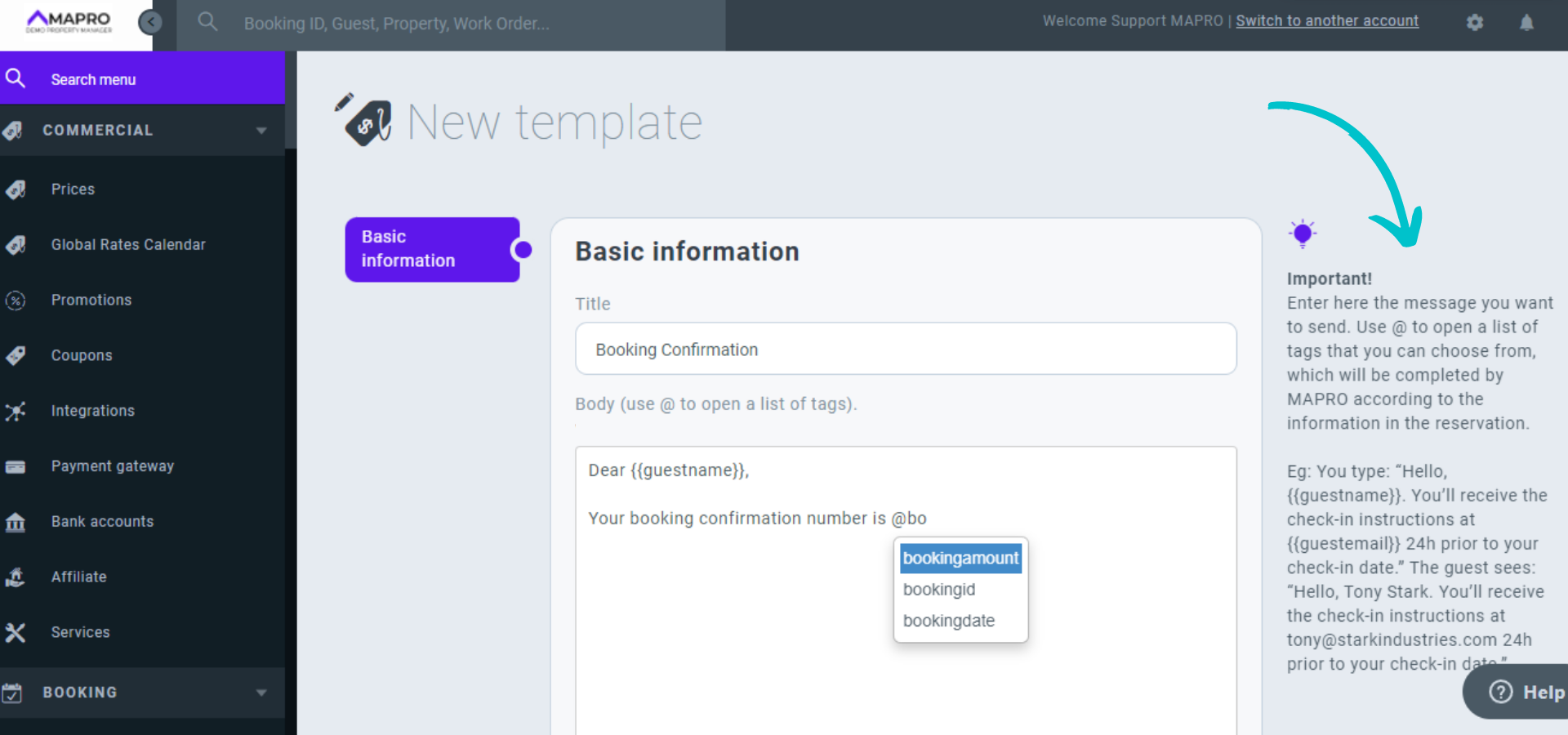
Choose a title that is easy to identify, and then type the message on the field that follows.
Keep in mind that all guests receive the same message, so use tags to mark the information the software should pull from the reservation in order to customize the message.
For example, if you want the message to start with the guest’s name, type “@” to open a list of tags, and then choose @guestname.
You will see “Dear {{guestname}}” but the guest will see their own name, like “Dear John Smith”.
You can use tags to take from the reservation other information such as booking ID, check-in date and time, property address, etc.
Important: do NOT add information like website addresses or phone numbers in chat templates!
Most sales channels don’t allow you to share your contact information with guests because they want the communication to happen via their channel, so they hide everything they identify as html links or phone numbers.
Feel free to add those to SMS templates.
After you finish writing your message, you have to check one or both boxes below.
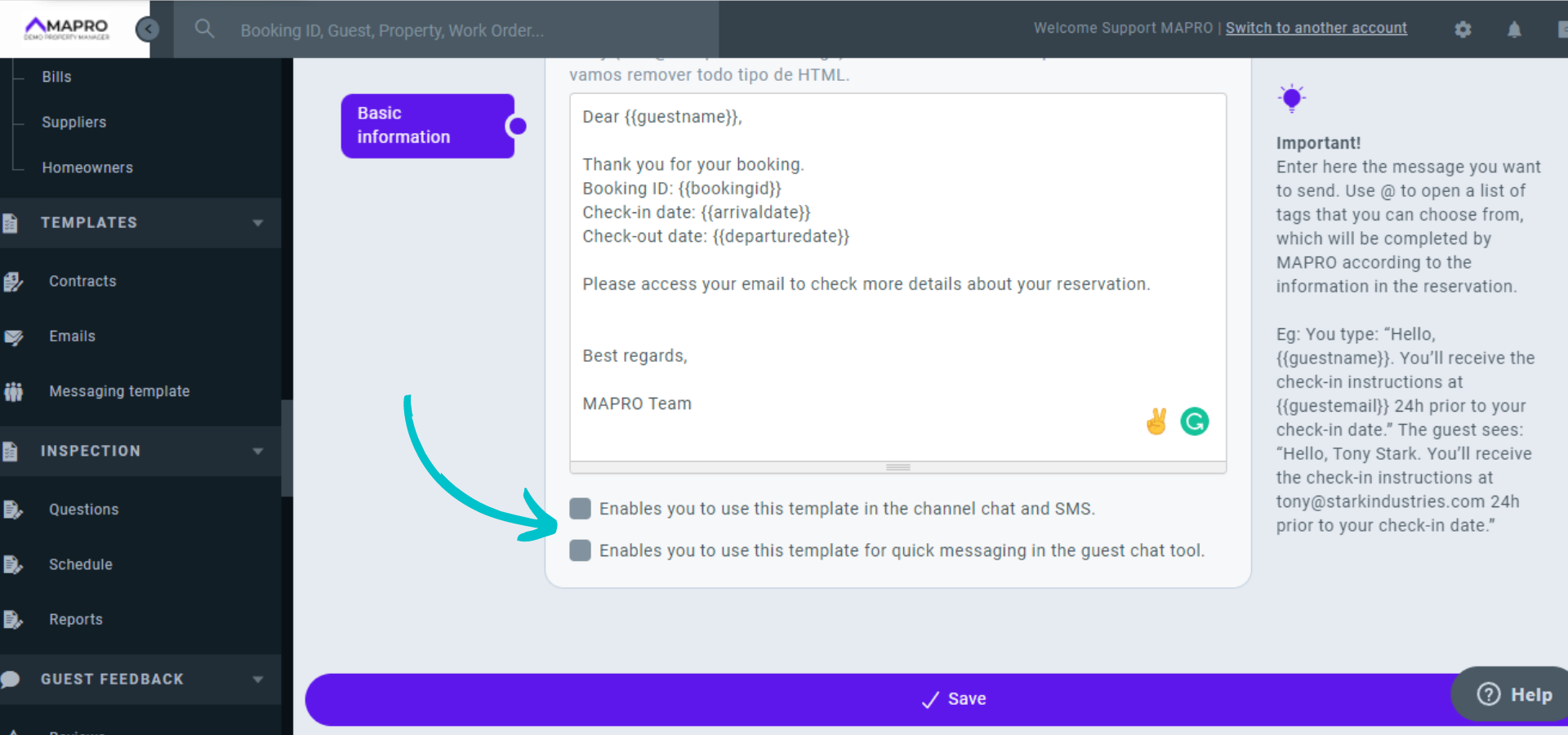
The first option will make the message available for you to set the automatic sending via SMS or the sales channels chat (you will set the rules later).
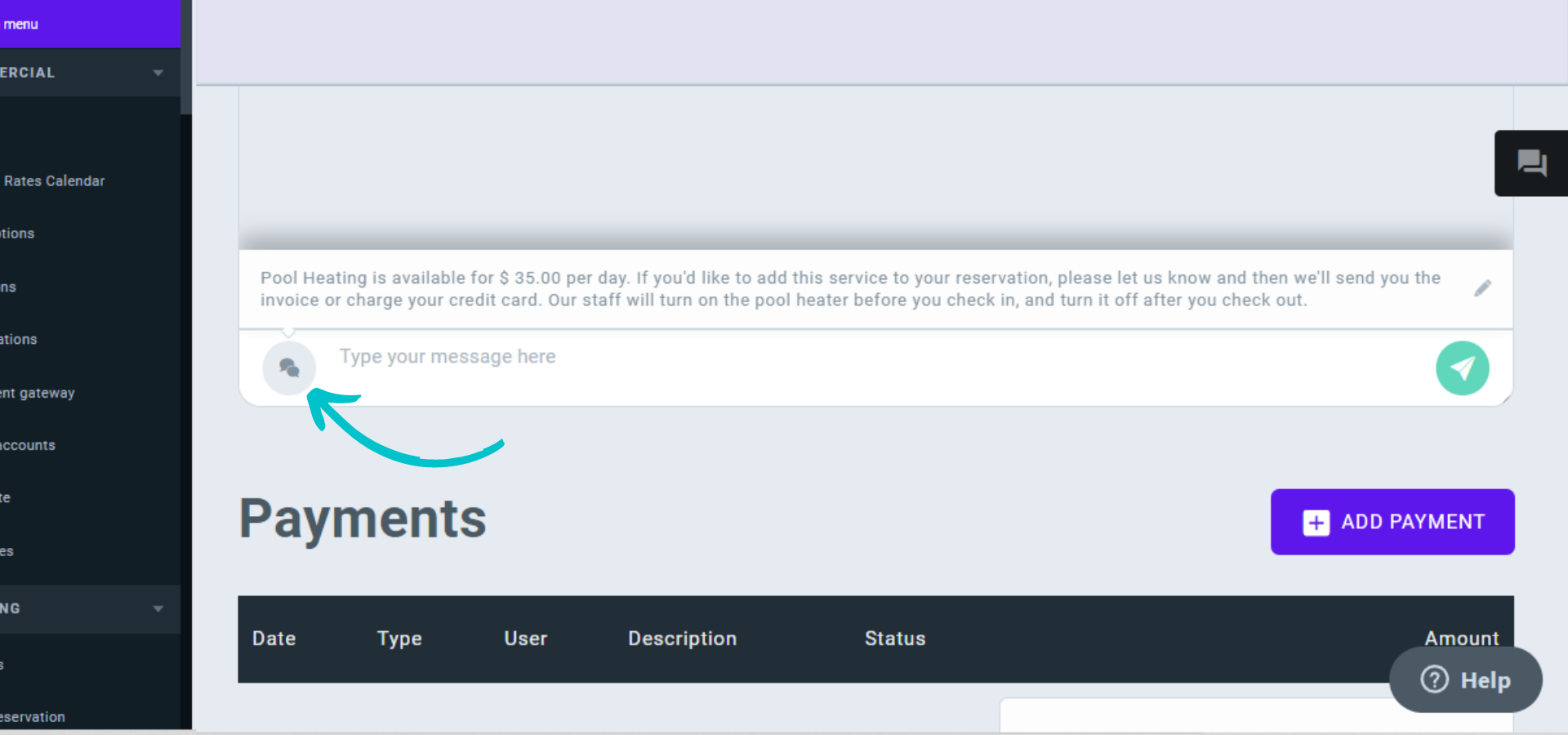
The second option saves the message so you can answer your guests’ questions on the chat about topics like BBQ, pool heating, etc. For example, you save a message with all the information about pool heating (prices, minimum days, paying method, and so on). Then, every time someone asks about it via chat, you just click the “pool heating” saved message with all the main information. You can also click the pencil icon and edit the message before sending it.
After you create all templates, you can set the rules the same way you configure emails: go to MENU > BOOKINGS > EMAIL RULES and either edit a group of rules or create a new one.
You can only destinate one group of rules to each integrator, so if you already have a group attached to Airbnb, for example, add SMS and chat rules to that one instead of creating a new one.
Click here to learn how to set the automatic messages.



