
loading.. Please Wait
Sending automatic messages involves three steps:
1) Template configuration (message template)
3) Linking the email group to an integrator
Note that every "reservation source" has its own integrator (Airbnb, VRBO, MAPRO, Website, etc.). It is the integrator that informs the system of the origin of the reservation, how to divide the values, which emails to send, among other things.
As an example, we are going to set up the sending of emails for reservations created by the integrator Site MAPRO. For each reservation, 4 automatic emails must be sent.
a) The booking confirmation, right after it has been created in the system
b) The contract signing and the credit card authorization request, also right after the reservation creation
c) The check-in instructions, two days before the guest arrival
d) The stay review request, two days after checkout.
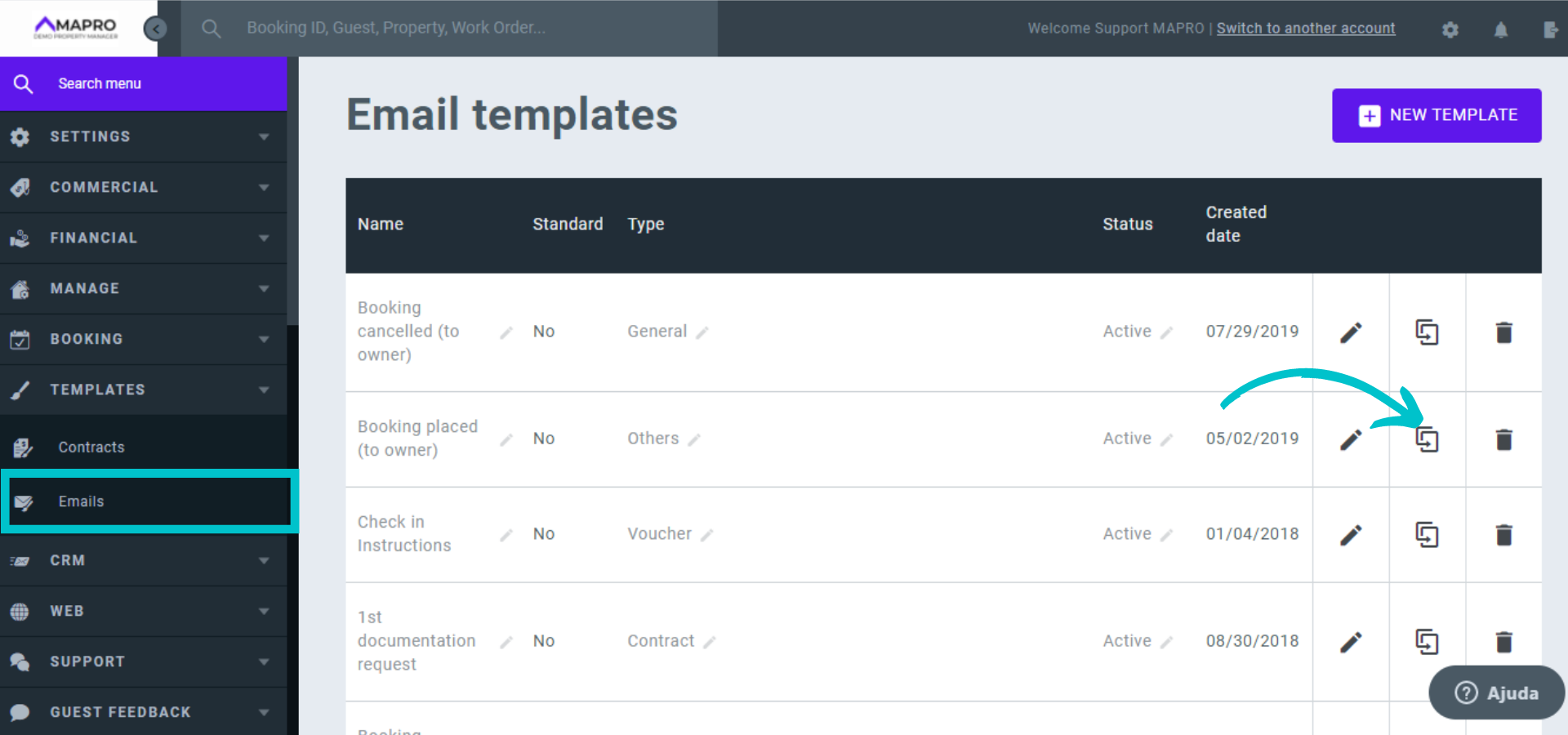
The first step has usually already been set up by MAPRO team and, if you have any questions or want to make a change, ask the support team. You can check the available message templates by going to MENU > TEMPLATES > EMAILS.
In the image below, we can see the templates sent to the owners with information about new reservations and reservations canceled and the templates sent to the guests with booking confirmation, documentation request, and check-in instructions. You should also find on your page the template of the owner statement, the request for the list of all the guests' names, and the stay review request.
Obs: if you wish to make changes on the templates, we recommend that you clone the original template first and then edit the copy.
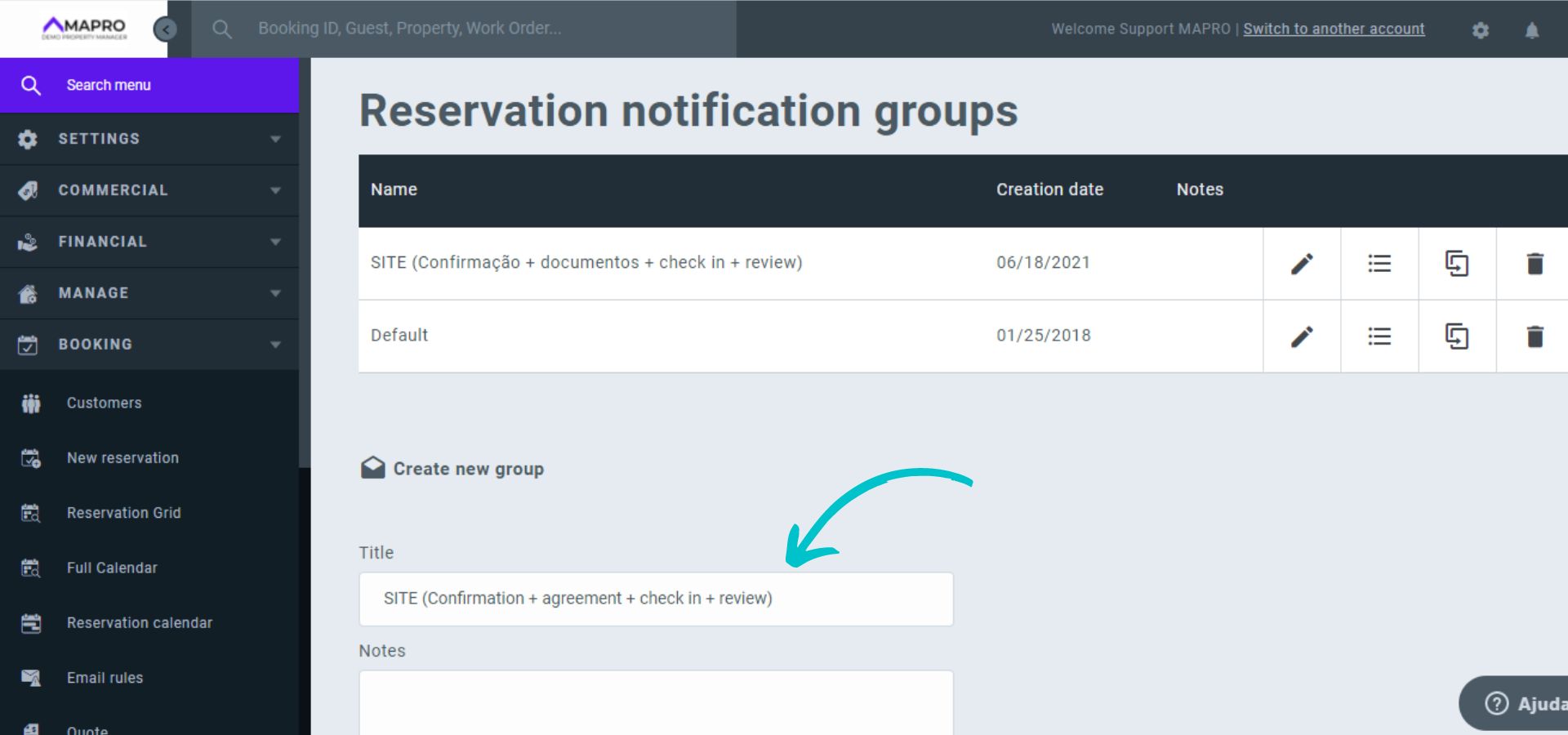
To create email groups, go to MENU > BOOKING > EMAIL RULES. If necessary, scroll down to access the fields to create a new group, enter the title and click on save.
Choose a title that is easy to identify - it can be by the integrator (e.g., Airbnb, site, system) or by the templates in the group (e.g., booking confirmation + contract).
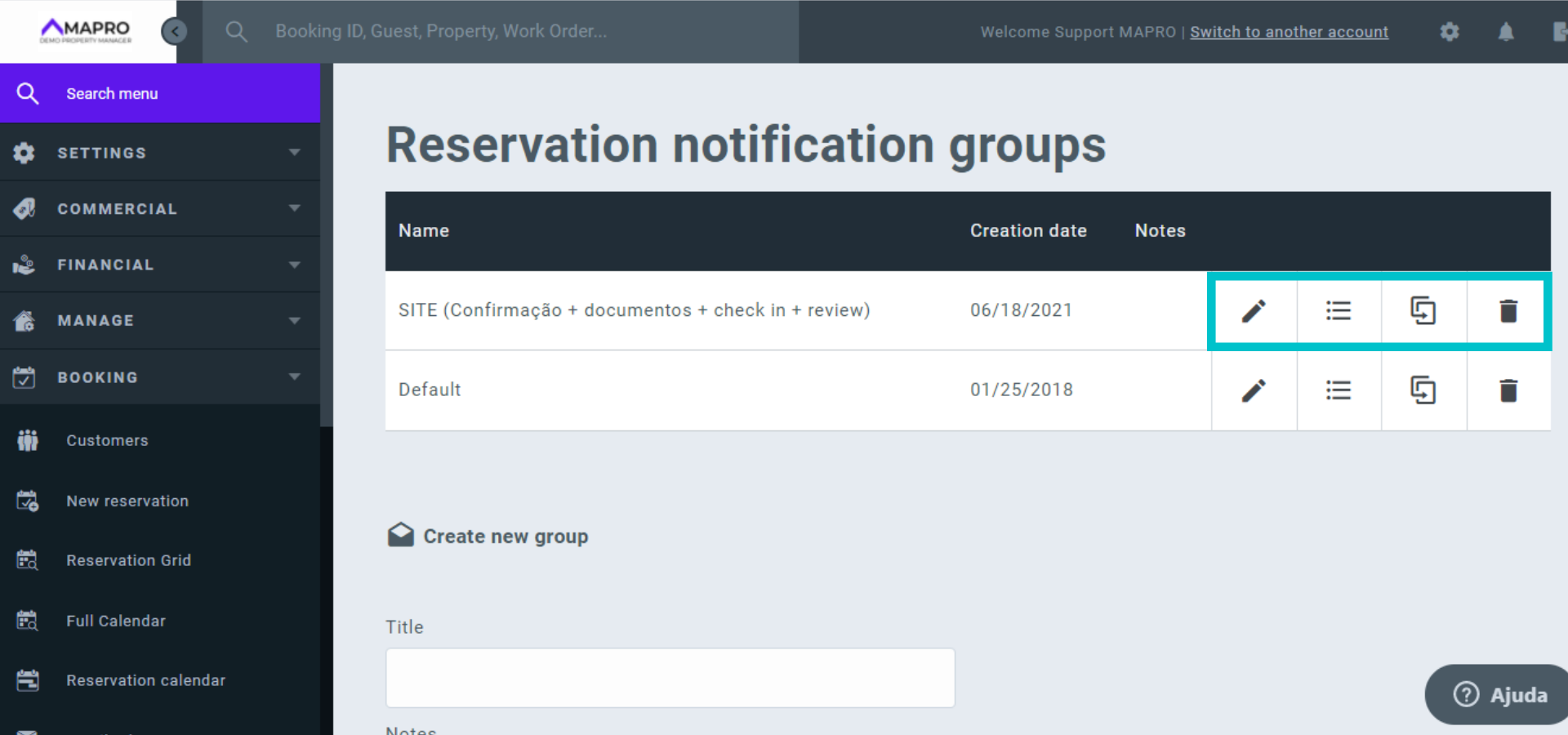
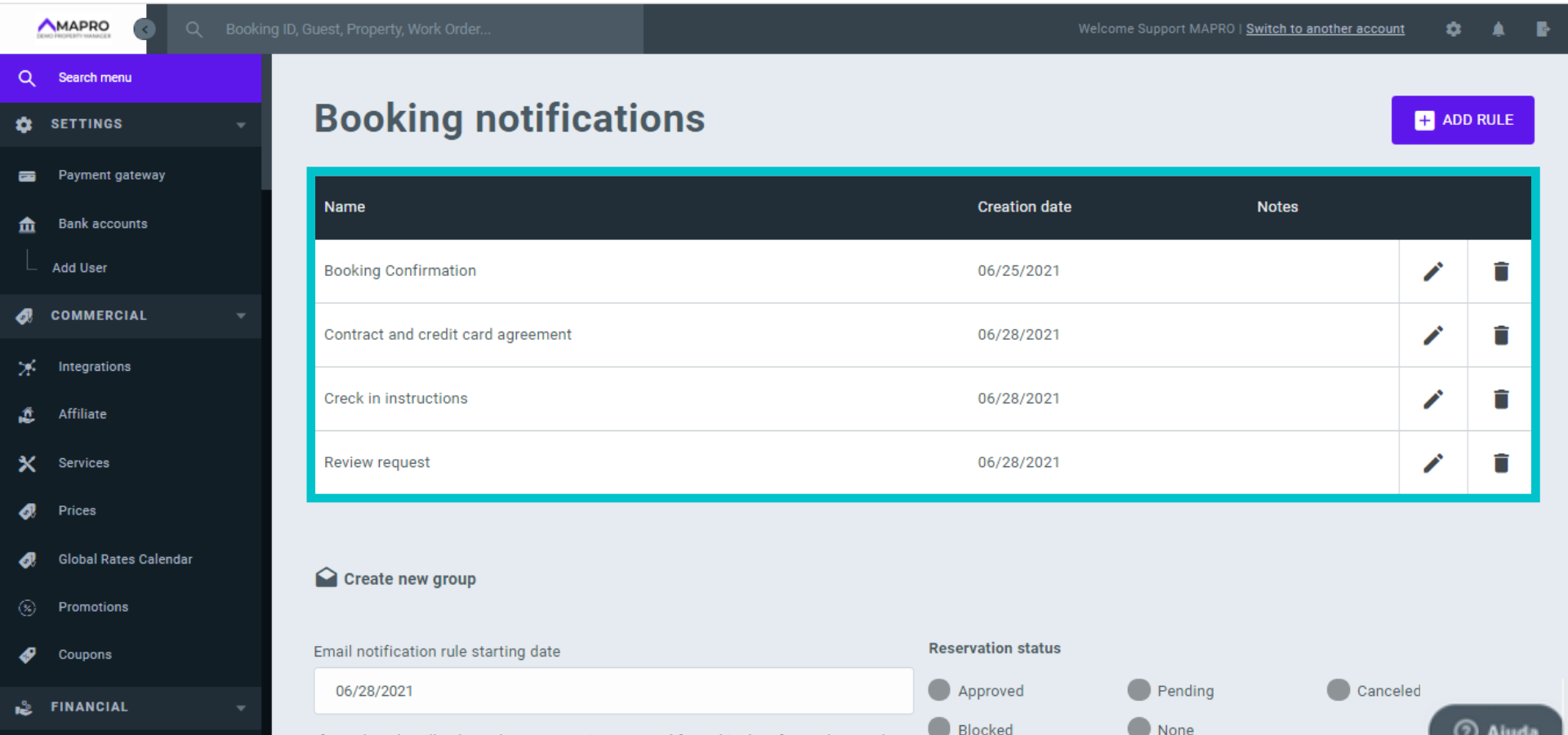
After saving it, the new group appears in the list. Click on the pencil icon to edit the name, on the list icon to set/view/edit the sending rules, on the copy icon to clone the group and its configurations, and on the trash icon to delete the group.
We need to set the sending rules, so we will click on the list.
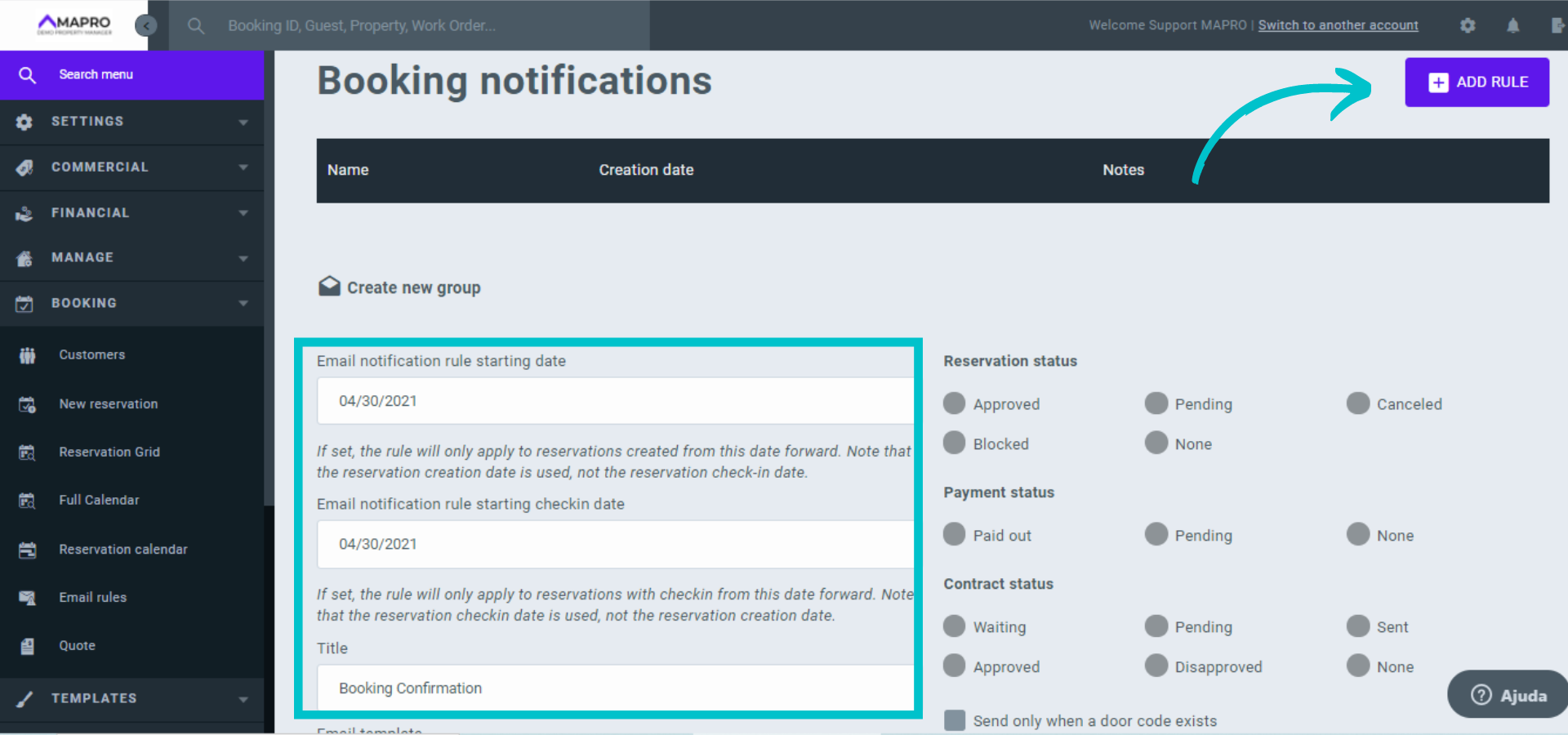
Since we still do not have rules in this group, we can start by entering the information of the first one. Then, for the next ones, we will need to click on "Add rule" in the upper right corner.
Complete the fields, following the instructions below:
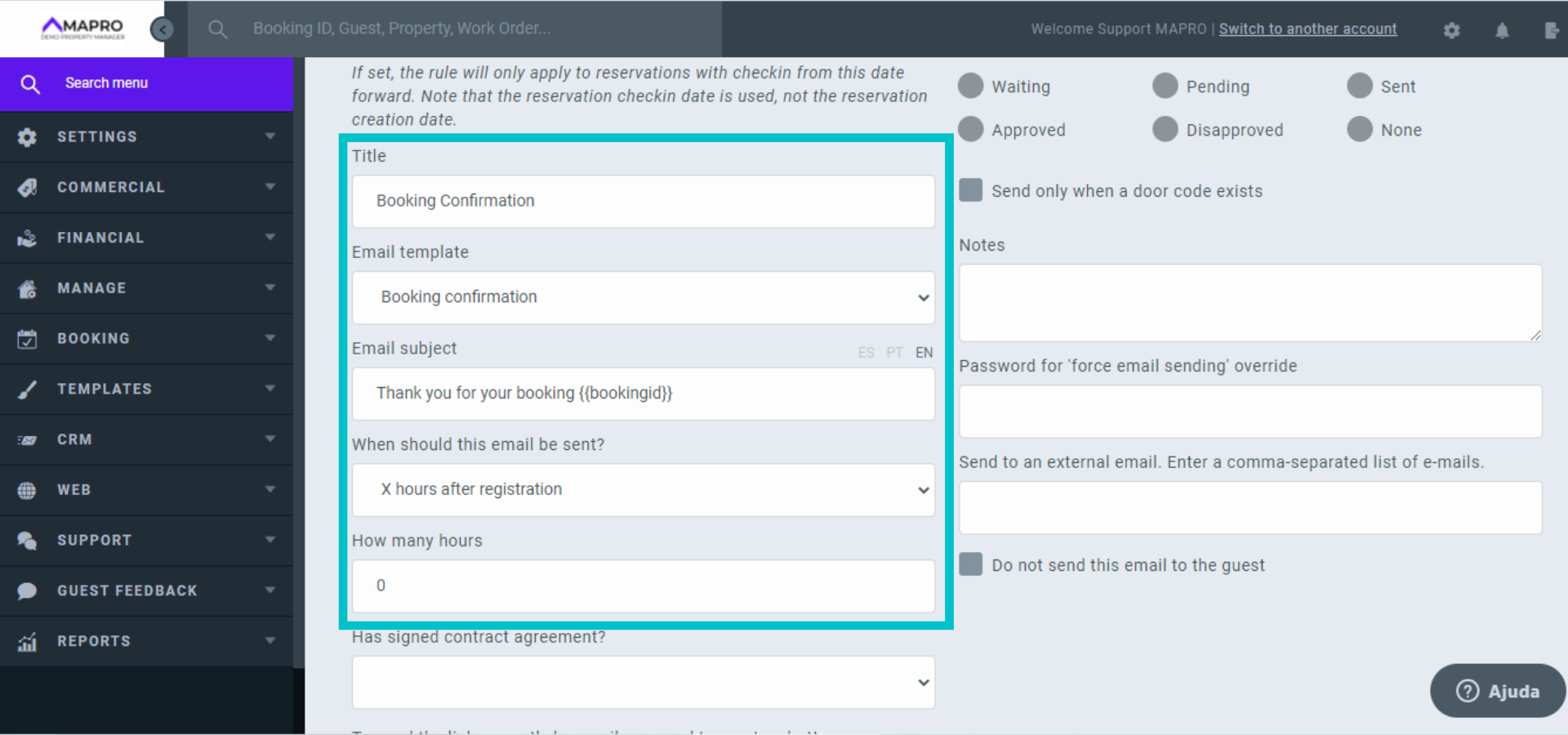
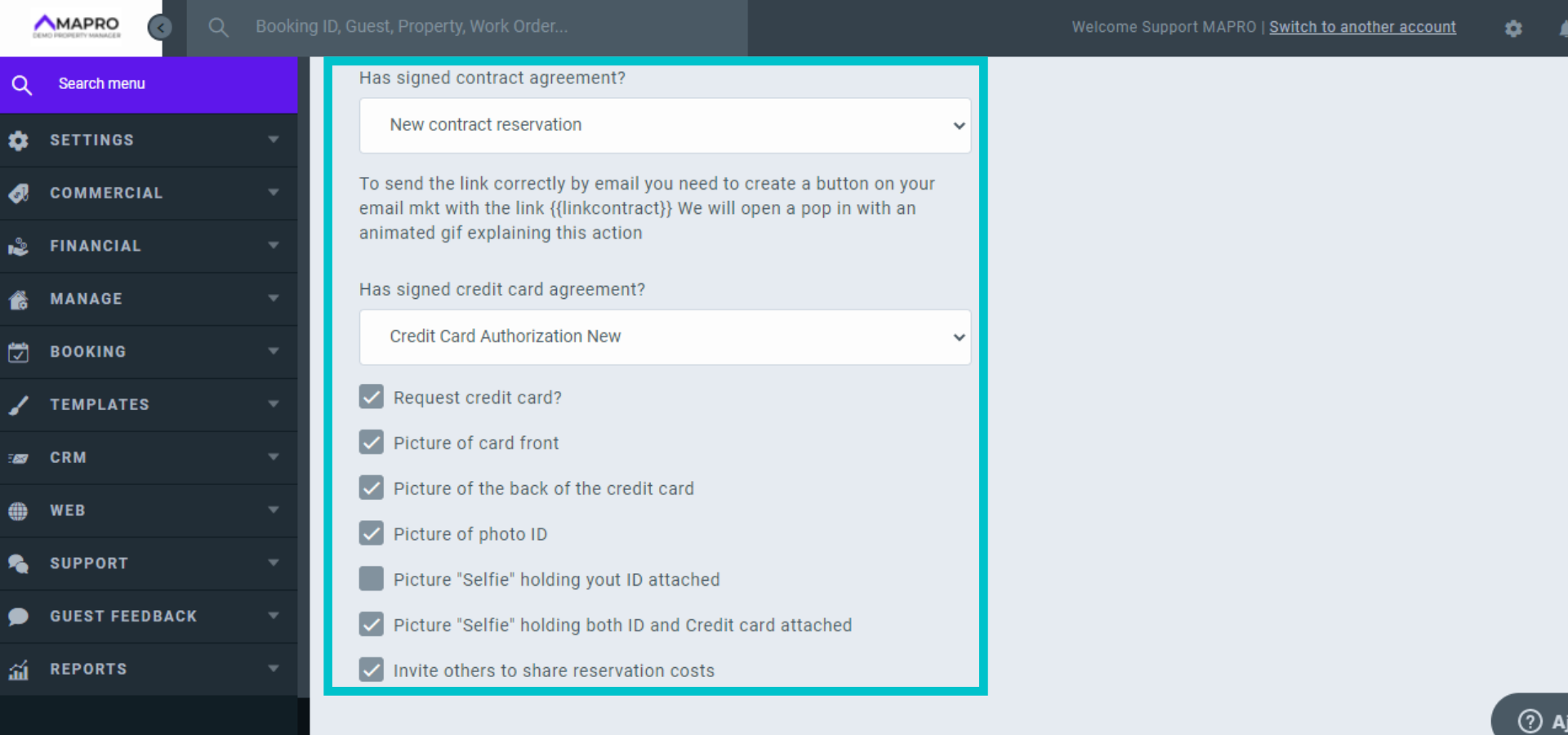
For emails that require an action from the guest, like signing the document, the email may be sent until the guest finishes this action! Choose every how many hours the email must be resent, the maximum number of emails that may be sent, and how the status of the reservation, payment and contract must be. E.g., resend the contract every 24h until the document status changes from "sent" to "approved."
Important: If the fields to set up the resending are not visible, uncheck the option "Send only once."
In the items "Reservation status," "Payment status," and "Contract status," you must select which status each of them must have for the email to be sent. If indifferent, check "None."
Example: it is common sending the booking confirmation and the documentation request with "Reservation status = Approved" and "Payment status = None / Contract status = None, after all the documents still haven't been sent and the credit card authorization hasn't been completed; however the check-in instructions are sent only to guests who have already paid the reservation, therefore the configuration must be "Reservation status = Approved / Payment status = Paid out / Contract status = Approved."
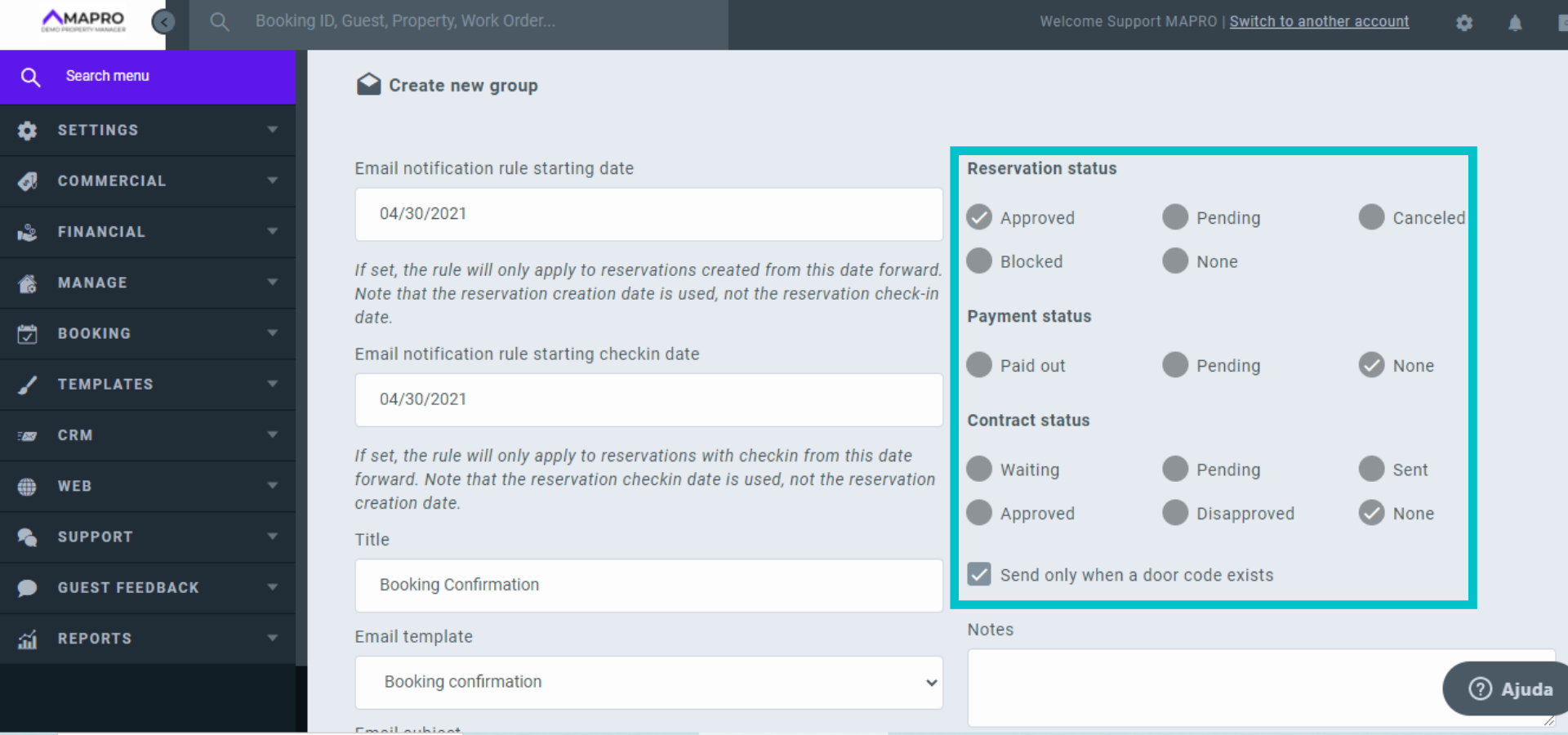
Another important item when sending check-in instructions is the door code! If your houses have passwords to access the property, sending the instructions without this information causes troubles, therefore we recommend checking the option "Send only when a door code exists" on the email of check-in instructions.
Optional fields: Notes (only visible to your company's users); Password for 'force email sending' override (in addition to the scheduled resending of emails, it is possible to manually resend them in the "documents/emails" tab in the reservation; register a password if you do not want other users in your company to have access to this function); Send to an external email (Enter a comma-separated list of e-mails so that the message being configured is sent to people other than the guest or owner, and check the selection box so that the message is NOT sent to the guest.
Click "Save" at the end of the page and then add the next rule, repeating all the steps above until all templates you want to add to this "email group" are configured.
To link an email group to an integrator, go to MENU > COMMERCIAL > INTEGRATIONS and open the integrator.
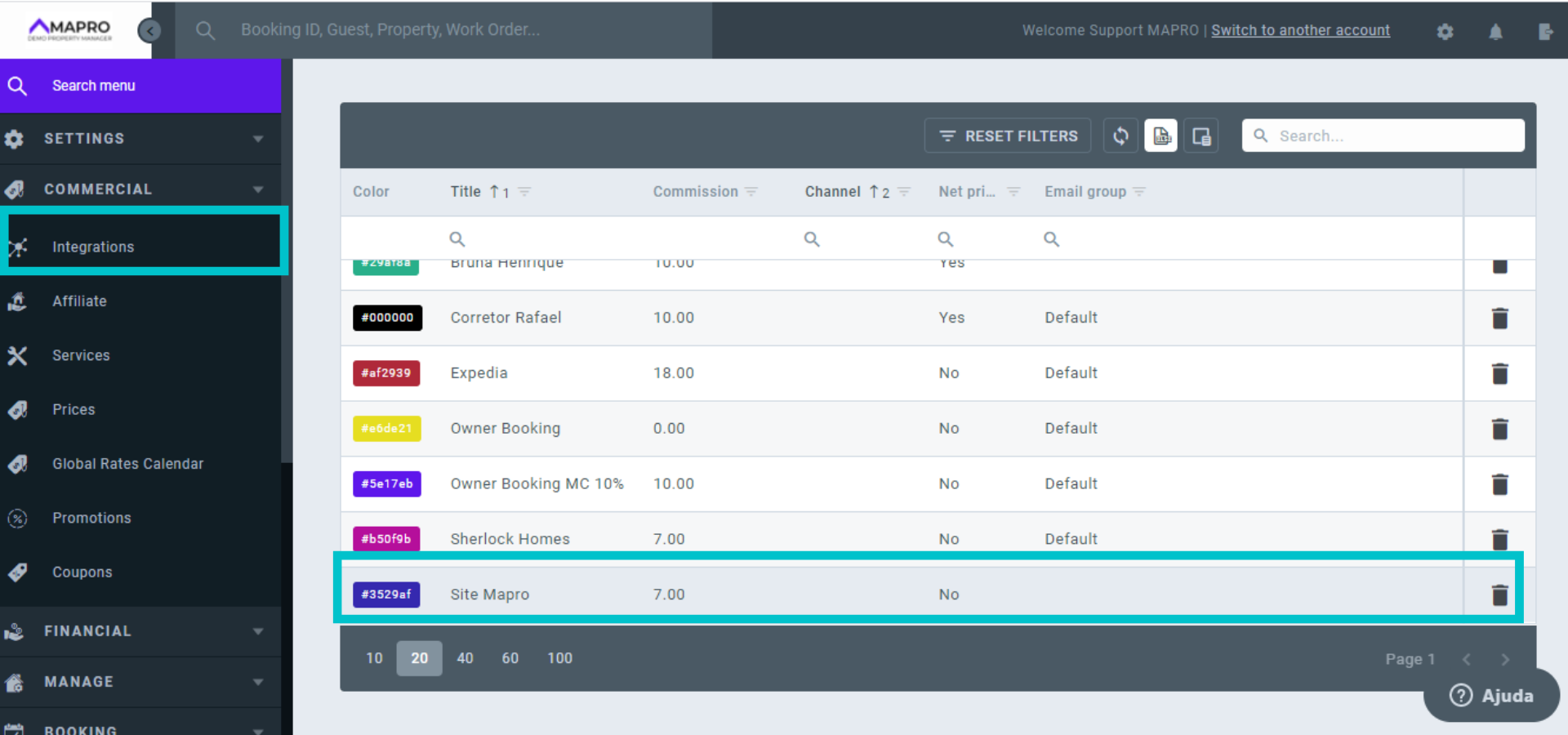
Click on the "Email rules" tab and select the email group in the indicated field.
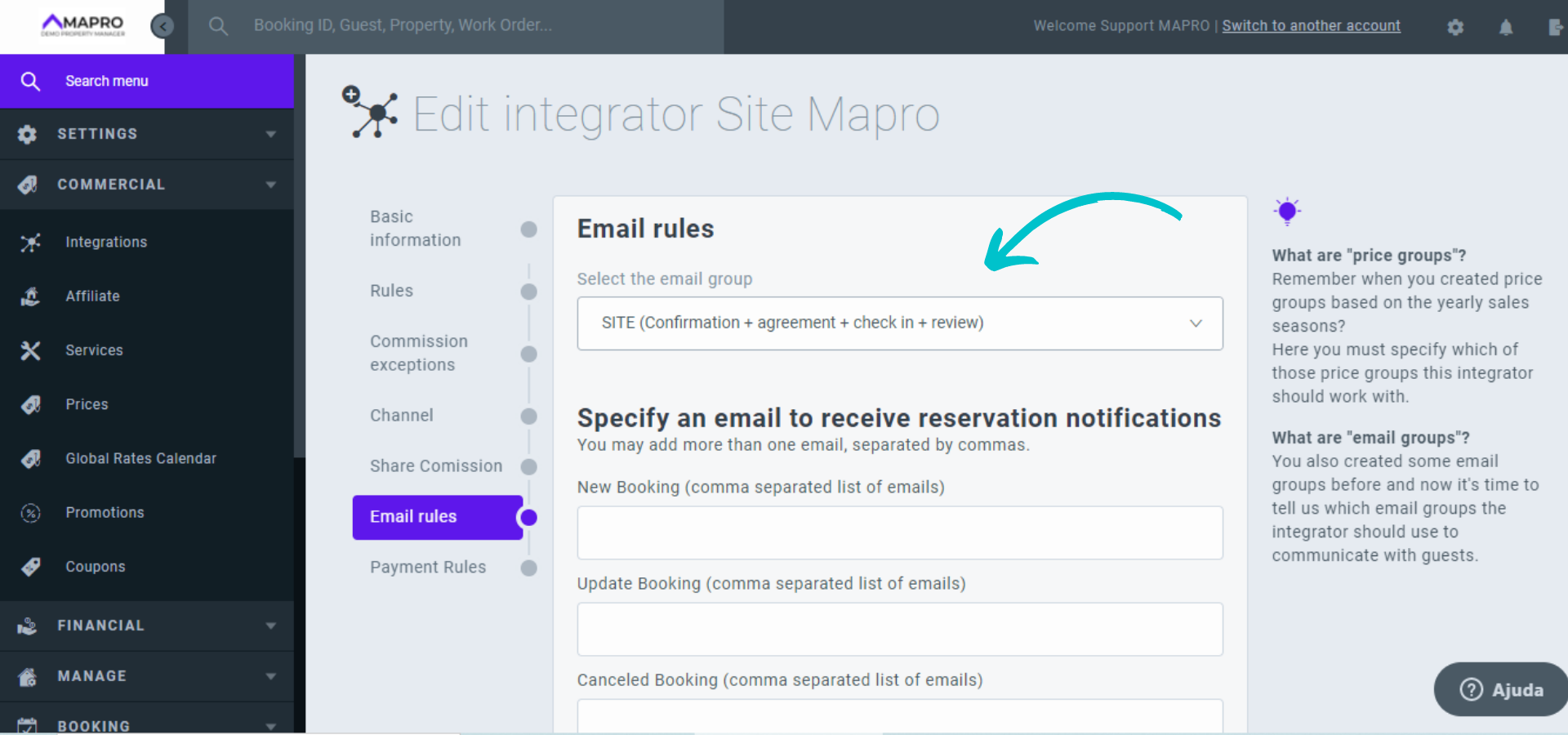
The fields of the section "Specify an email to receive reservation notifications" are optional. You can enter one or more email addresses, separated by a comma, to receive the notifications of this group. But attention: if you enter an email in the field "Guest Communications," all messages will be sent to this email and NOT to the guest.
It is also possible to schedule the sending of invoices with the reservation amount to the registered email, and even insert the code [reservationID] in the title so that the system will inform the reservation number in the subject of the message. For example, if you enter in the e-mail title "Reservation invoice #[reservationID]" and register the email of a commercial partner of your company, for each reservation created by this integrator, your partner will receive a message with the subject "Reservation invoice #123456", and the file attached.
Save the changes at the end of the page.
After saving the email group "SITE (confirmation + documents + check in + review) in the integrator "Site MAPRO," all guests who make reservations through the site will receive:
a) The booking confirmation, right after it has been created in the system
b) The contract signing and the credit card authorization request, also right after the reservation creation
c) The check-in instructions, two days before the guest arrival
d) The stay review request, two days after checkout.



