
loading.. Please Wait
To create a work order, go to MENU > MANAGE > WORK ORDER, and click on "Add Work Order."
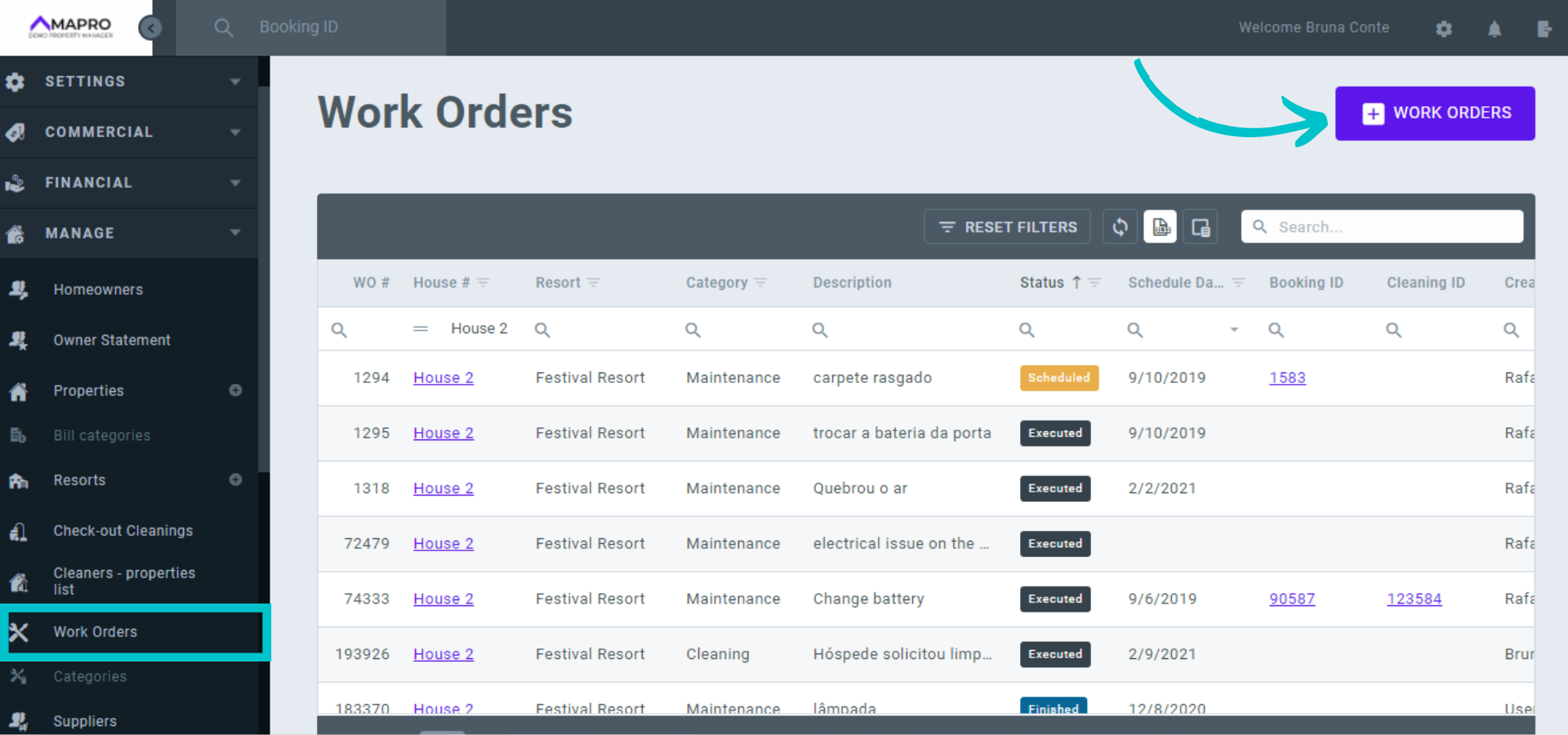
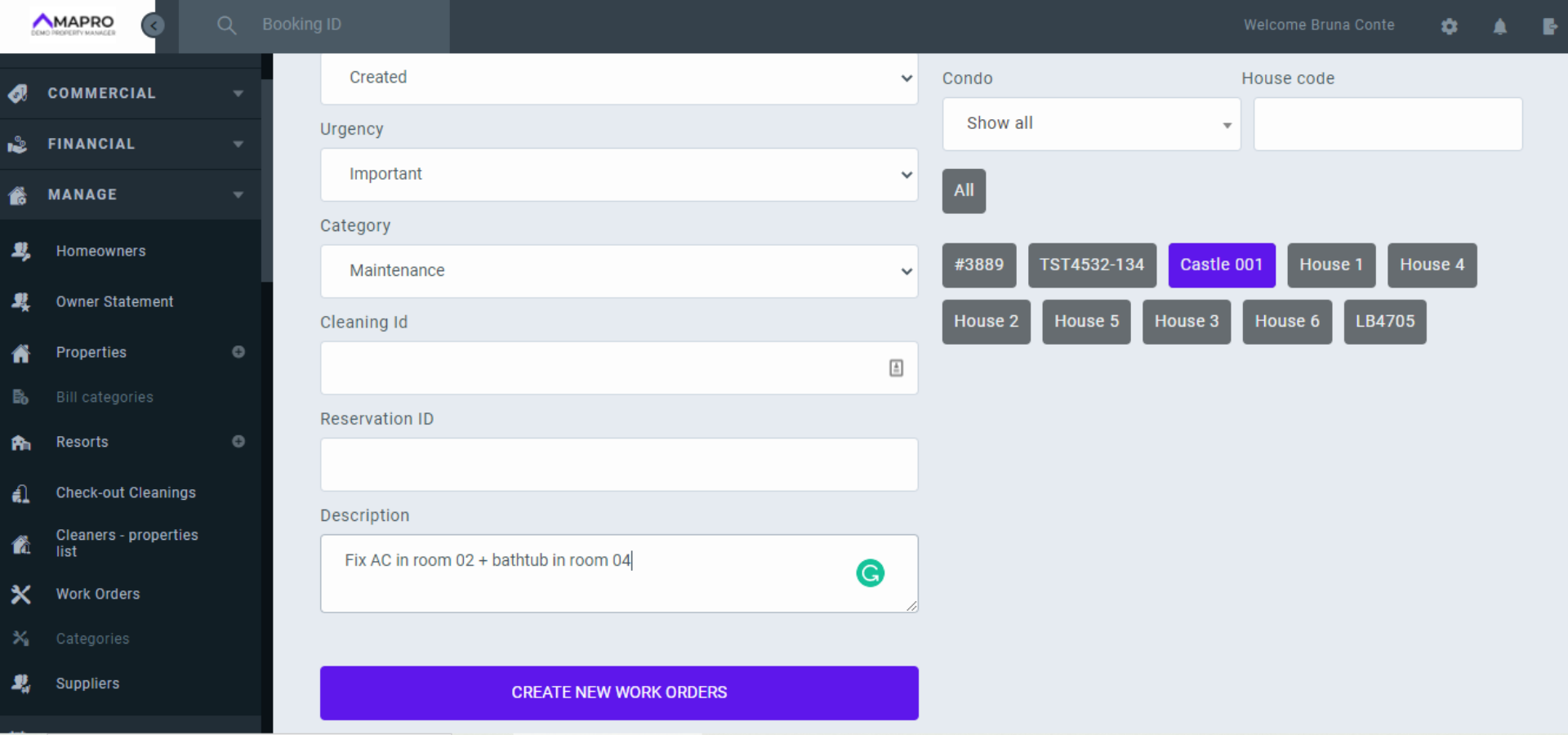
Enter the work order details, following the instructions below:
After filling-out the page, click on "Create."
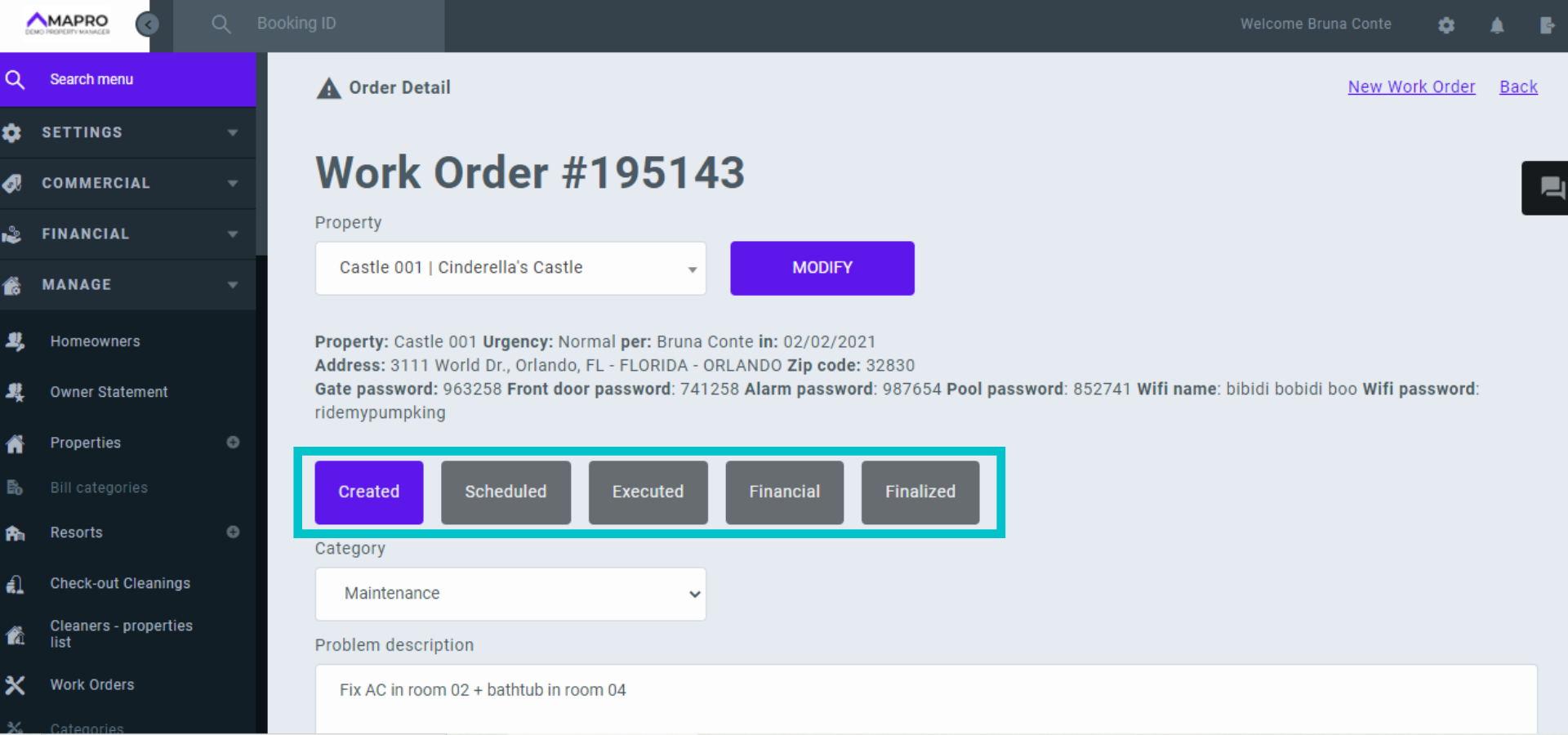
After you click on "Create New Work Order," the system opens a screen with 5 tabs: Create, Schedule, Execute, Financial, and Finalize.
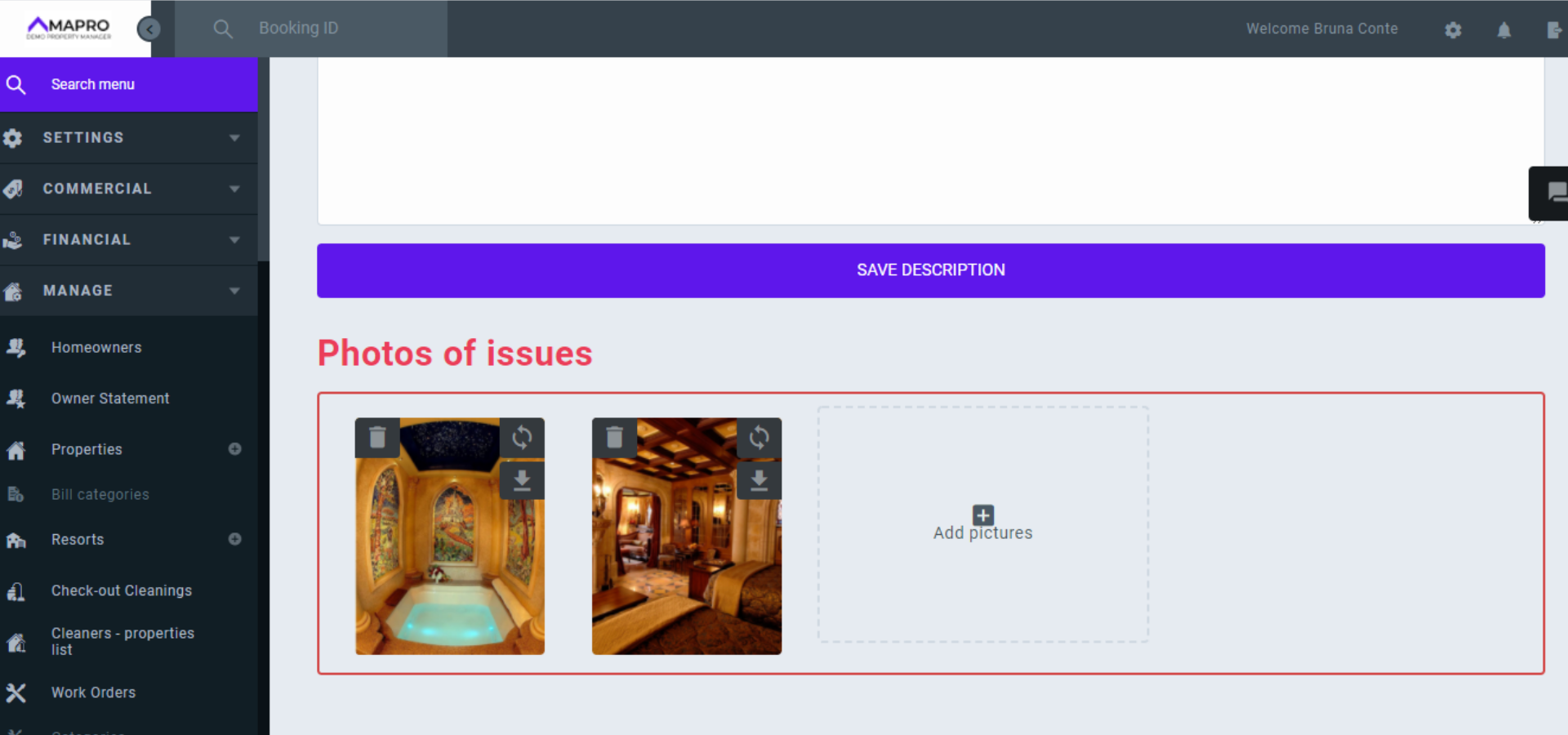
The tab "Create" contains the information registered on the first step, and you can add more details and photos to explain the problem. To add photos, click on the indicated area to upload files available on your device, or drag the file and drop it on the area.
Once you have finished creating the work order, you can move on to the next tab and schedule it. If you do not have the information to do it yet, save the order and schedule it later.
Read more:
How to enter the financial details and finalize a work order



