
loading.. Please Wait
After the work order is executed, you must inform who should pay for possible costs and then finalize the order.
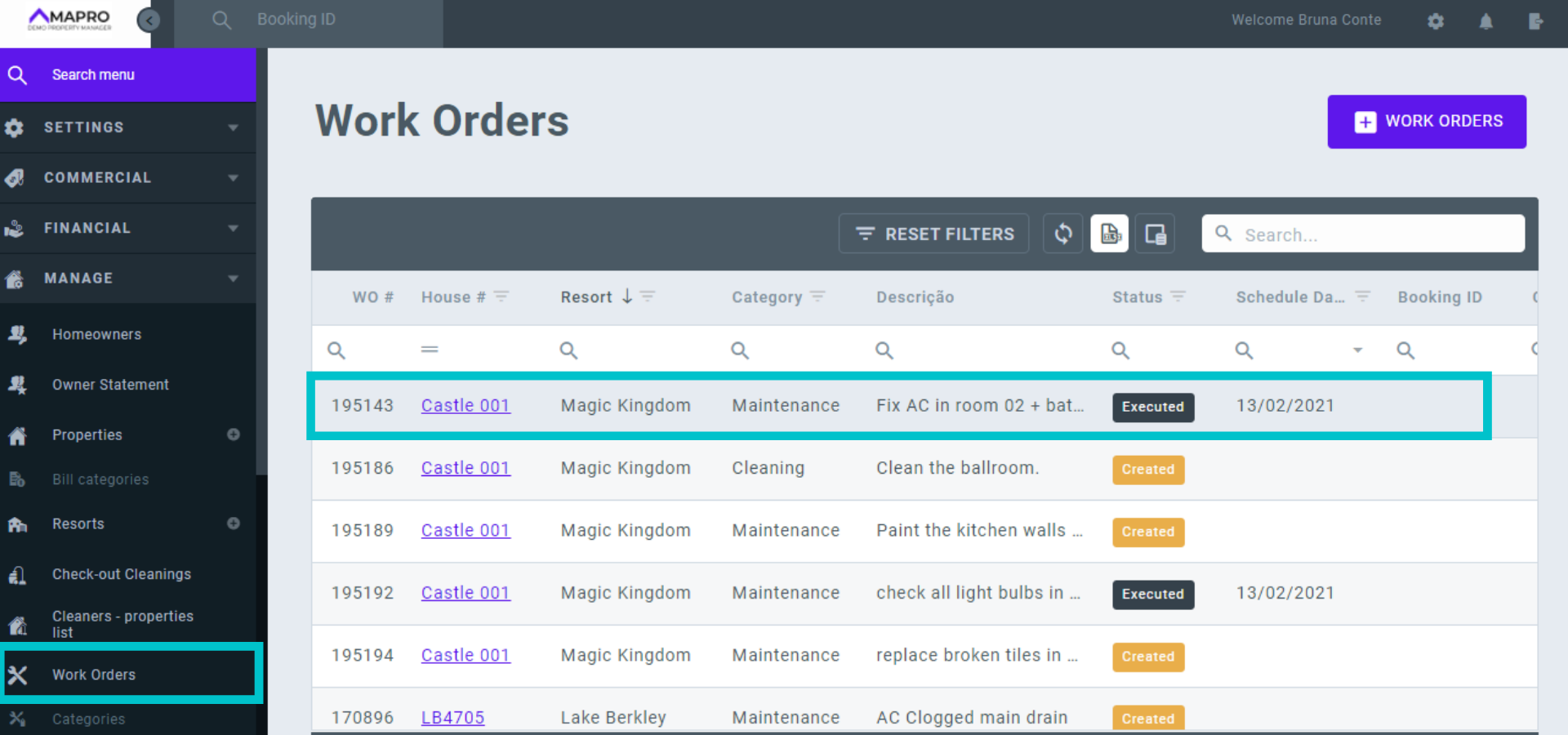
To enter the financial details of the work order, go to MENU > MANAGE > WORK ORDERS and find on the list the order you want to edit. Use the filters to guide your search. Click on the line to open the order.
Note that the work order status must be "executed."
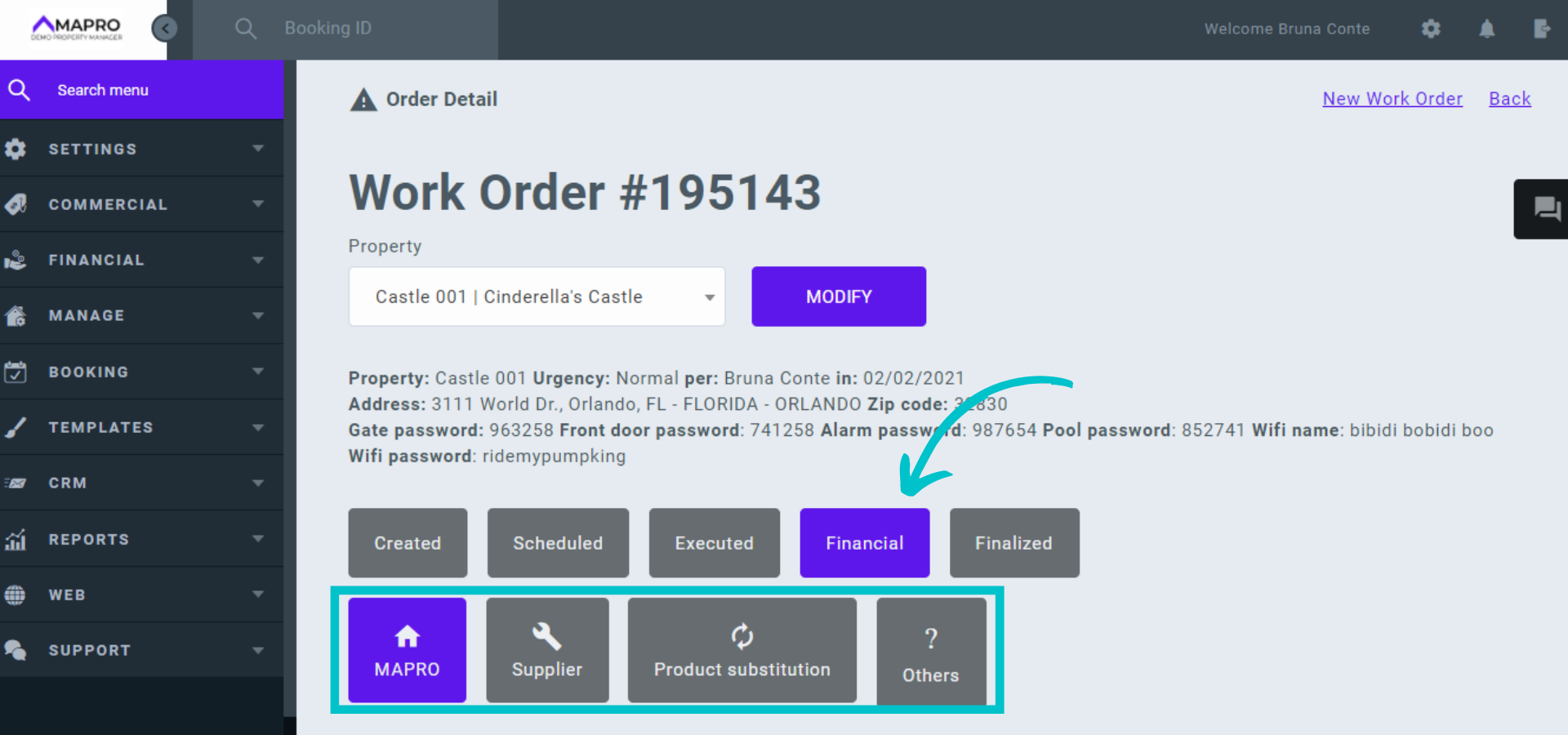
Open the work order and click on the "Financial" tab. Right below the tabs, find the options to categorize the order correctly: "MAPRO (you will see your company's name here), Supplier, Product Substitution, and Other." For example, if you are paying a supplier for the service, click "Supplier" so you can inform the amount to be paid to the vendor and the amount to be charged from the homeowner.
When you choose the category, new fields open up. Fill them out following the instructions below:
Example: On the image below, we can see the following:
- Item 1: air conditioner cleaning product + cleaning service + "collect tax" option checked;
- Item 2: bathtub repair service + "collect tax" option NOT checked;
In this case, taxes will be collected on the air conditioning cleaning product and cleaning service, but not on the bathtub repair service.
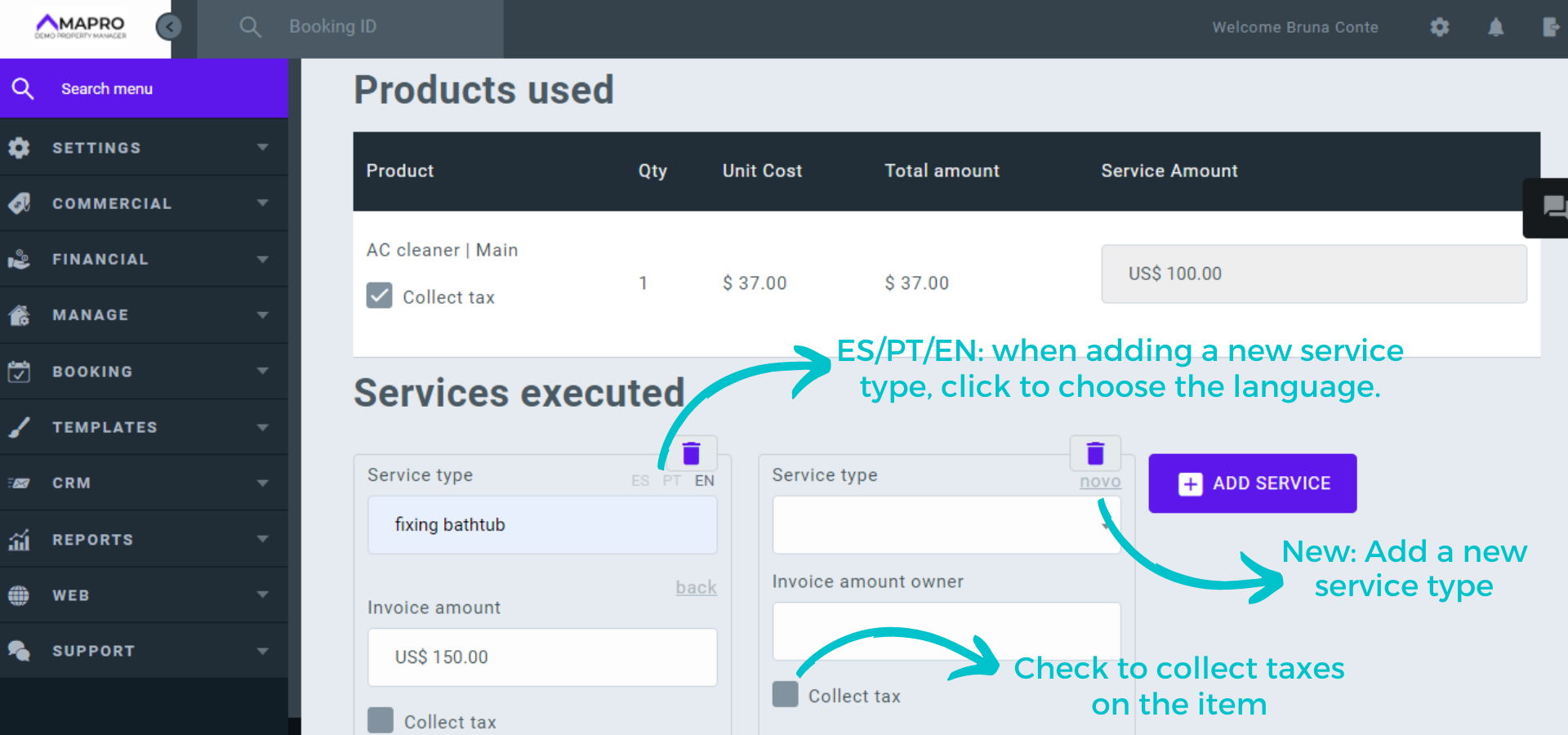
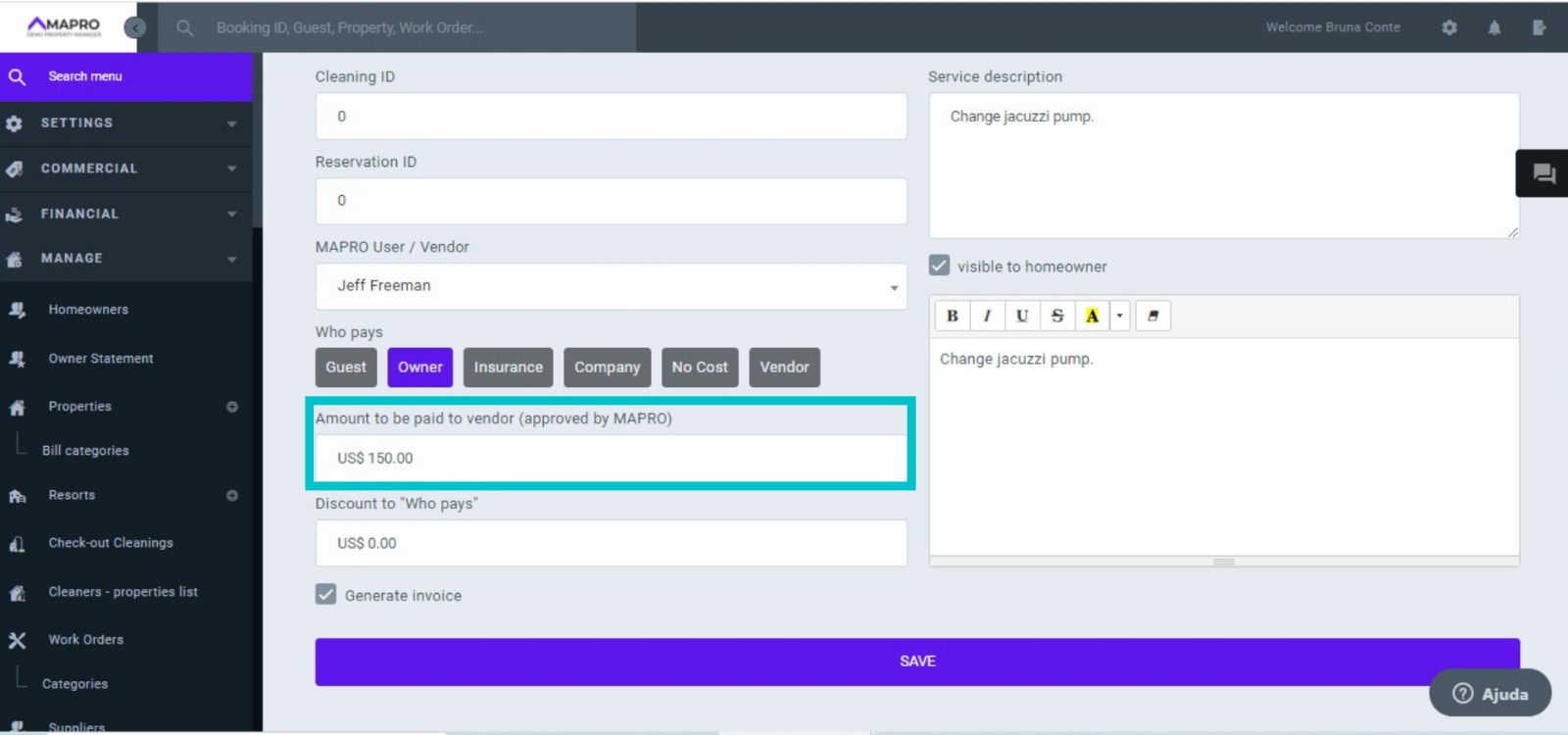
Important: Click "Add Service" and inform the amount to be charged from the homeowner in the field "Invoice owner; In the fields at the bottom of the page, inform the amount to be paid to the vendor (which can be different from the owner's invoice).
a) Guest: choose this option if the guest should pay the work order. If you have linked the reservation ID to the order, the price and description of the service are informed on the reservation statement, along with other expenses like the check-out cleaning. The work order is also linked to the guest's personal information, like phone number and credit card, making it easier for the property manager to charge;
b) Homeowner: select this to charge the owner and register the information on their statement;
c) Insurance: click on this option if the insurance will pay for the service;
d) Company: choose this when your property manager is paying for the work order;
e) No cost: select if it is a courtesy or a free service added as a work order, so it is informed on the homeowner's statement for accountability.
f) Supplier: if a supplier pays the service, inform the cleaning ID, and the cost will be listed alongside the payments due to the supplier.
Click on “Save.”
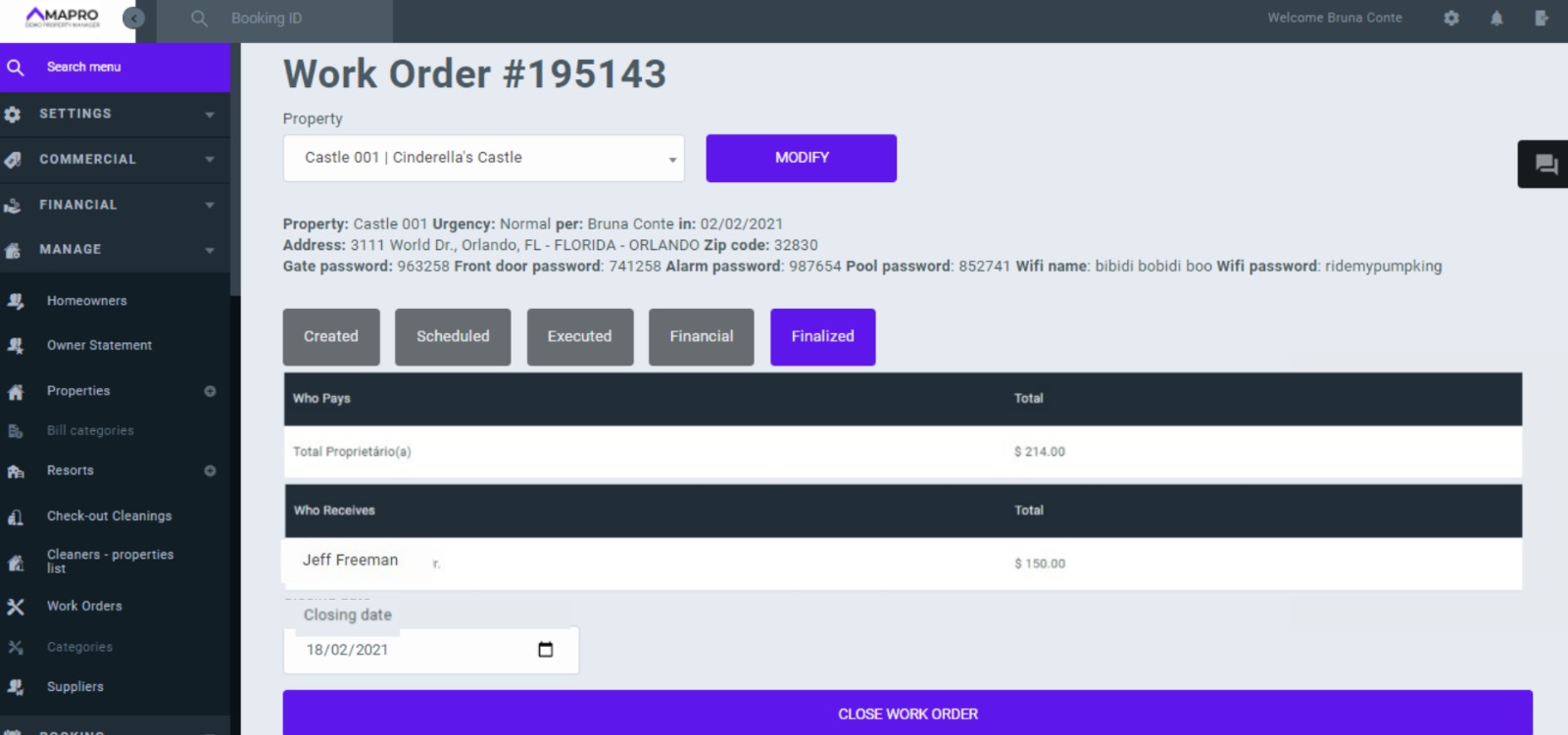
To finalize the work order, after entering all financial details, click on the "Finalize" tab.
Check if all prices are correct, and inform the "Closing Date," which is when this information will be issued on the homeowner's statement; it can be different from the date you are actually closing the order.
After that, click on "Finalize Work Order." The work order status will be changed to "Finalized."
Read more:



