
loading.. Please Wait
The “Full Calendar” or “Property Calendar” allows you to see, on each property, the available dates, details of reservations and blocks, and the prices per night.
On this page, you can also make new reservations and blocks, as well as set new rates and change the minimum number of nights on selected dates - these settings overwrite the rules set in “Standard Pricing” and “Pricing Seasons.”
There are three ways to access the Property Calendar:
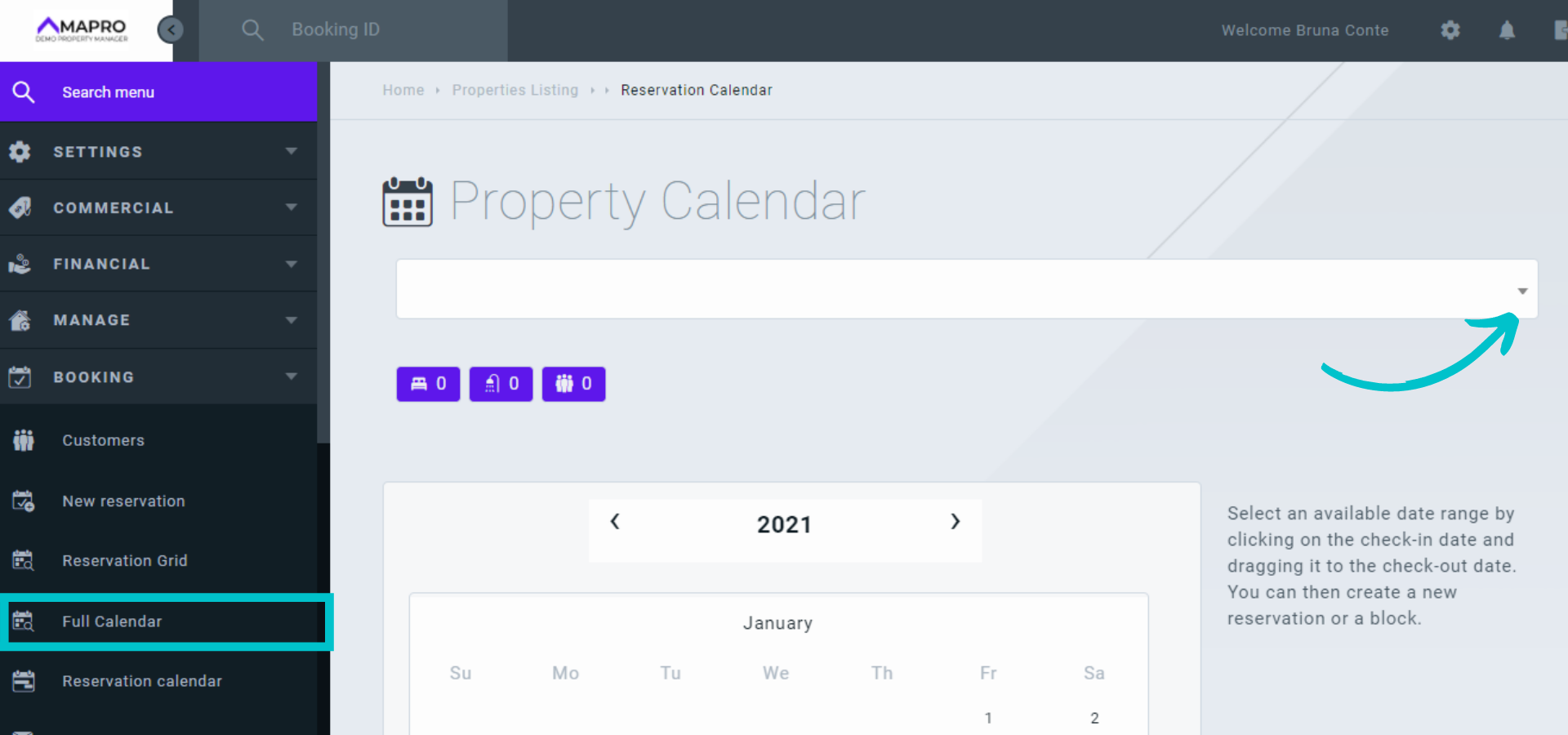
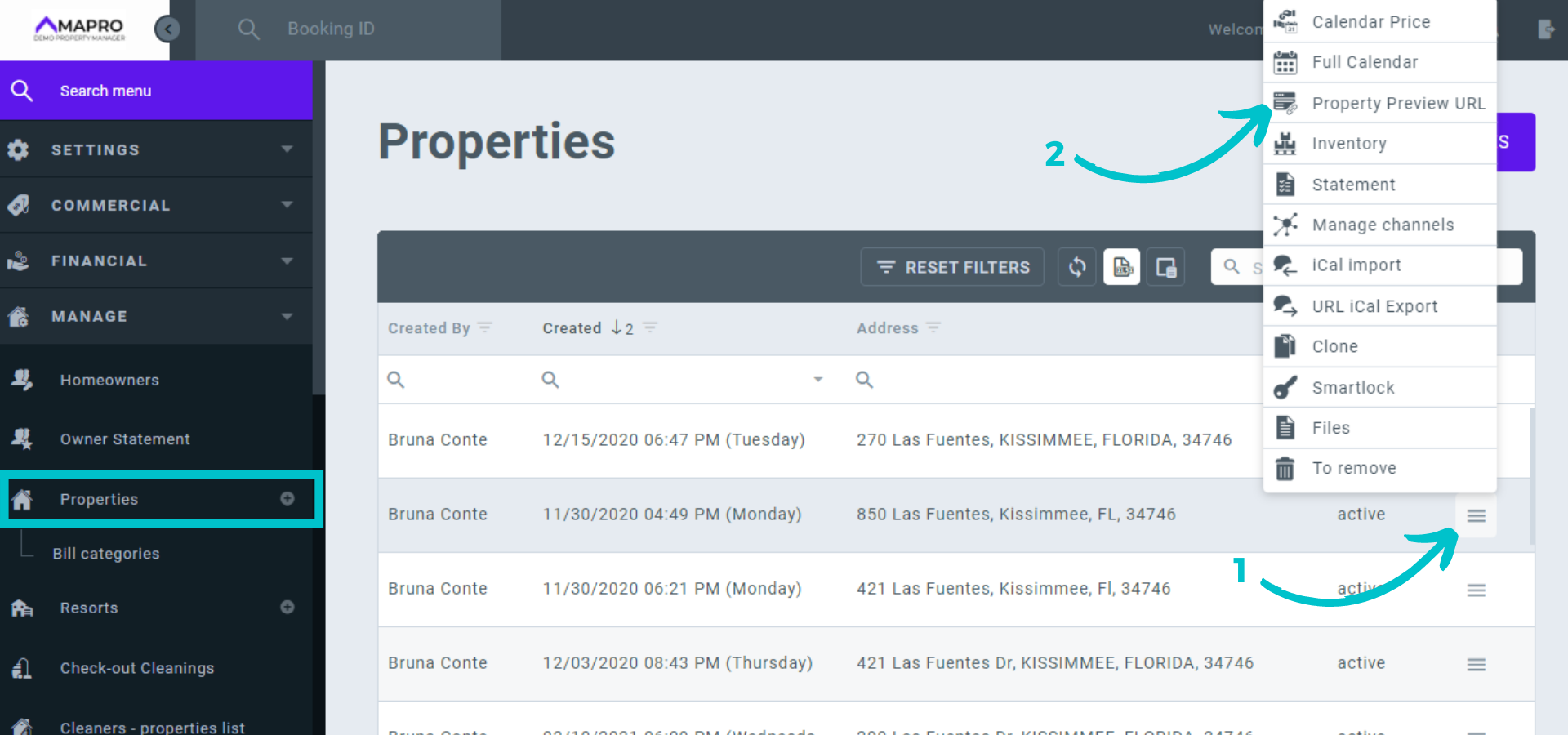
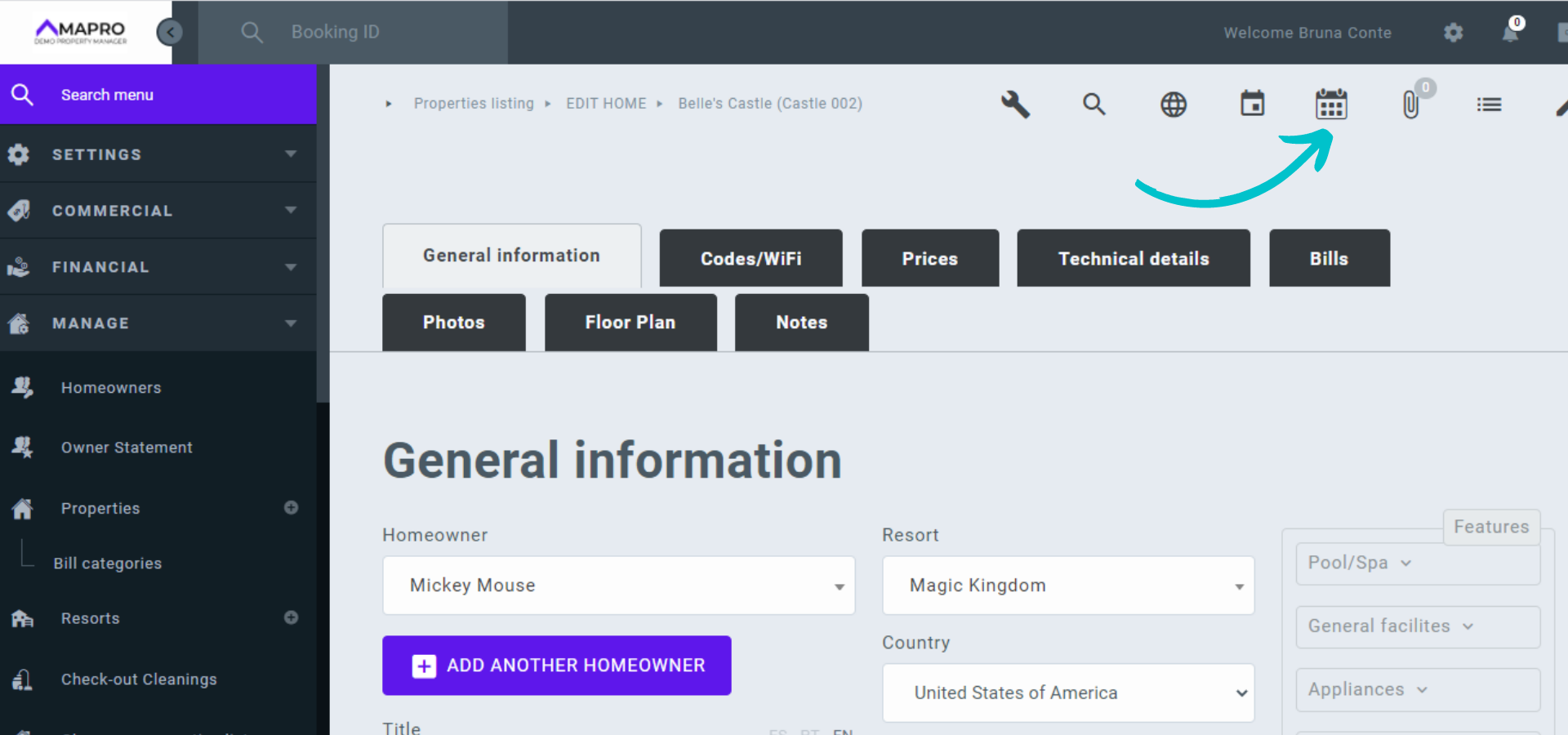
With the property calendar open, you will find below each date the price for the night and the minimum number of nights. In the image below, we have for March 15th the information “$920 | 3,” so the rate for this night is $920.00, and it is necessary to book at least 3 nights.
The dates already booked are marked with the color of the integrator that created the reservation. You can hover over the reservation to see details, as well as check the integrator colors in the caption at the bottom of the page. Gray dates are blocked, and white dates are available.
Click and drag the mouse to select the dates you want to edit - in the image below, we selected March 25th, 26th, and 27th. Note that a window opens on the right, displaying the information for the chosen dates (rates, fees, services, minimum stay, etc.).
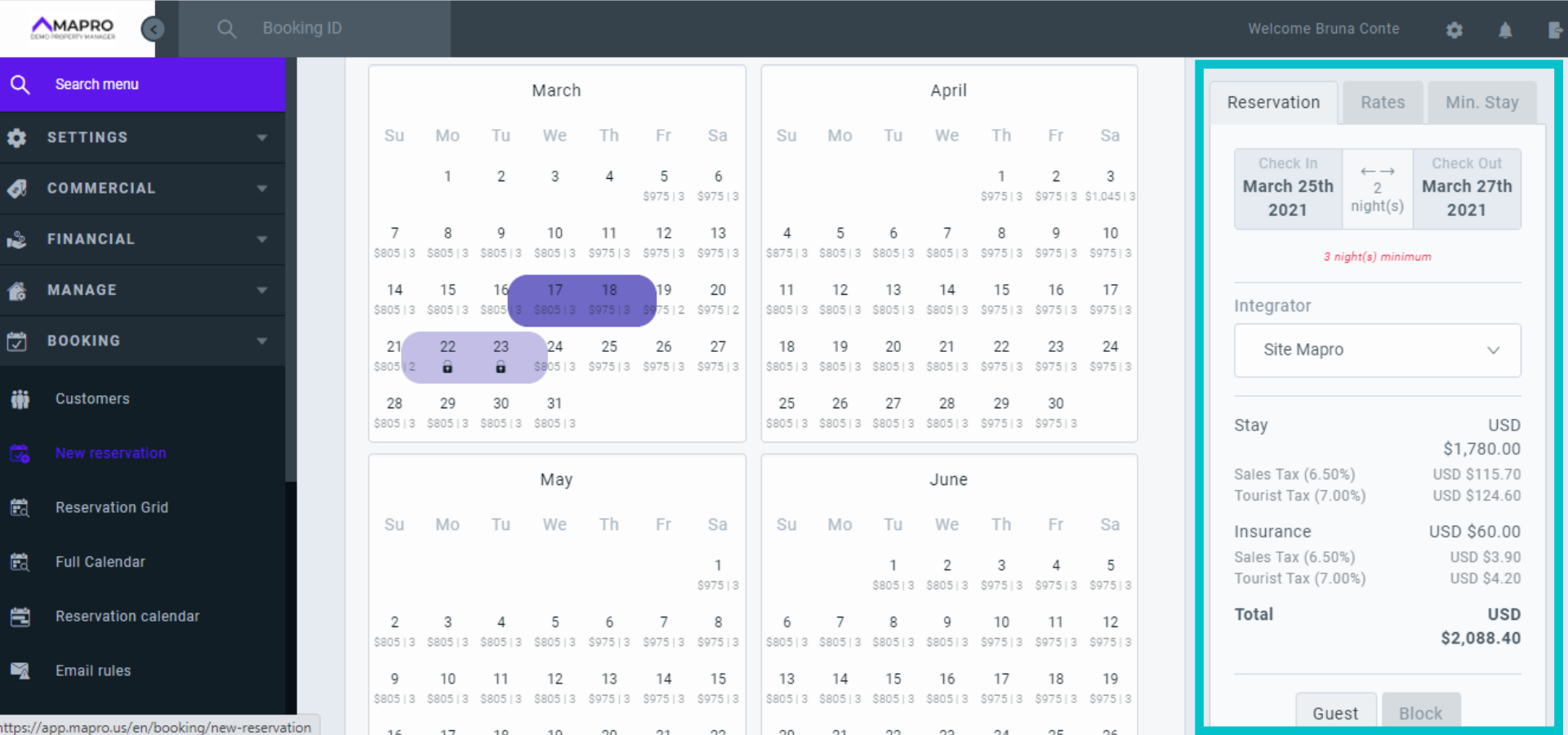
In the new window, we see three tabs at the top: Reservations, where you can create reservations or blocks; Rates, where you edit the prices only for the selected dates; and Min. Stay, where you change the minimum number of nights only for the selected dates.
To create a reservation, enter the guest's name and email in the “Reservations” tab, scroll down, and click “Book.” Then click “View Reservation” to enter the remaining information or cancel the reservation.
Learn more about How to Create a Reservation
To create a block, select the Block option in the “Reservations” tab, enter the reason why you are blocking the property in the "Note" field, and then click “Block.” Click “View Block” to edit, cancel, or turn it into a reservation.
Learn more about How to Create a Block
To edit the rate, click the “Rates” tab, enter the new price, and click “Update.” The new price will apply only to the days you selected, and the new rule will overwrite previous default pricing, seasons, or promotions settings.
To edit the minimum nights, click the “Min Stay” tab, enter the new minimum, and click “Update.” The new minimum stay will apply only to the days you selected, and the new rule will overwrite previous default pricing, seasons, or promotions settings.
Read more:



