
loading.. Please Wait
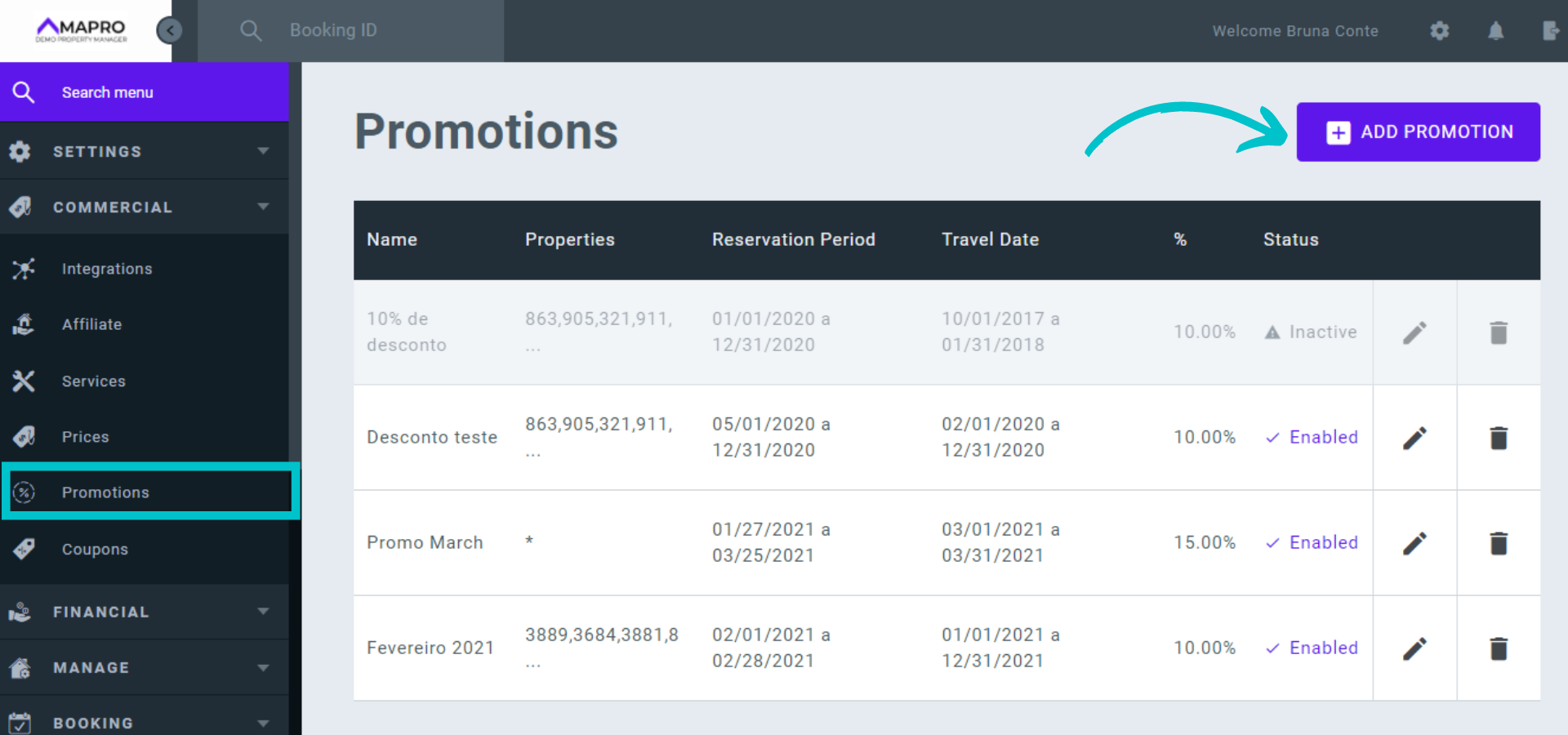
To create a promotion, go to MENU > COMMERCIAL > PROMOTIONS, and then click on "Add promotion."
On this new screen, enter the information of your promotion, following the instructions below (fields marked with an asterisk are mandatory):
Example:
| Promotion | Settings |
| If the guest books a property between February 01 and 28, 2021, they get a 10% discount on the nightly rates. The stay dates are defined when creating the reservation, respecting the rules for a minimum number of nights, and it may happen between February 1 and December 31, 2021. | Reservation start date: 02/01/21 |
| Reservation end date: 02/20/21 | |
| Trip start date: 02/01/21 | |
| Trip end date: 12/21/21 |
Example of reservations to which the promotion would apply:
Example of reservations to which the promotion would NOT apply:
Example: Property X has one nightly rate price Monday to Wednesday and another one Thursday to Sunday. Therefore, the rule for a minimum number of nights may not be the best strategy. By setting the "stay cost" as $1000.00, the reservation's total amount on nightly rates must be over $ 1000.00 to get the discount, and the days of the week do not interfere.
Example:
| Promotion | Settings |
| For stays between April 01 and 30, 2021, following the rules for a minimum number of nights, there will be a 10% discount on the nightly rates. The reservations must be created between February 01 and April 20, 2021. | Reservation start date: 02/01/21 |
| Reservation end date: 04/20/21 | |
| Trip start date: 04/01/21 | |
| Trip end date: 04/30/21 |
Example of reservations to which the promotion would apply:
Example of reservations to which the promotion would NOT apply:
Important: You can save the changes even if you have not selected the properties and integrators, but the promotion will not be applied if it was not set properly.
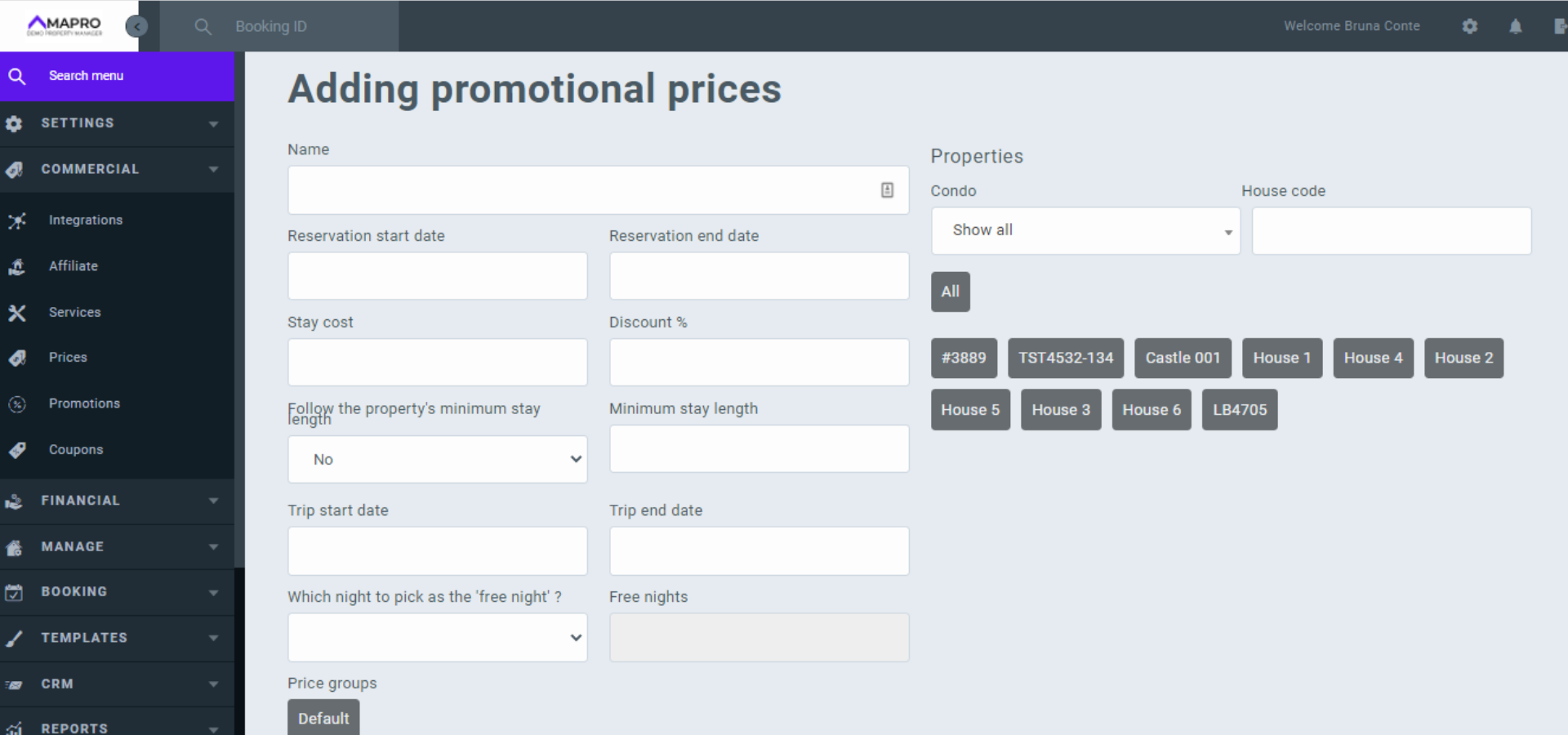
After completing all fields, click on "Save discount" at the bottom of the page.



