loading.. Please Wait
For users to access MAPRO in the language they prefer, you must choose between English, Portuguese, and Spanish in every registration. This is usually set when creating a new user, but it can be changed later as well.
Language settings work the same way to all users with access to the system: your company's staff, the cleaning team, the homeowners, the suppliers, etc.
Click here to read more about how to create a new user and set the language.
If you want MAPRO to send e-mail notifications in the language the recipient prefers, you should first write the messages in English, Portuguese, and Spanish.
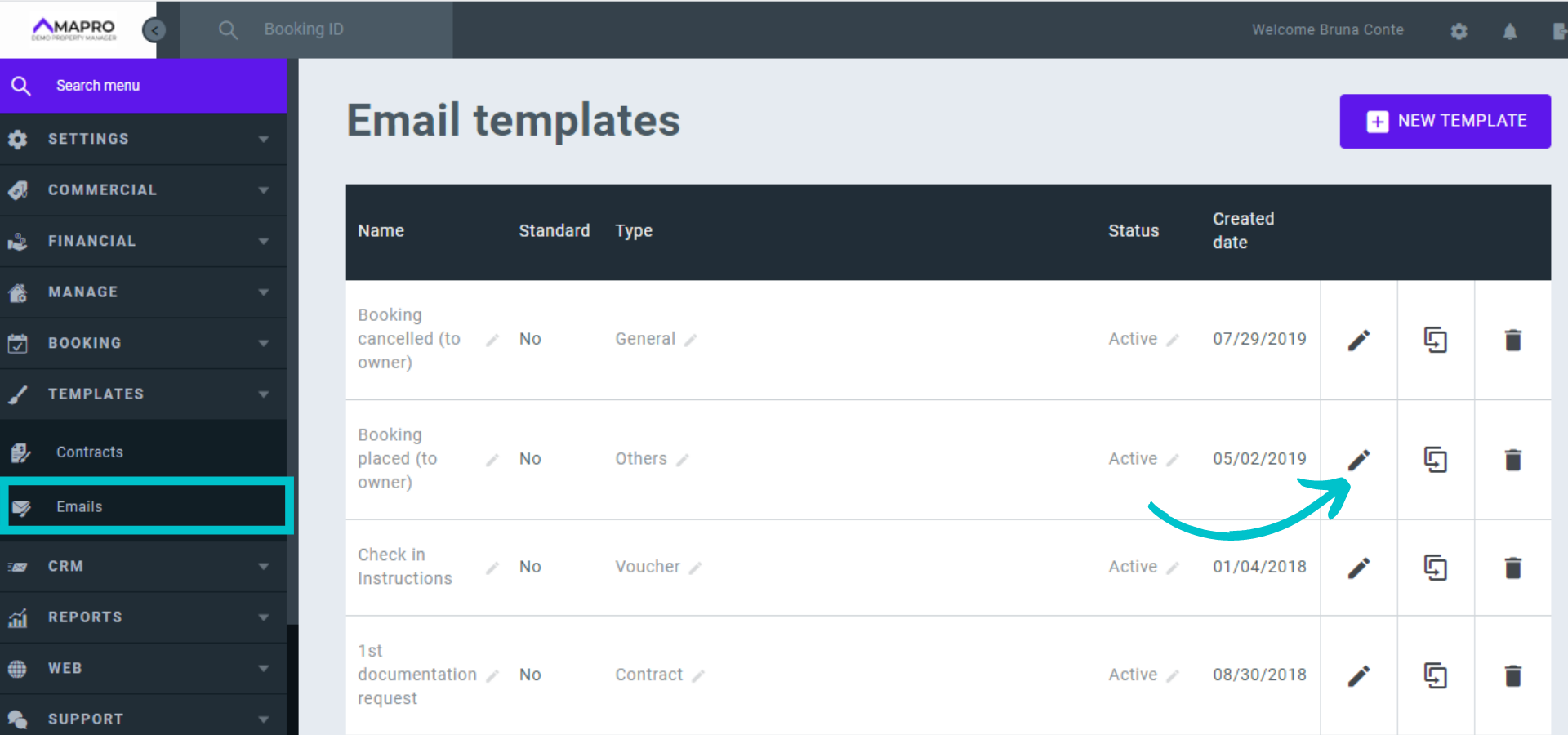
At MENU > TEMPLATES > EMAILS, you access the templates of all email notifications sent to all users.
Choose the template you wish to edit and click the pencil icon to open it.
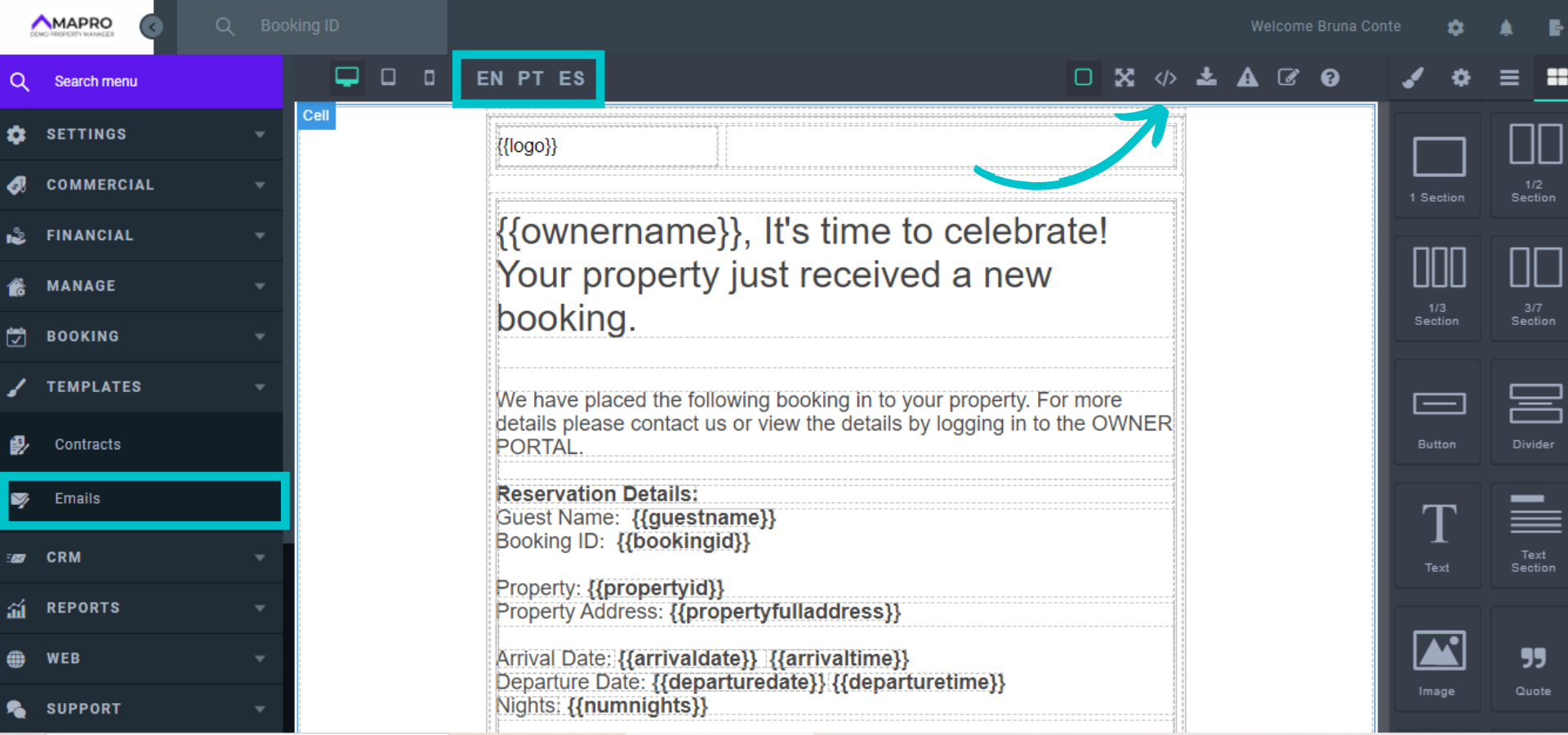
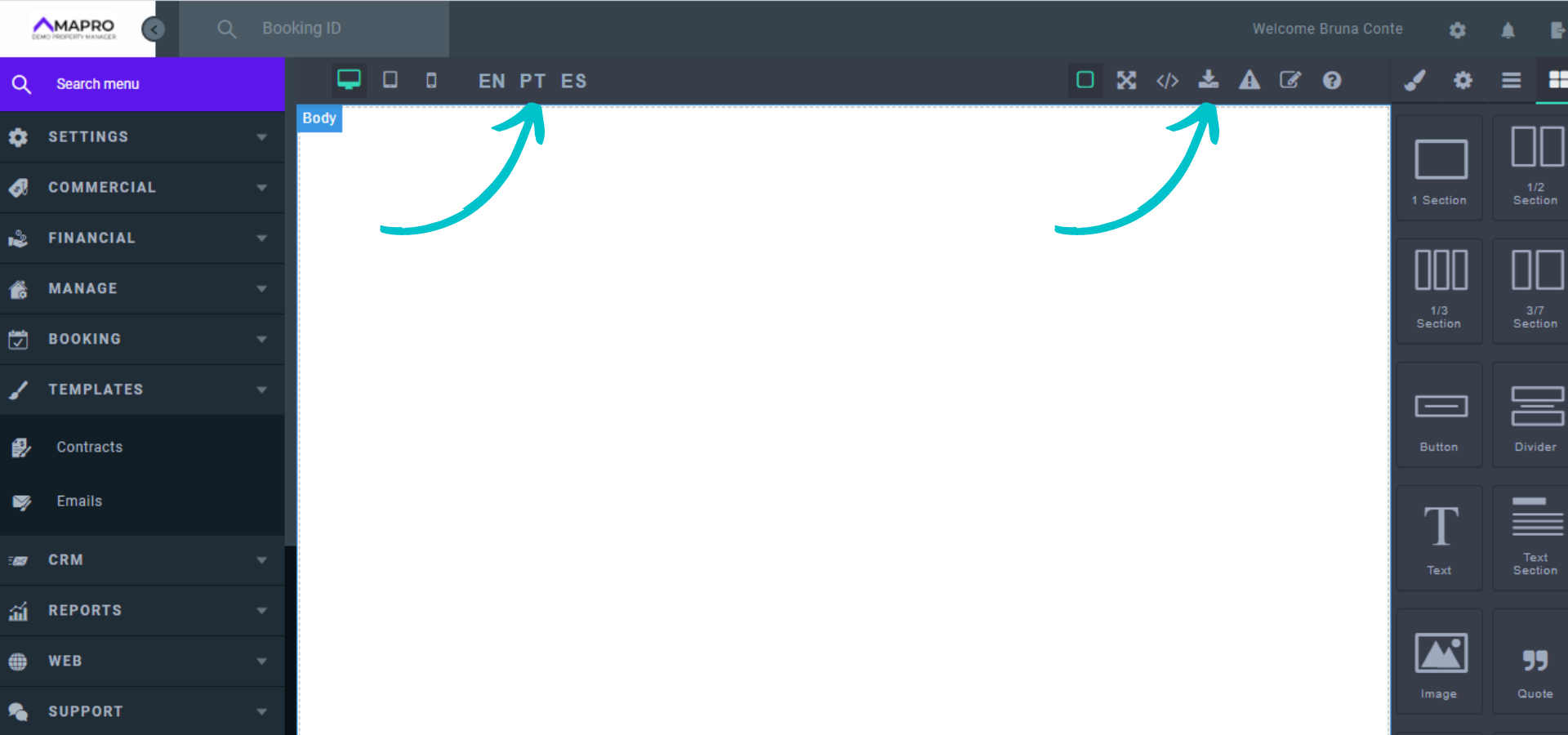
You will notice the abbreviations EN / PT / SP on the upper toolbar - by clicking on them, you open the template in English, Portuguese, and Spanish, respectively.
When the template is registered only in English, the recipients will always receive the messages in English. To enter the text in other languages, you must first copy the existing template. Step 1: Click "view code."
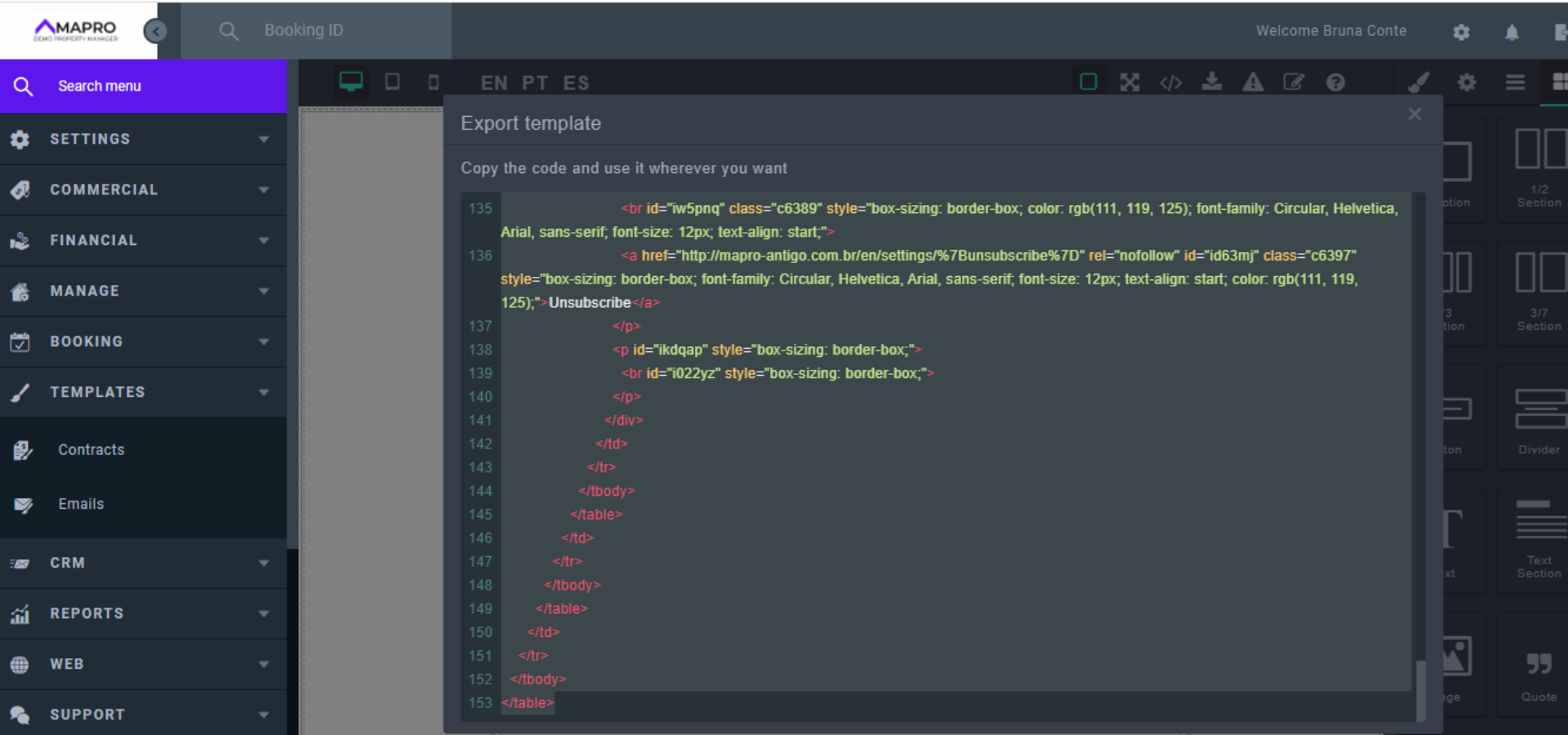
Step 2: Select and copy the code on the new window (select and then click with the right button on your mouse).
Step 3: After copying the code, click "PT" to enter the text in Portuguese or "SP" for Spanish. The new page will be blank. Click "Import Template."
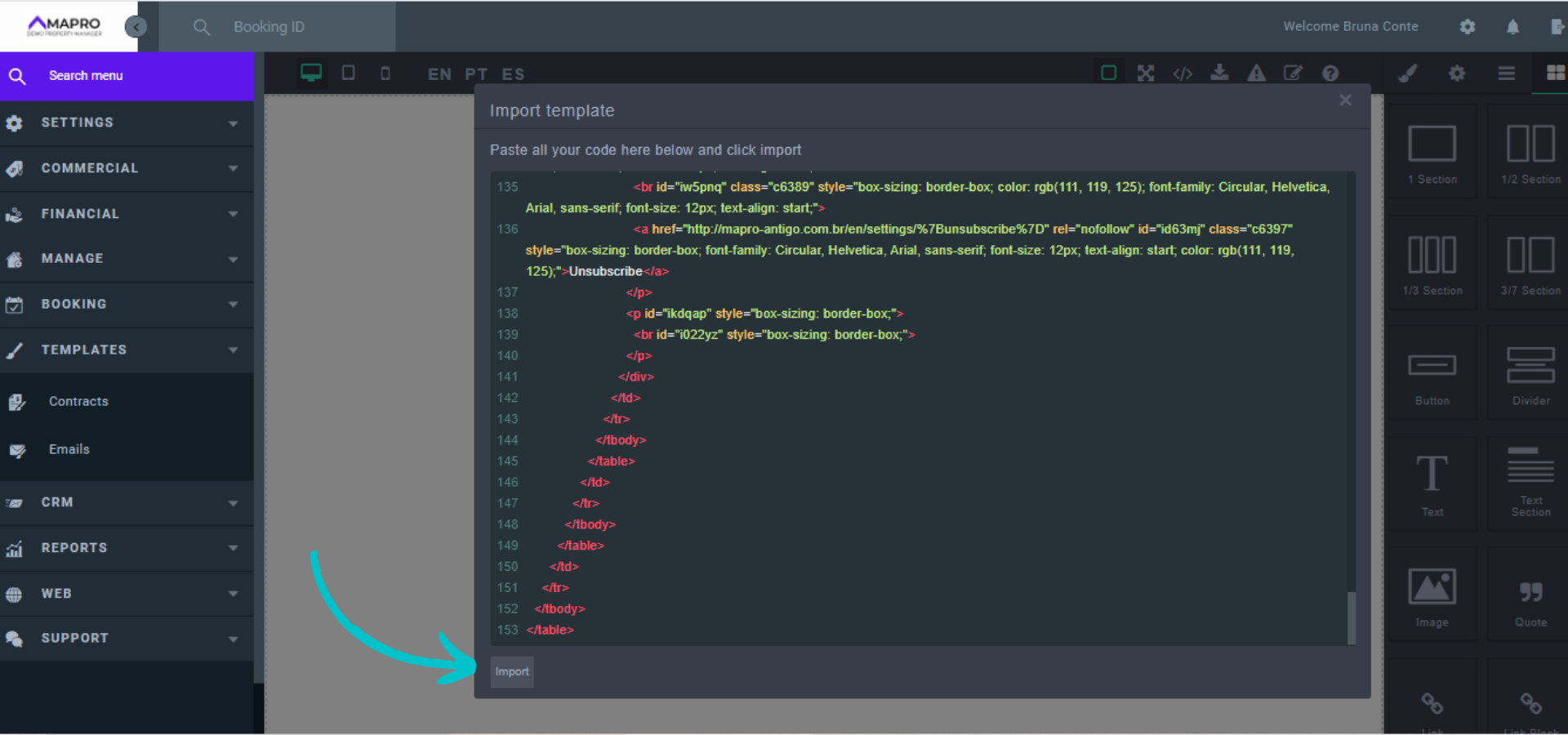
Step 4: delete any text in the "Import template" window, and then paste the code you copied. Click "Import" at the bottom of the window, on the left corner.
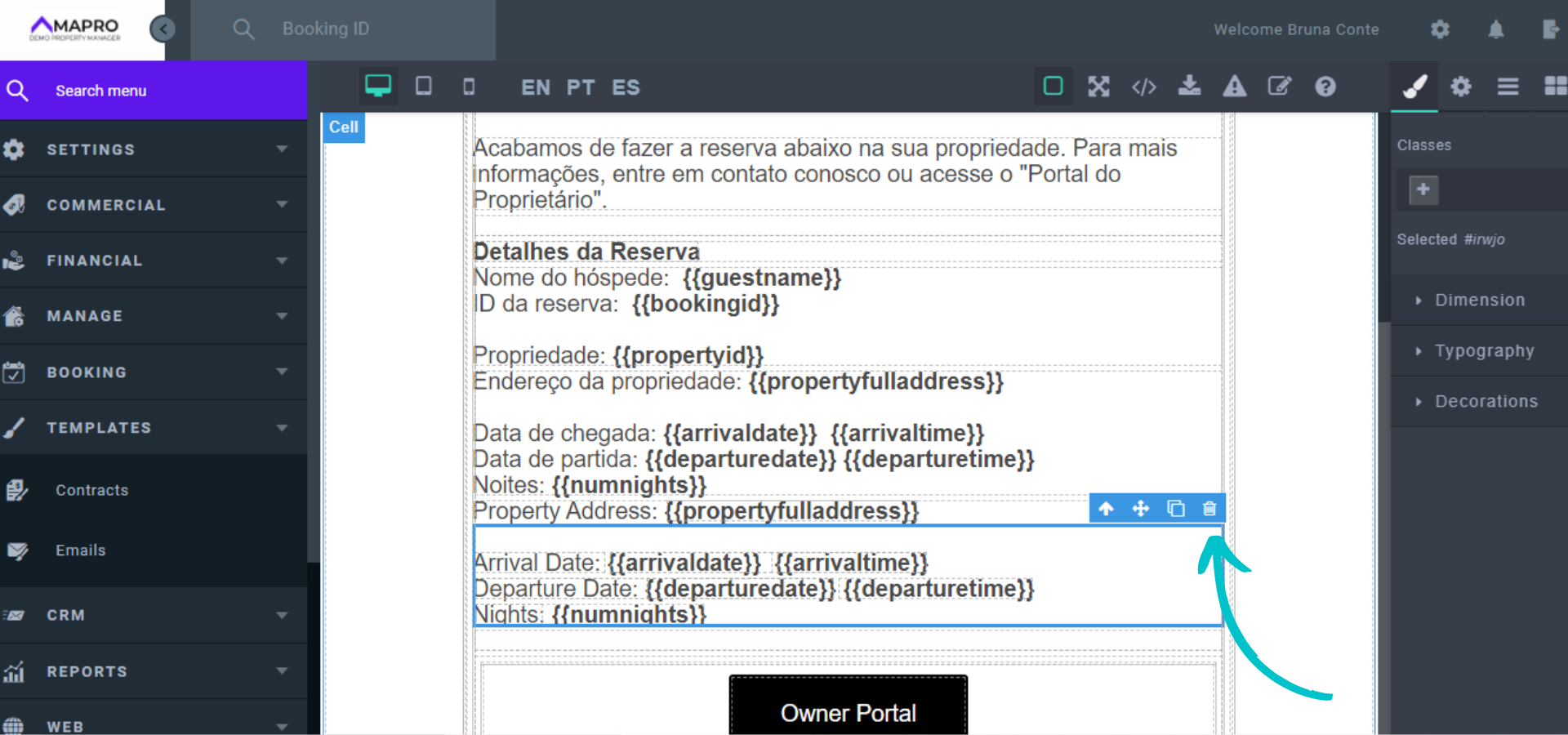
Once you have imported the template, click the cell to select it, and double-click the text to edit it.
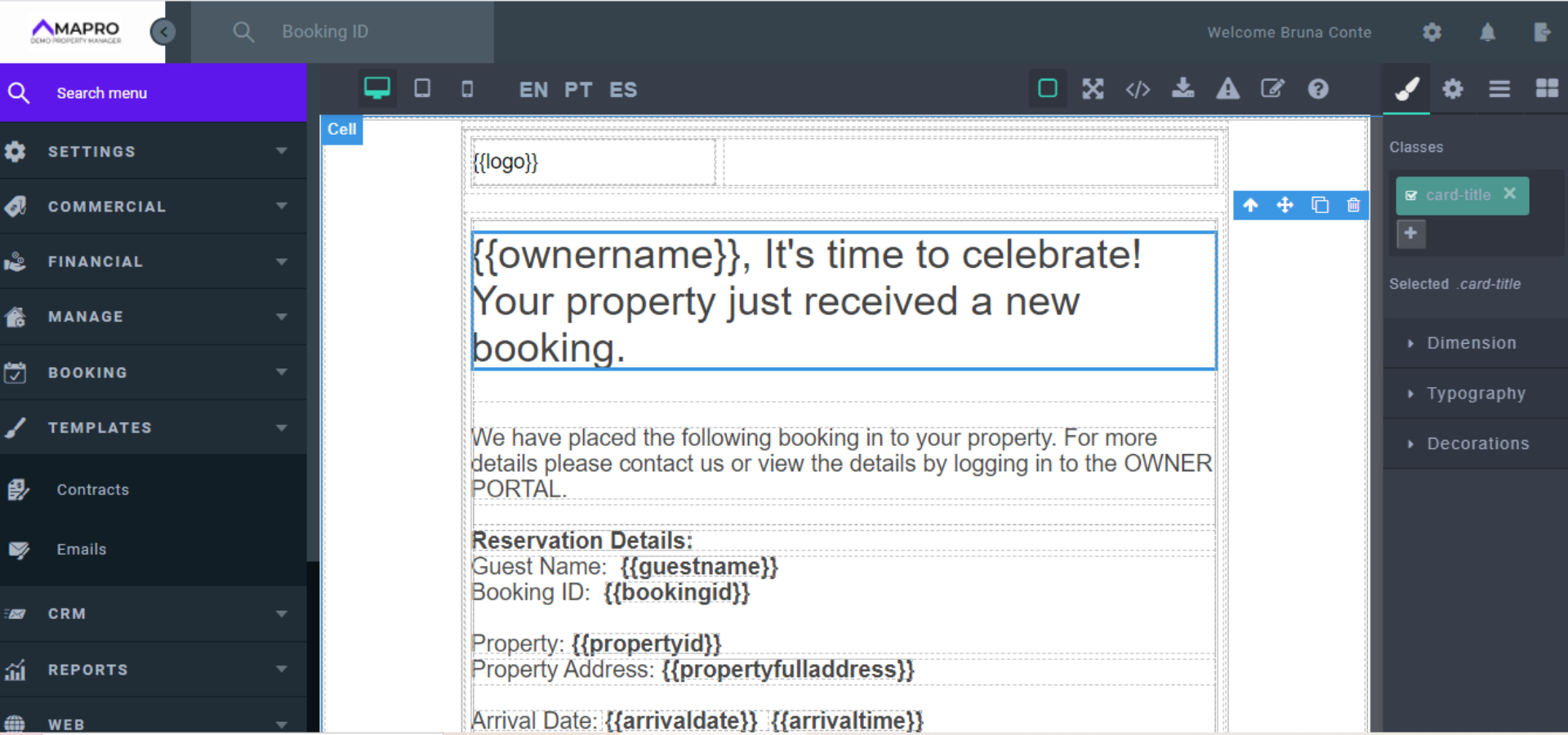
Important: do NOT change the information between the braces, such as in {{guestname}}. The system completes those with the reservation data.
Some template settings may not allow changes - you double-click the text but cannot edit it. When this happens, you can clone a cell that allows edition, enter the text and copy the codes between braces, then delete the cell in English.
You should first select the cell that and click "clone."
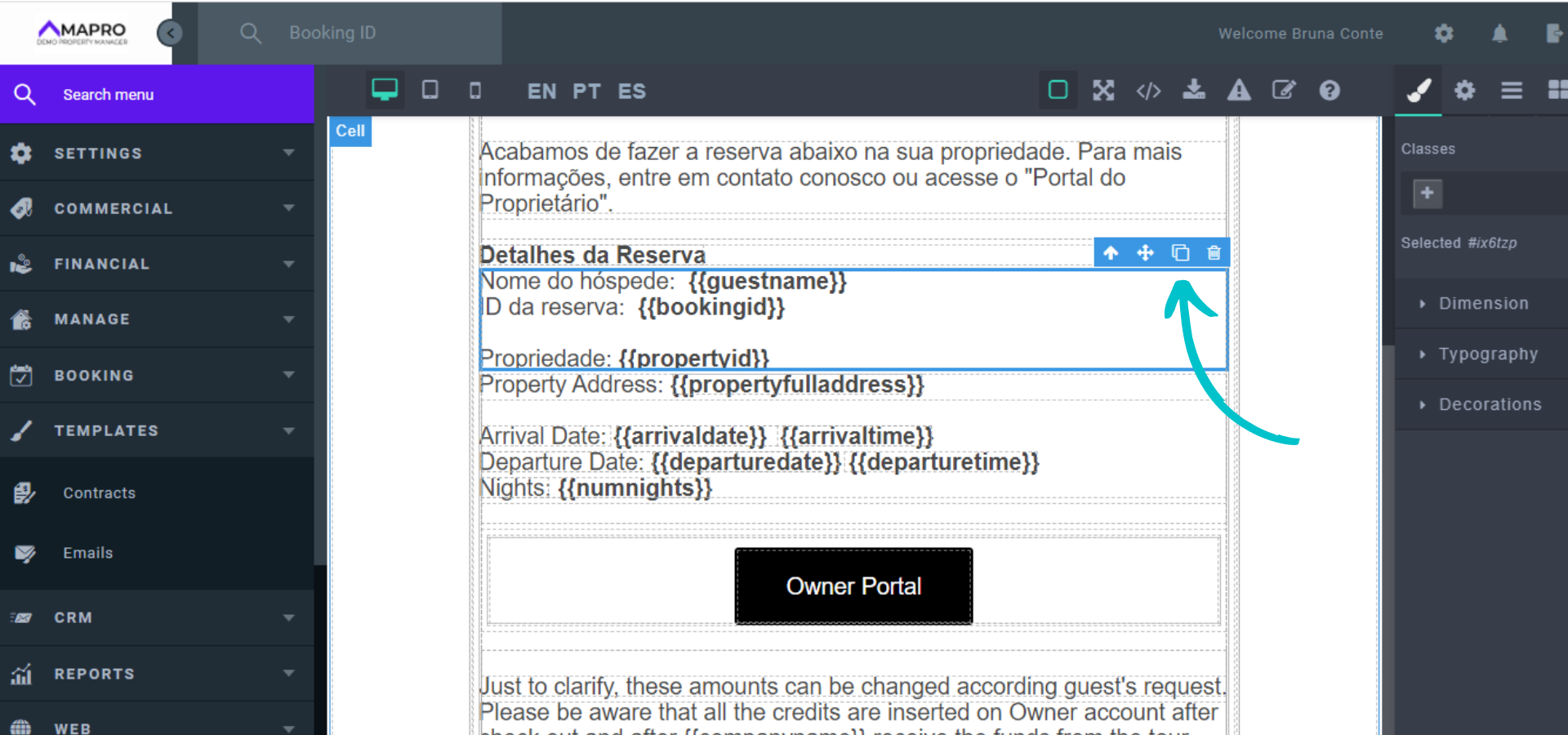
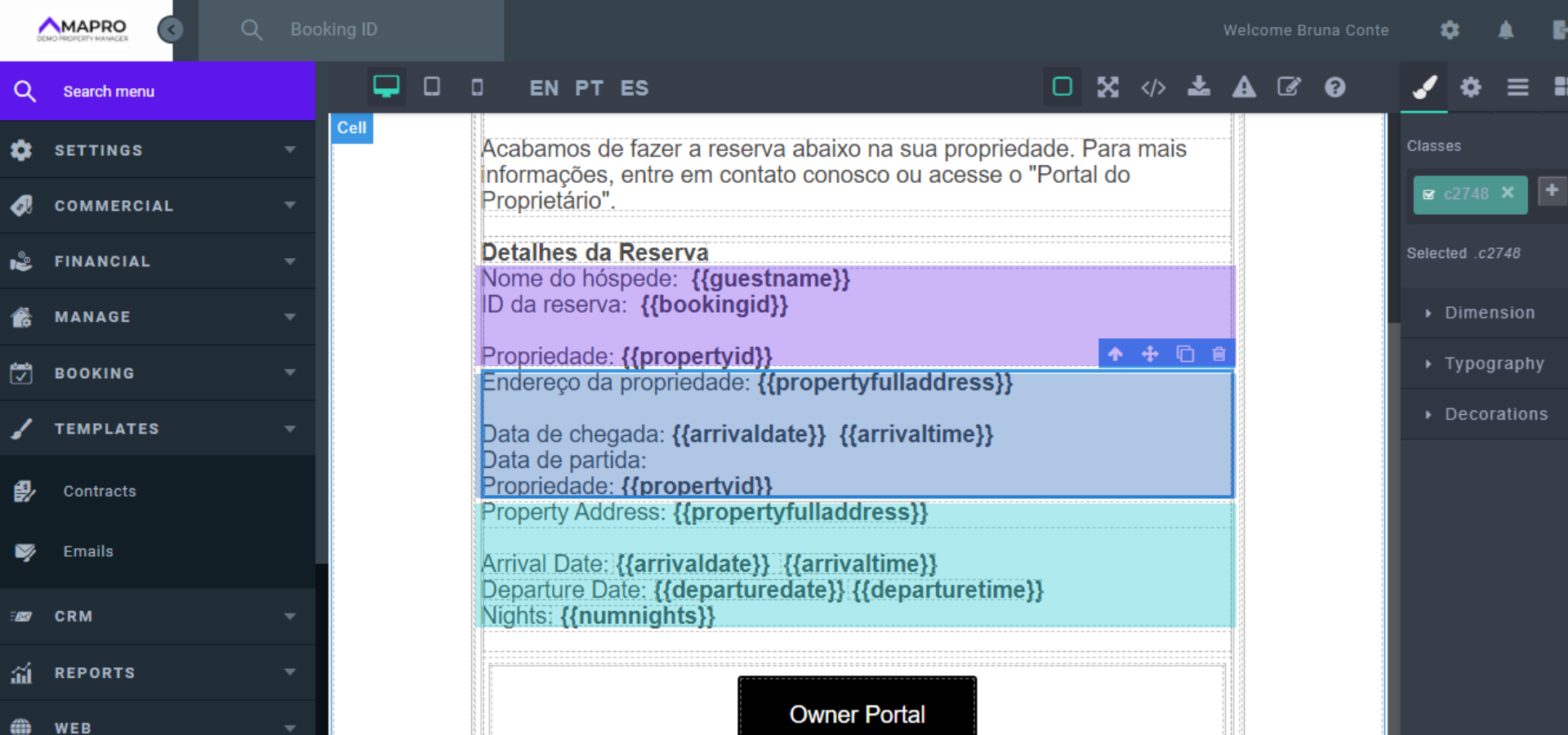
After that, edit the information, rewriting the text and copying the codes. In the image below, you can see the cells in different colors:
Purple: original cell.
Blue: clone of the purple cell, to which we are adding the information from the turquoise cell (rewriting the text in Portuguese and copying the codes).
Turquoise: the original cell that does not allow edition.
When you finish adding the information to the cloned cell, select the cell that does not allow changes and delete it.