
loading.. Please Wait
You can create Work Orders for any services you need in your properties - fixing something, renovating or painting a room, replacing a sofa, etc. You can also choose to create a single WO, or a recurring one, for those services that require a certain frequency. However, do NOT set regular check-out cleaning Work Orders because MAPRO automatically creates them in every reservation.
Keep reading to check how to create a Recurring Work Order.
Click here to learn more about how to create a Single Work Order.
Check the other articles on our Help Center to see how to schedule, execute and finalize Work Orders.
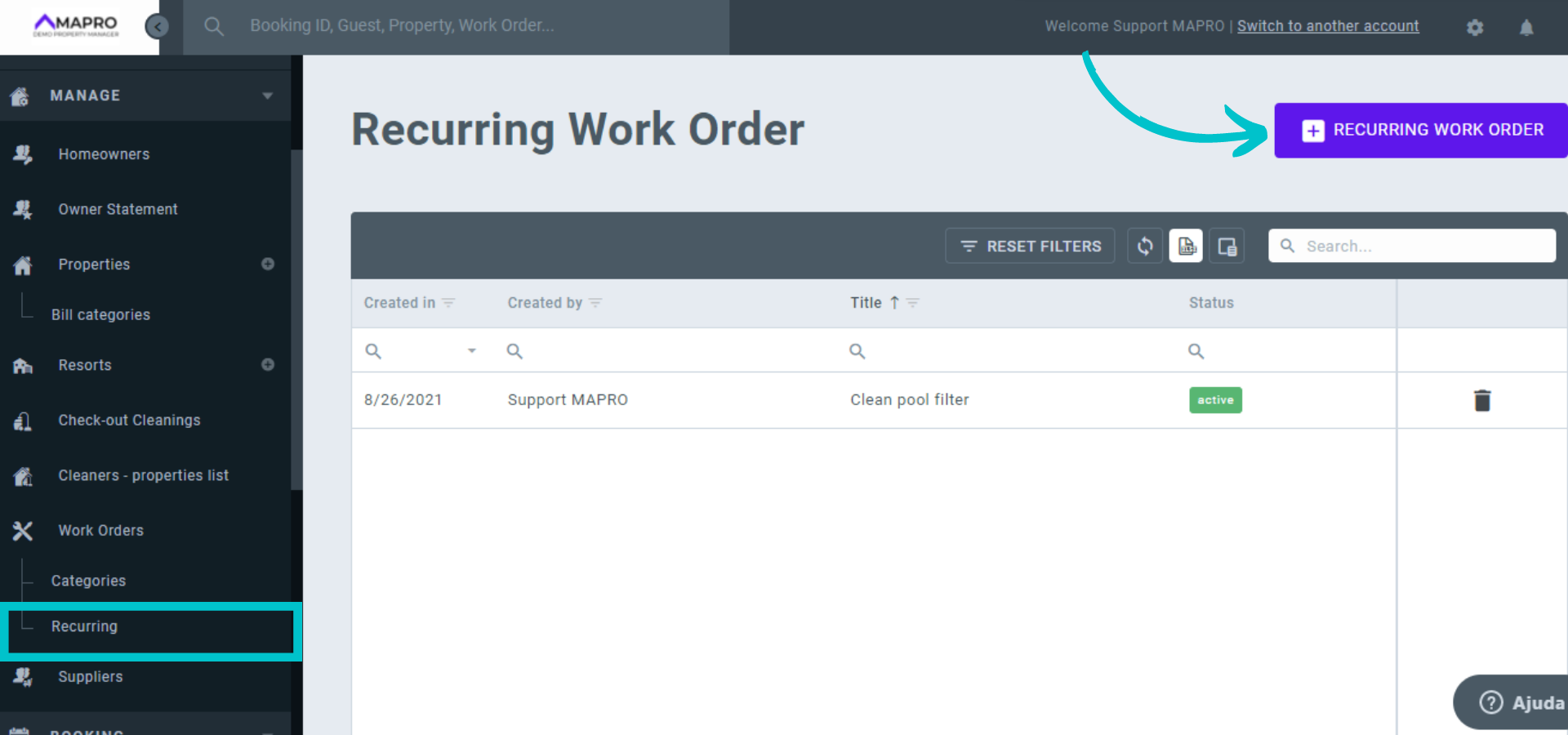
To create a recurring work order, go to MENU > MANAGE > WORK ORDER > Recurring and click "Add Recurring Work Order."
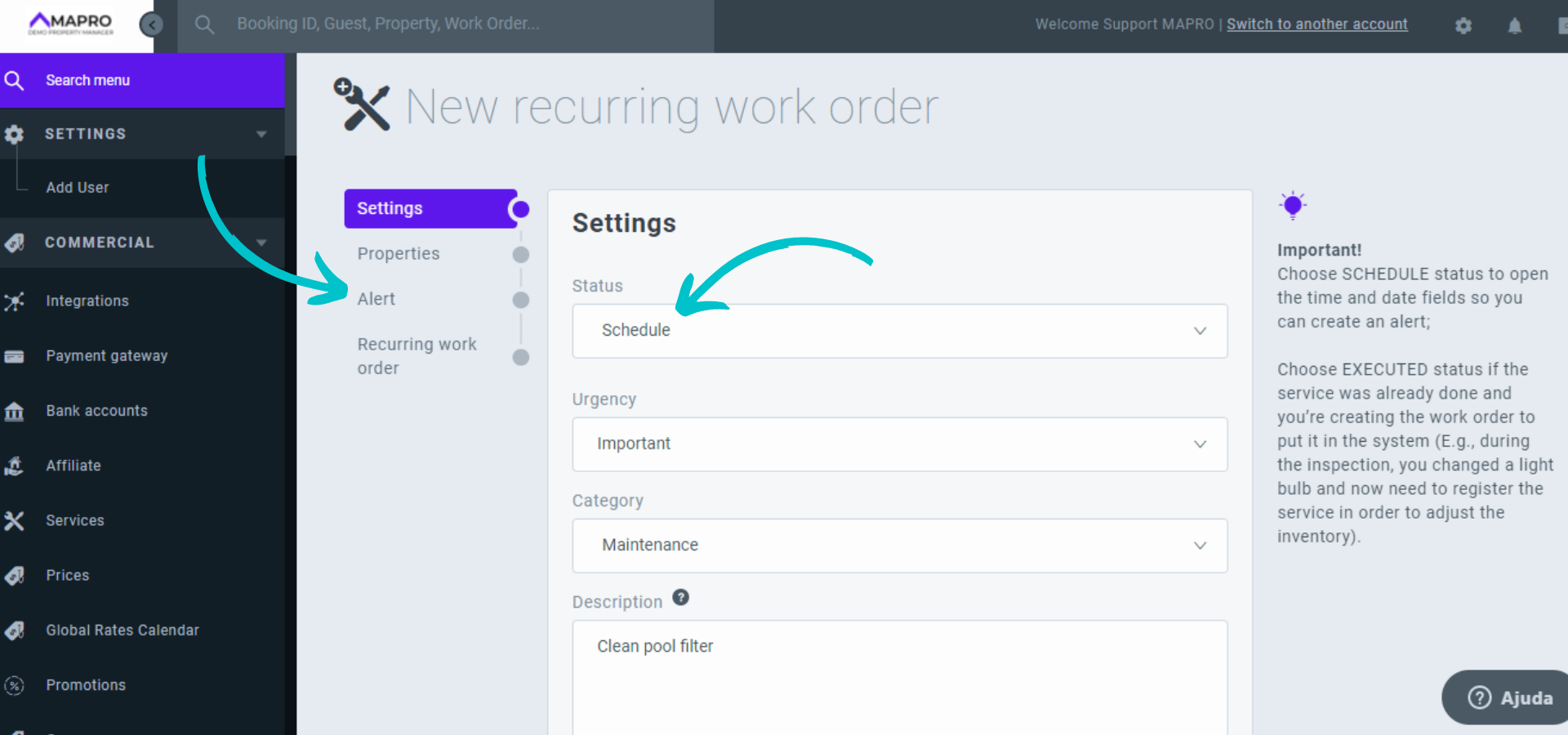
On the "Setting" tab, select "Status," "Urgency," "Category," and add a "Description" of the Work Order. By choosing the status "Schedule," the system opens a field for time and date so that you can create an alert.
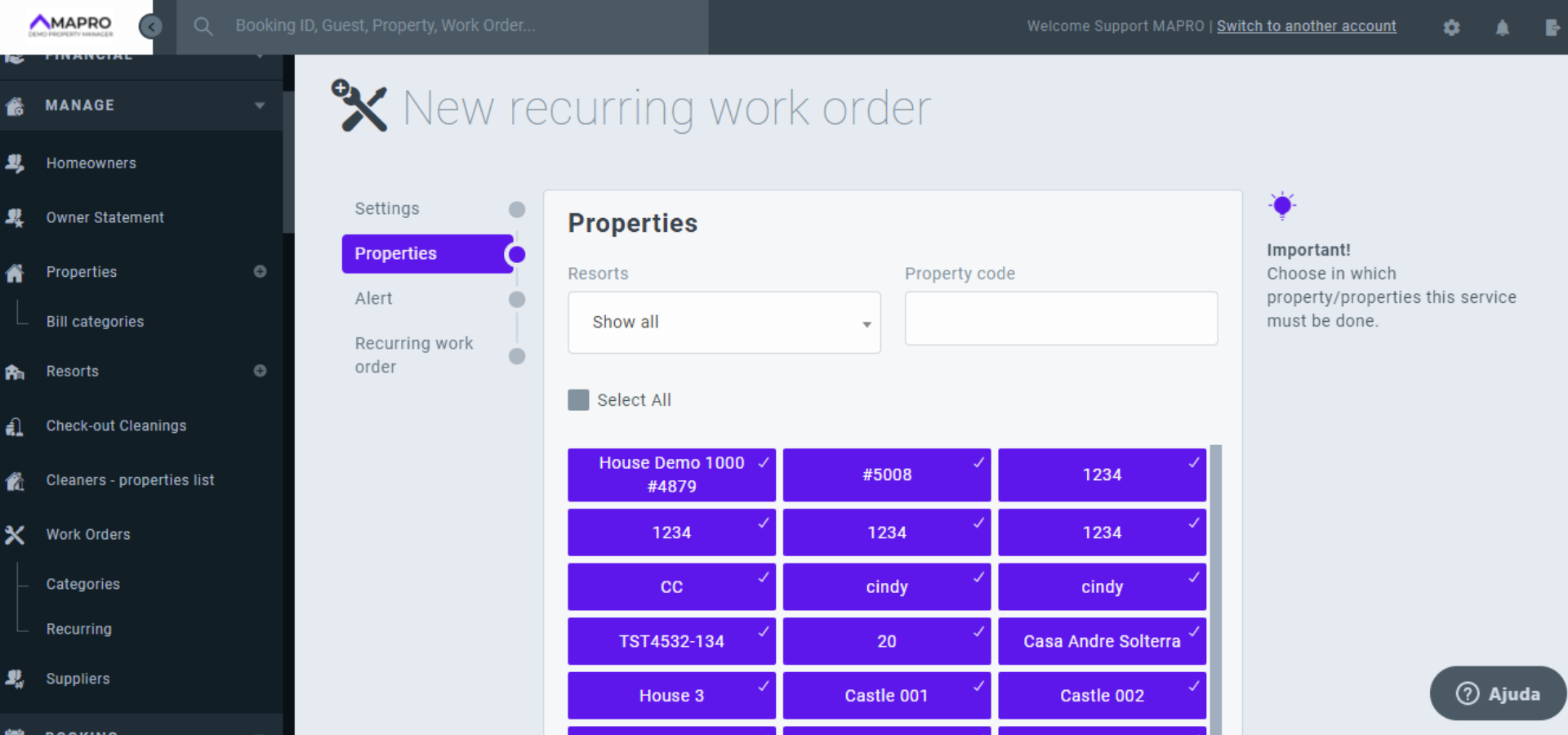
On the "Properties" tab, select the properties in which you wish this work order to be included or the ones in which you do NOT want it to be included.
For example, if you have 20 properties and want to register a "change AC filter every 6 months" WO for properties 1234 and 5678, you can select these two in the "Properties" section.
Now, if you want to create this WO for all properties EXCEPT 1234 and 5678, scroll down and select these two in the "Exclude Properties" section.
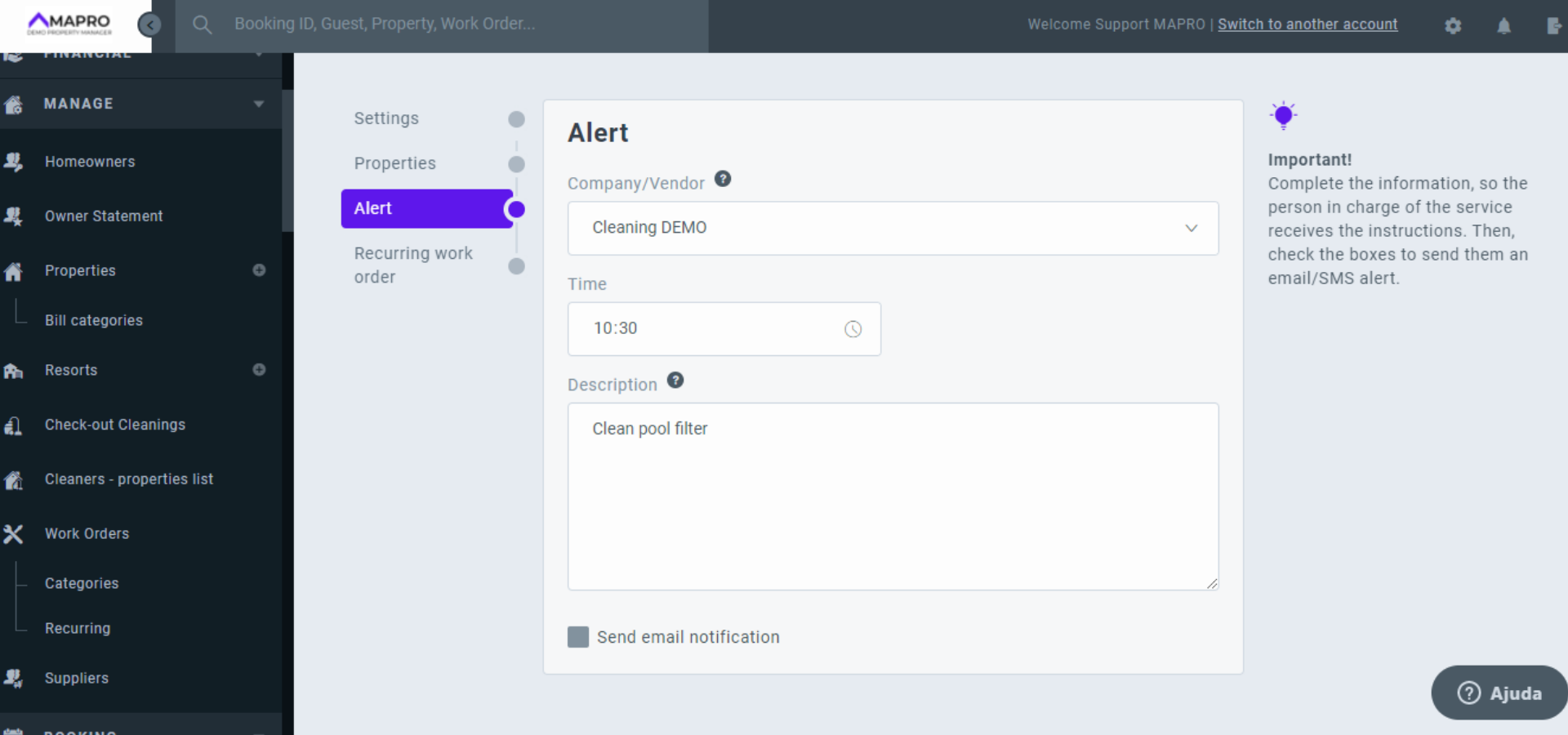
In case you selected the Status "Schedule," set the time for the alert.
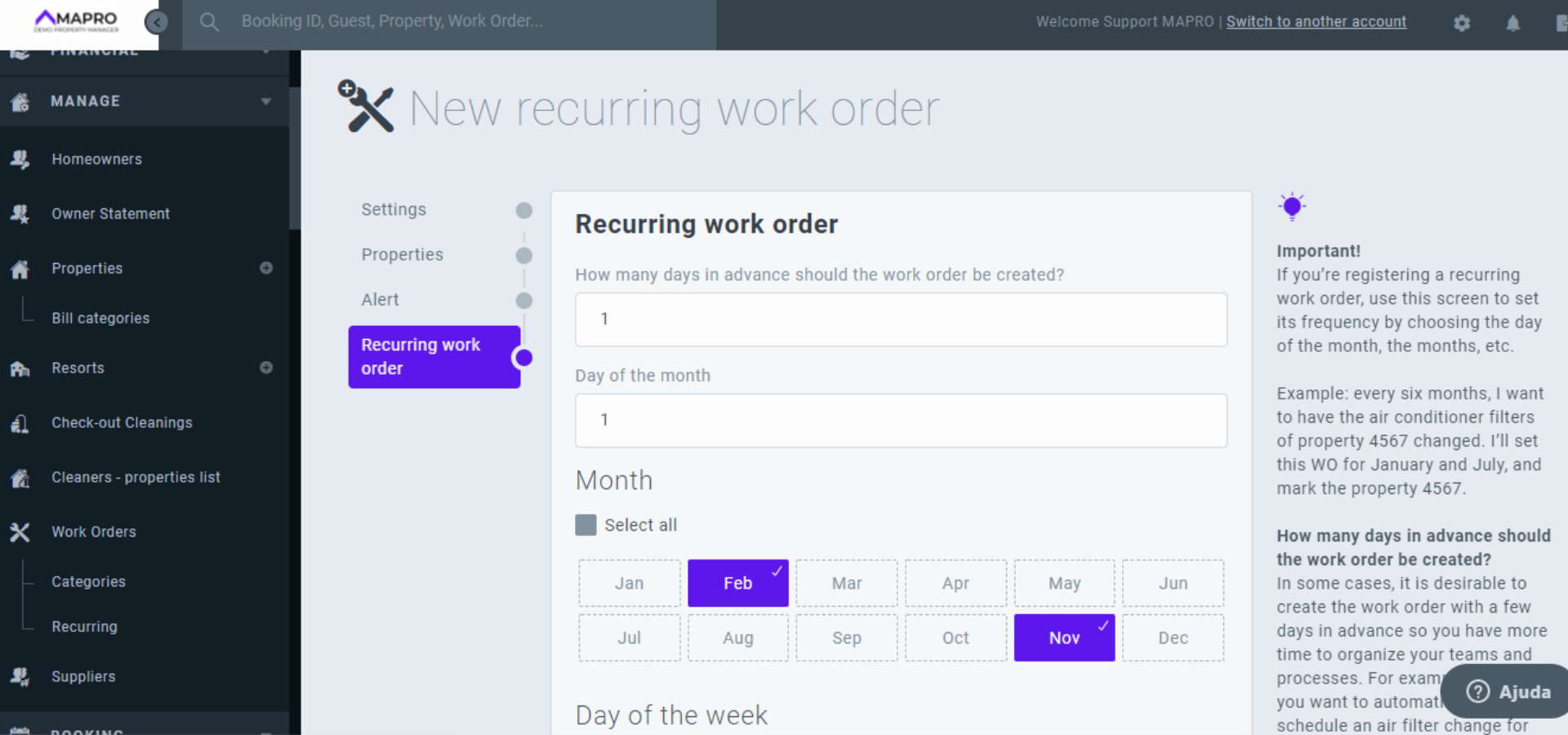
On the last tab, you must select when the service should be executed and how many days before the assigned date you want MAPRO to create the work order.
After completing all the information, click "Save" and the work order will appear on the list of the Recurring work orders, where you can edit anything you need.



