
loading.. Please Wait
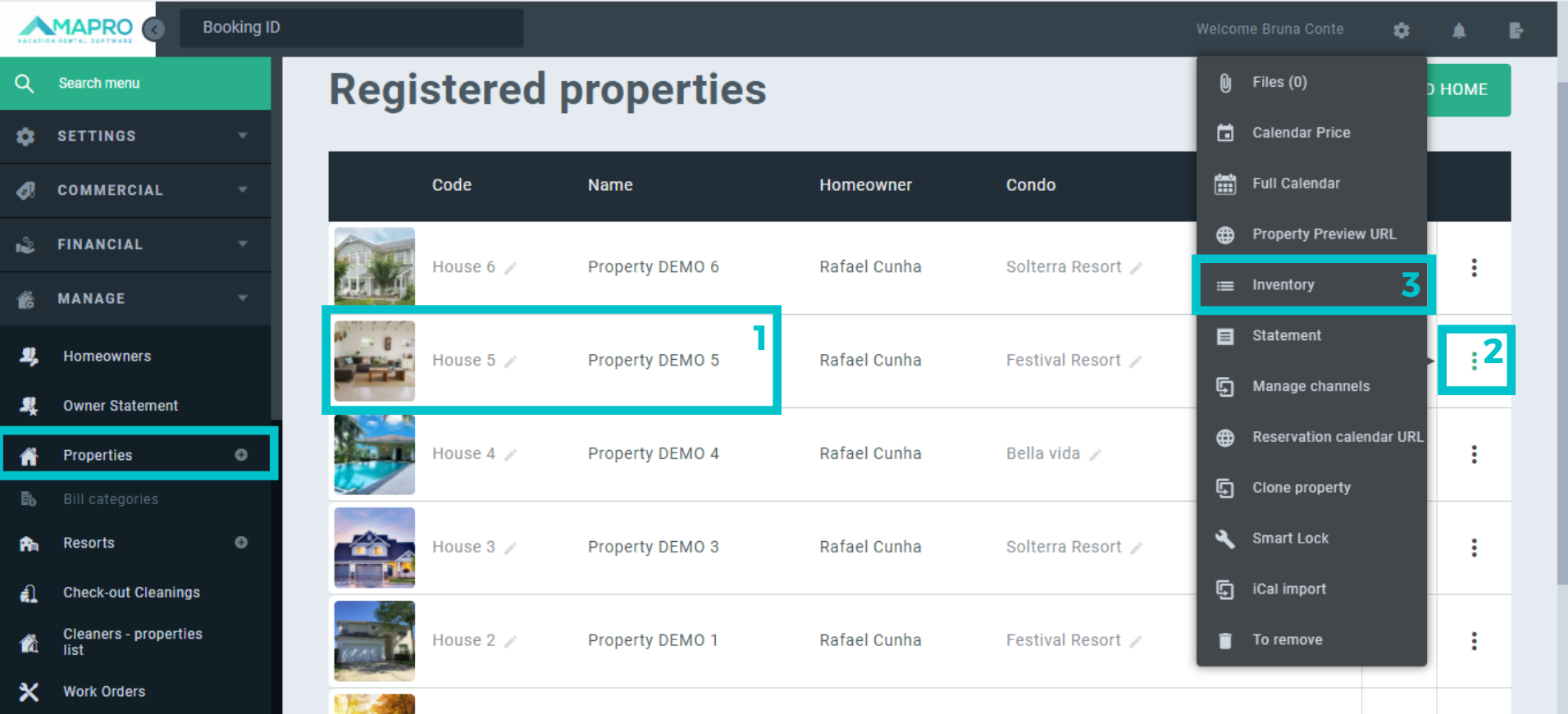
To register the inventory of a property, access MENU > MANAGE > PROPERTIES. On this screen, find the property in which you want to register the inventory, click on the three-dots icon on the right to see “More Options”, and select “Inventory”.
Use the filters on the top of the page to search the property by its name.
*It is also possible to access the inventory by clicking on MANAGE > PROPERTIES > Edit (pencil icon on the right) > Inventory (icon on the toolbar).*
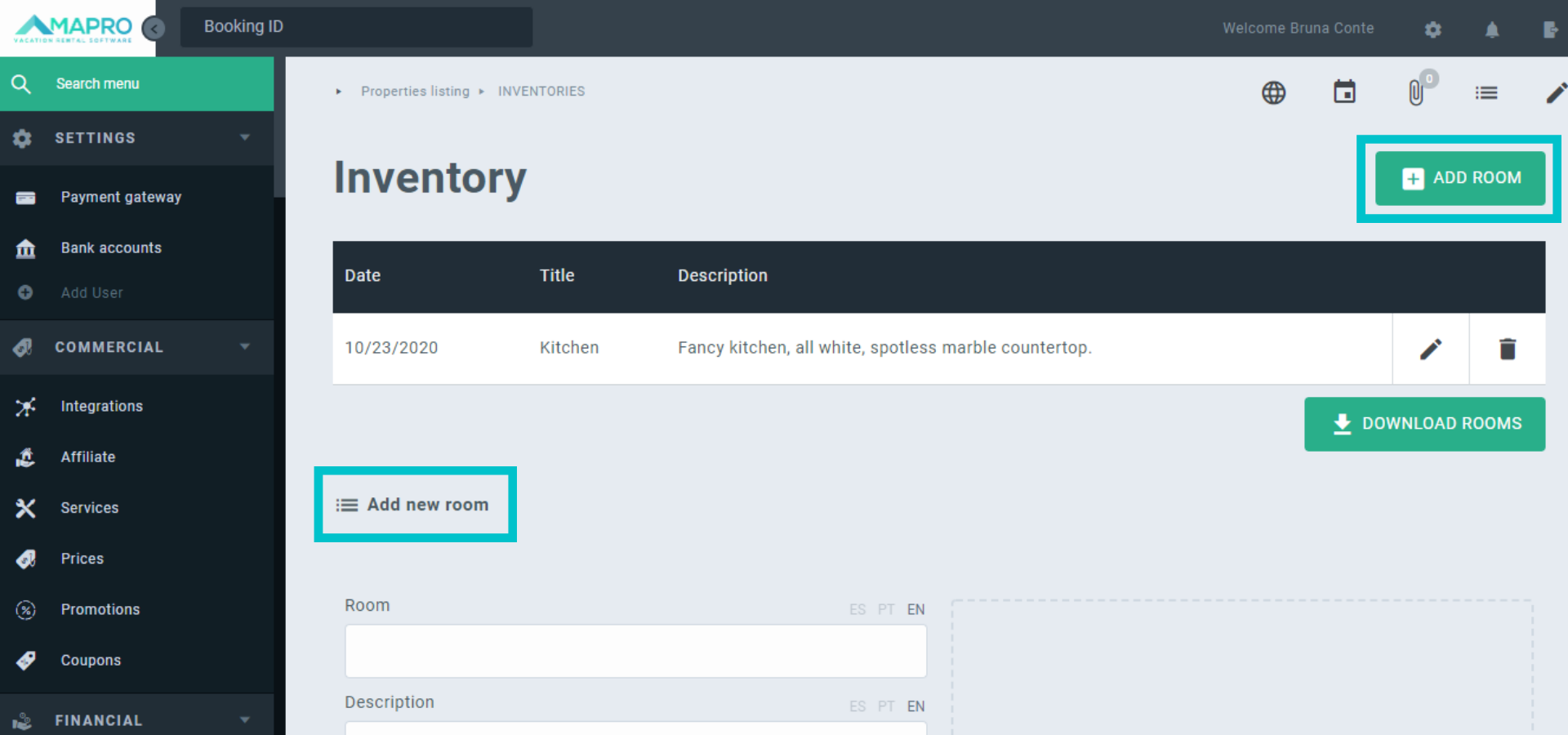
On this screen, click on “Add Room”, on the upper right corner, or scroll down to access the fields at the bottom of the page. Enter room name, image (optional), and description (optional).
Notice the ES/PT/EN icons above each field for you to select the language: when you add descriptions in more than one language, the information will be available to the user in the language chosen by the user in the section “My Info”.
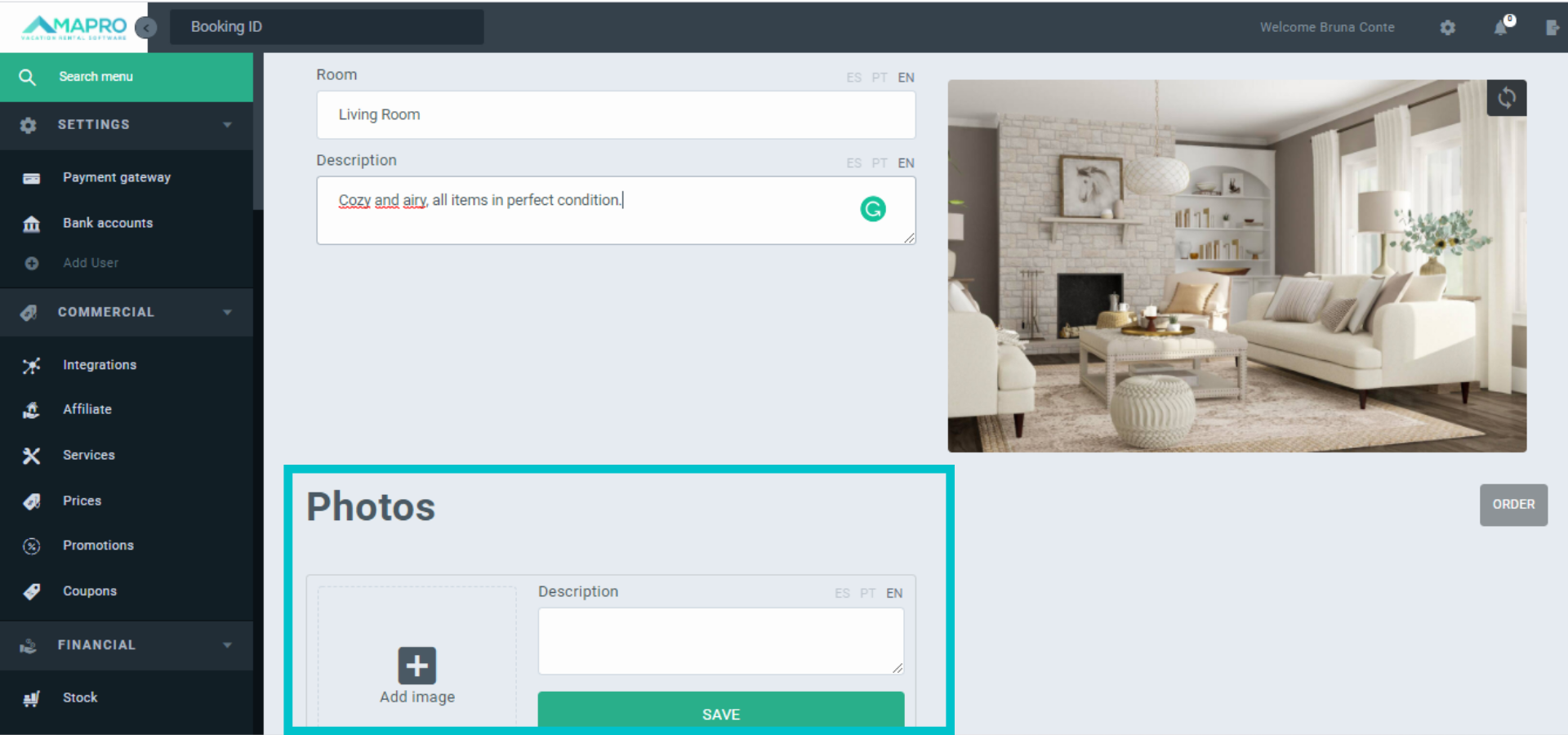
Once the room is added, register the items to the inventory with images and descriptions. Notice the language options above these fields as well.
When all items are added, click “Save” at the bottom of the page to finish the process.
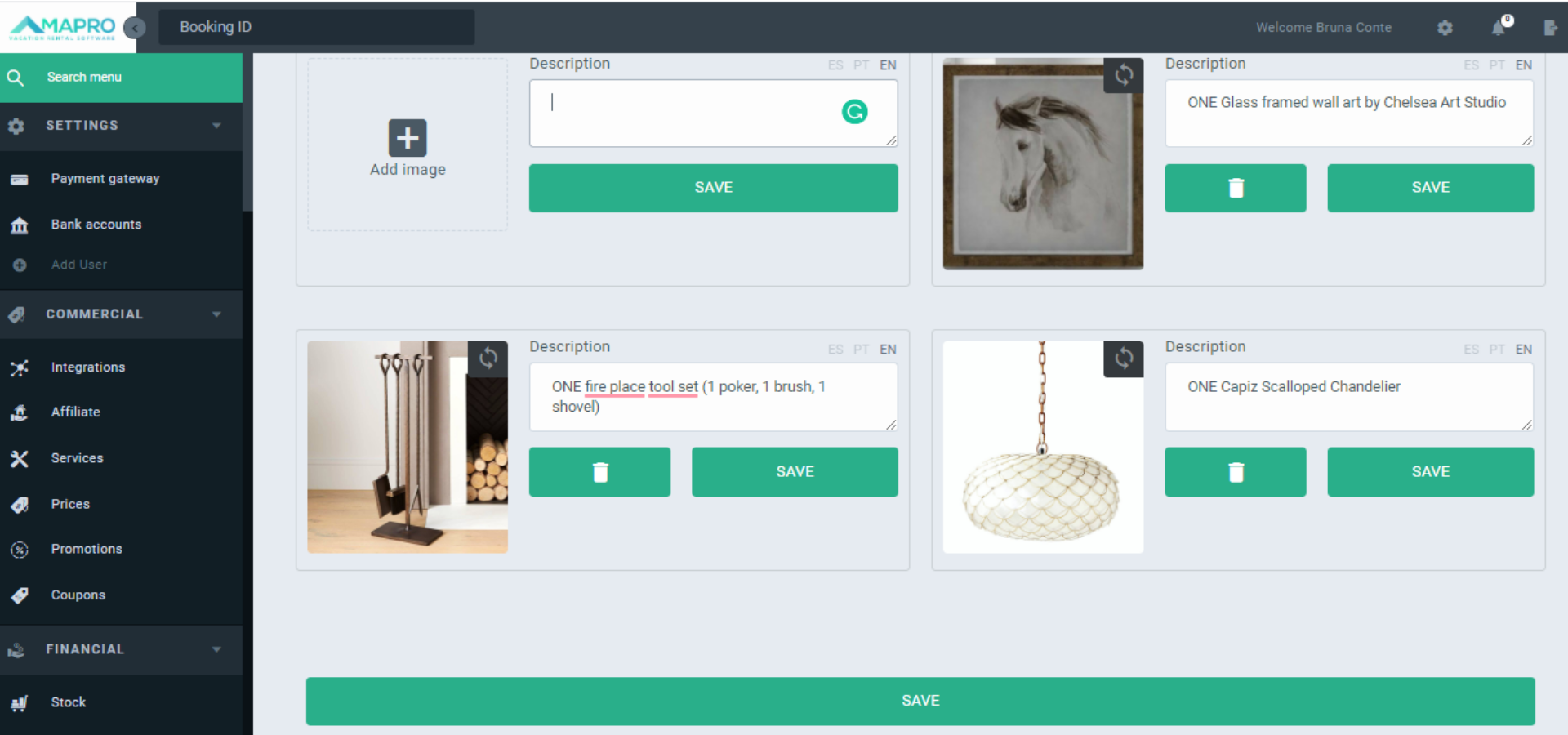
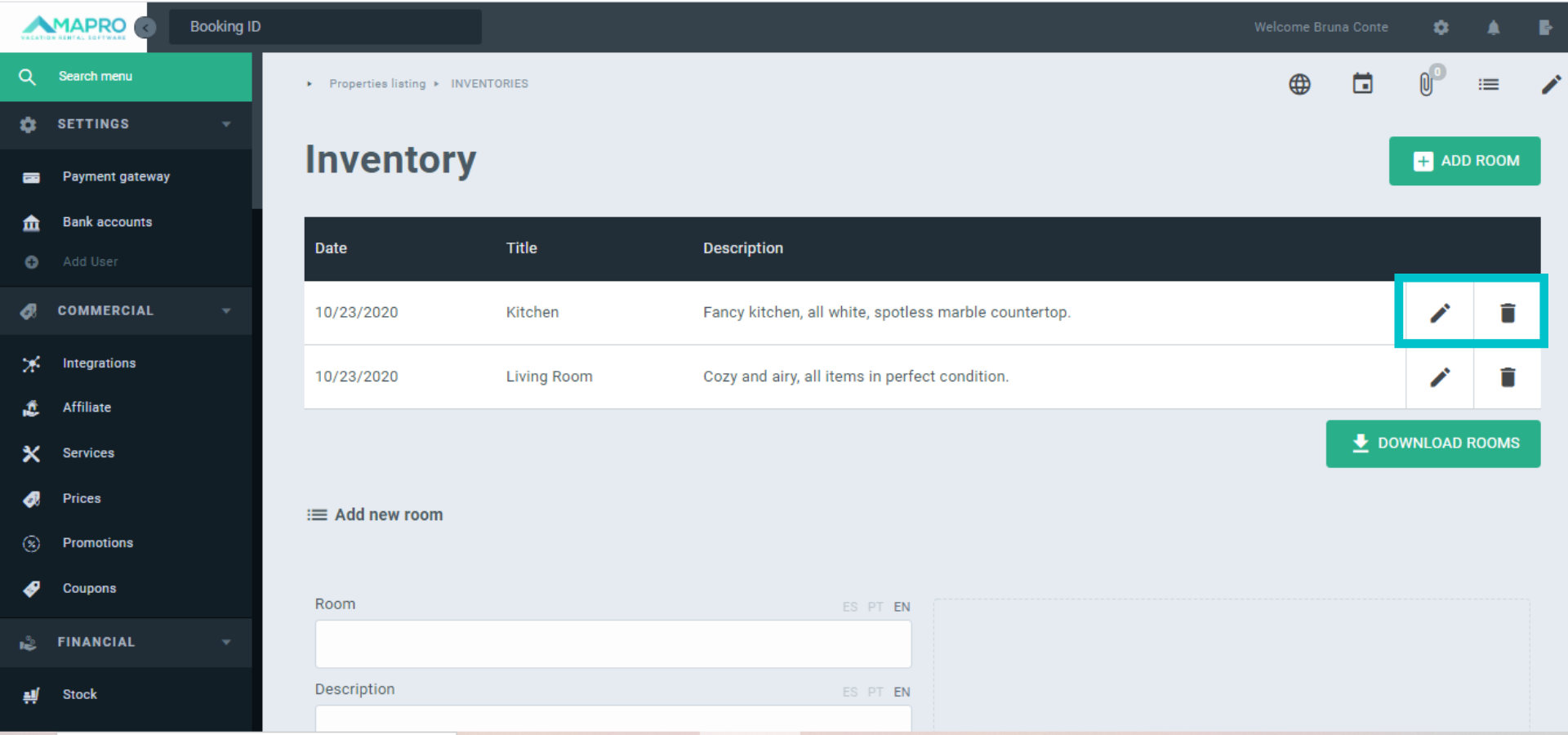
Access MANAGE > PROPERTIES > More Options > Inventory to delete rooms or edit items previously registered. Use the buttons on the right of each room.
The inventory items are available for the cleaning team to check.



