loading.. Please Wait

How to Register a Property

  • Last Created On Dec 22, 2025
  • 44

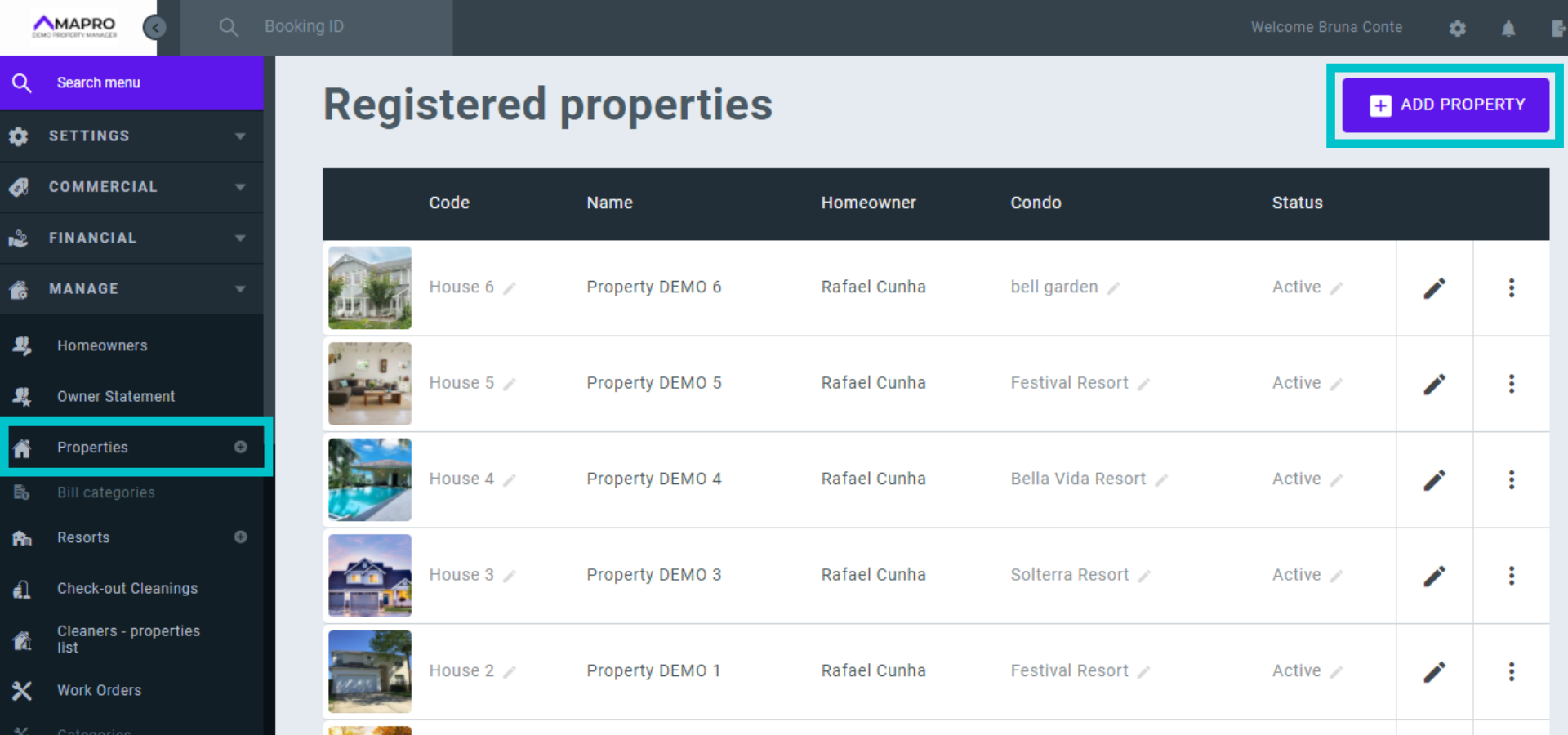
To register a property, go to MENU > MANAGE > PROPERTIES and click on “Add Property."
MAPRO_-_onboarding_en__7_.png


Go through the fields to add all the information about the property, hovering your mouse over the question mark icon to see tips on how to fill out all fields. You can find more clarifications on the right of the screen. 
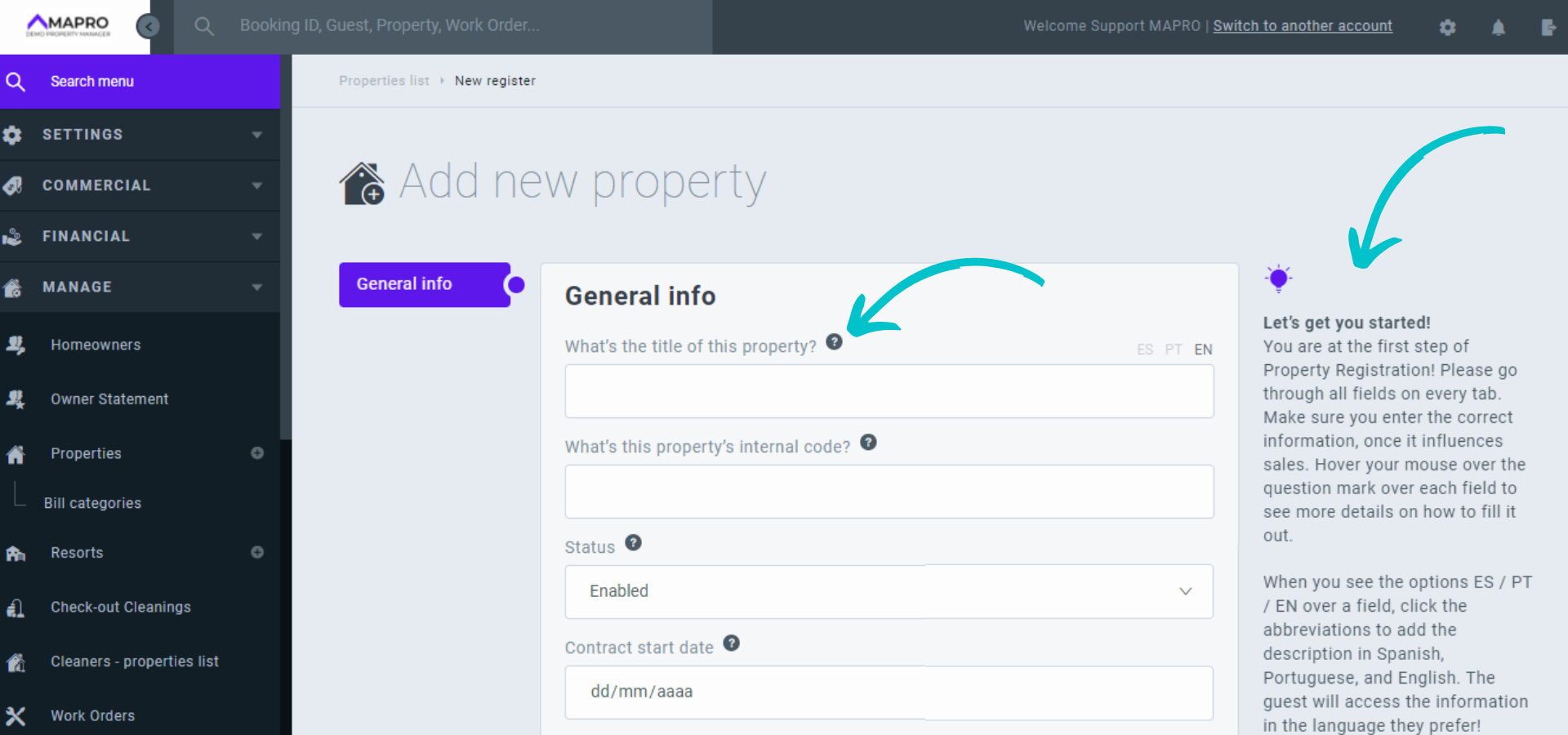
1.png


Once you're done completing the general info and click "Save," other tabs will appear. 
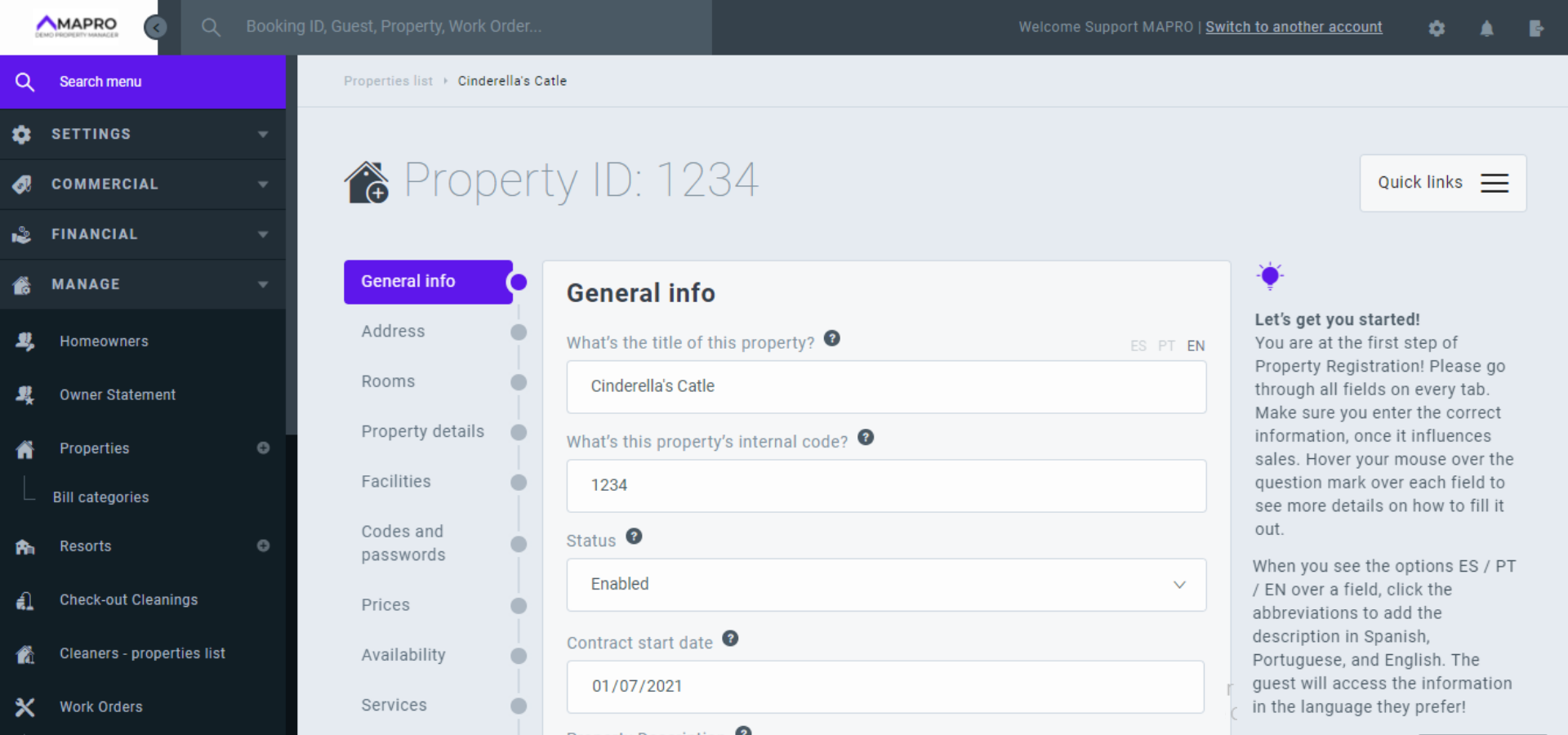
3.png


Find more about each tab:


General Information

Address

Rooms

Property details

Facilities

Codes and passwords

Prices

Availability

Services

Accounting

Bills

Photos

Floor plan

Notes

Others

Summary


General Information

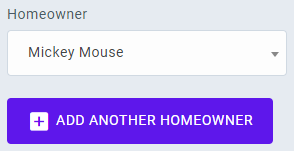
  • Homeowner: Click on the arrow to choose from registered homeowners, or add a new one by typing the name on the empty field and pressing "Enter." After finishing the property registration, go to MENU > MANAGE > HOMEOWNERS to complete the new homeowner profile. You can add more than one owner to each property.

Capturar_001.PNG

  • Add information in other languages: the property descriptions can be added in Portuguese, English, and Spanish, and users (owners, affiliates, etc.) can access these descriptions in the language they choose. Note the options EN, PT, and ES above the description fields - click and add the information in each one of them.

Capturar_005.PNG

Capturar_004.PNG

Capturar_003.PNG


Address

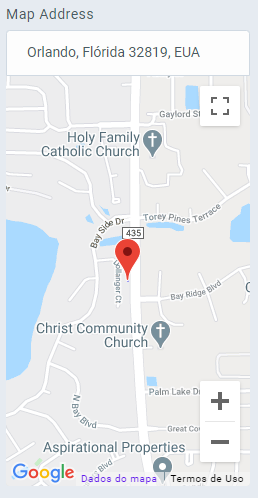
  • Map address: when you enter the property address, MAPRO connects it to Google Maps and makes the map to the property available.


                                                    Capturar_002.PNG

Rooms

  • If you inform that the property has 4 bedrooms, the system opens 4 rooms on the same page for you to add the details of each room - how many and what kind of beds, besides amenities like TV, private bathroom, balcony, etc.


Property details

  • On this tab, you complete the house details, such as the total area of the house. You also inform if the house has the required licenses to be rented by selecting “yes.” If you wish, you can enter links for videos of the house.


Facilities

On the Facilities tab, you check everything the house offers.
 

Codes and passwords

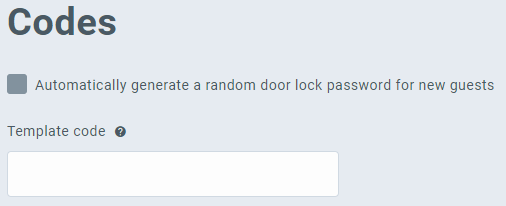
  • Smart lock: if the property has a smart lock, you can create an email template with instructions for the guest to insert the password and open the door, and then register the template in the field "Template code." You can also select the option to generate a new password for every new guest.

                         Capturar_007.PNG

  • Guest password: if you create a permanent password for the guests and later decide to change it, select "update existing reservations" so that reservations already in the system do not keep the old password in the records.
  • Other passwords and codes: complete the fields with all passwords and codes the property might have so that guests, cleaning staff, and maintenance can access everything offered in the reservation - doors, gates, safes, lockboxes, padlocks, resort areas like clubhouse and gym, etc.
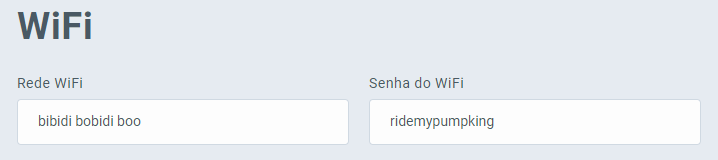
  • Wi-Fi: inform the internet network and password.Capturar_6.PNG

Prices

Register on this tab:

  • Homeowner commission
  • Rates
  • Default and weekend prices
  • Minimum number of nights

Availability

  • Automatic early check-in and late check-out: the system blocks the day before/after the reservation
  • Minimum number of days between reservation and check-in

Services

Register on this tab services details, such as cleaning, insurance, etc.
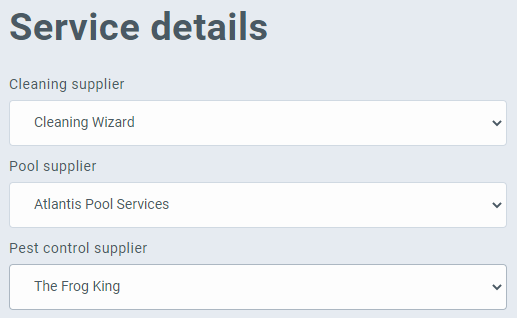
  • Suppliers - pool service, cleaning company, pest control: when you register the suppliers in the property, they automatically receive the work orders.

                           Capturar_008.PNG

Accounting

Complete on this tab the accounting information relevant to this sector of the company, such as the value of the property, the minimum account balance, information regarding sales and tourist taxes, licenses, and insurance. 


Bills


There are two kinds of charges in MAPRO: the recurring charges, which are automatically processed by MAPRO on the date and month previously set, and the non-recurring charges, which need to be registered and then processed manually because they have variable due dates and amounts.

Single charges are also non-recurring, but they are immediately processed at the moment they are registered. 

On the tab "Bills," register the non-recurring charges.

MAPRO does NOT pay bills - they are registered and processed by the system for the property manager's financial organization and accountability. All information about paid bills goes to the owner's statement.

When registering the bills, please make sure to choose between "MAPRO Paid"  and "Autopay": select "MAPRO paid" if the property manager pays the bill. Select "auto pay" if the bill is paid any other way that does not require the property manager's action.

Learn more about registering bills

Learn more about processing non-recurring charges


Photos

Add photos of the property by clicking on "Add photos" and upload images from your device, or drag the images to the system screen. You can also drag to organize their order.
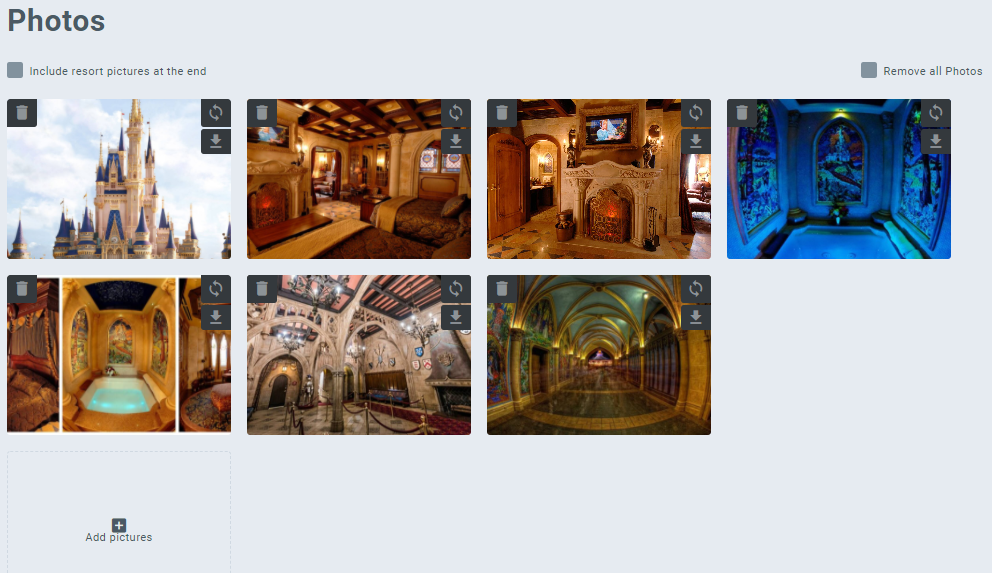
Capturar_009.PNG


Floor plan

Add the property's floor plan by clicking on "Add photos" and upload images from your device, or drag the images to the system screen. You can also drag to organize their order.
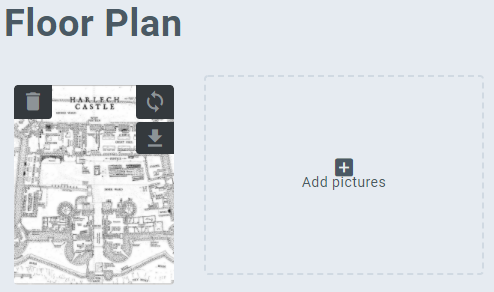
Capturar_010.PNG


Notes

Add notes about the property - they are seen only by the manager.


Others 

If you wish, you can complete on this tab information about the realtor who indicated the house. 

You can also edit the URL of your website. 

Finally, you can register on this tab the necessary items for the maintenance of the house. 


Summary 

This tab shows a summary for you to visualize what you have completed in the house registration. Note that not all fields are mandatory. You complete the information according to your necessity. 

Views: 44

Recent Articles

  • How to Save the Guest's E-mail Address i...
    43
  • How to Register an External iCal in MAPR...
    38
  • How to Migrate Payments from One Reserva...
    46
  • How to Find the iCal of a Property Regis...
    41
  • How to Set Early Check-in and Late Check...
    53

Popular Articles

  • How to Upload the Airbnb Payout Spreadsh...
    162
  • How to Process Payments of Non-recurring...
    83
  • How to Cancel VRBO Reservations
    79
  • How to Configure your Airbnb Listing to...
    73
  • Short-Term Rental Agreement
    55