
loading.. Please Wait
To edit reservations, you need to find them in the system and open the record to edit them.
If you have the Reservation ID, type the number in the “Booking ID” field on the upper toolbar and press “Enter.”
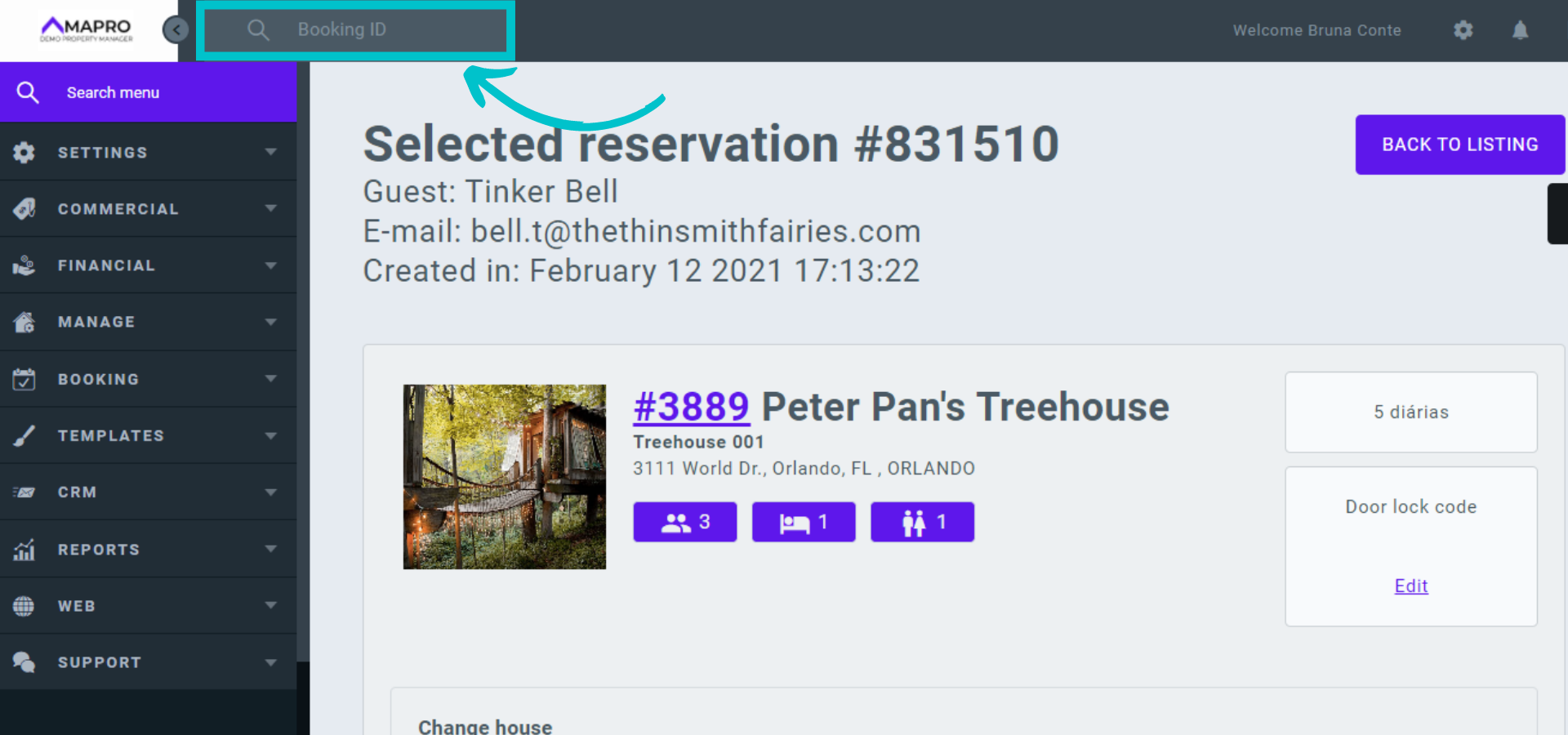
If you do NOT have the Booking ID, find the reservation from the Reservation Grid, Property Calendar, or Reservation Calendar.
1- Reservation grid: go to MENU > BOOKING> RESERVATION GRID to view reservations and blocks and click on the reservation line to open and edit it.
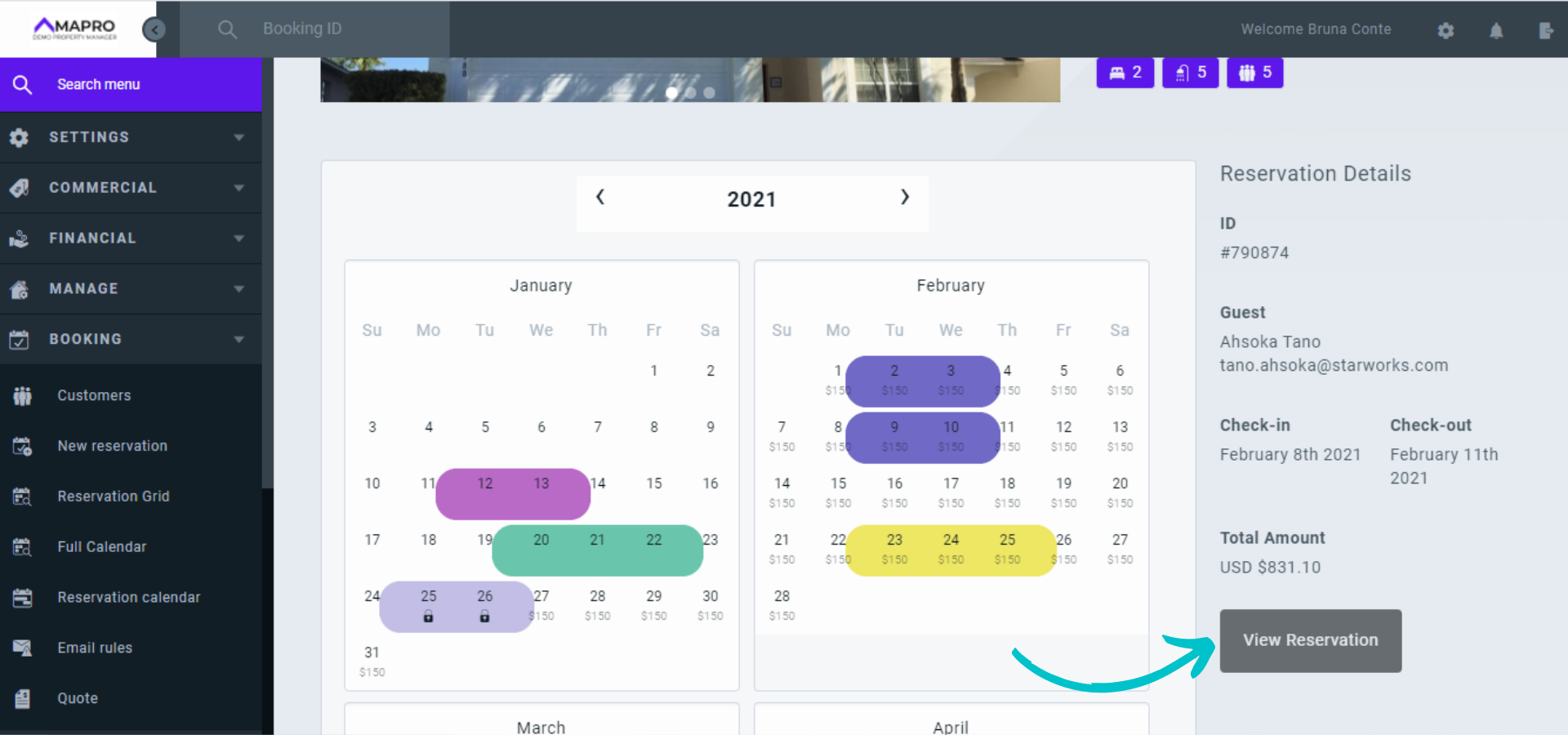
2- Property calendar: go to MENU > BOOKING > FULL CALENDAR and select the property on the right. On the calendar, reservations are marked with the color of the integrator that created the reservation, and dates marked in gray are blocked. Click on the reservation to see the details on the right, and click "View reservation" to open and edit it.
3- Reservations calendar: go to MENU > BOOKING > RESERVATIONS CALENDAR to open a screen with all bookings, by property, for the next three months. Reservations and blocks appear in the table with the color of the integrator that created them. Click the reservation to open and edit it.
When you open the reservation, you can edit booking and guest information and add services and payments.
To edit the booking dates, please note the “change reservation period " section.
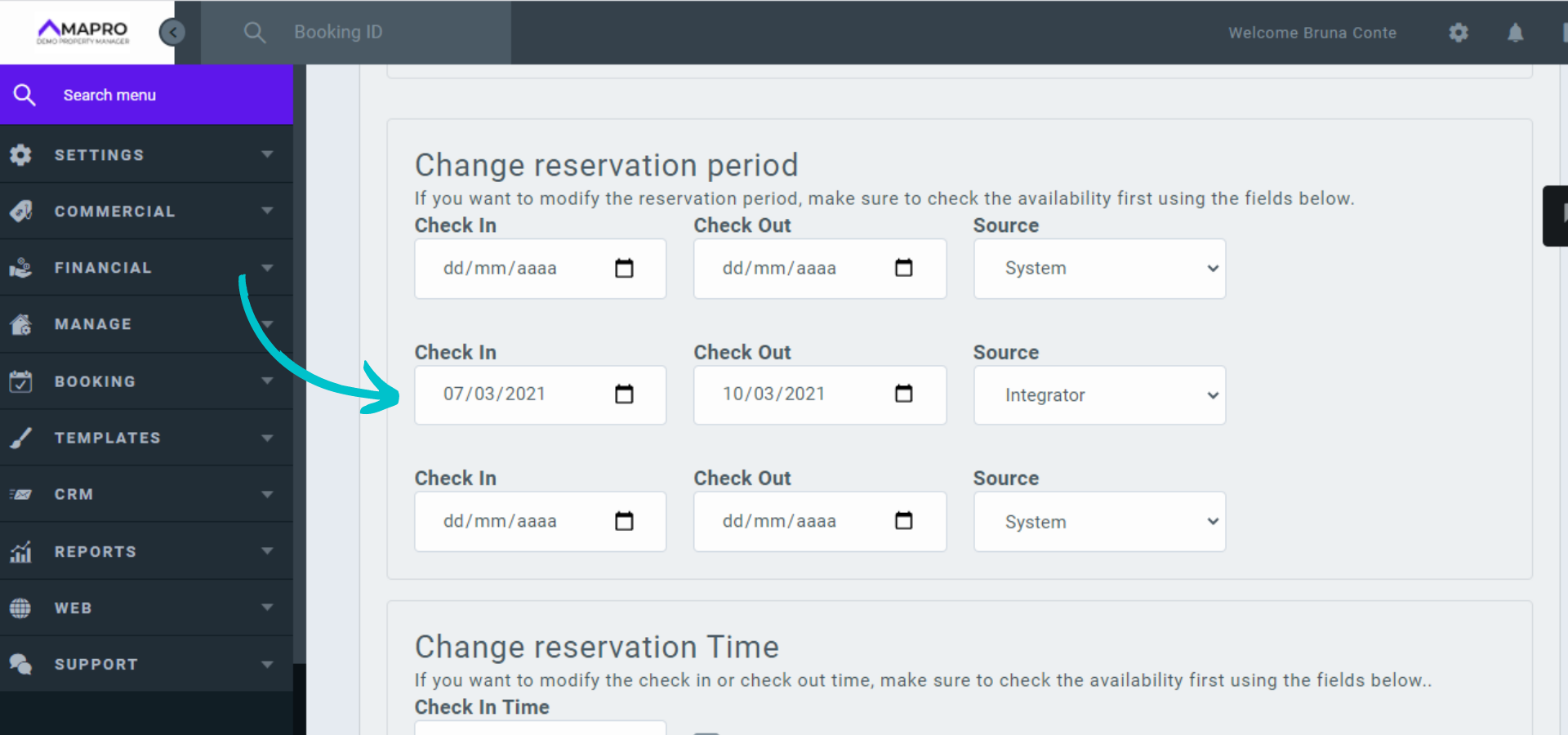
If the fields with check-in and check-out dates have a white background, it means that editing is enabled. Click on the field with the date, and choose the new date in the calendar. The system will inform whether the property will be available on the new dates or not. Click "Save" at the bottom of the page to confirm the changes.
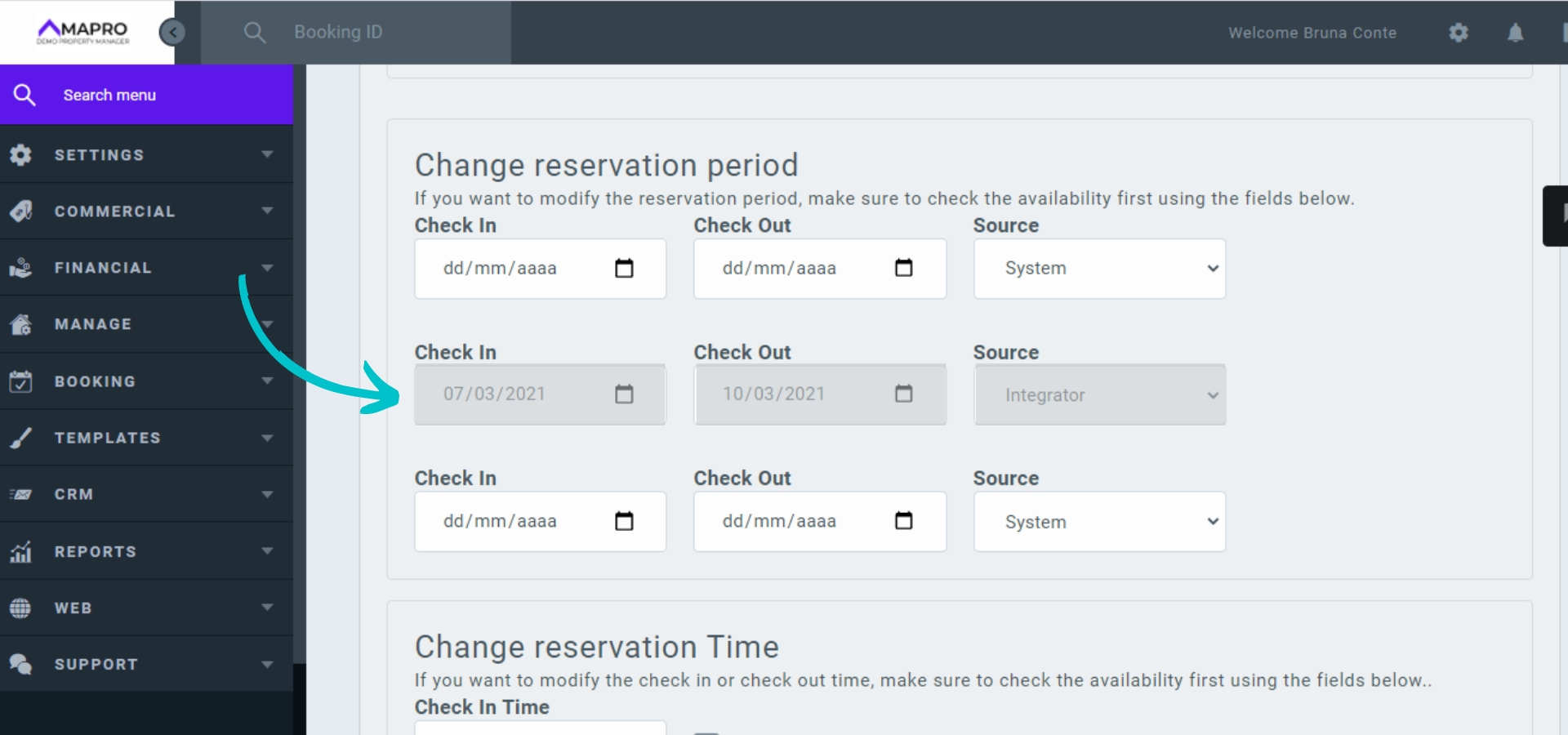
If the date fields have a gray background, it means that editing is NOT enabled (you will not be able to click the fields). This happens when the reservation is made via an integrator such as Airbnb - at the sales channels’ request, any changes to the reservations must be made through their channel, not through MAPRO. In these cases, you should advise the guest to request the changes at the same source of the reservation.
When it is necessary to change the dates even with editing disabled, use the fields above or below the booking dates to enter only the extra days. If you need to add days before and after the original booking, enter the "pre-booking" dates in one field, and the “post-booking” dates in another one.
Attention to the SOURCE field: periods marked with "integrator" will generate commission for the integrator which created the reservation; periods marked with "system" do NOT generate commission.
You can have the original reservation period with “source: integrator” since these dates were indeed booked by the integrator + the extra days requested by the guest with "source: system.” The sales channel will receive the commission only on the days reserved by it.
Example 1:
Click "Save" at the bottom of the page to confirm the changes.
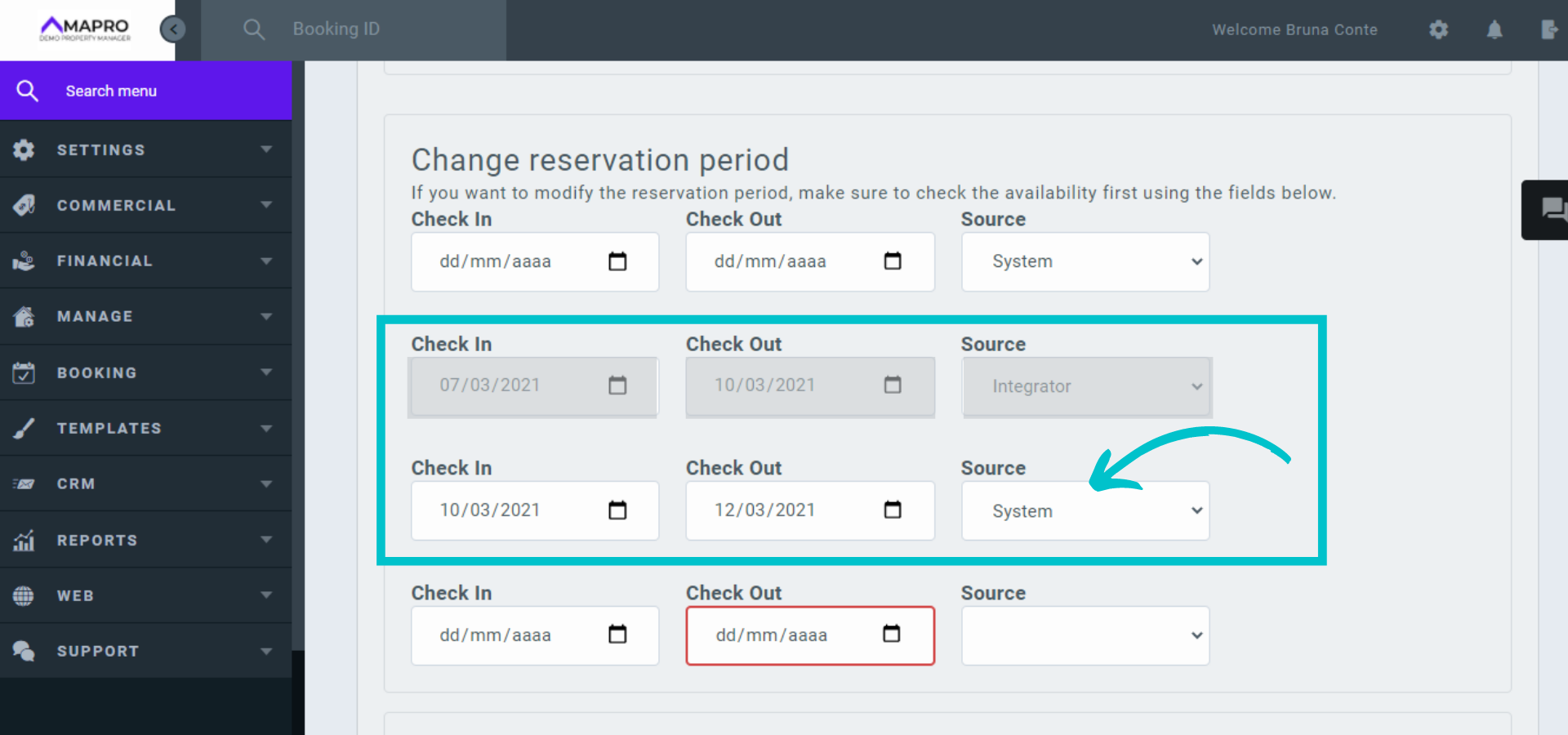
*Date format: dd/mm/yyyy
Example 2:
Click "Save" at the bottom of the page to confirm the changes.
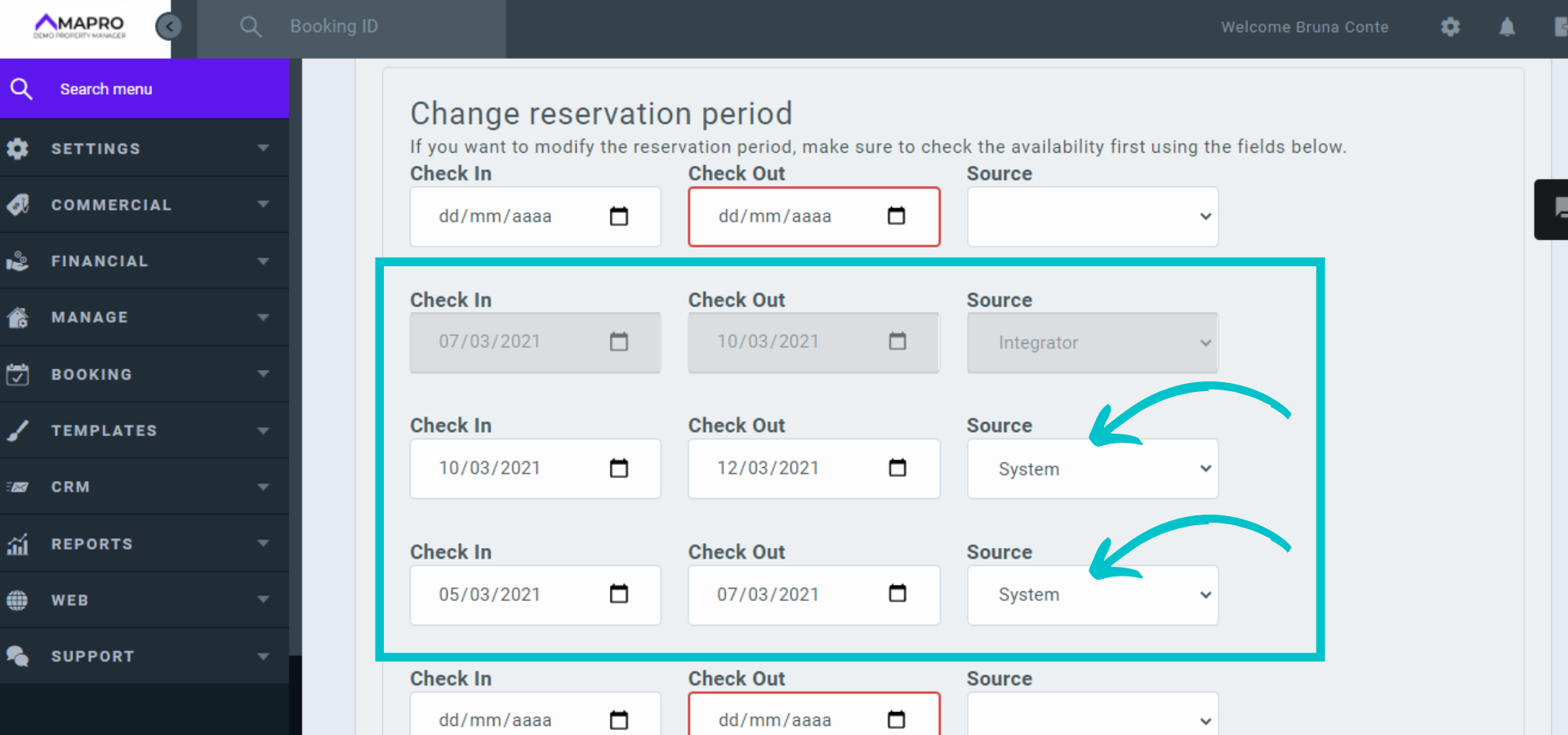
*Date format: dd/mm/yyyy



