loading.. Please Wait
After the check-out, when all documents, payments, and possible work orders related to the reservation are concluded, you must close the financial records.
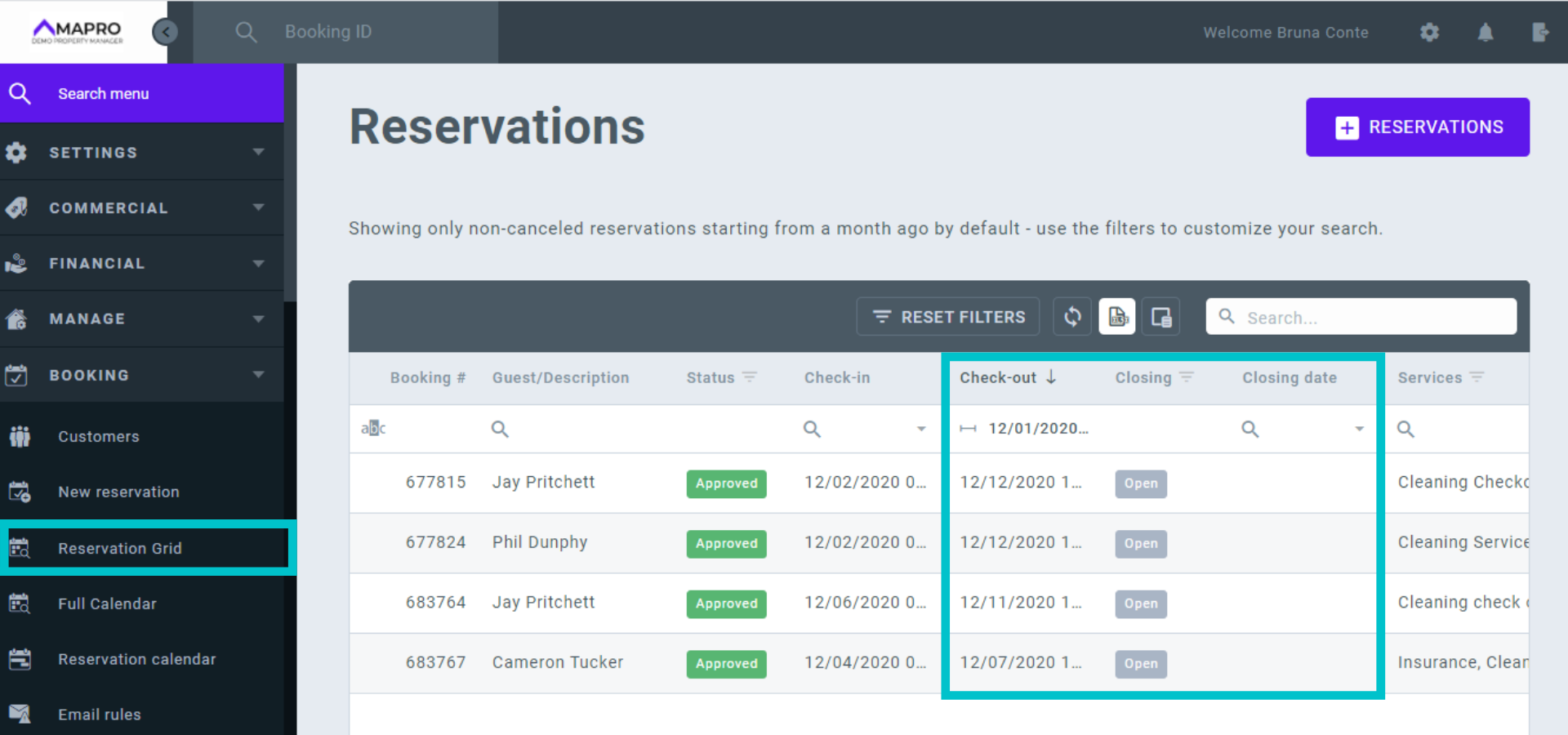
To close a reservation go to MENU > RESERVATIONS > RESERVATIONS GRID.
Use the fields on the top of the page to filter the results, and then click on the reservation to open and edit it.
On the image below, the results were filtered to show reservations checked-out between December 01 and 31, 2020. Notice that the "closing status" is "open."
Learn more about how to use the filters
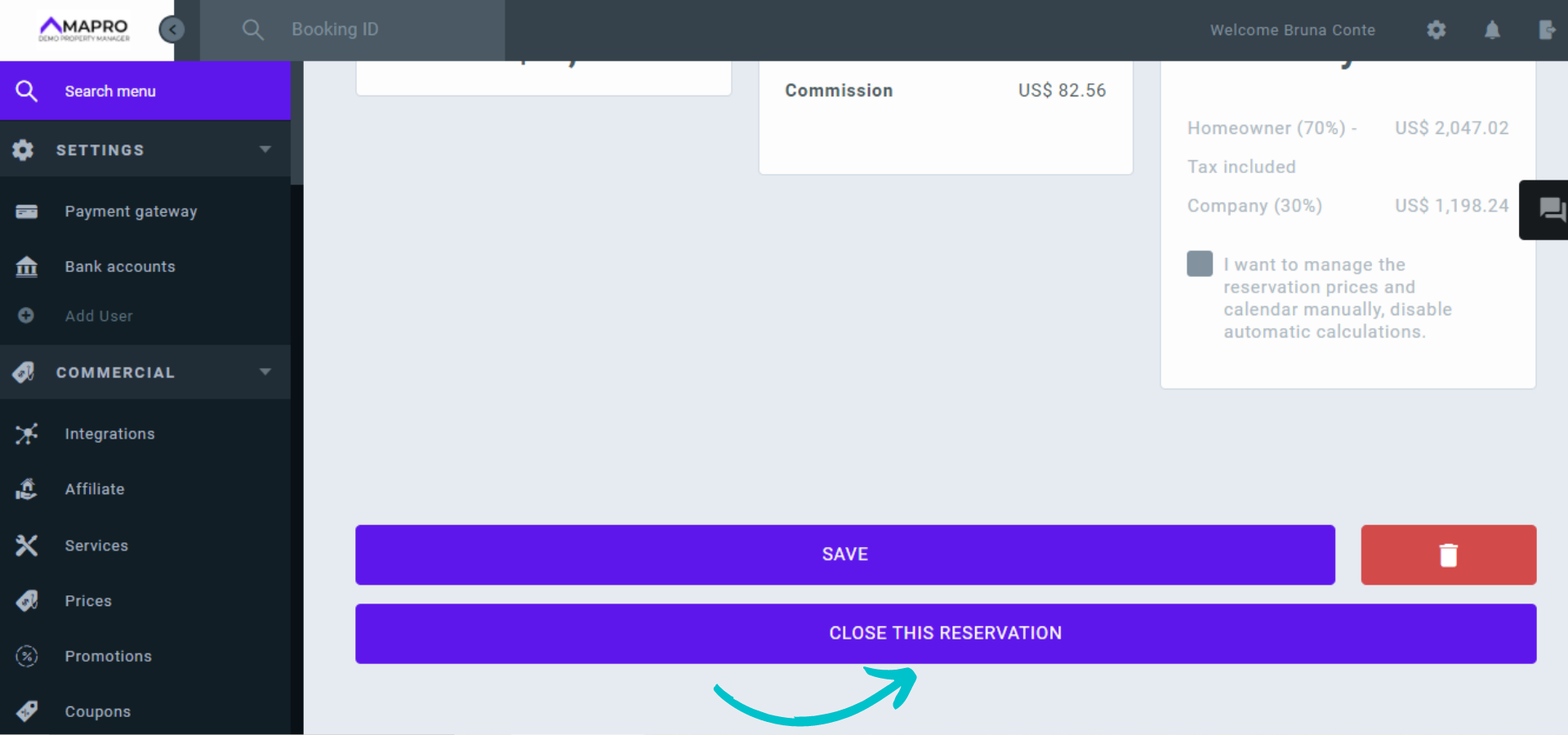
Open the reservation, check the information, make any necessary changes, and then click on "Close this reservation" at the bottom of the screen.
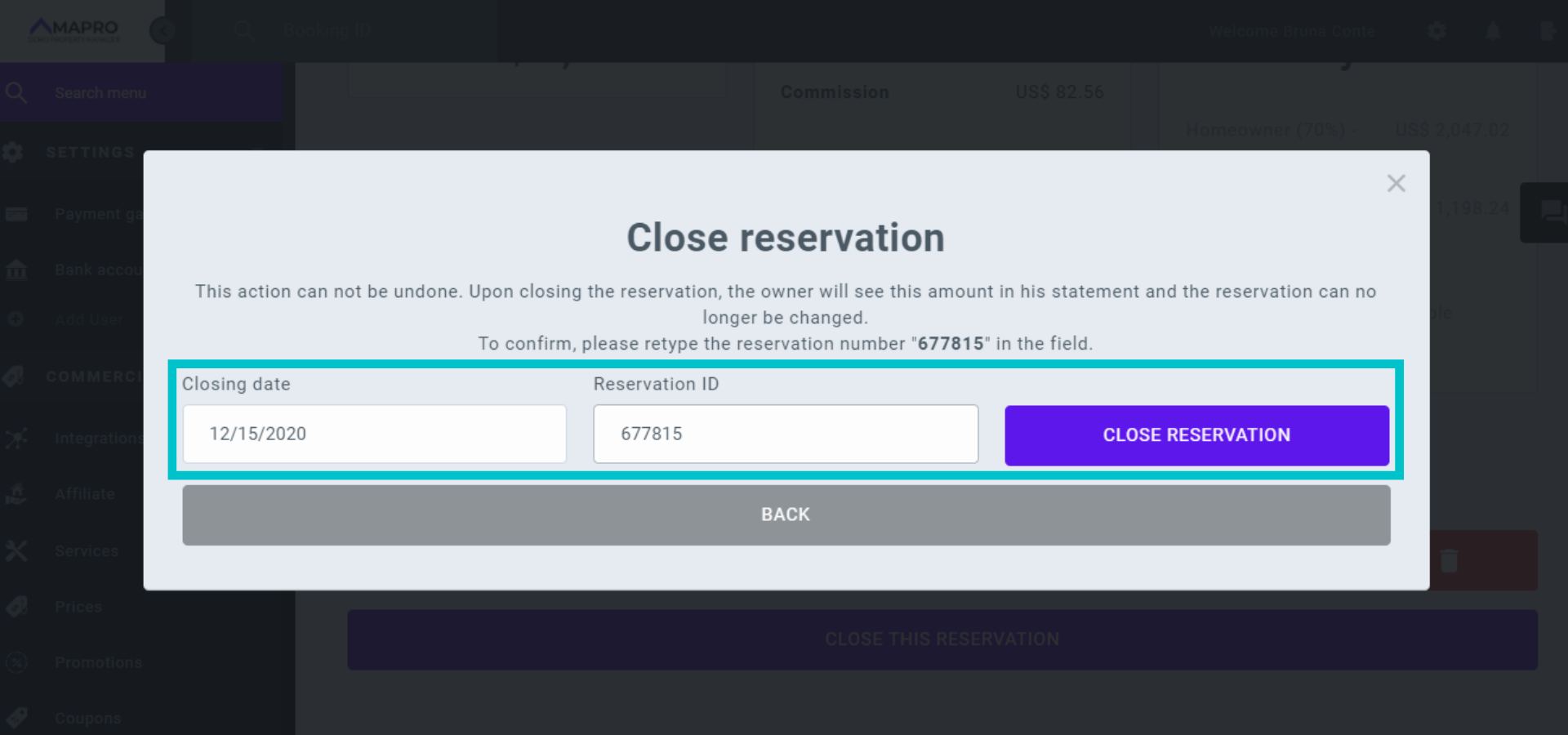
Enter the reservation's closing date: inform the date that will be on the owner's statement (it may be different from the day you are actually closing the reservation).
Type the reservation number and click on "Close reservation."
The closing status is now "Closed," and the closing date is on the column next to it.
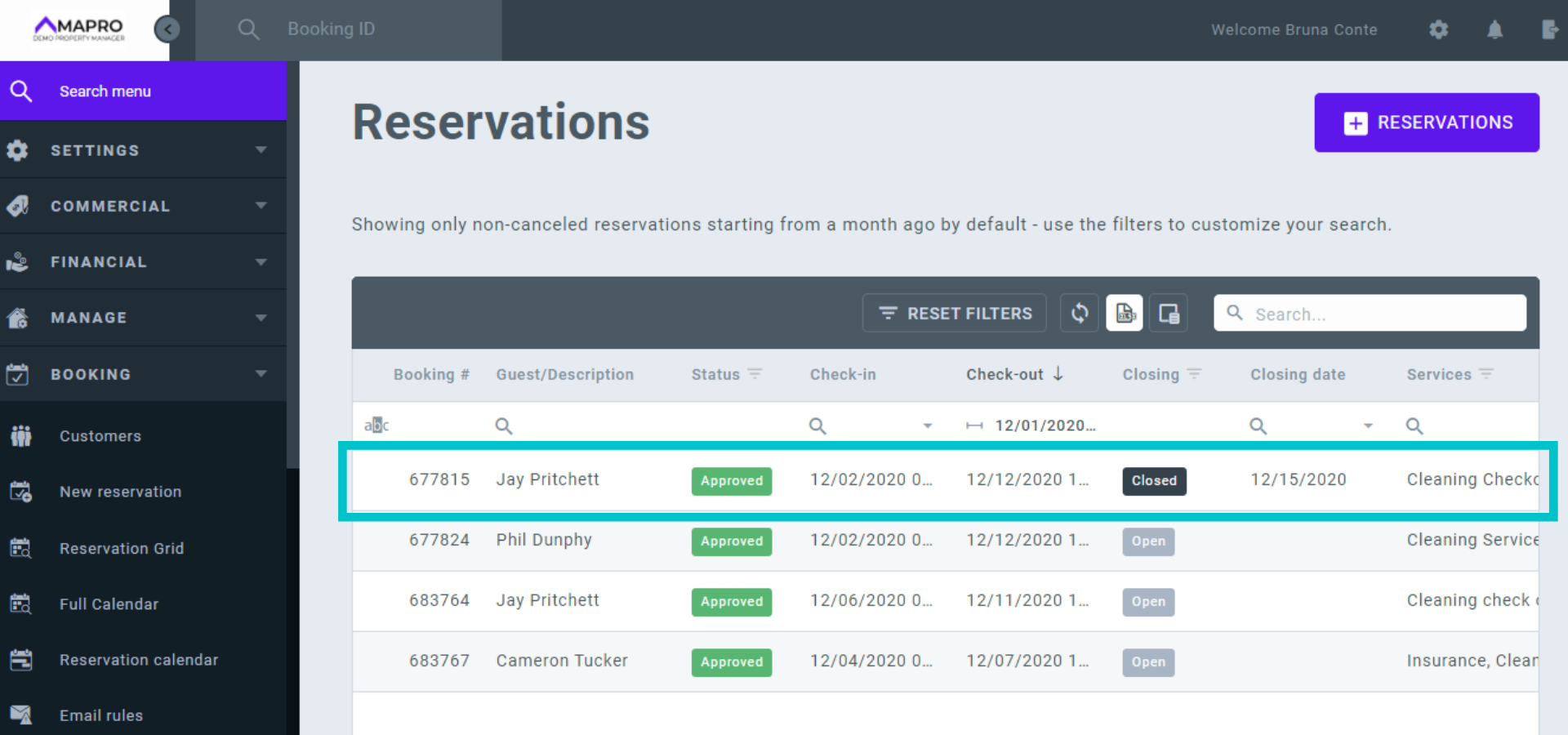
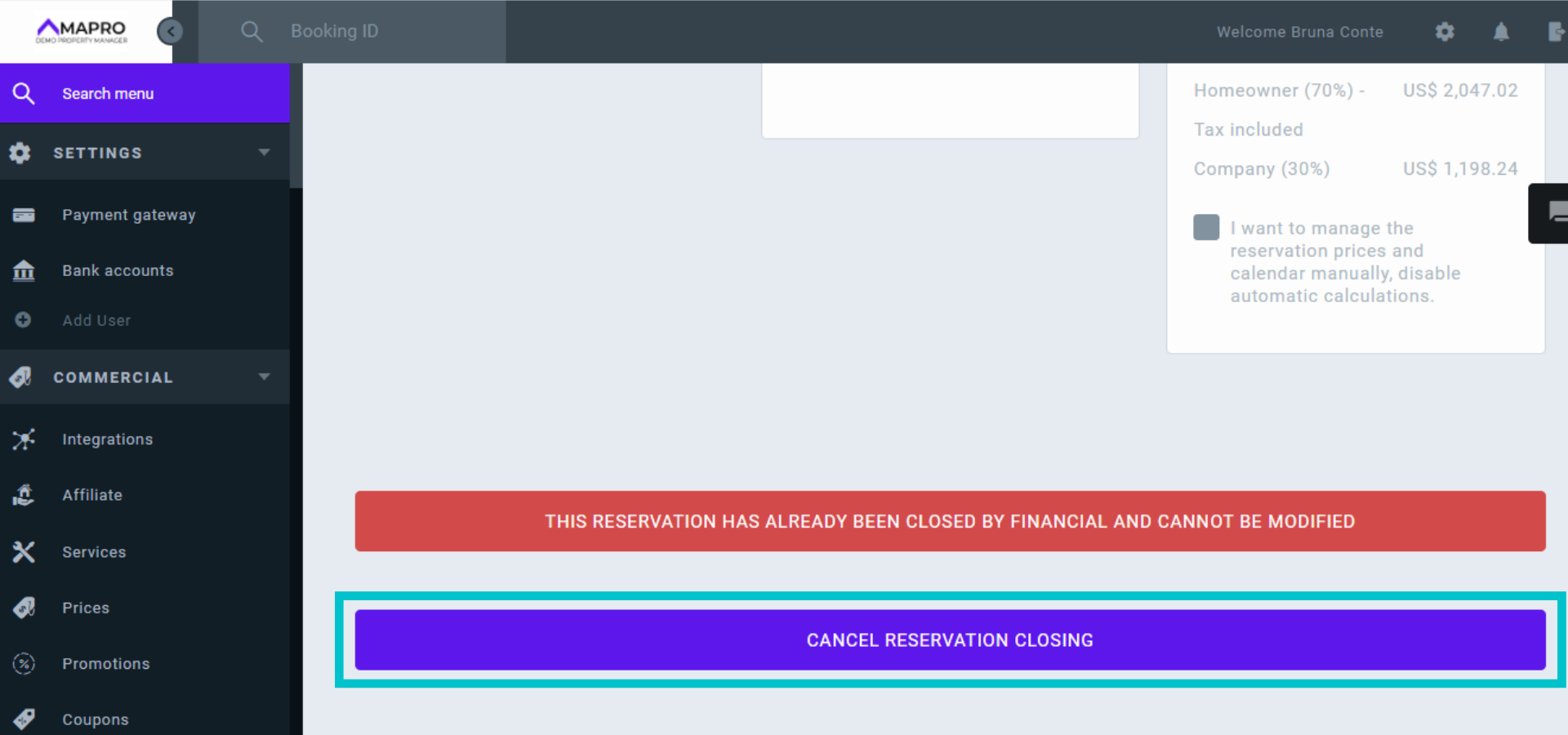
A closed reservation cannot be edited unless you cancel the closing process.
To cancel the closing process, repeat the steps to find and open the reservation, and then click on "Cancel reservation closing" at the bottom of the screen.
To optimize your search, you can personalize the reservations grid and use filters.
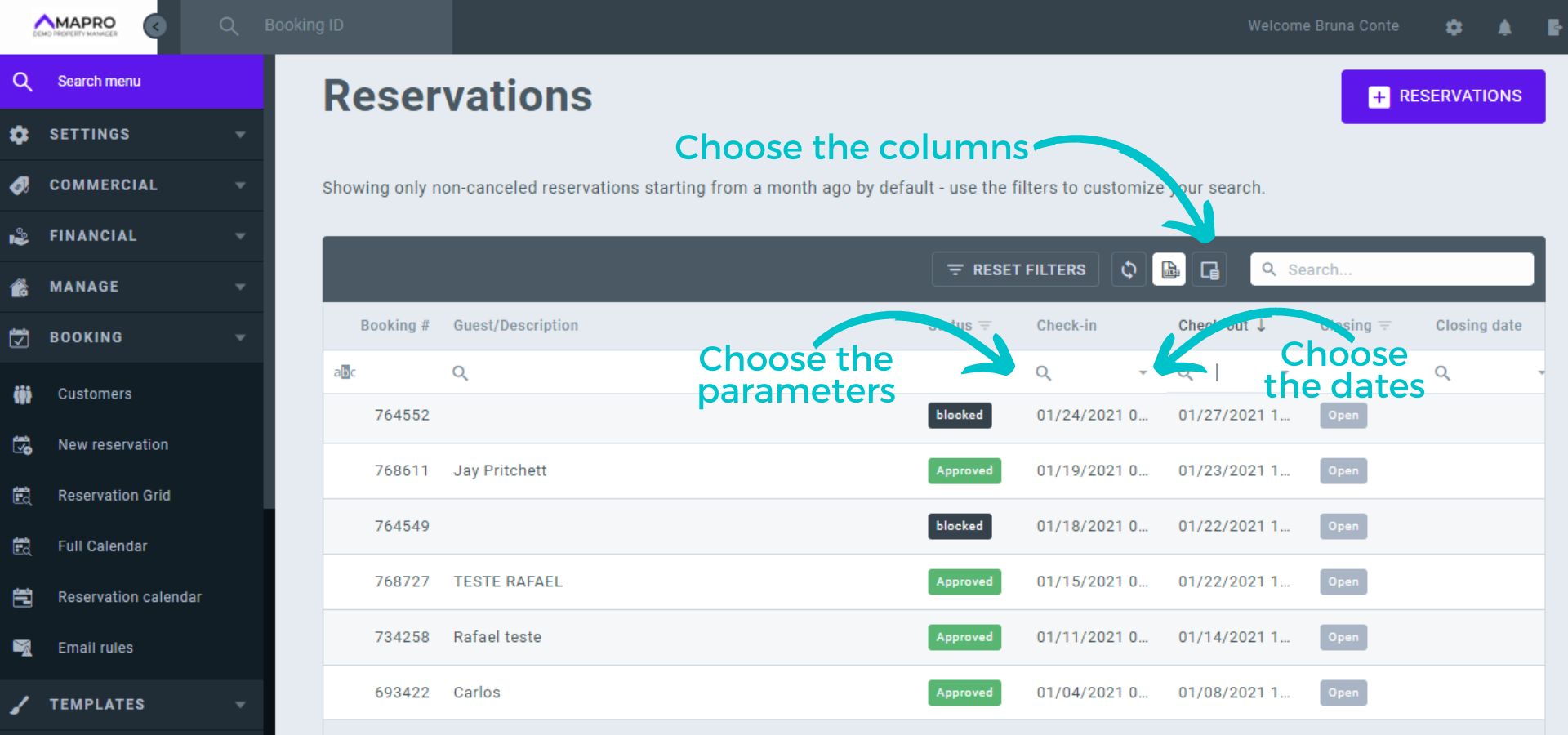
To personalize the reservations grid, you can drag the columns to the right/left and choose the order you prefer.
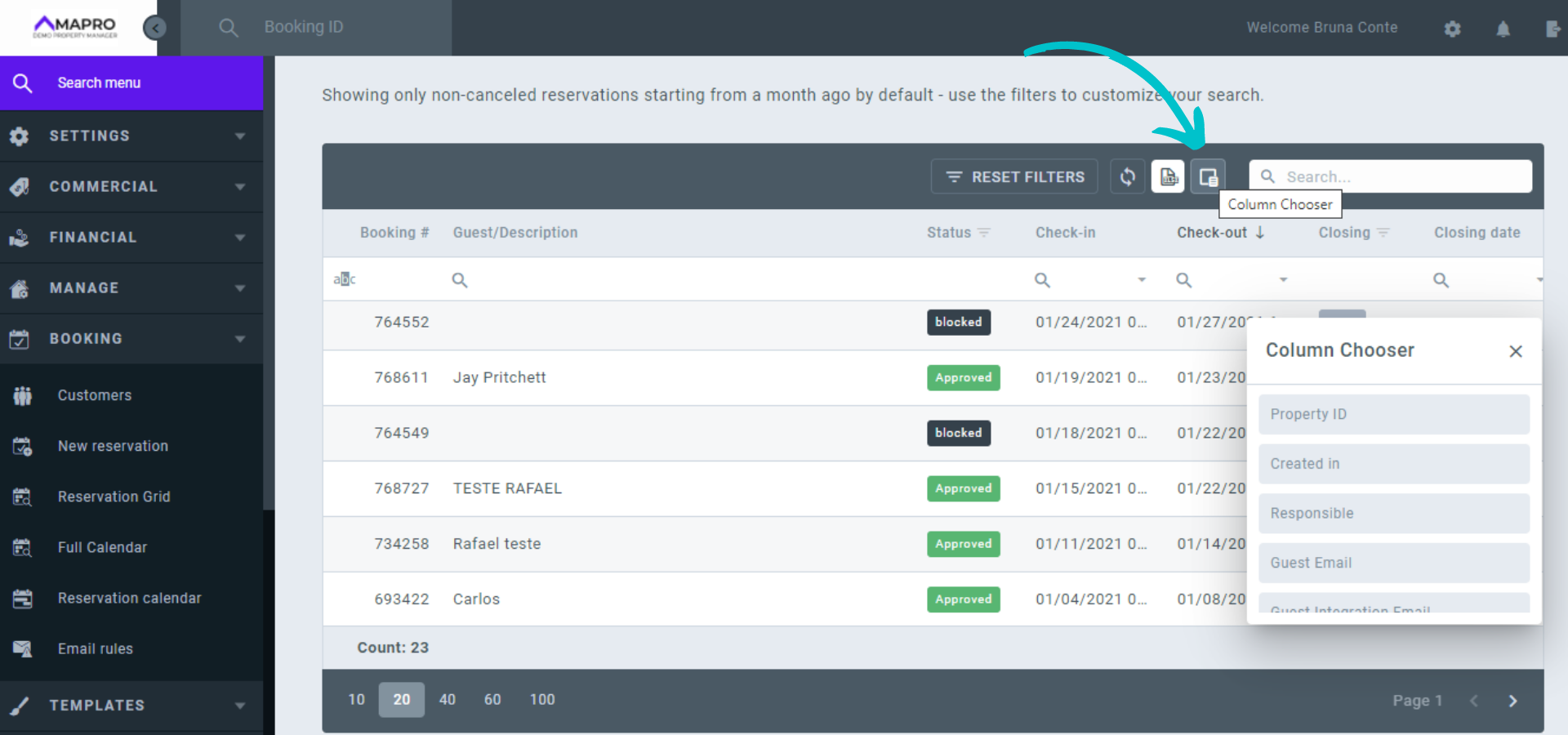
You can also choose which columns you wish to see: click on "Column chooser" and drag the columns from the list to the grid or from the grid to the list.
To filter the results of your search, choose the category/column and define the parameters.
Example: Filter by check-out date
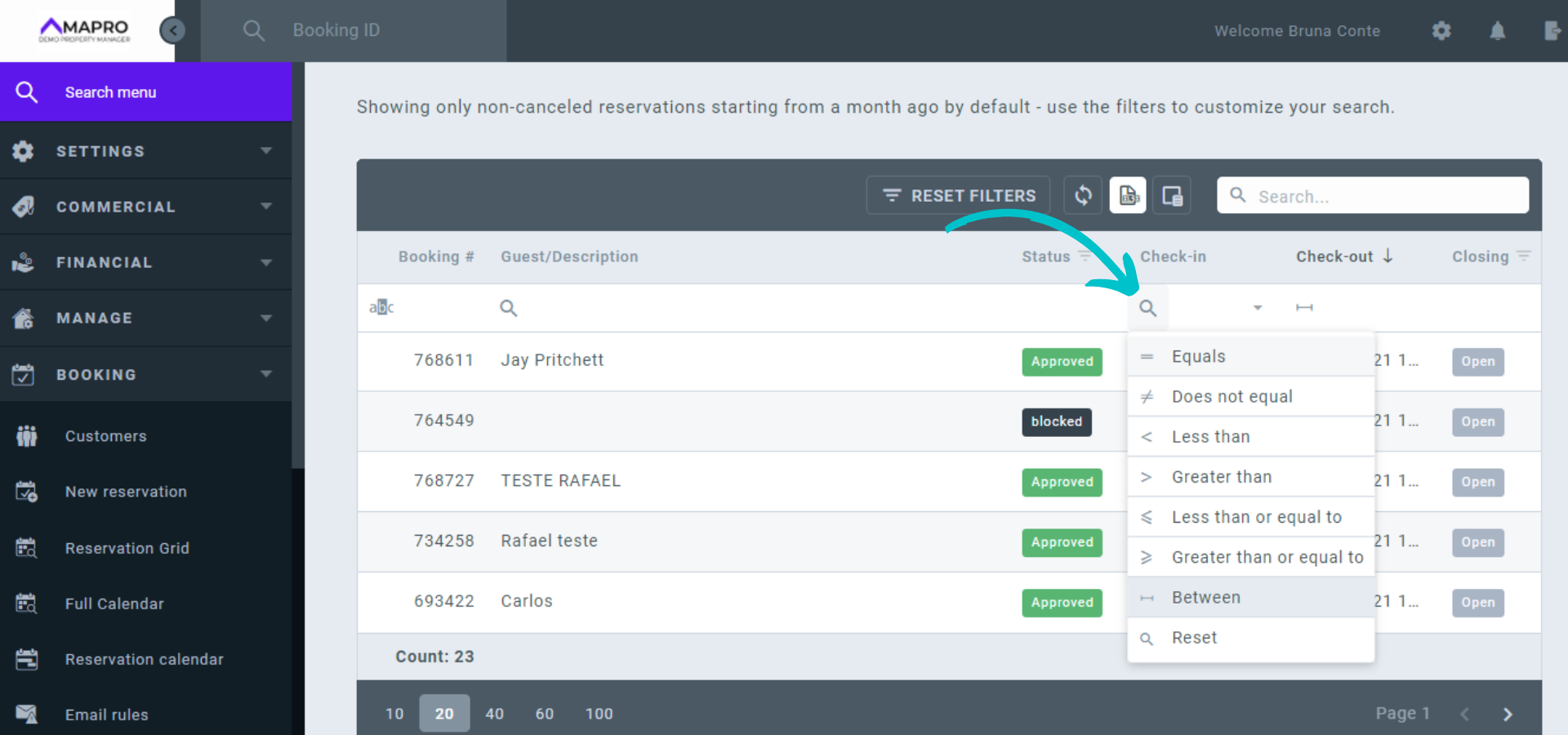
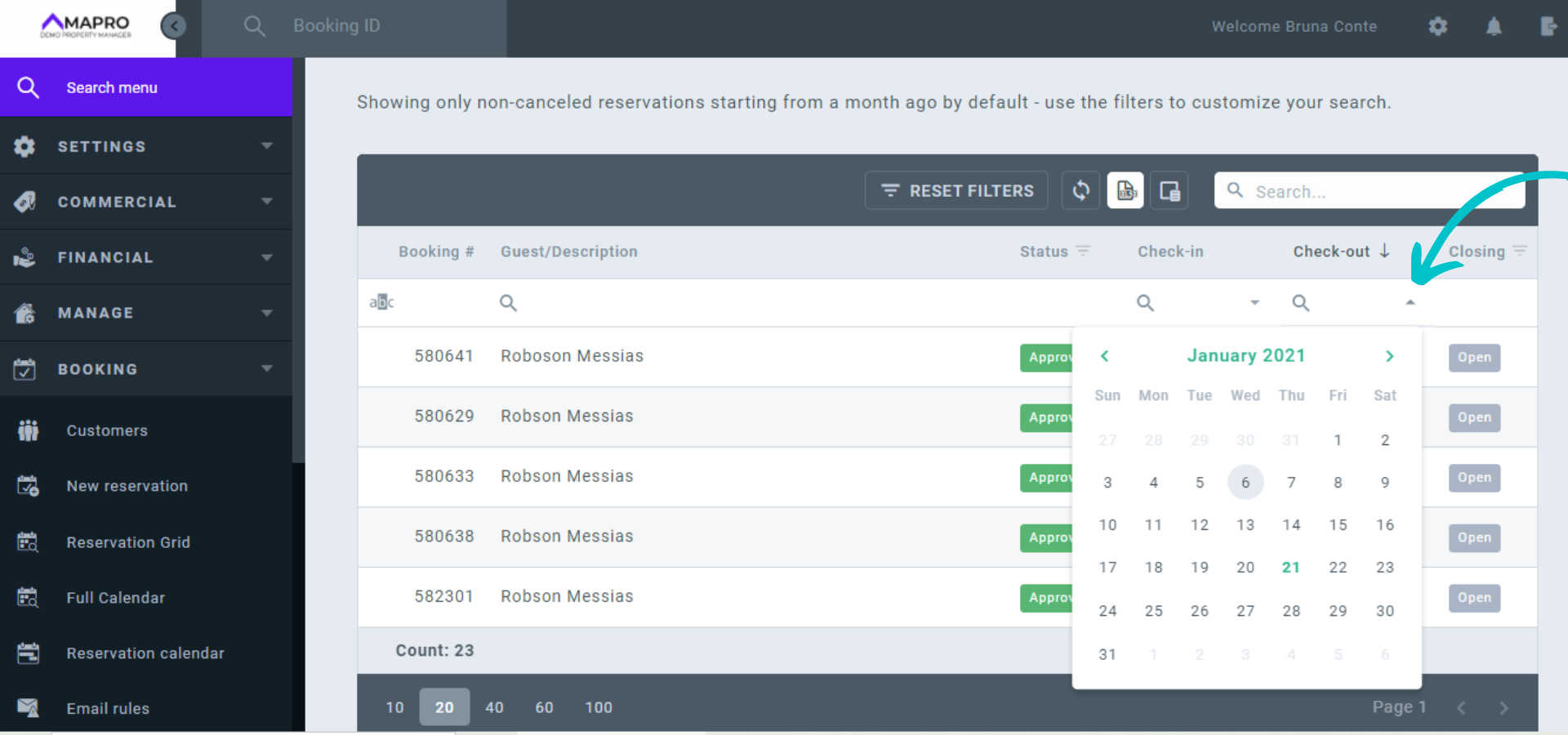
3. Click on the dropdown button to open the calendar and select the dates. We chose Start date = 01/12/20, and End date = 31/12/20. The search results will be all reservations checked-out between December 01 and 31, 2020.
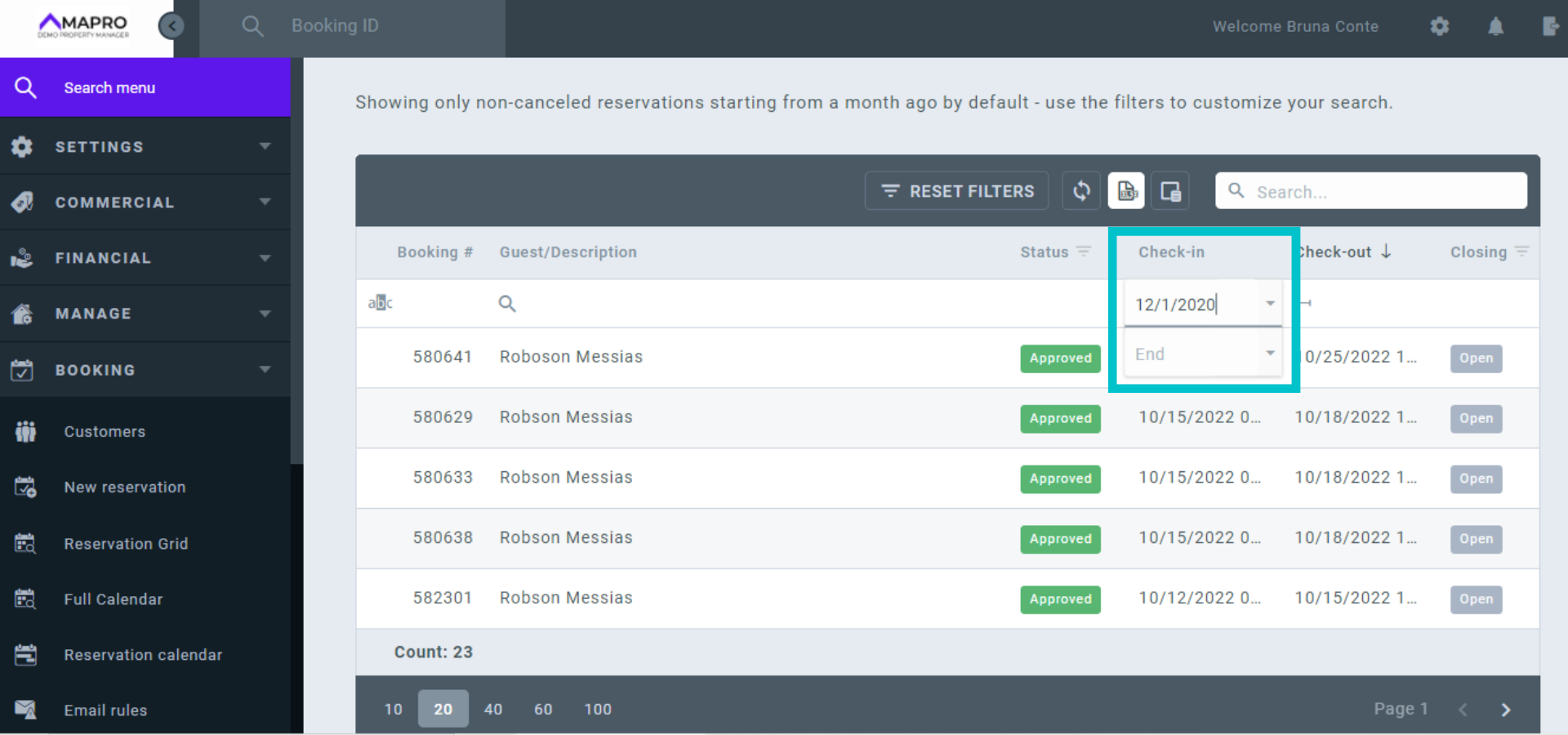
You can also click on the dropdown and choose the date on the calendar.