loading.. Please Wait
To edit blocks, you need to find them in the system and open the record to edit them.
If you have the Reservation ID, type the number in the “Booking ID” field on the upper toolbar and press “Enter."
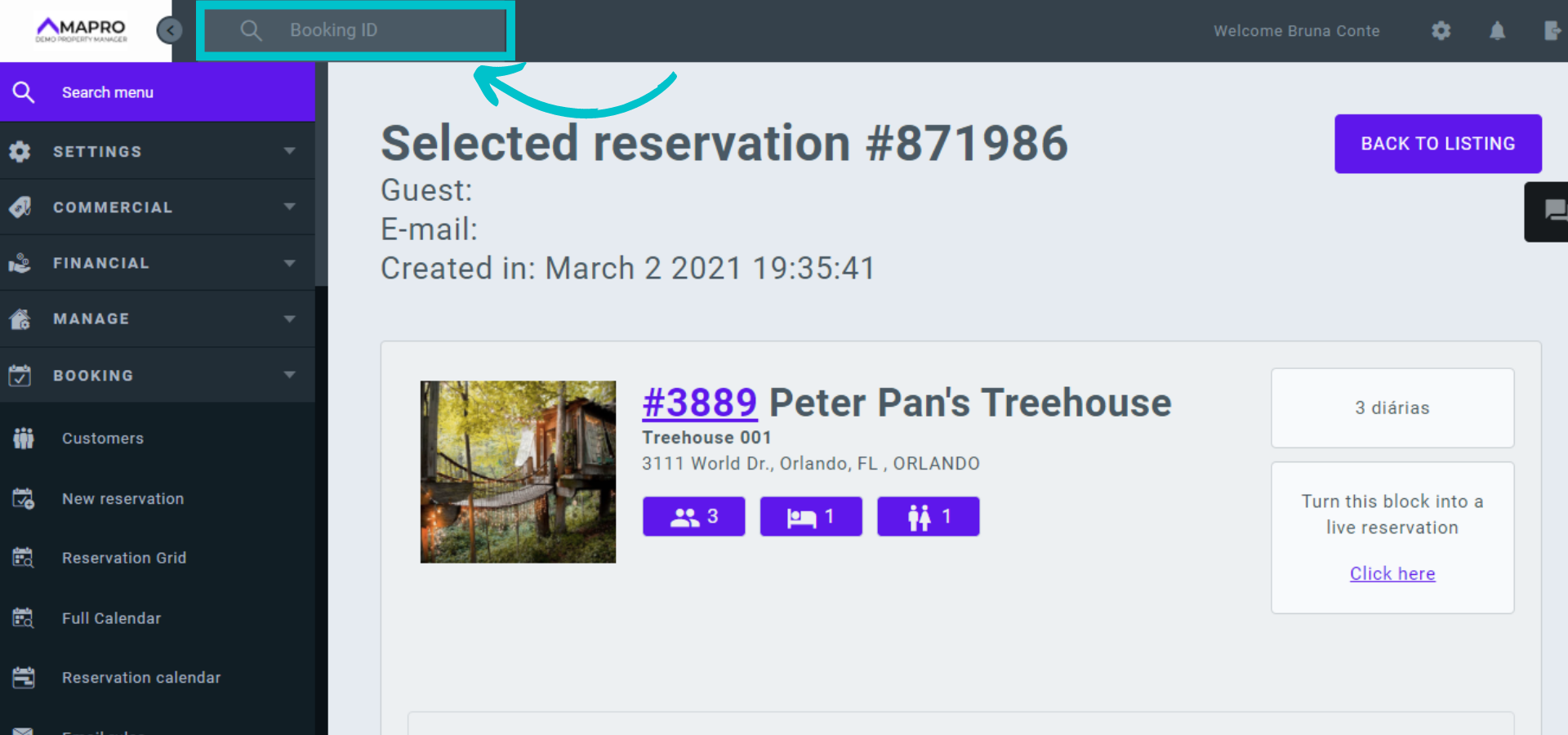
If you do NOT have the Booking ID, find the block from the Reservation Grid, Property Calendar, or Reservation Calendar.
1- Reservation grid: go to MENU > BOOKING> RESERVATION GRID to view reservations and blocks and click on the block line to open and edit it.
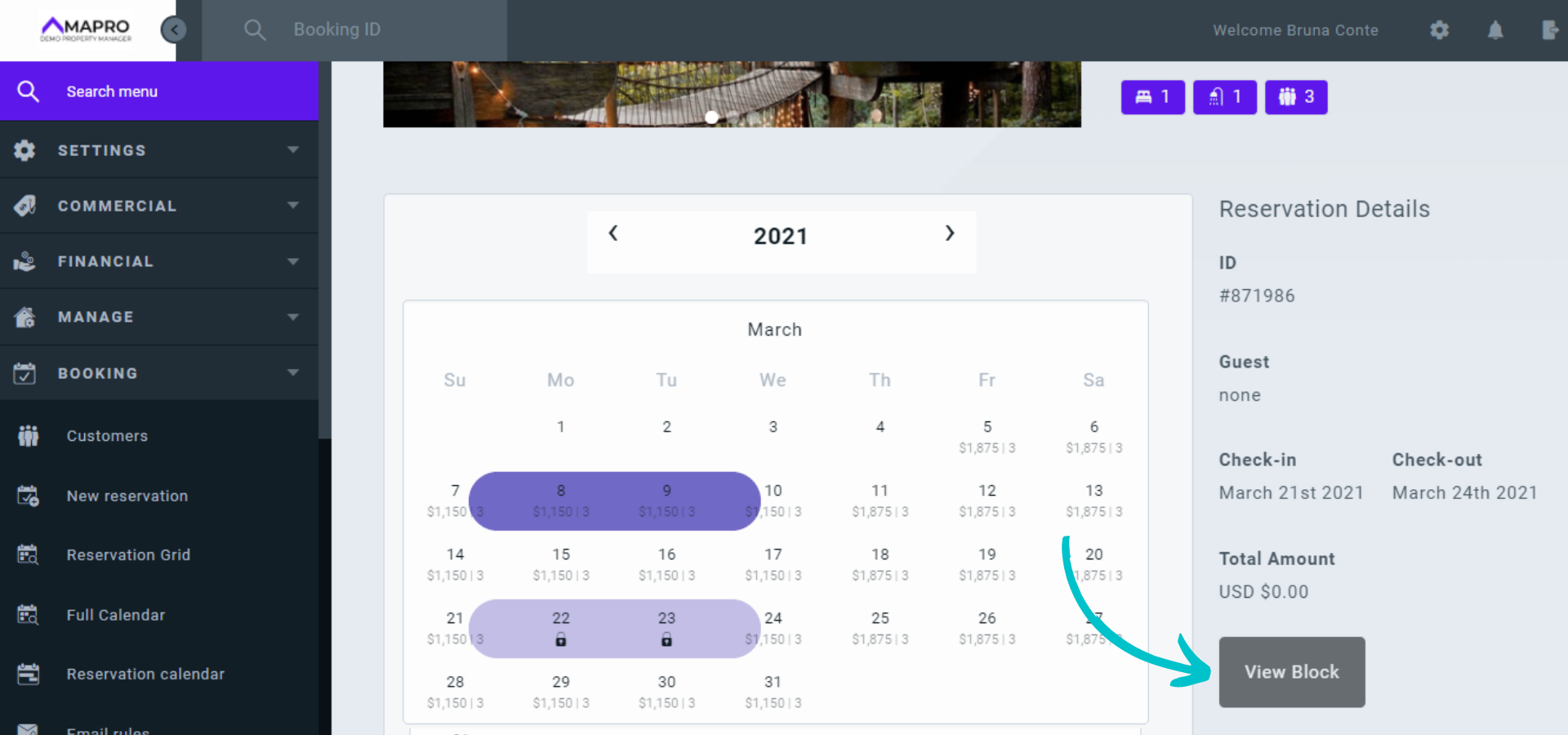
2- Property calendar: go to MENU > BOOKING > FULL CALENDAR and select the property on the right. On the calendar, reservations are marked with the color of the integrator that created the reservation, and dates marked in gray are blocked. Click on the block to see the details on the right, and click "View block" to open and edit it.
3- Reservations calendar: go to MENU > BOOKING > RESERVATIONS CALENDAR to open a screen with all bookings, by property, for the next three months. Reservations and blocks appear in the table with the color of the integrator that created them. Click the block to open and edit it.
When you open the block, you can edit the reason why you are blocking the property, change the dates, cancel it, or turn it into an active reservation.
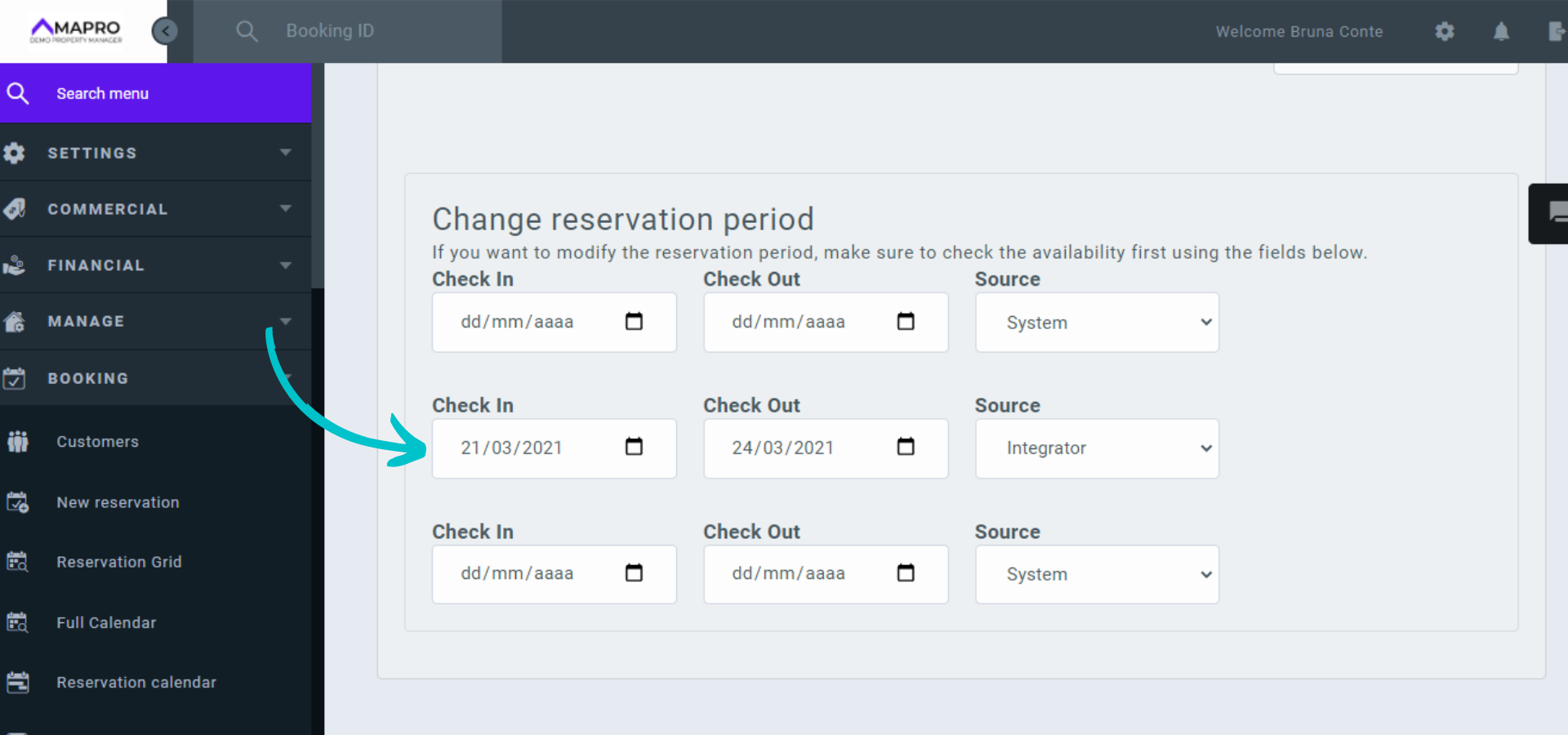
To edit the dates of the block, please note the “Change booking period" section.
Click on the field with the date, and choose the new date in the calendar. The system will inform whether the property will be available on the new dates or not. Click "Save" at the bottom of the page to confirm the changes.
To edit the reason why you are blocking the property, click on the field and add or edit the information. Click "Save" at the bottom of the page to confirm the changes.
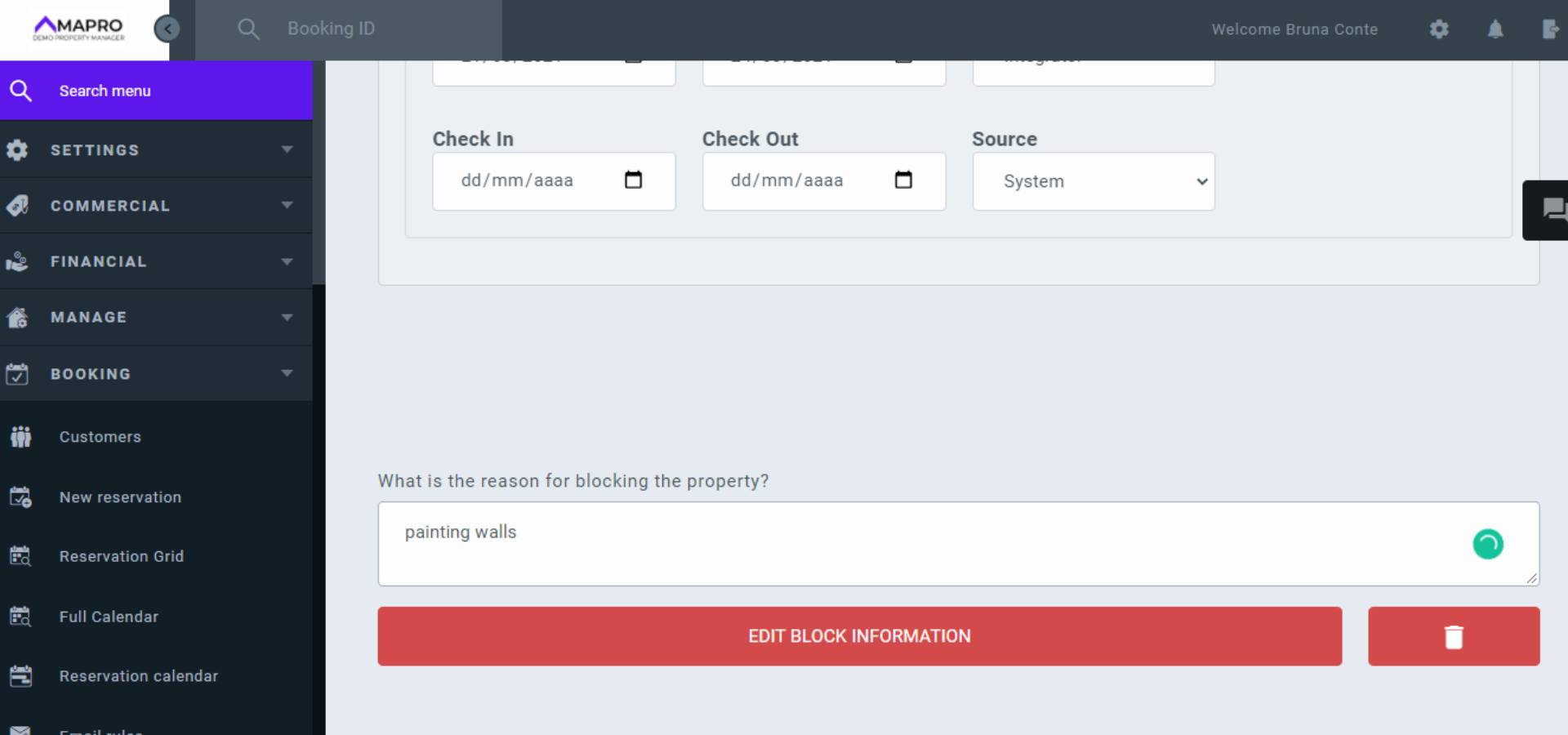
To delete the block, click the trash can icon at the bottom of the page and then “cancel.”
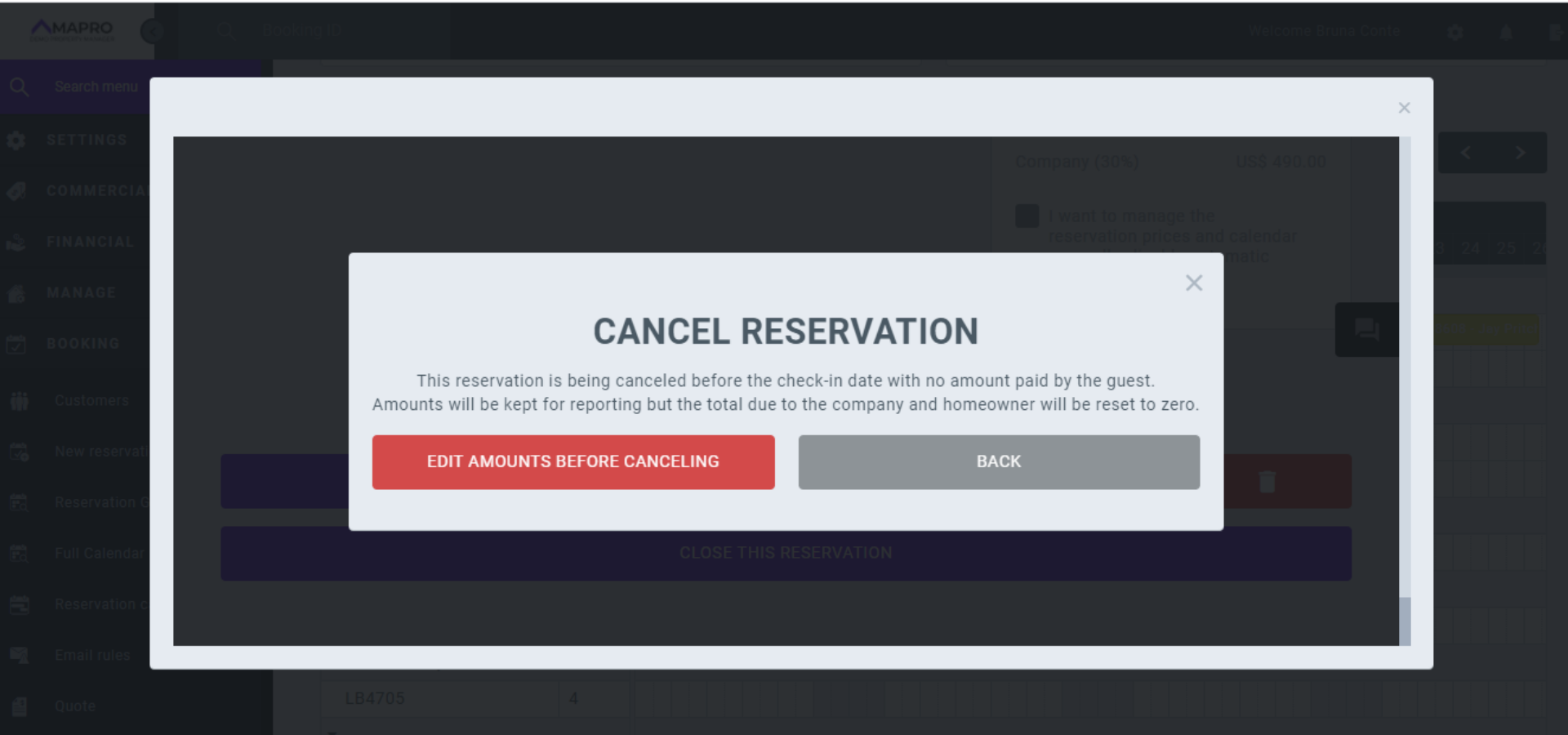
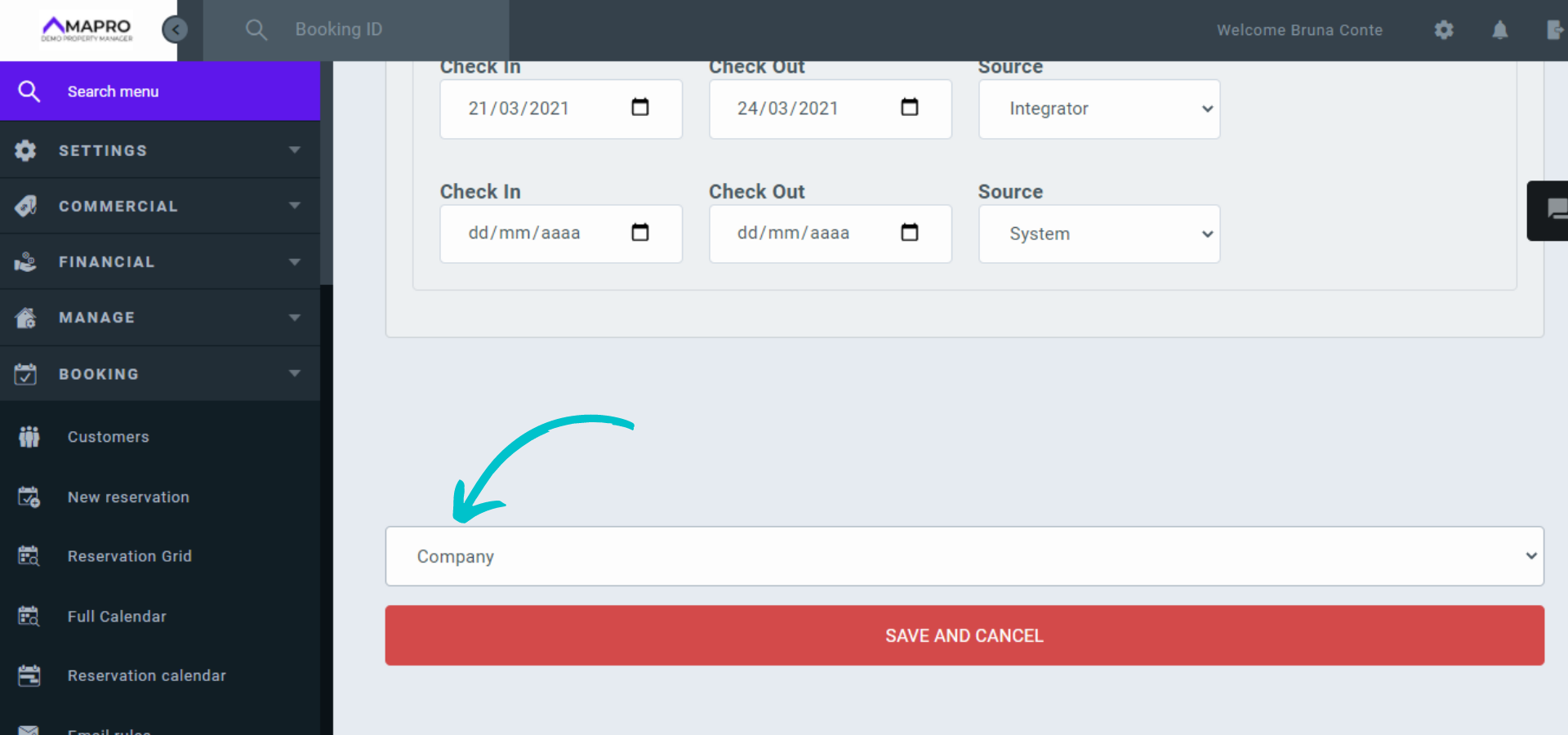
Select the type of cancellation ("Guest" or "Company“), and then click "Save and cancel.”