
loading.. Please Wait
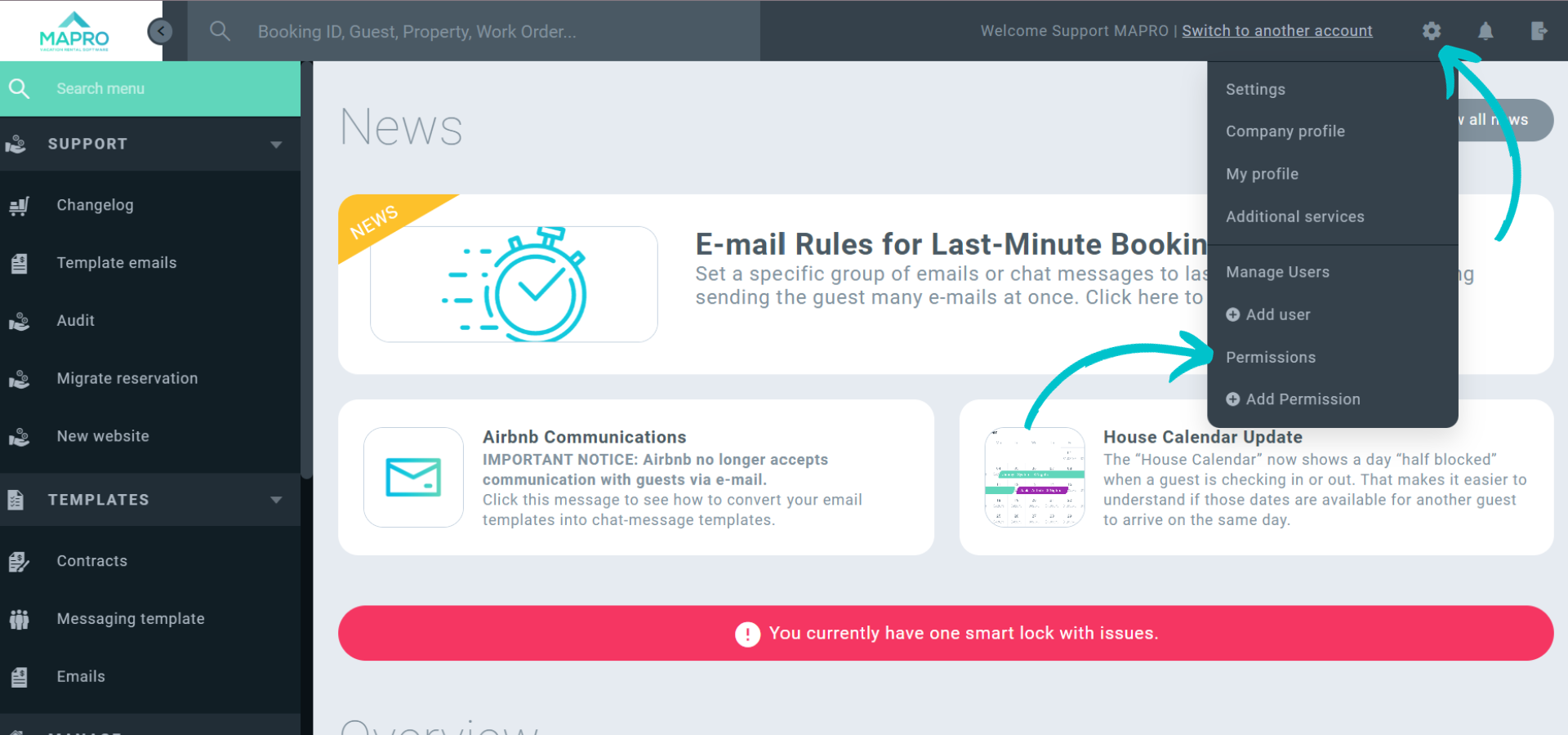
To customize your "Home Page", click the "Engine Icon" in the upper right corner, then go to "Permissions".*
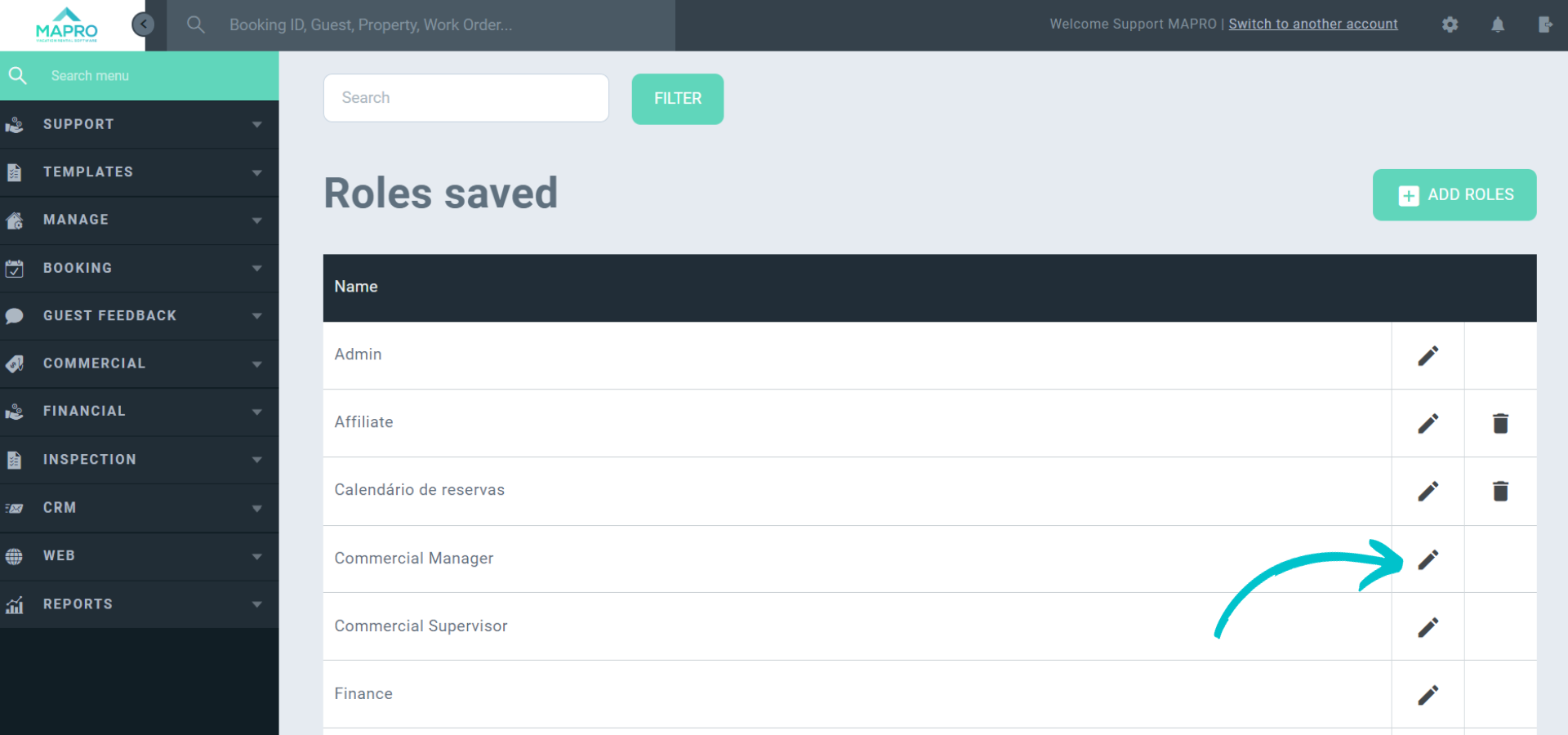
Click the "Access Level" of the user you'd like to edit.
Keep in mind that all users under the same "Access Level" will have the exact same permissions.
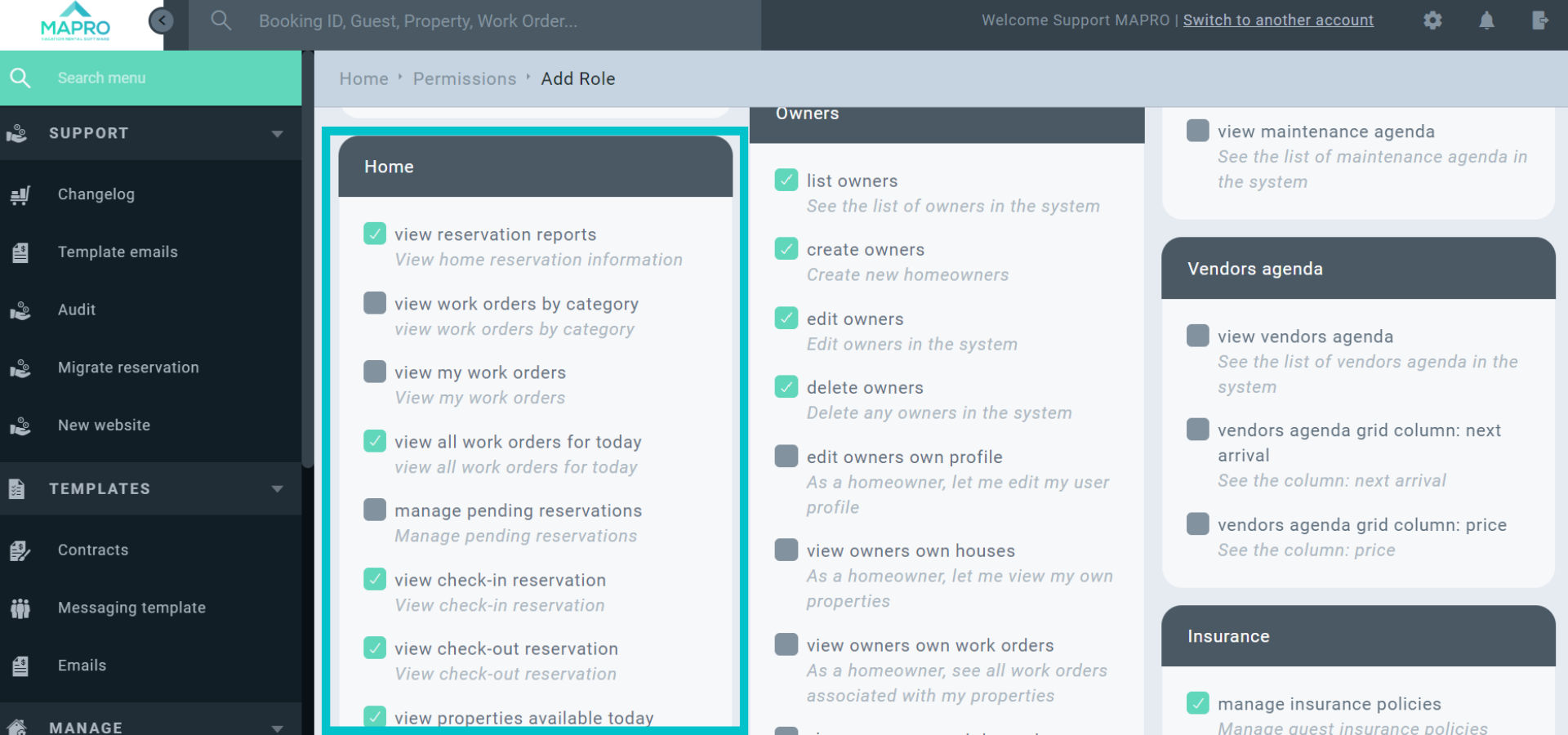
Once you open the "Permissions List", find the section called "Home", and check all the items you'd like to see on your Home Page. Then click "Save" at the bottom of the page.
After editing the permissions of an "Access Level", each user under that group can customize their homepage individually by clicking "Dashboard Settings" on the Home Page.
Each user can check the boxes to choose the items they want, and also click the dots on the right to drag the items up and down and rearrange their position.
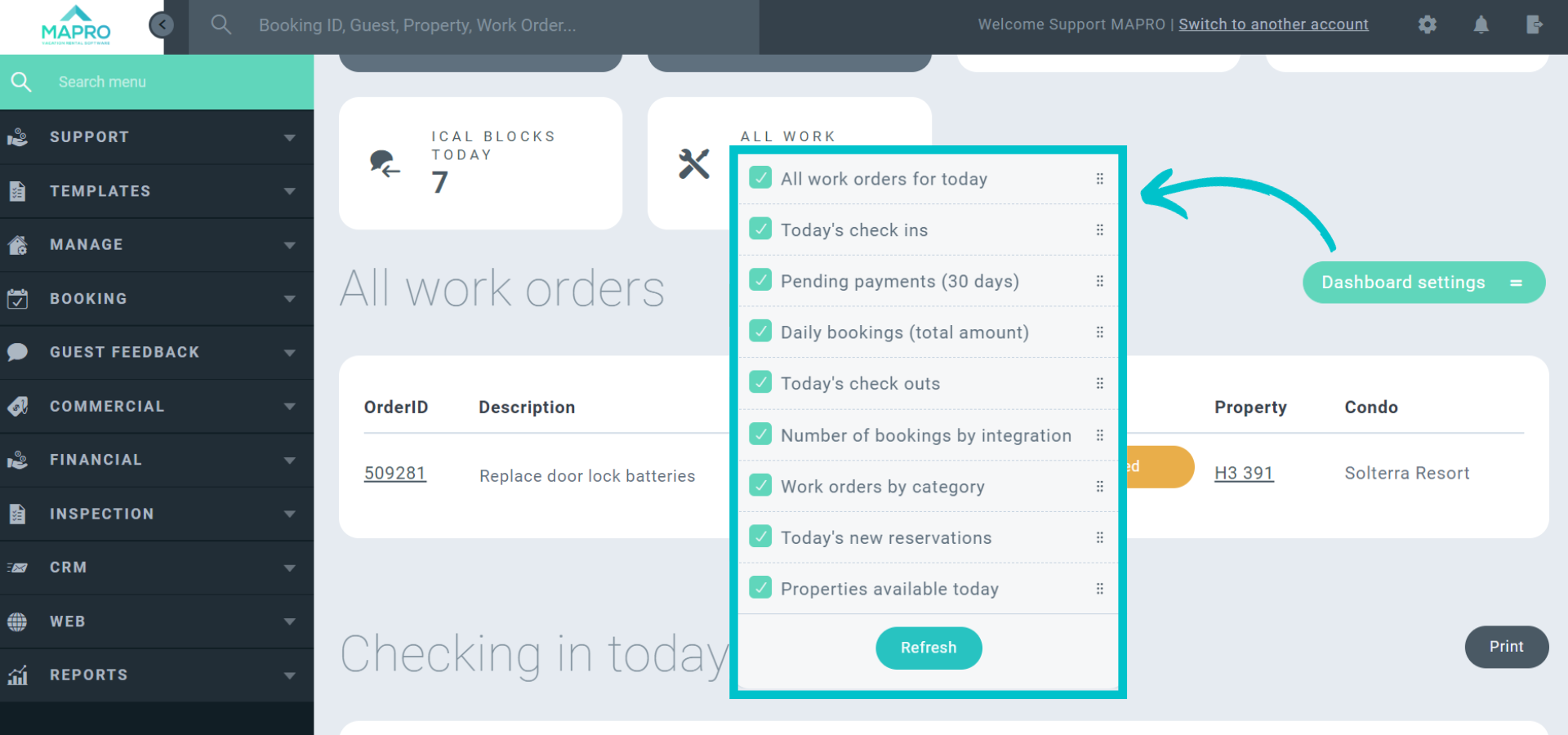
After choosing the items and their position, hit "Refresh" and check your customized Home Page!
*You may not be allowed to edit the permissions. In that case, ask your manager or a user under the "Admin Access Level" to edit that for you.



