loading.. Please Wait
Find here all the information you need as a homeowner:
To start using MAPRO, log in at http://app.mapro.us with the email address registered by the Property Manager. You will receive an email message with instructions to set up your password.
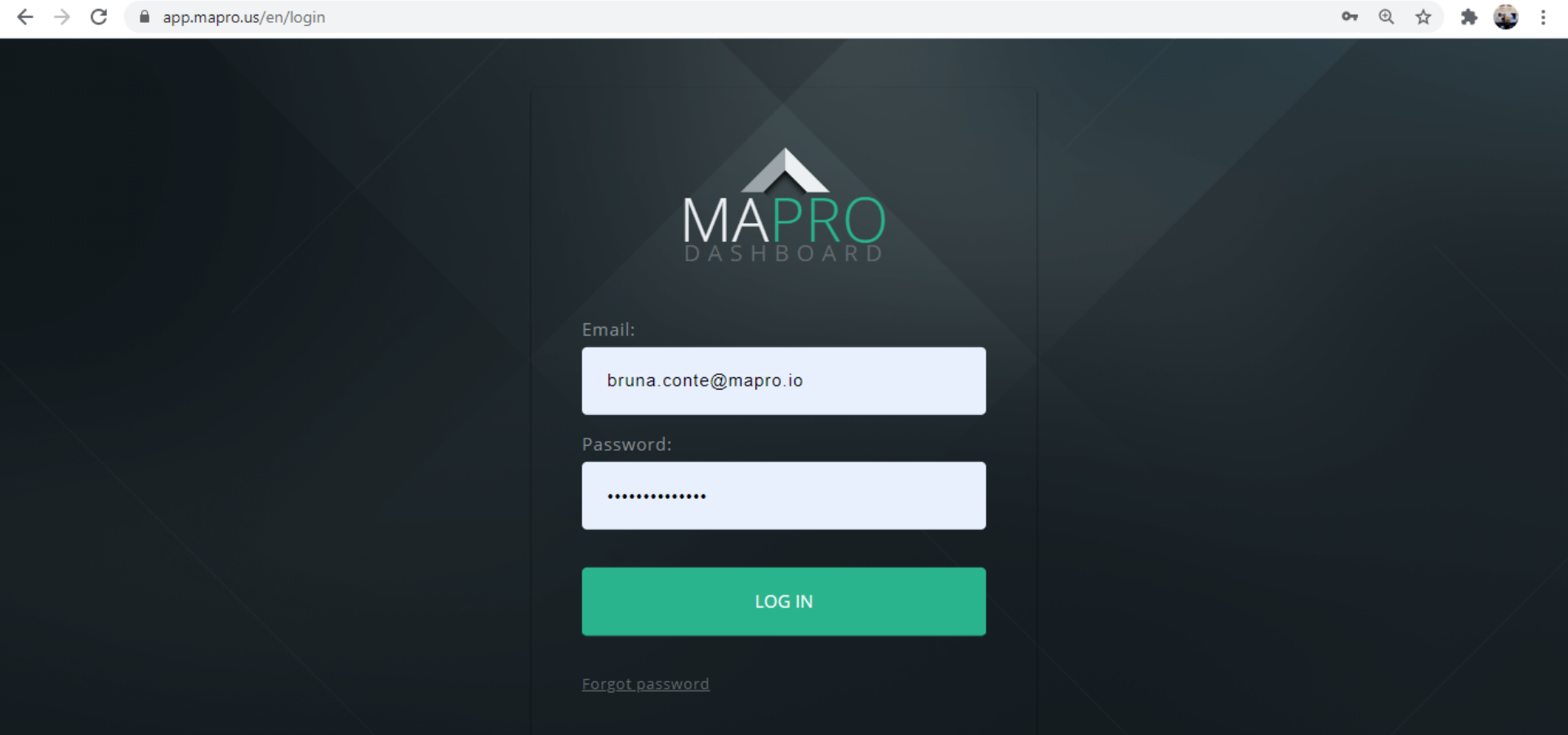
To access and edit your personal information and change your password, go to the SETTINGS MENU > MY INFO: on the right top of the page, click on the engine icon, and then on “My Info”.
You can also access this screen by clicking on “My Settings” on the left menu. After editing the information, click on “Save” at the bottom of the screen.
Important: If you are not going to change your password, you must leave both password fields empty. If your browser has saved your password, it is necessary to go to the “Change Password” screen and delete the information so you can save the changes you have made.
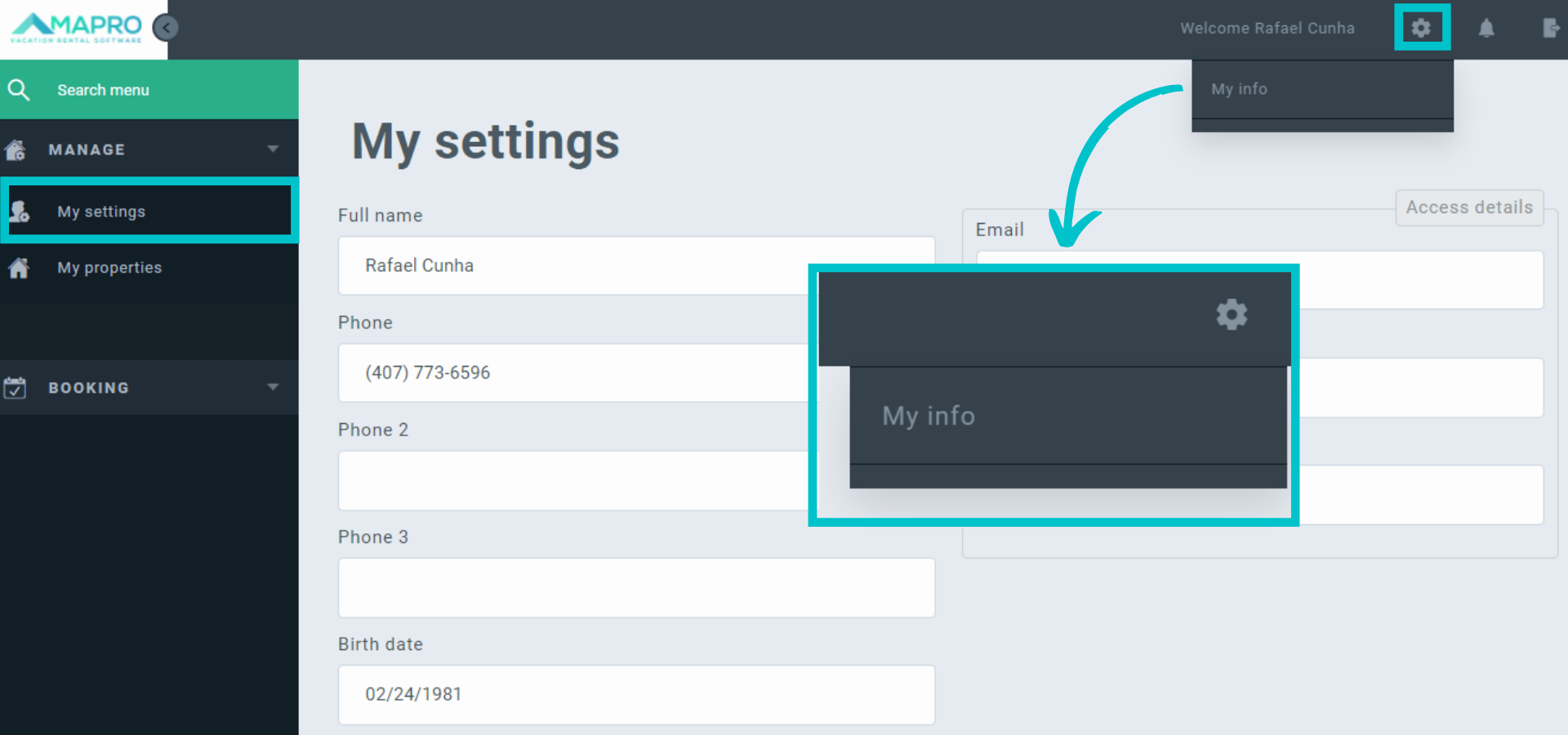
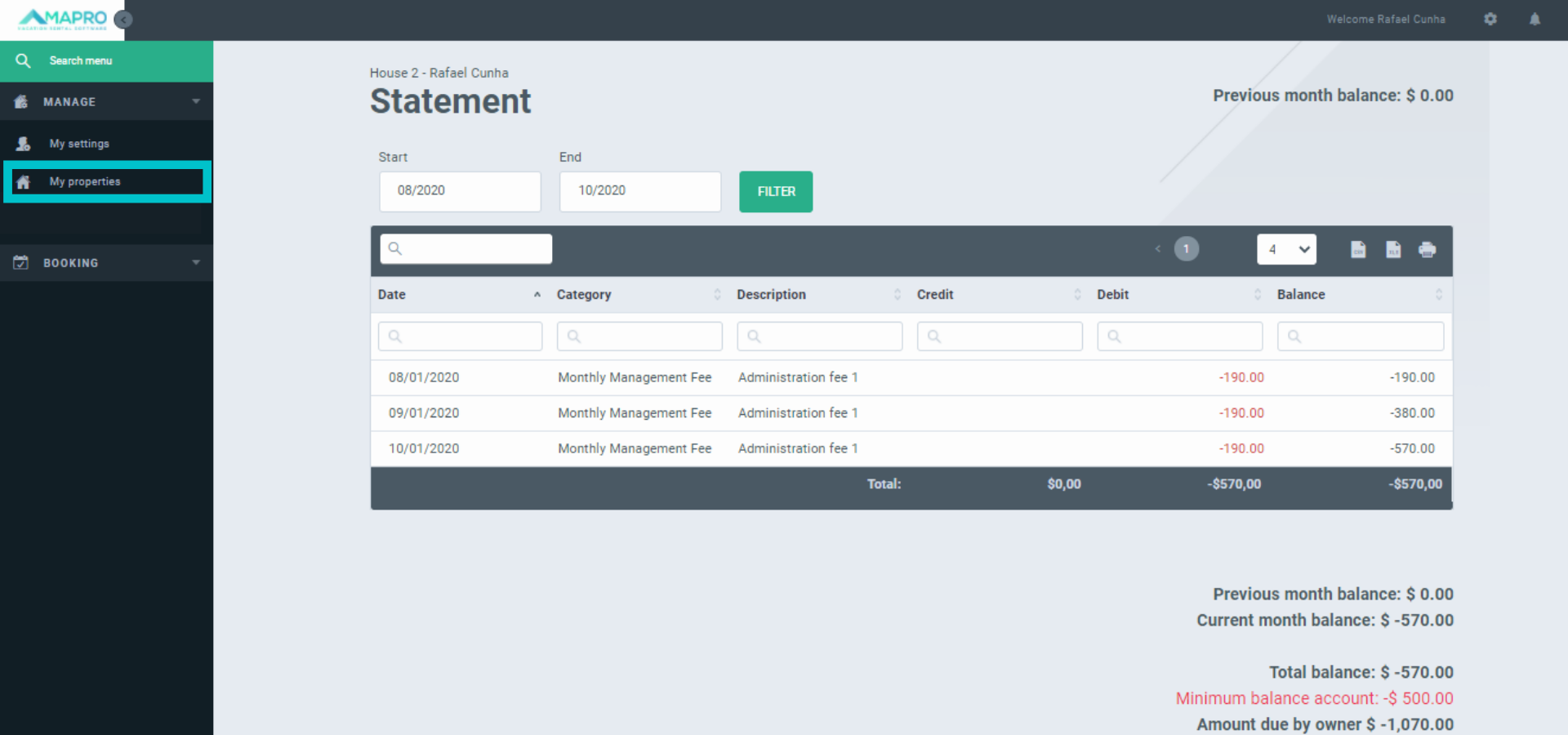
To see and manage your properties, go to MENU > MANAGE > MY PROPERTIES. On this screen, you will find a list of all your properties, and on the right of each, there are four management options: Files, Preview URL (website address), Statement, and Calendar.
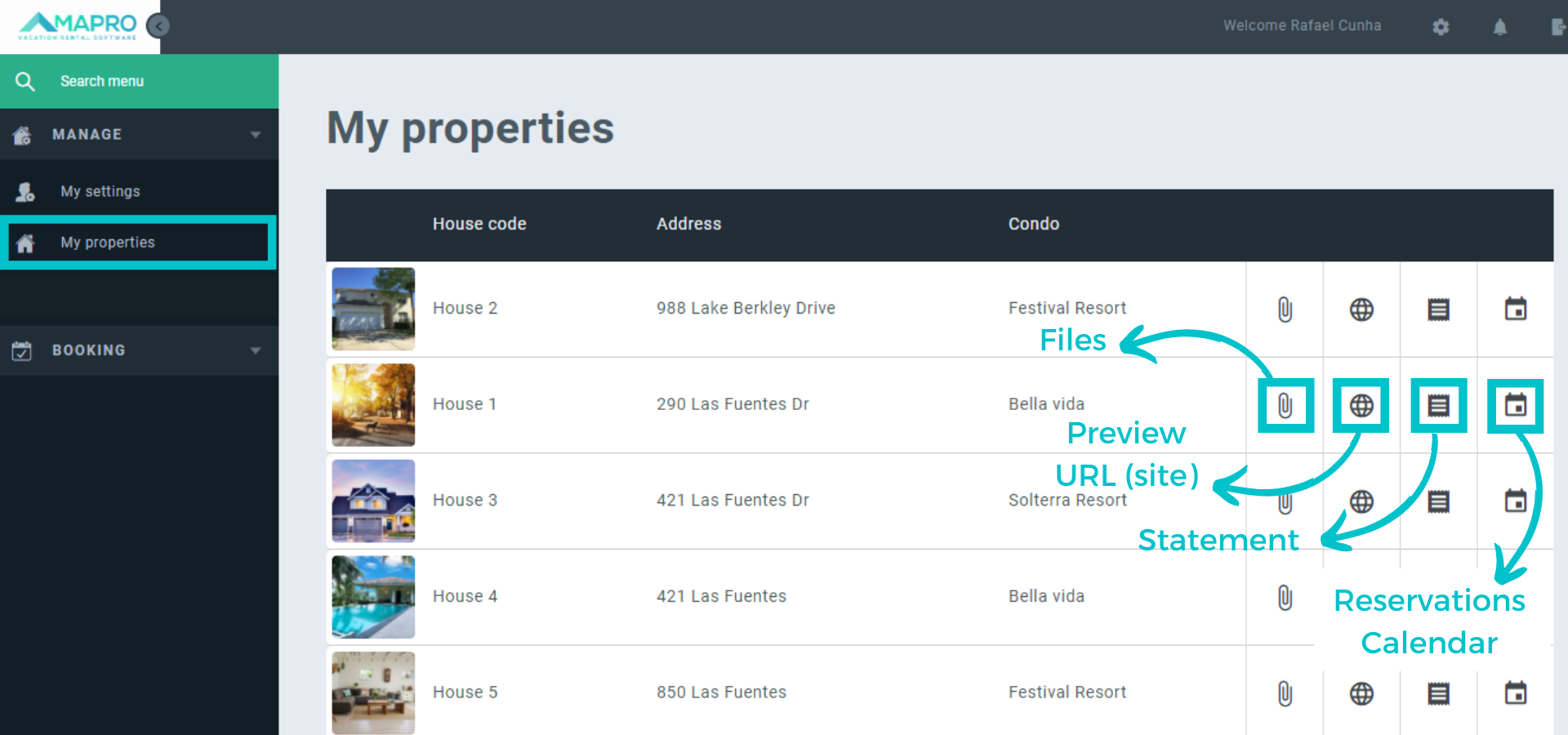
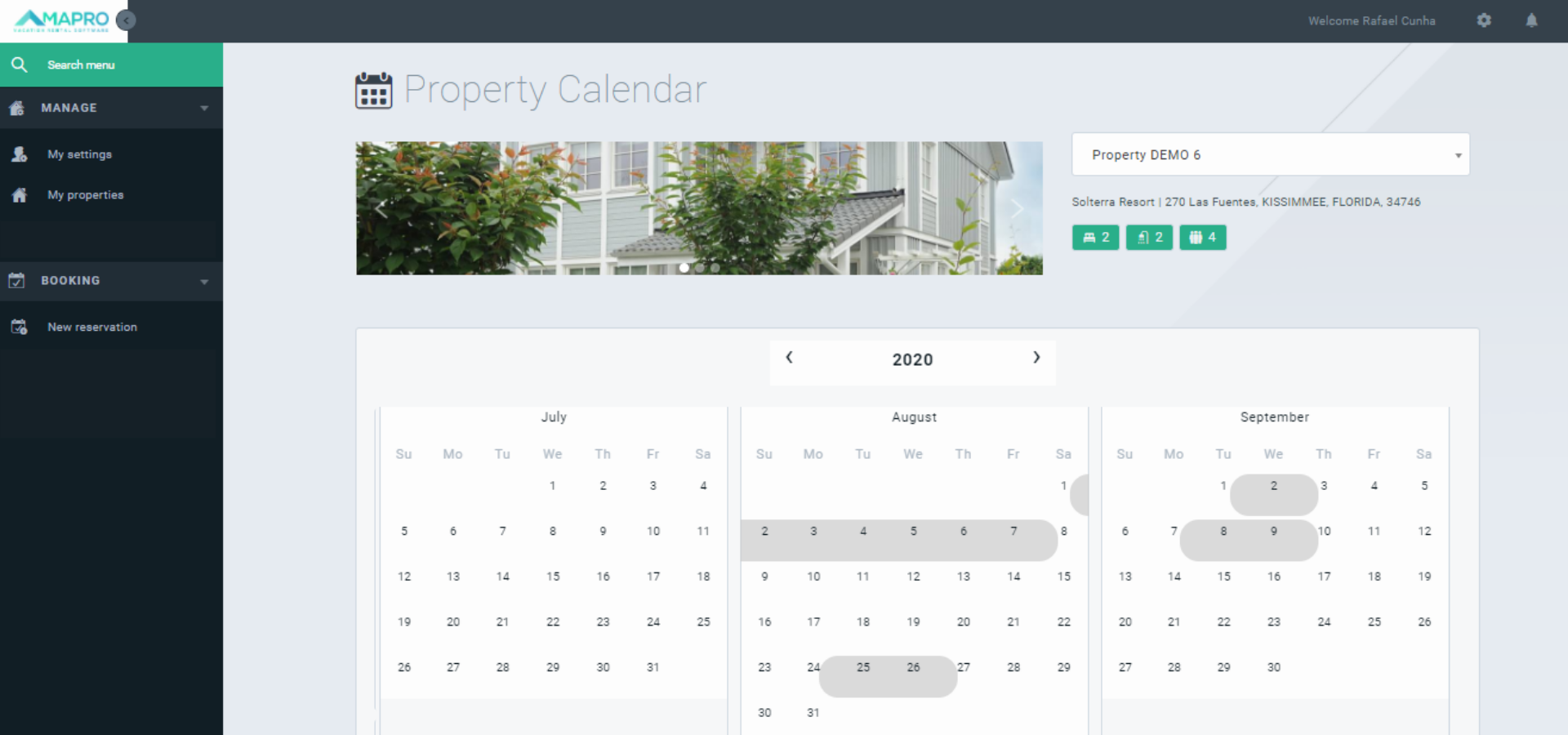
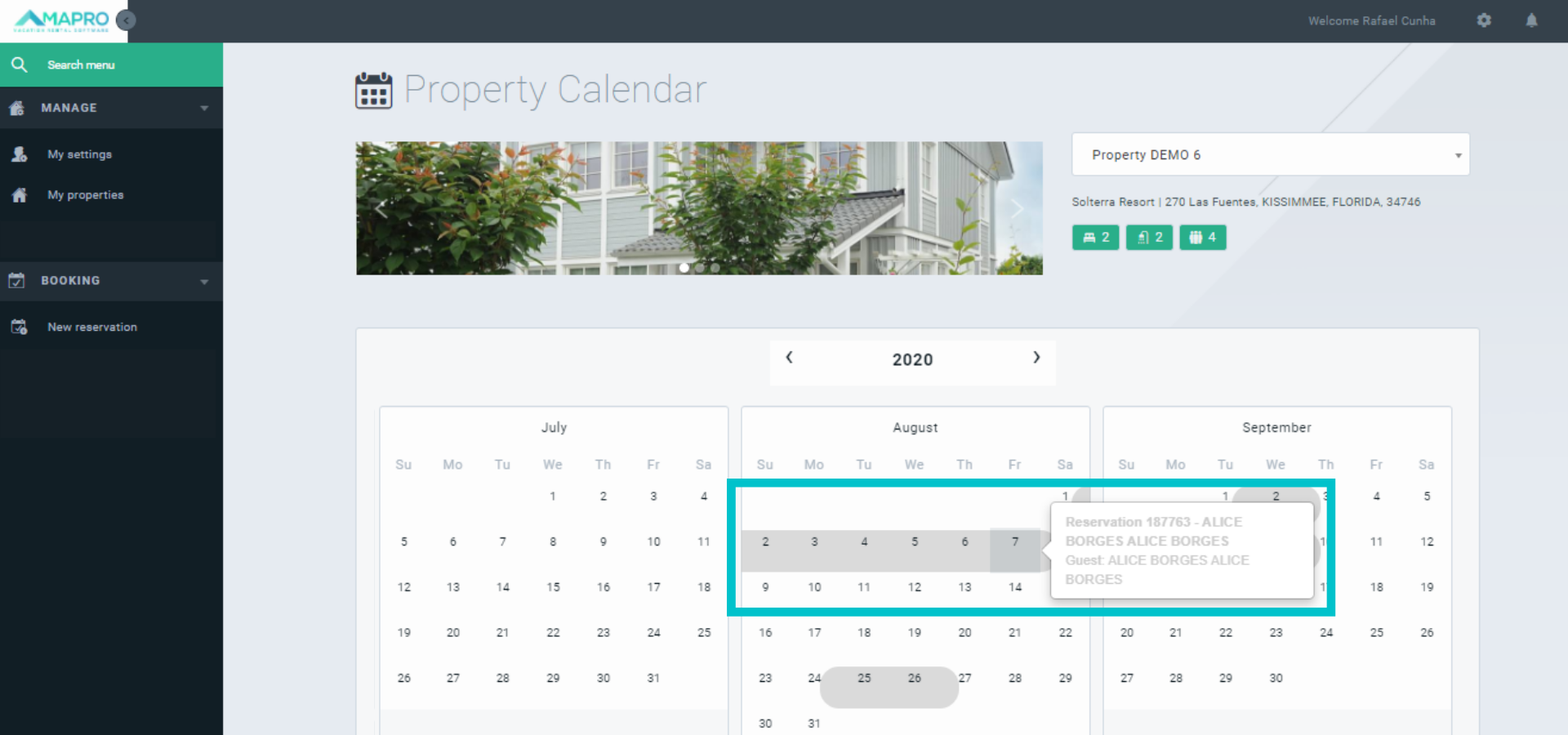
On MENU > MANAGE > MY PROPERTIES, click on the calendar icon to see all confirmed reservations to your property, and hover your mouse over the reservation to see booking details like check-in and check-out dates.
Use the field on the right to access another property's calendar.
Confirmed Reservations:
Booking Details:
On MENU > MANAGE > MY PROPERTIES, click on the statement icon to see your property’s statement, including all income and expenses information.
Use the filters on the top of the page to access another property's statement, and also to see the statement from a specific period – to check the information about January only, select the option 01/2020 in both “Start” and “End” fields. To check the information from January to March, select 01/2020 in the “Start” field and 03/2020 in the “End” field.
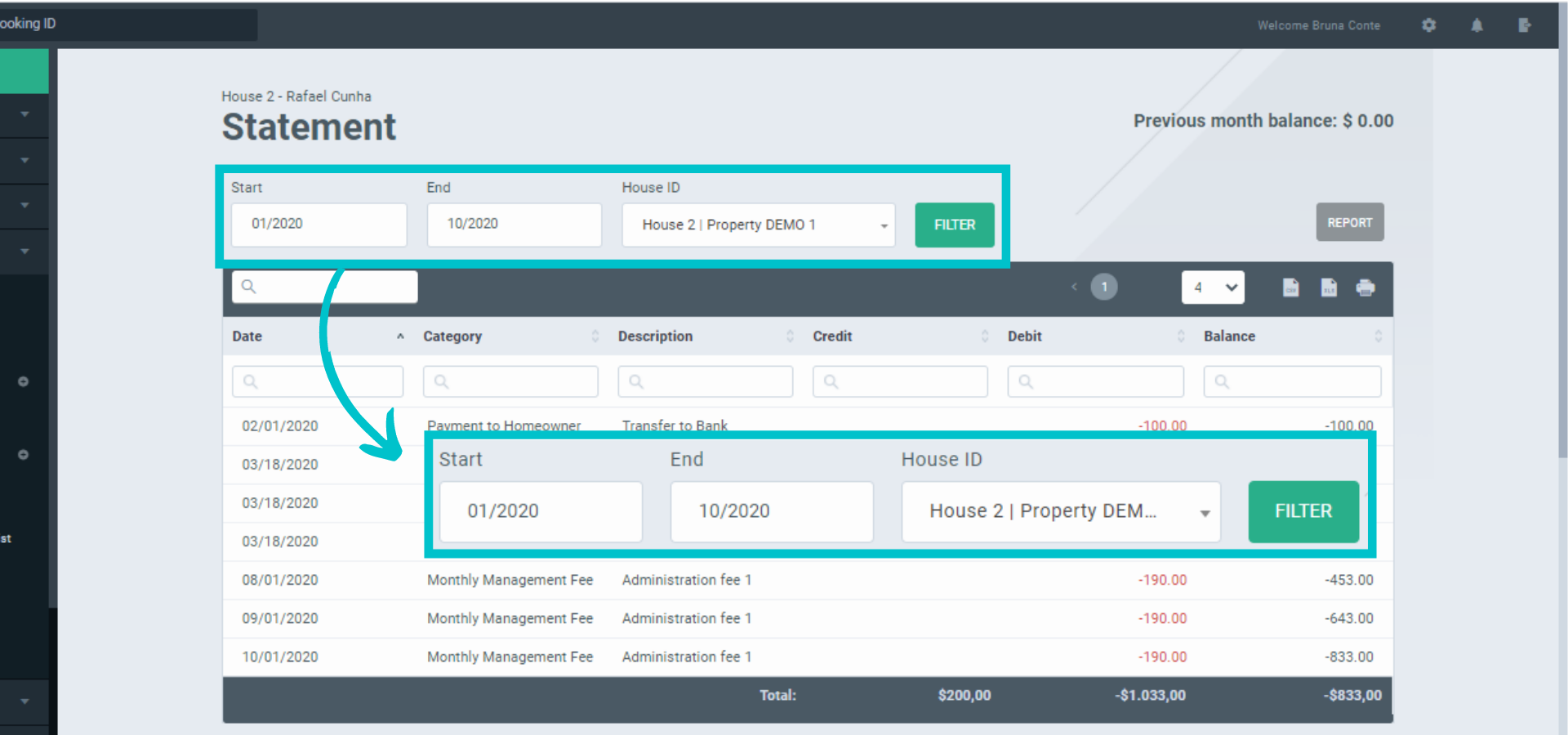
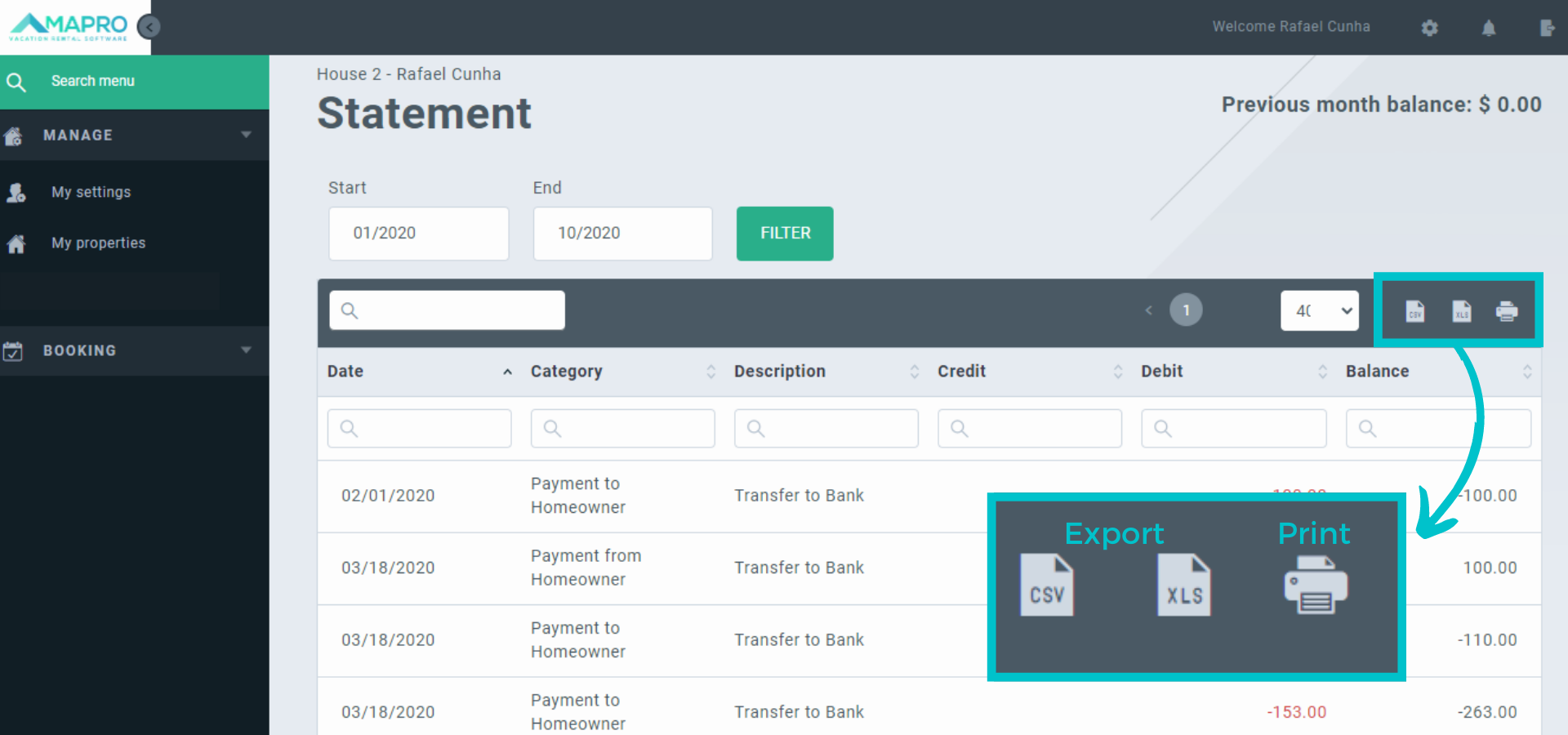
To export or print the statement data, open the statement screen, and click on the icons on the right side of the page. When exporting, choose between cvs or xls file format.
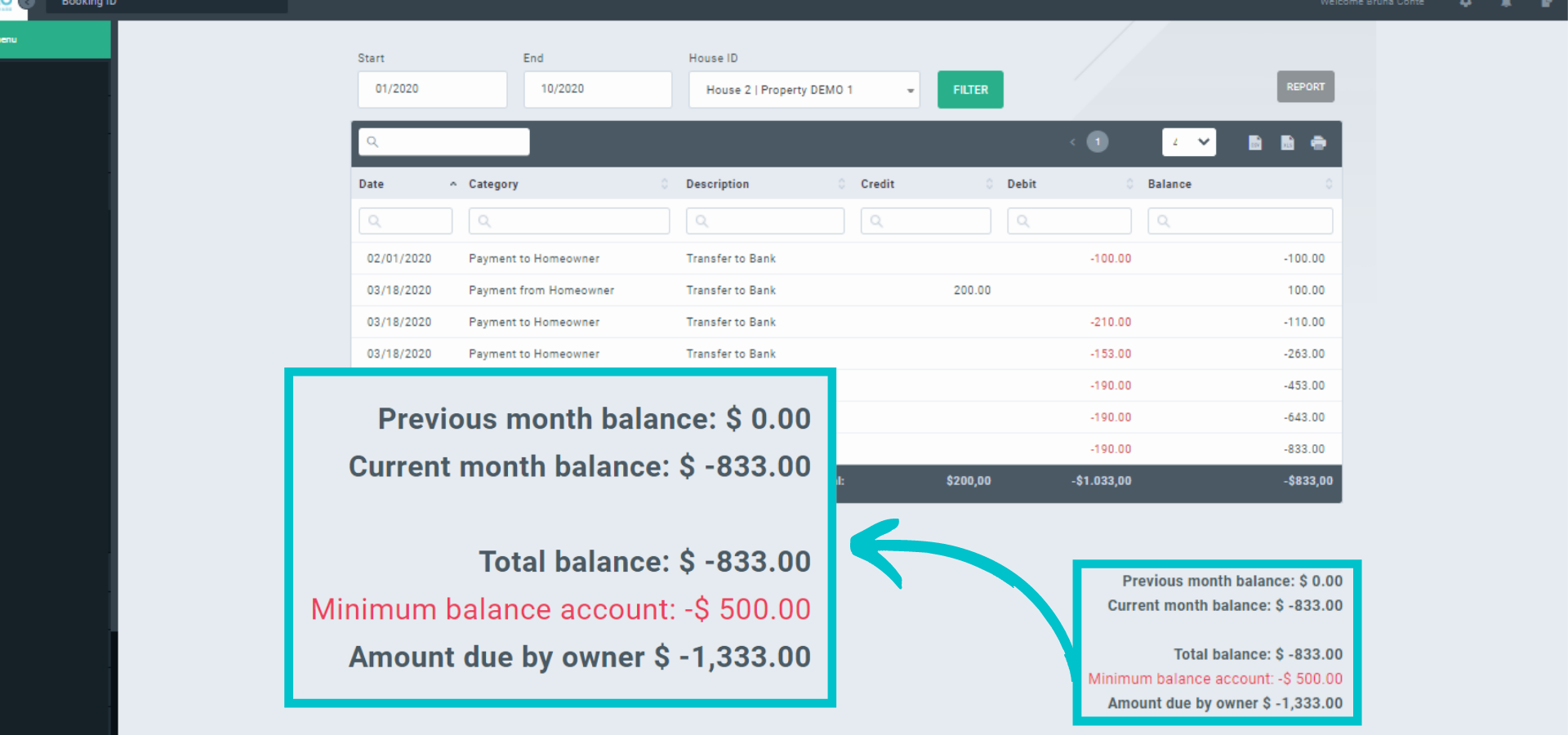
At the bottom of the statement page, find simplified balance information of your property:
Previous month balance = Any remaining amount from the previous month (credit or debt)
Current month balance = Current month amount
Total balance = remaining amount from the previous month (if there is any) + the current month.
Example:
Consider February the current month. By the end of January (previous month), the balance was – $ 100.00, and the current balance is $ 500.00. The simplified balance information will be as follows:
Previous Month Balance = -$100.00
Current Month Balance = $500.00
Total Balance = $400.00
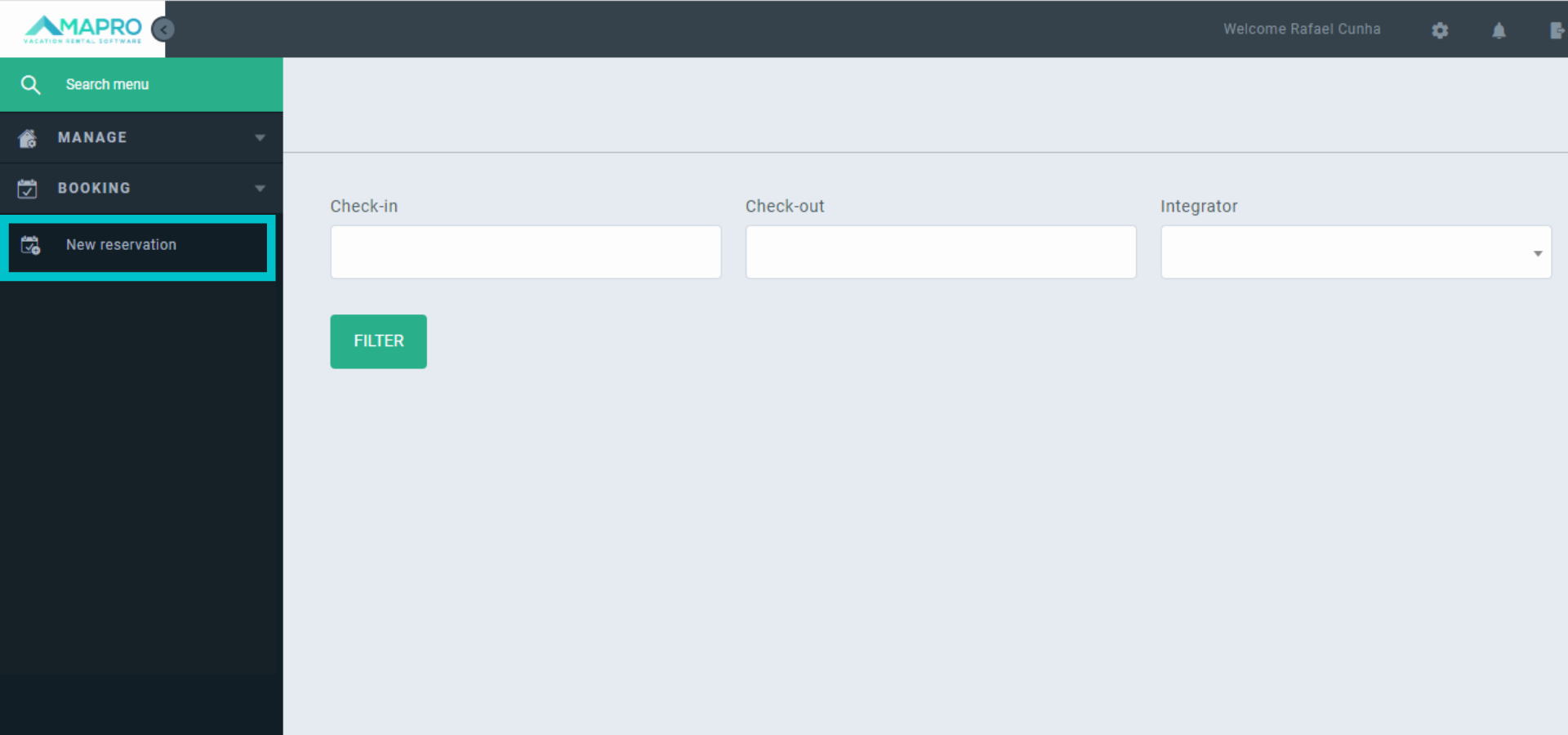
To book your own stay, access MENU > RESERVATIONS > NEW RESERVATION.
Select the check-in and check-out dates on the calendar, and then click on “Filter” to check the availability for those dates. On the “Integrator” field, select the options “Owner’s stay” (your own stay) or “Owner’s Reservation” (someone else’s stay).
If the house is available for the period you are interested in, click on “book”, and finish the reservation process on the following page.