loading.. Please Wait
Find here all the information you need as an Affiliate:
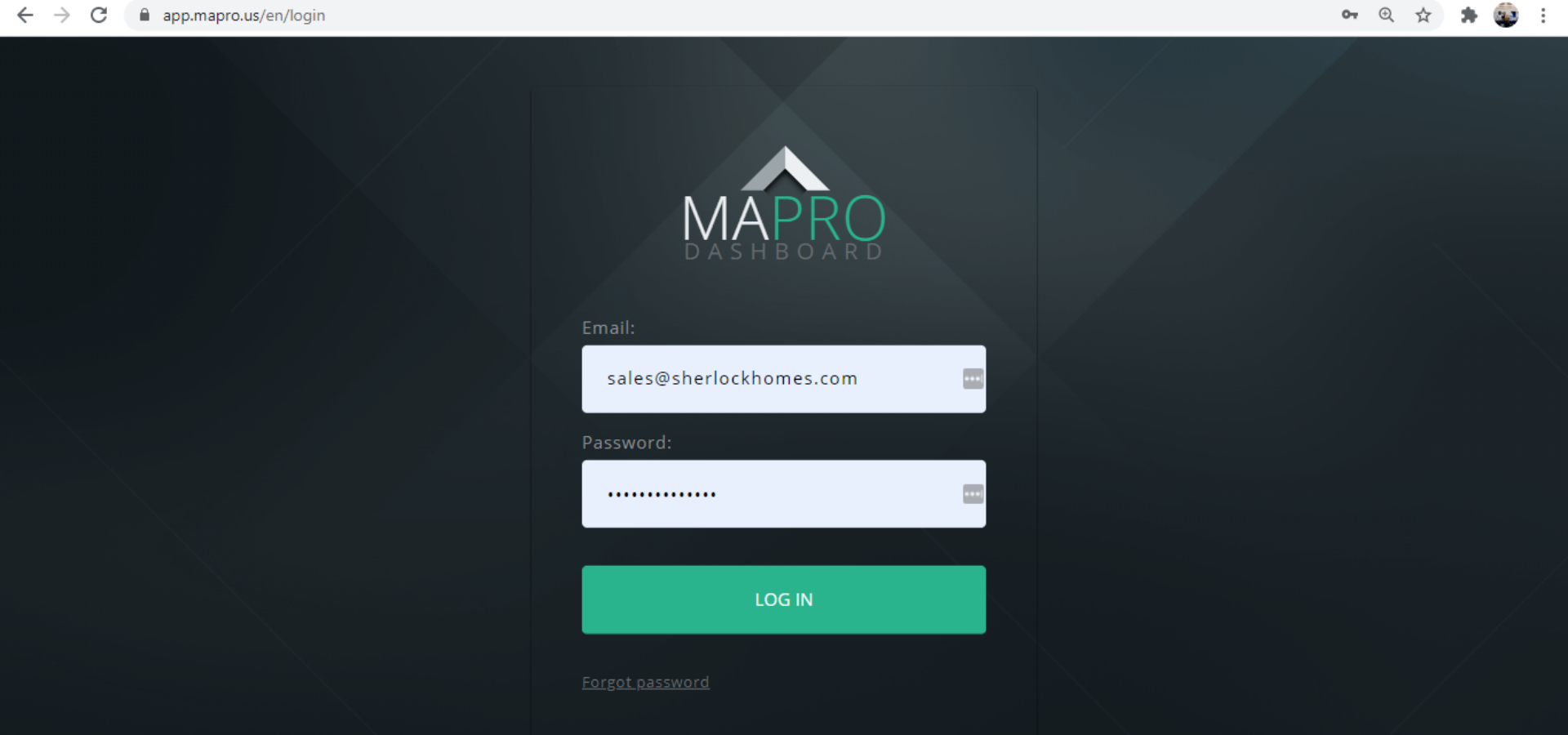
To start using MAPRO, log in at http://app.mapro.us with the email address registered by the Property Manager. You will receive an email message with instructions to set up your password.
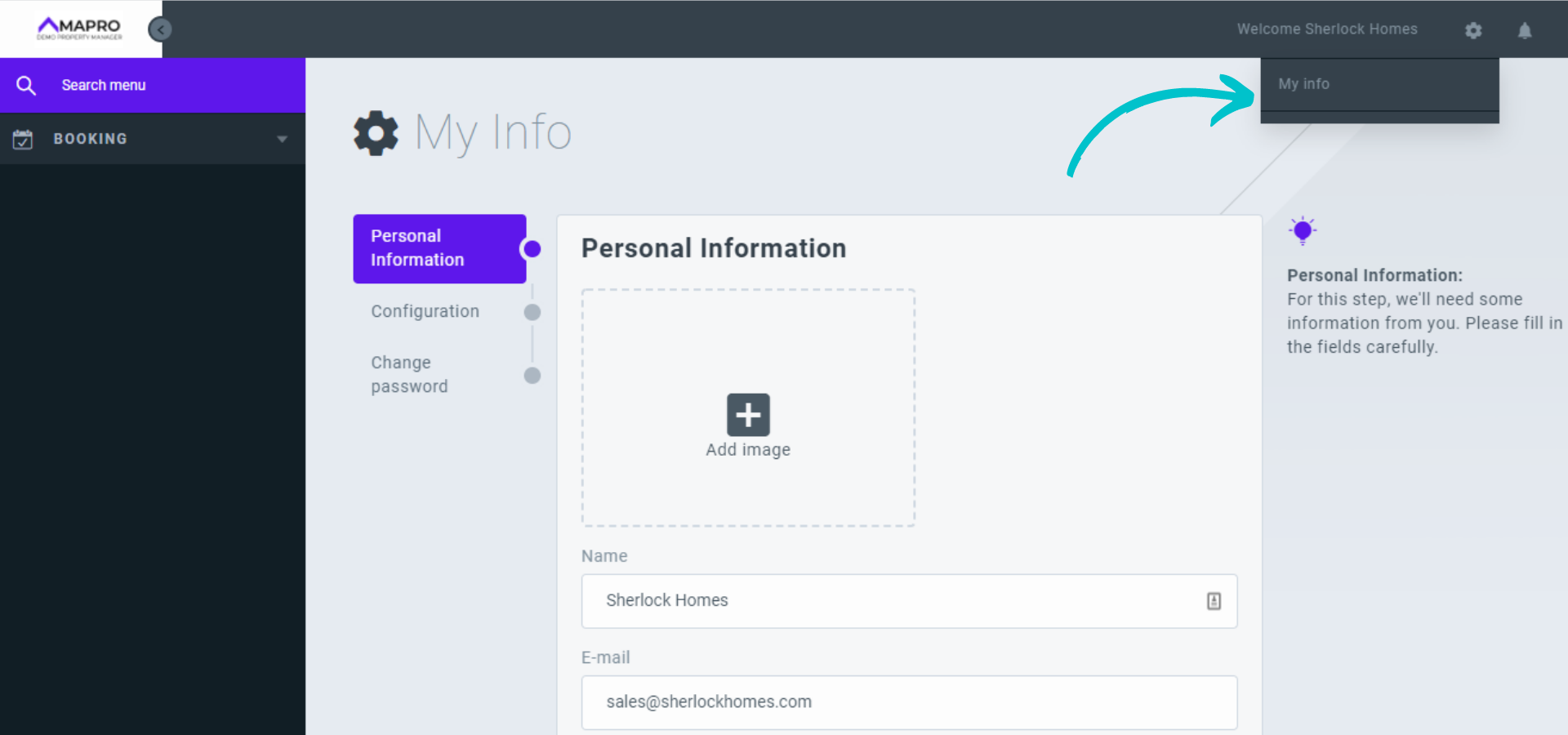
To access and edit your personal information and change your password, go to the SETTINGS MENU > MY INFO: on the right top of the page, click the engine icon, and then “My Info.” After editing the information, click “Save” at the bottom of the screen.
Important: If you are not going to change your password, you must leave both password fields empty. If your browser has saved your password, it is necessary to go to the “Change Password” screen and delete the information so you can save the changes you have made.
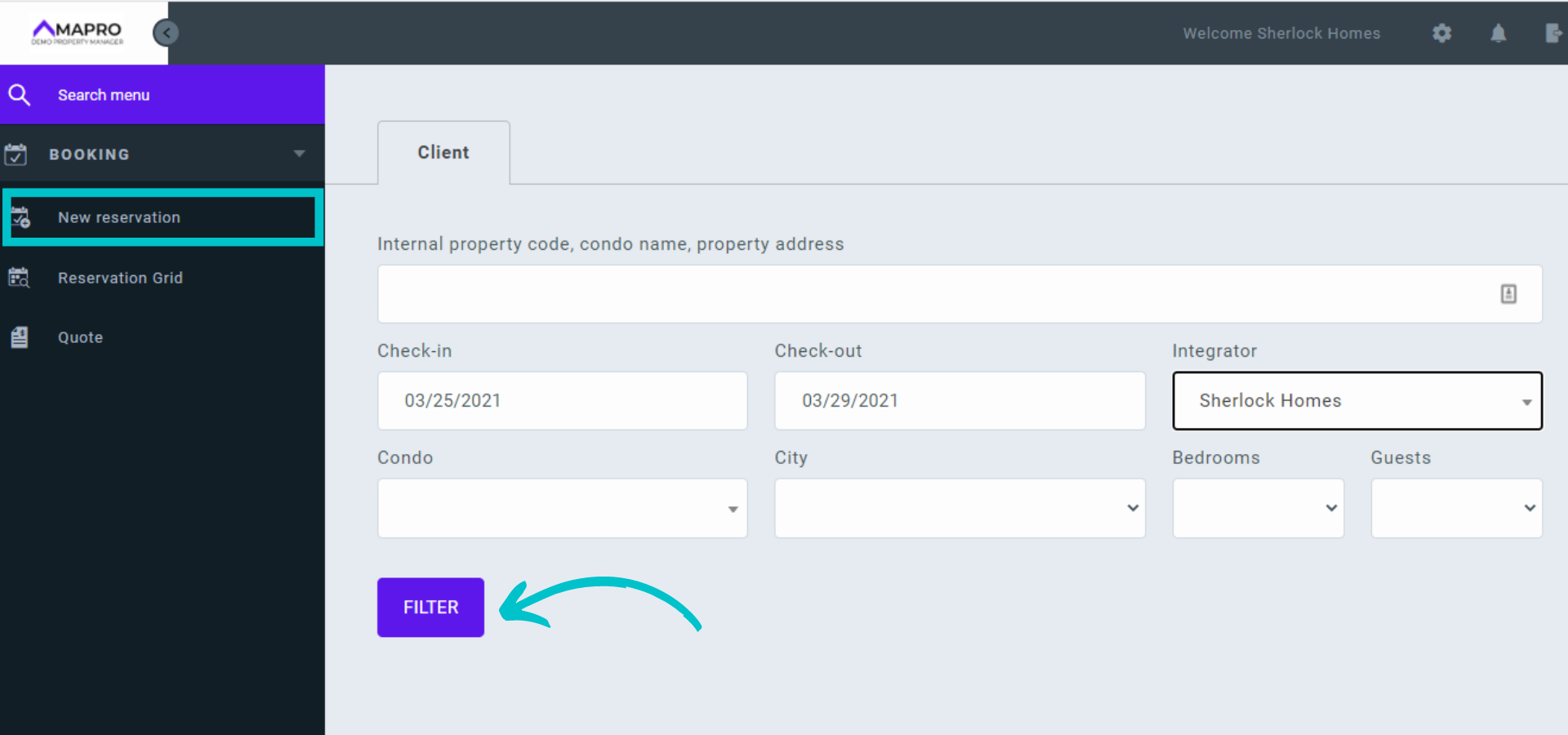
To generate a quote, go to MENU > BOOKINGS > NEW RESERVATION or to MENU > BOOKINGS > QUOTE and click on "New Quote."
Click the “Check-in” field to open the calendar, click the check-in date and drag to the check-out date. Select the integrator, click "Filter,” and scroll down to see the available properties.
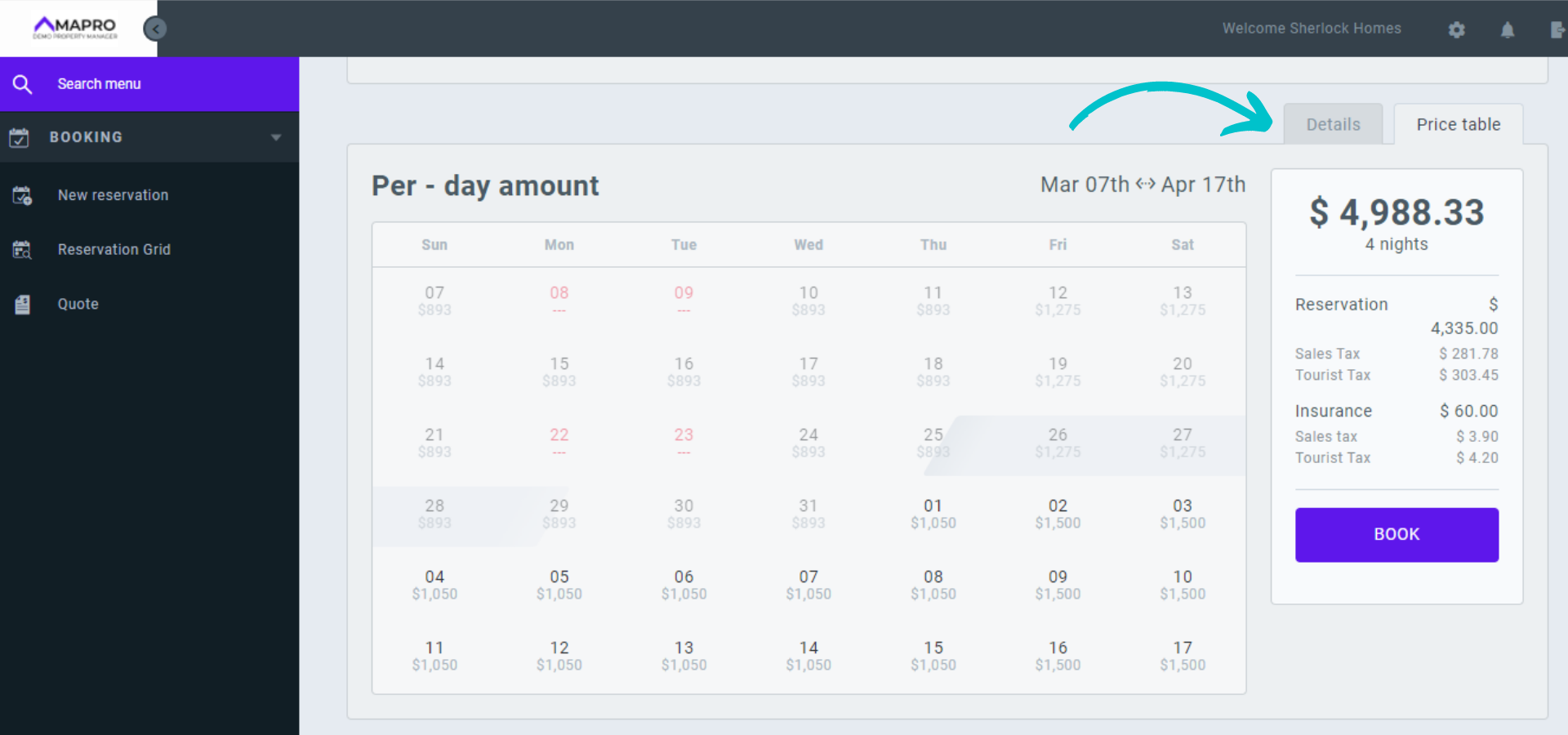
Check the list of available properties for the number of rooms, photos, rates, etc. Note on the right the option to open the "Price Table" - click on this tab to see rates, taxes, and services linked to the reservation.
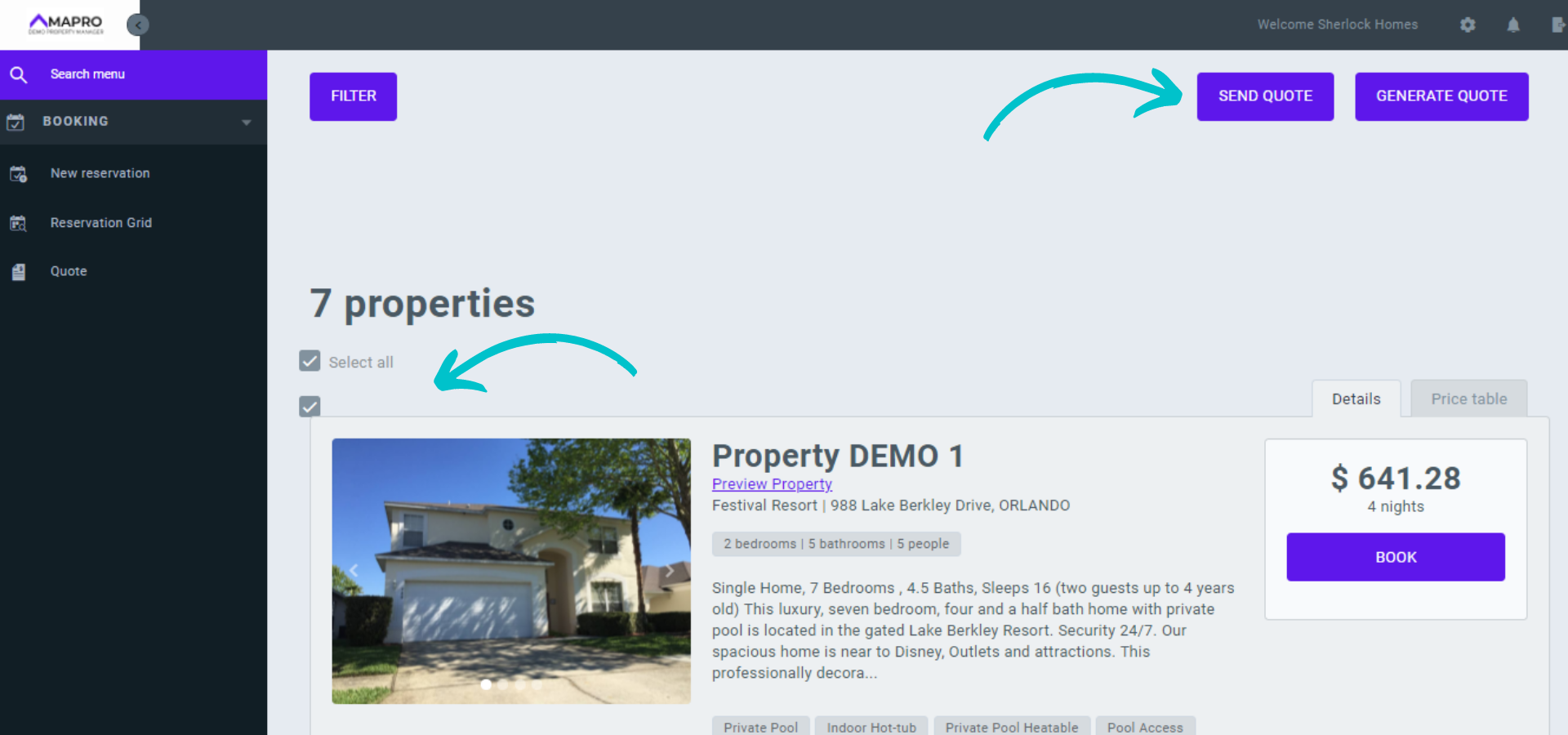
Click "Generate quote" (right below the date fields, on the right) and notice the checkboxes to the left of the properties. Check the properties that match the guest's requests, or click “Select all” and then "Send quote."
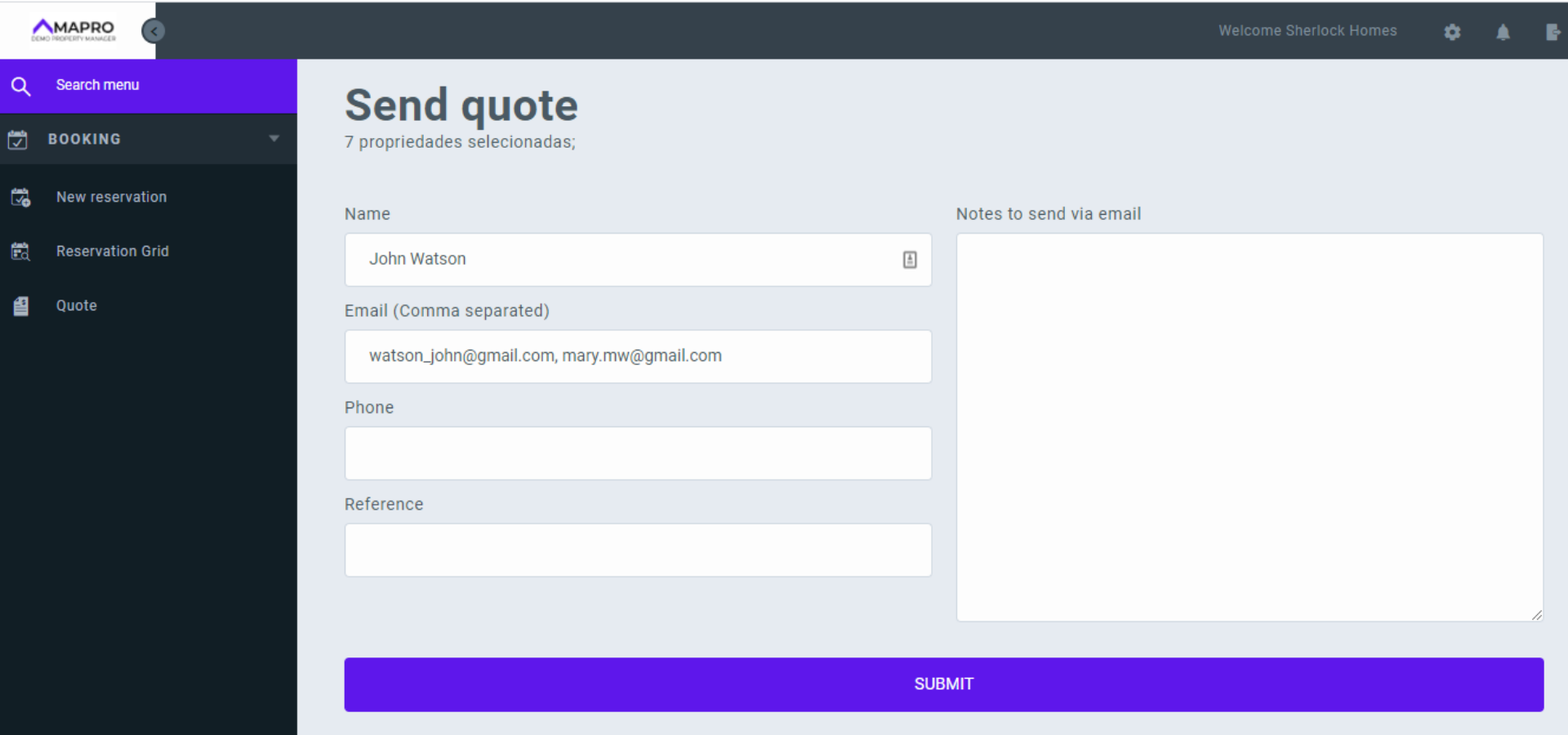
Complete the fields with the client's information, one or more email addresses separated by commas, and click on "Submit." The guest will receive an email with all options you selected, and they can book on your website the property they choose.
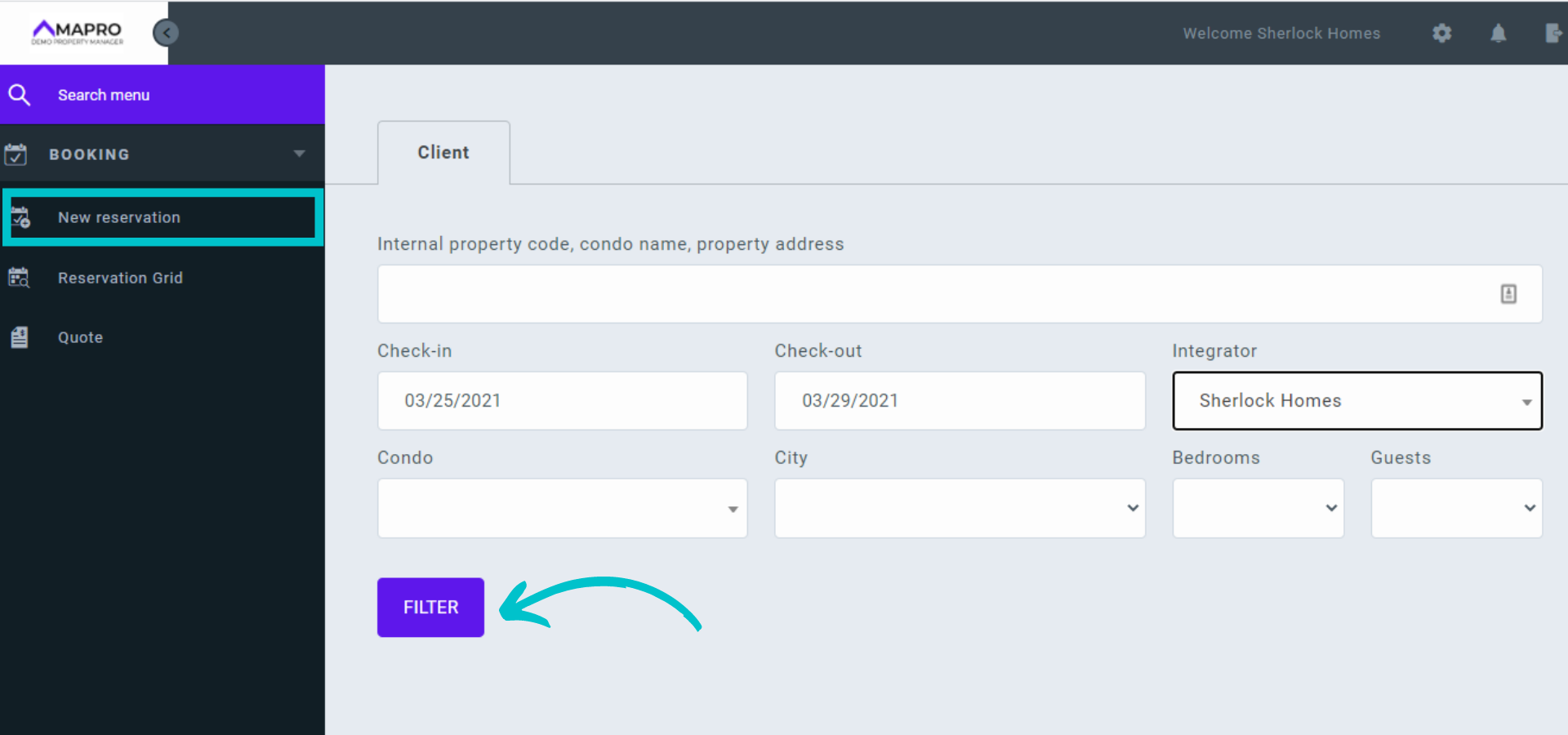
To create a reservation, go to MENU > BOOKING > NEW RESERVATION or MENU > RESERVATIONS GRID > NEW RESERVATION. Click the “Check-in” field to open the calendar, click the check-in date and drag to the check-out date. Select the integrator, click "Filter,” and scroll down to see the available properties.
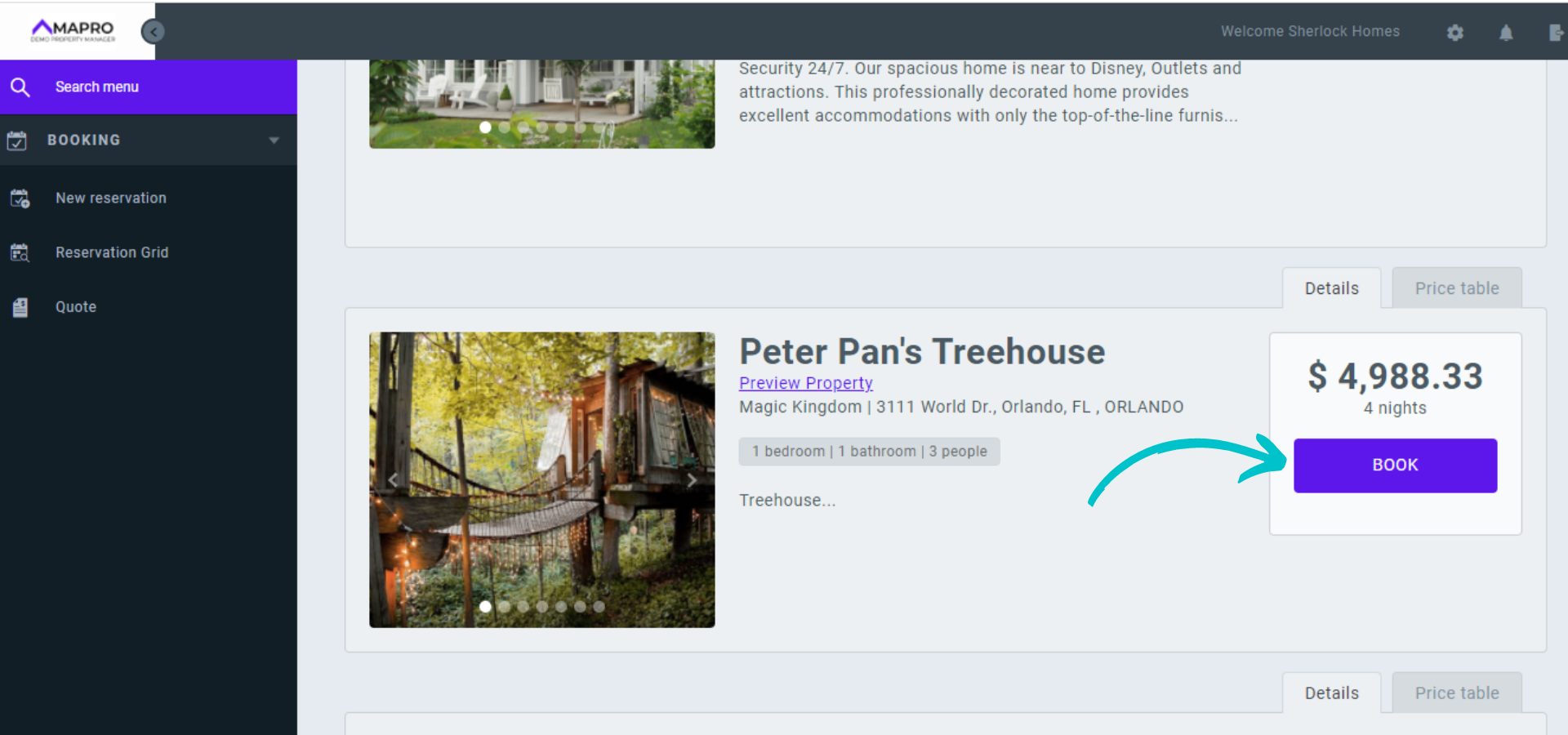
Check the list of available properties for the number of rooms, photos, rates, etc., and click "Book” to the right of the house you chose.
On this new screen, add the guest information.
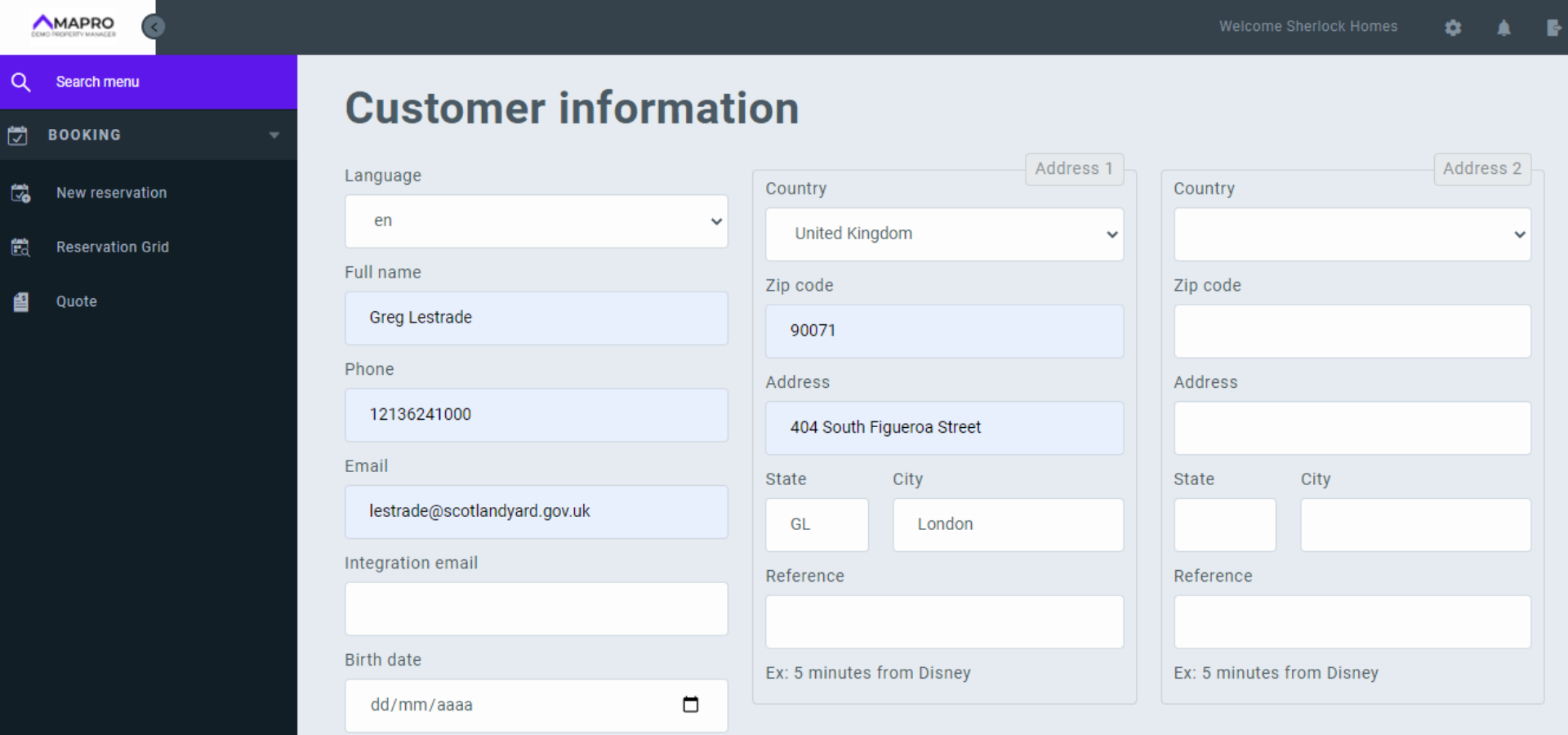
After entering all data about the guest and the reservation, click "Finalize reservation."
The reservation will be available for you to check or edit at MENU > RESERVATIONS GRID.
To access a list of the non-canceled reservations created by you or your company, go to MENU > RESERVATIONS > RESERVATIONS GRID.
The grid shows check-in and check-out dates, guest’s names, reservation statuses, and more. You can also see your commission on each reservation on the column “Integrator Total.”
Use the scroll bars to access more columns and the search filters on each column.
Click the reservation to open and edit it.
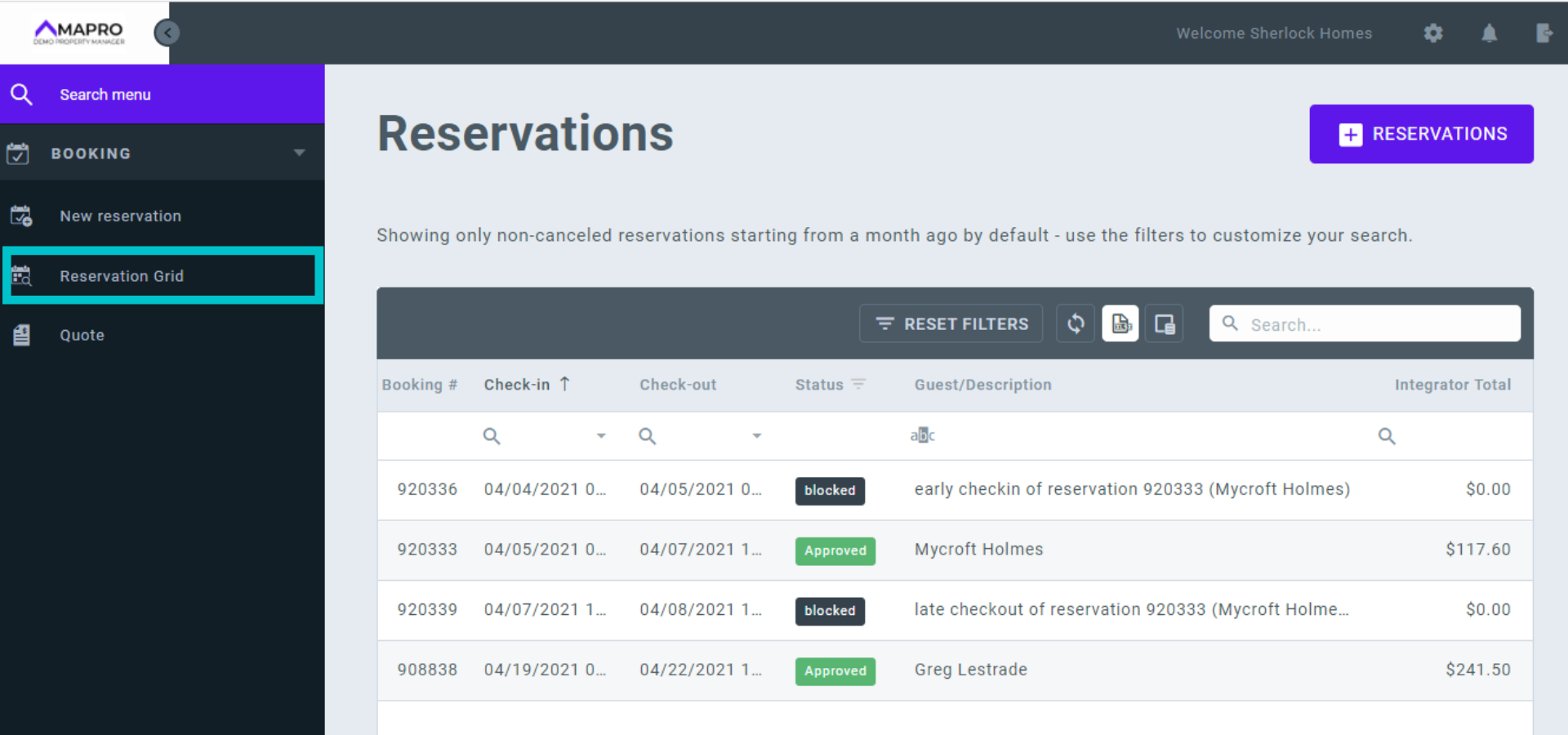
To customize how the information is displayed in the table, you can drag the columns to the right or left and put them in the order you prefer.
You can also choose which columns are displayed: click the “Column Chooser” button, and drag the columns from the list to the grid or from the grid to the list.
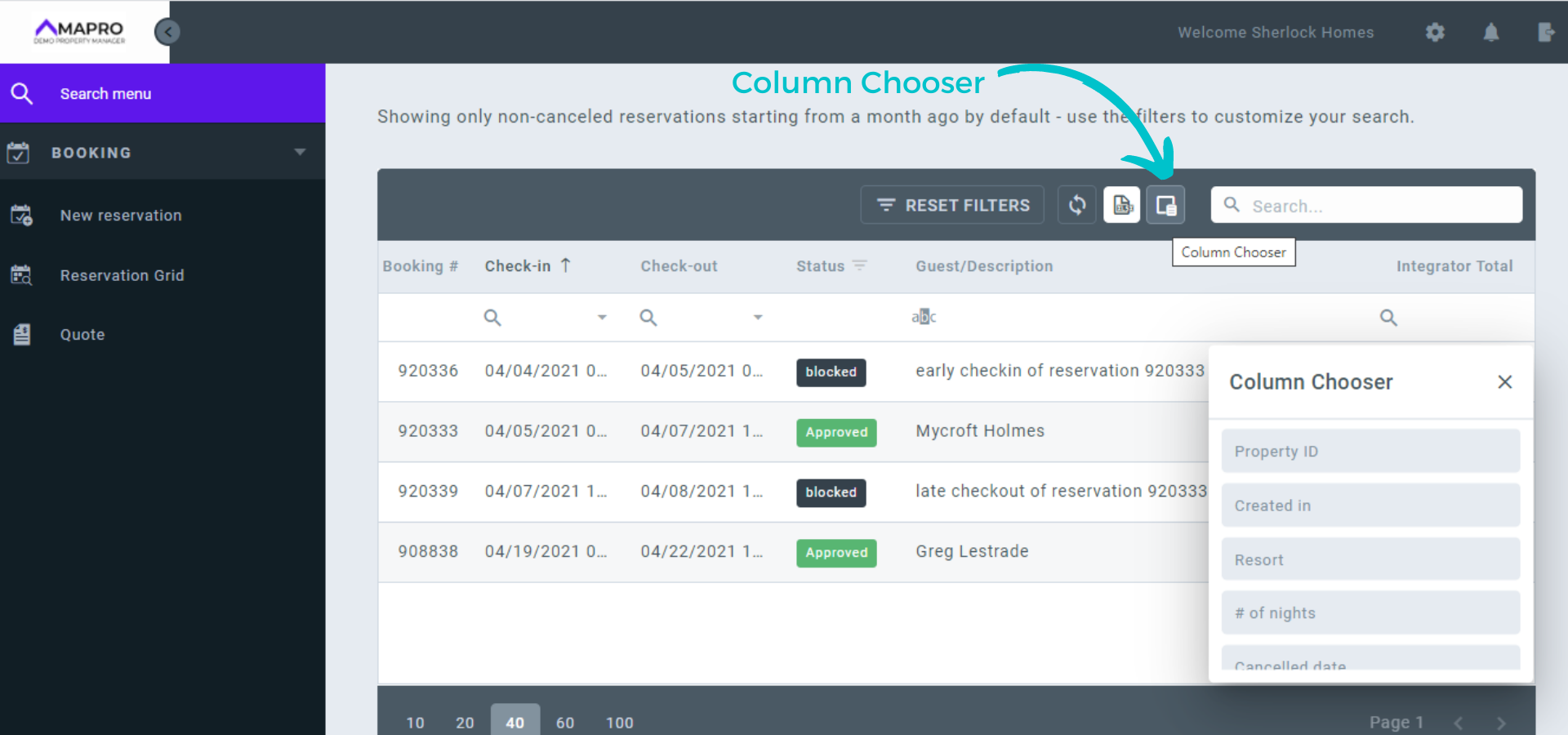
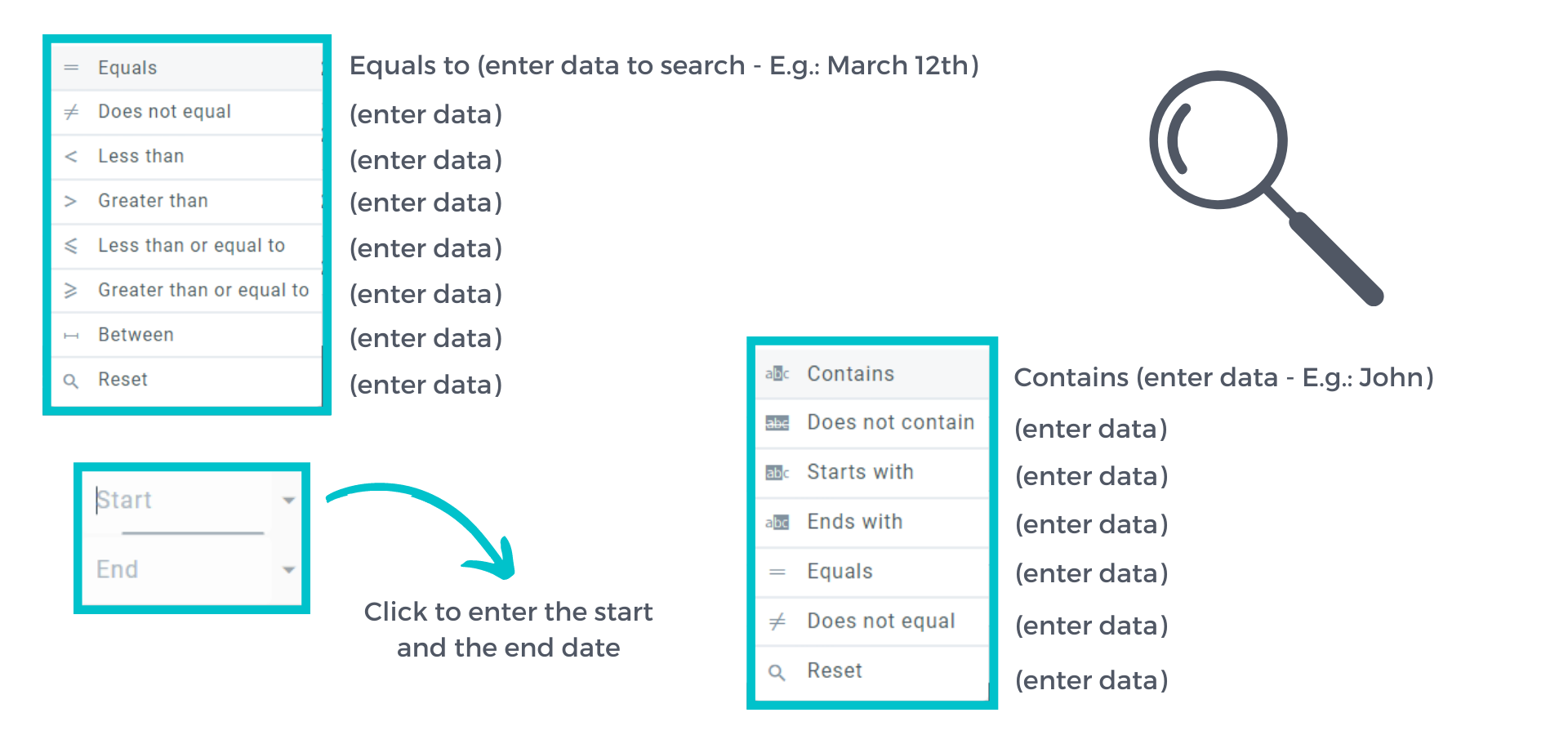
When there is the magnifying glass icon below the "column titles", click to open parameter options to filter your search.
Examples of parameters: