loading.. Please Wait
Find here all the information you need as a Cleaning Company:
To start using MAPRO, log in at http://app.mapro.us with the email address registered by the Property Manager. You will receive an email message with instructions to set up your password.
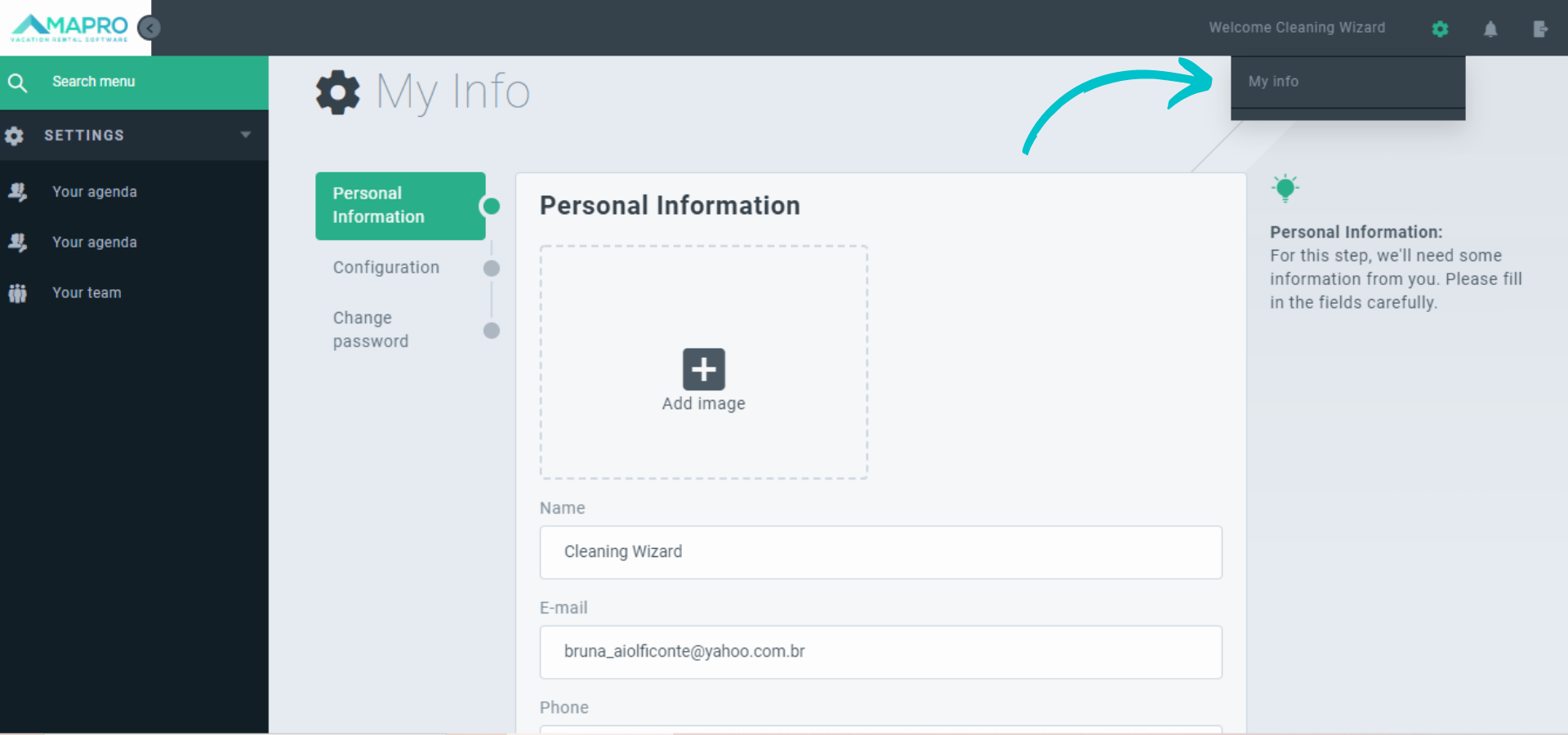
To access and edit your personal information and change your password, go to the SETTINGS MENU > MY INFO: on the right top of the page, click on the engine icon, and then on “My Info.” After editing, click “Save” at the bottom of the page.
Important: If you are not going to change your password, you must leave both password fields empty. If your browser has saved your password, it is necessary to go to the “Change password” screen and delete the information so you can save the changes you have made.
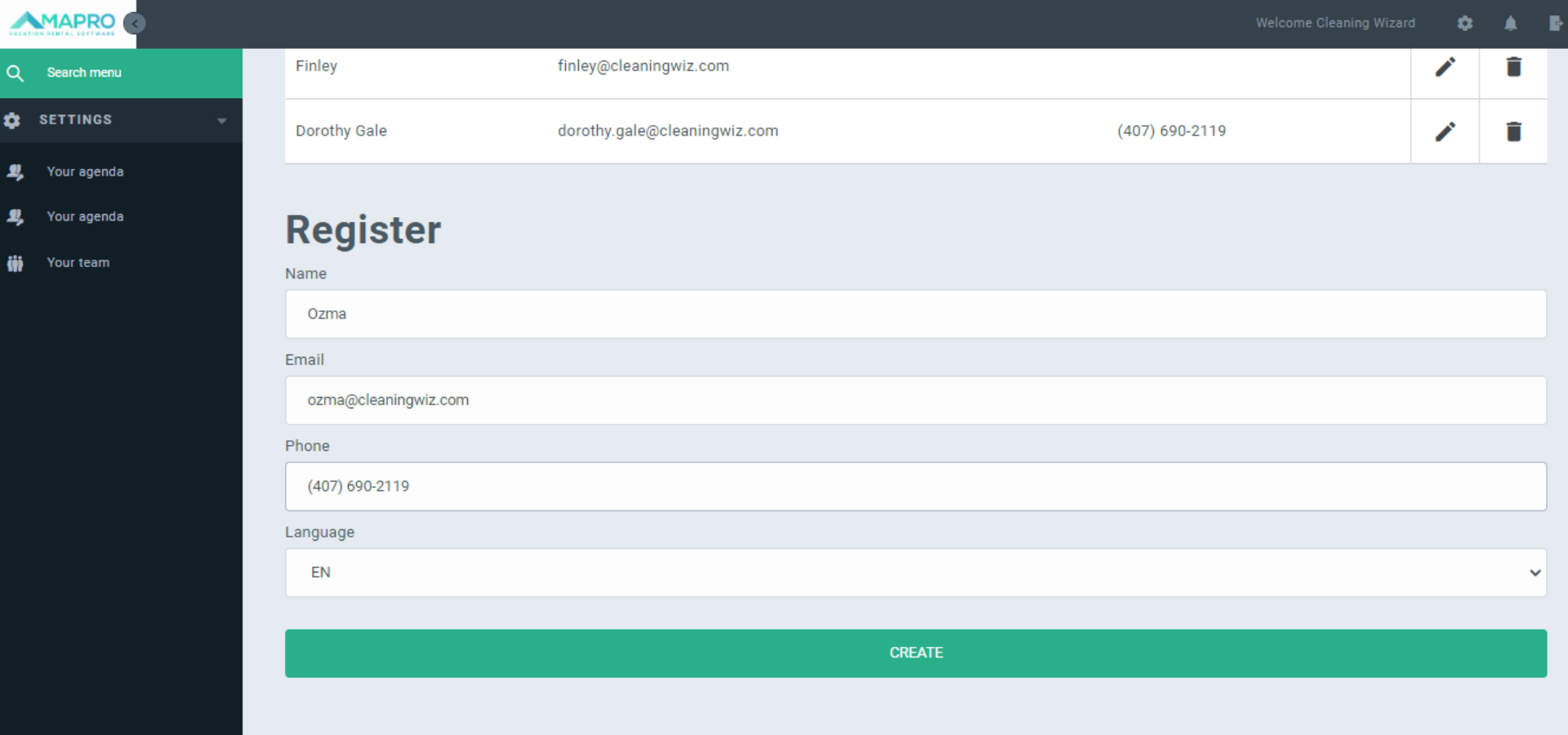
To register staff members, access MENU > SETTINGS > YOUR TEAM, click on “Add,” or scroll down to access the fields at the bottom of the screen.
Access MENU > SETTINGS > YOUR TEAM to see and edit the list of all registered members as well - on the right of each user, click the pencil icon to edit, or the trash can to delete the user.
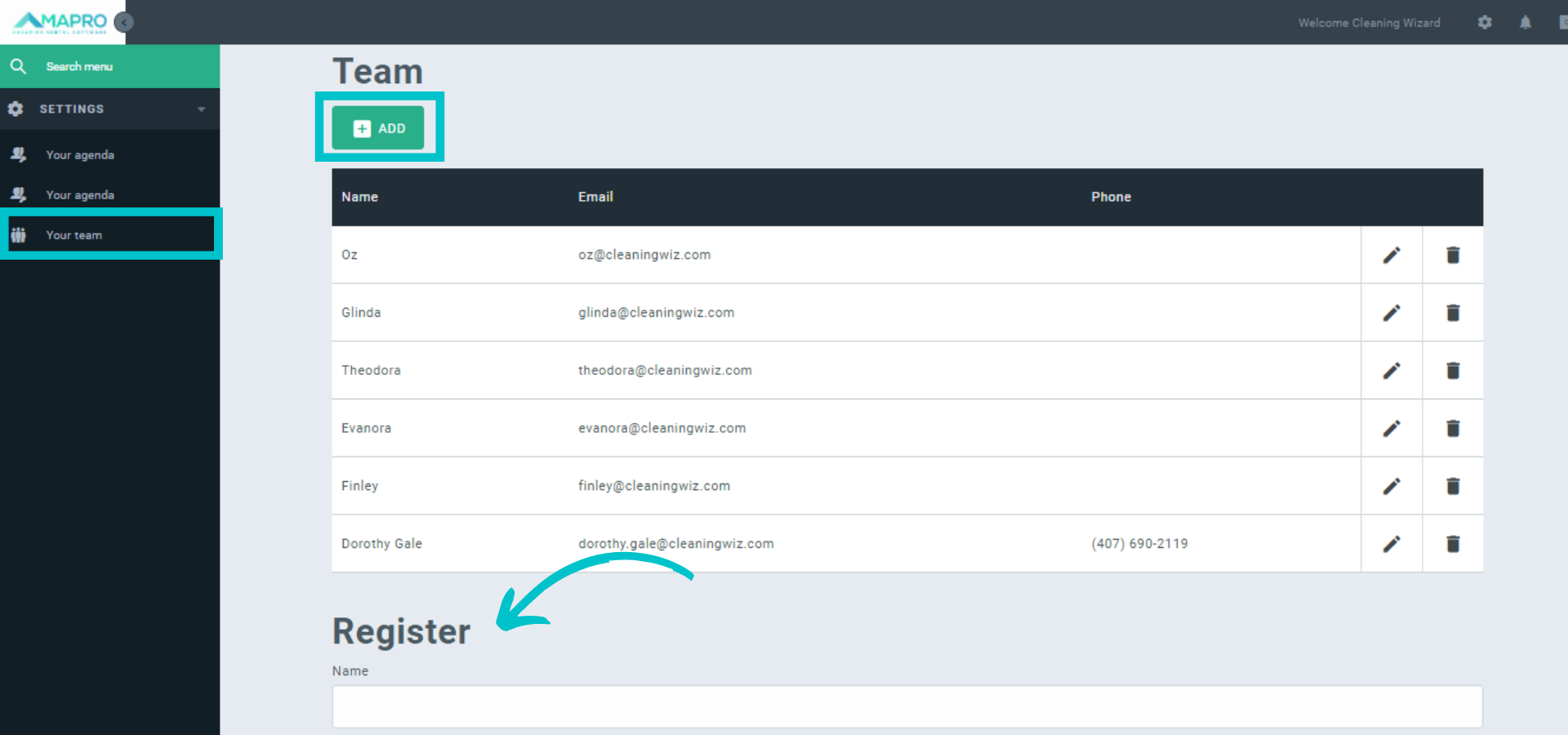
Enter user’s data: name, phone number, e-mail address (this is the address to which MAPRO sends cleaning orders and instructions), and language (select the language in which the user prefers to receive the instructions). After filling in all fields, click on “Create.”
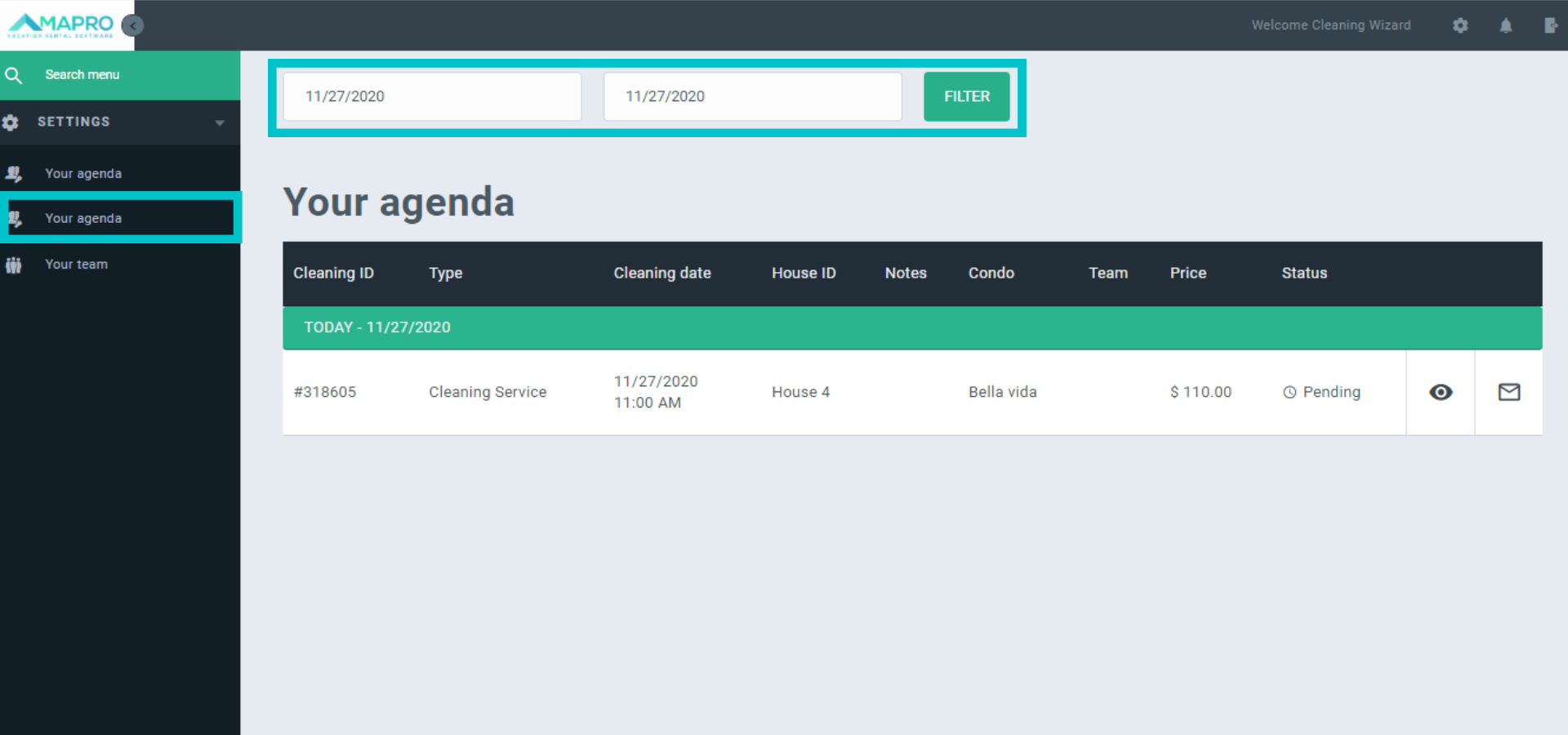
To access the cleaning calendar, go to MENU > SETTINGS > YOUR AGENDA and check the cleaning orders list, besides details such as date, identification number, property address, etc.
Use the fields at the top of the page to filter the orders by date.
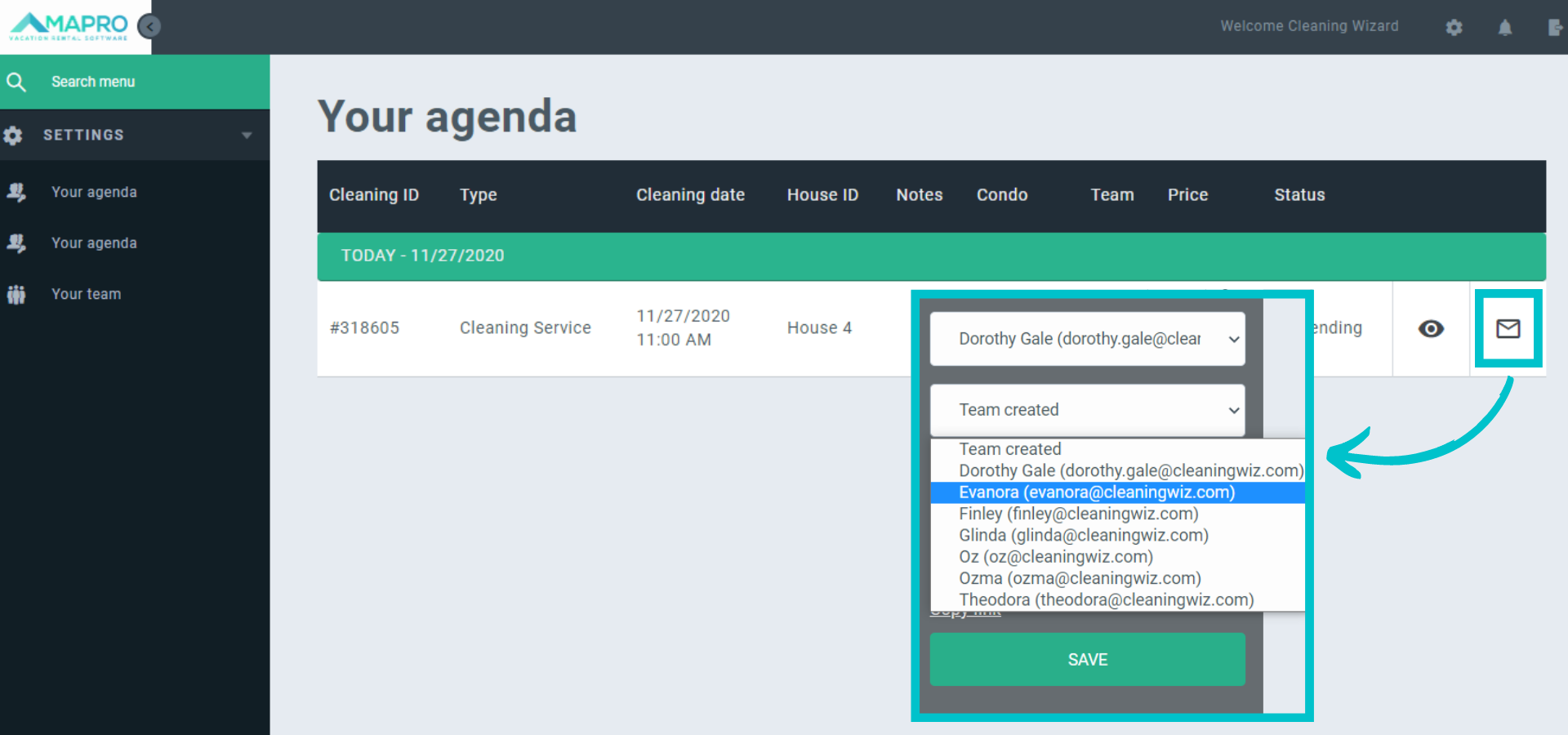
To choose the team in charge of each cleaning, notice the icons on the left of each order. Click on the envelope to see all registered members, select the ones you have chosen for the cleaning, and then click “Save.” Each selected member receives an automatic email notification from MAPRO with the order instructions.
Important: before you access the calendar, make sure the staff members have already been registered, or there will be no options available when you click on the envelope.
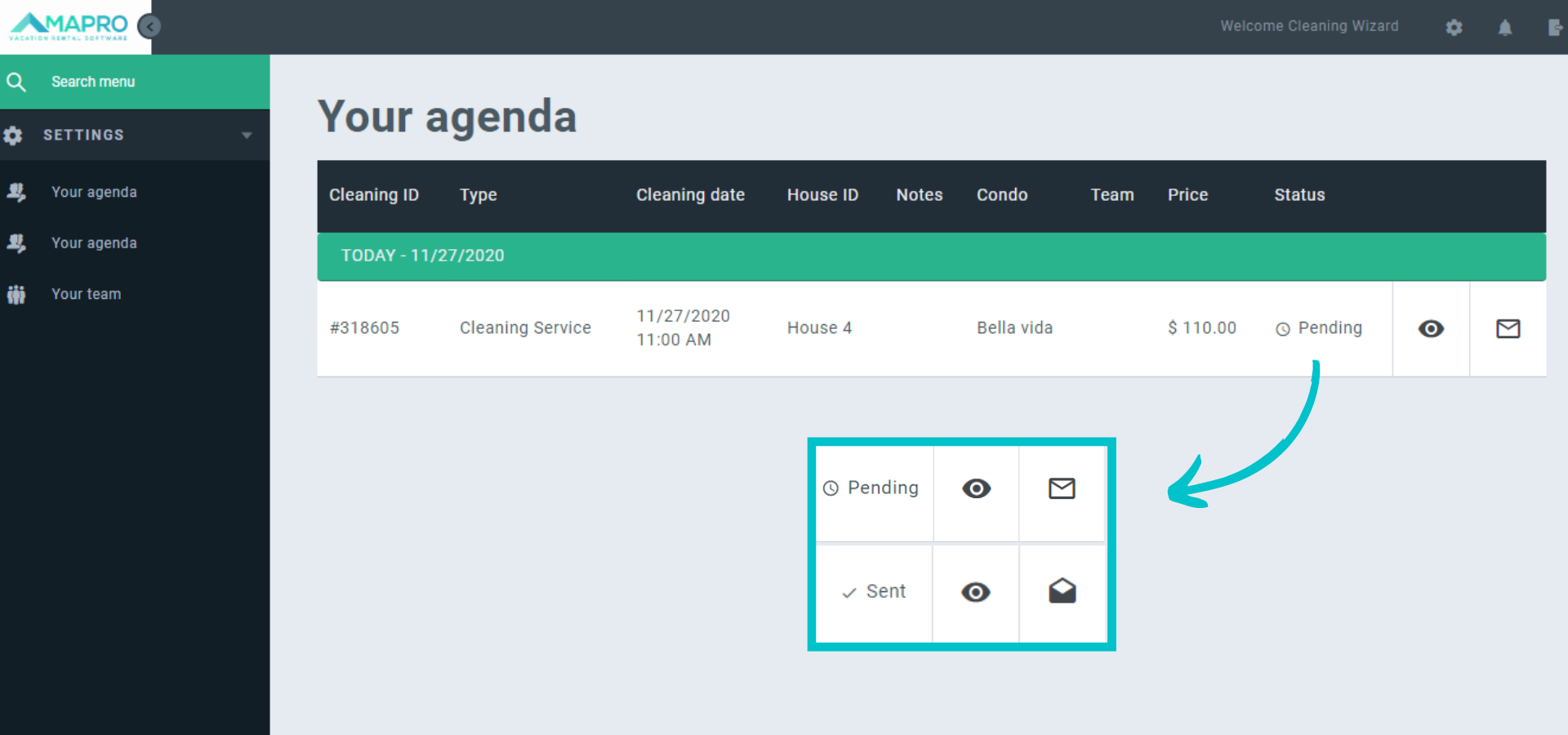
The “Status” column shows if the order has already been assigned to a team (Sent) or if it is to be assigned (Pending). Click on the “visualization” button to access the property details, such as the address, alarm codes, etc. These details are also sent to the cleaning staff.
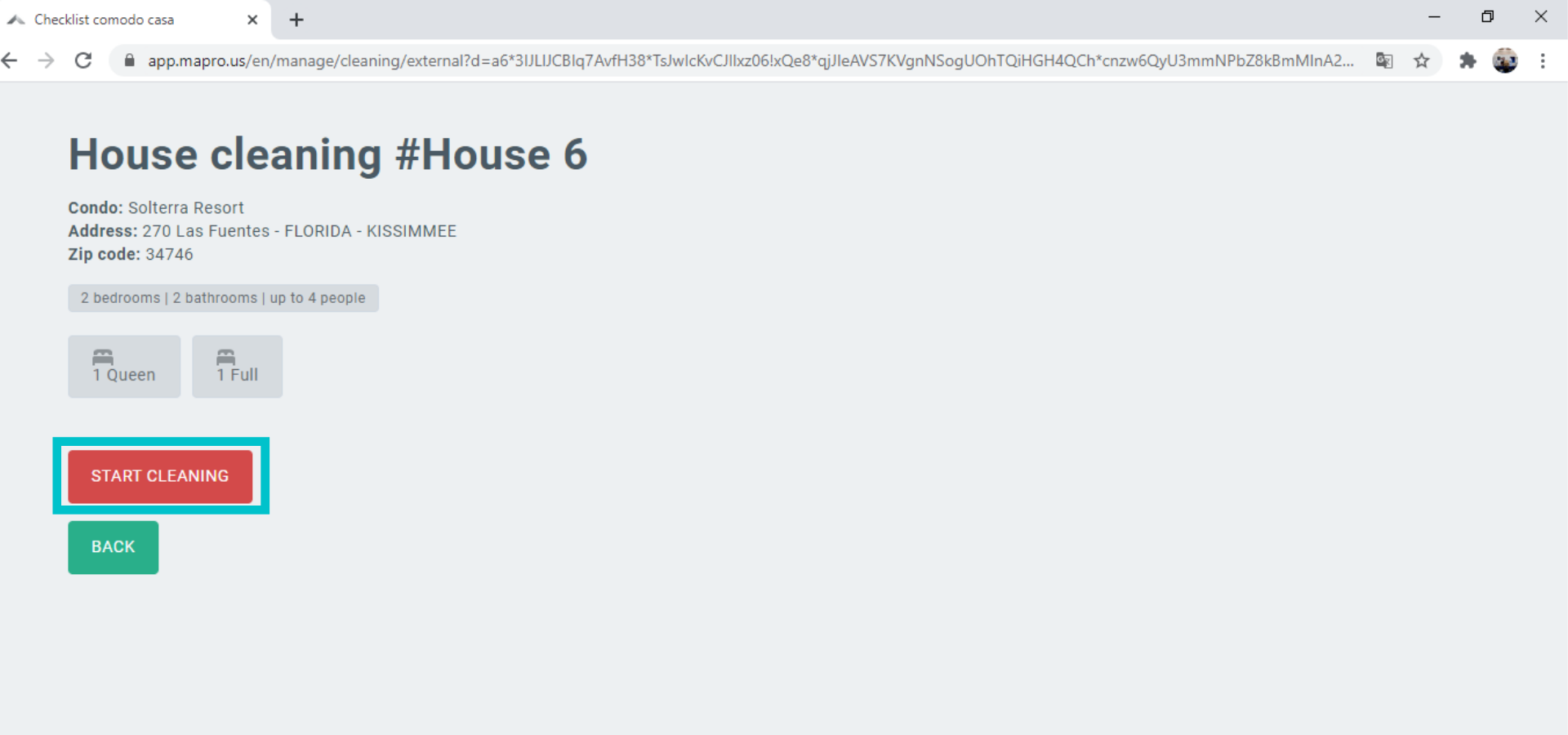
When they open the link sent by MAPRO, the cleaning team is directed to the details of the order, such as the address and codes to access the property. To see the rooms in the house and inventory items to check, the team must click on “Start Cleaning.”
Obs: the “Start Cleaning” button is only available at the date of cleaning. Before that, it is possible to see the details of the order.
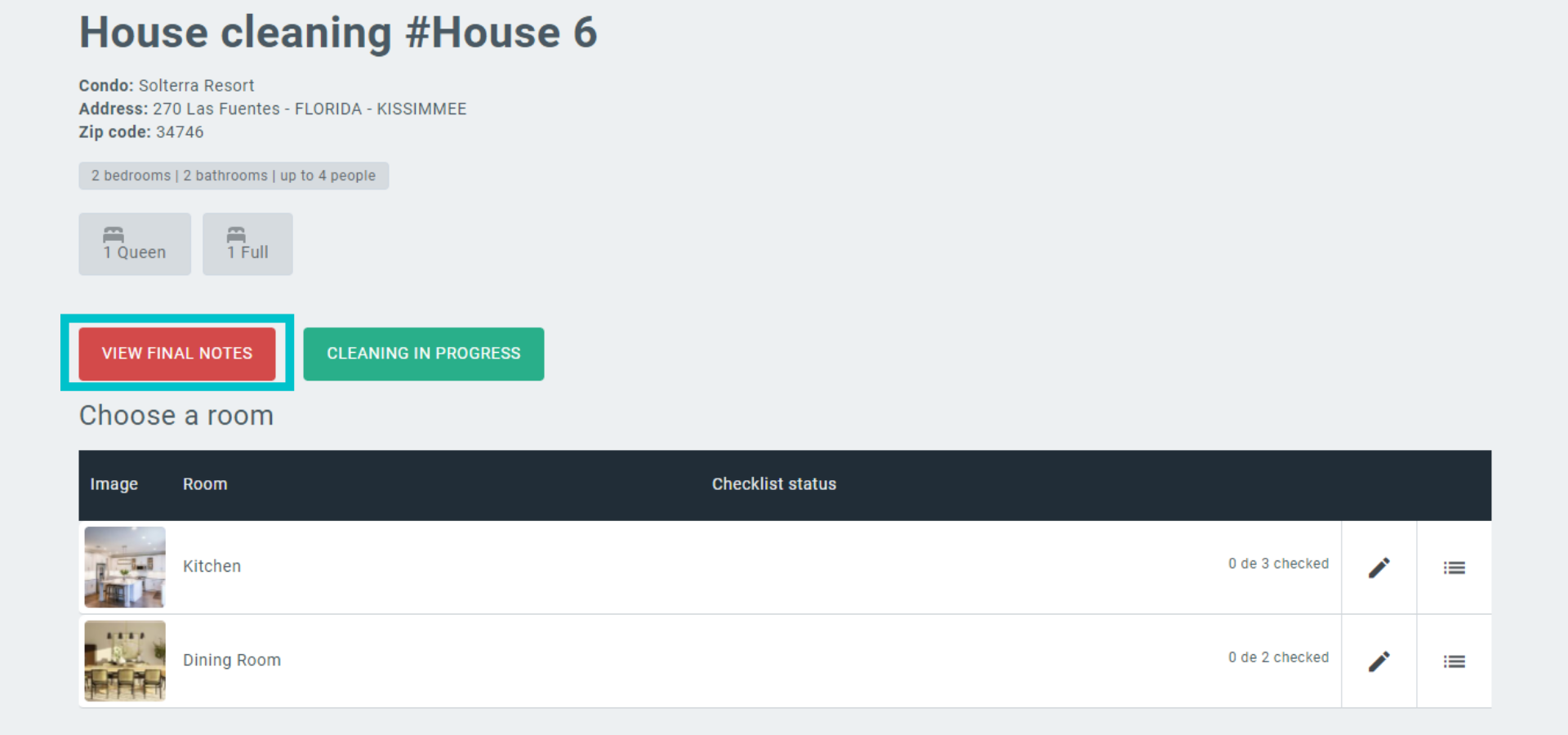
After cleaning, the staff must take pictures of the rooms (so the manager can approve the service done) and take photos of any issues they might have found, as broken or damaged items (so the manager can fix them).
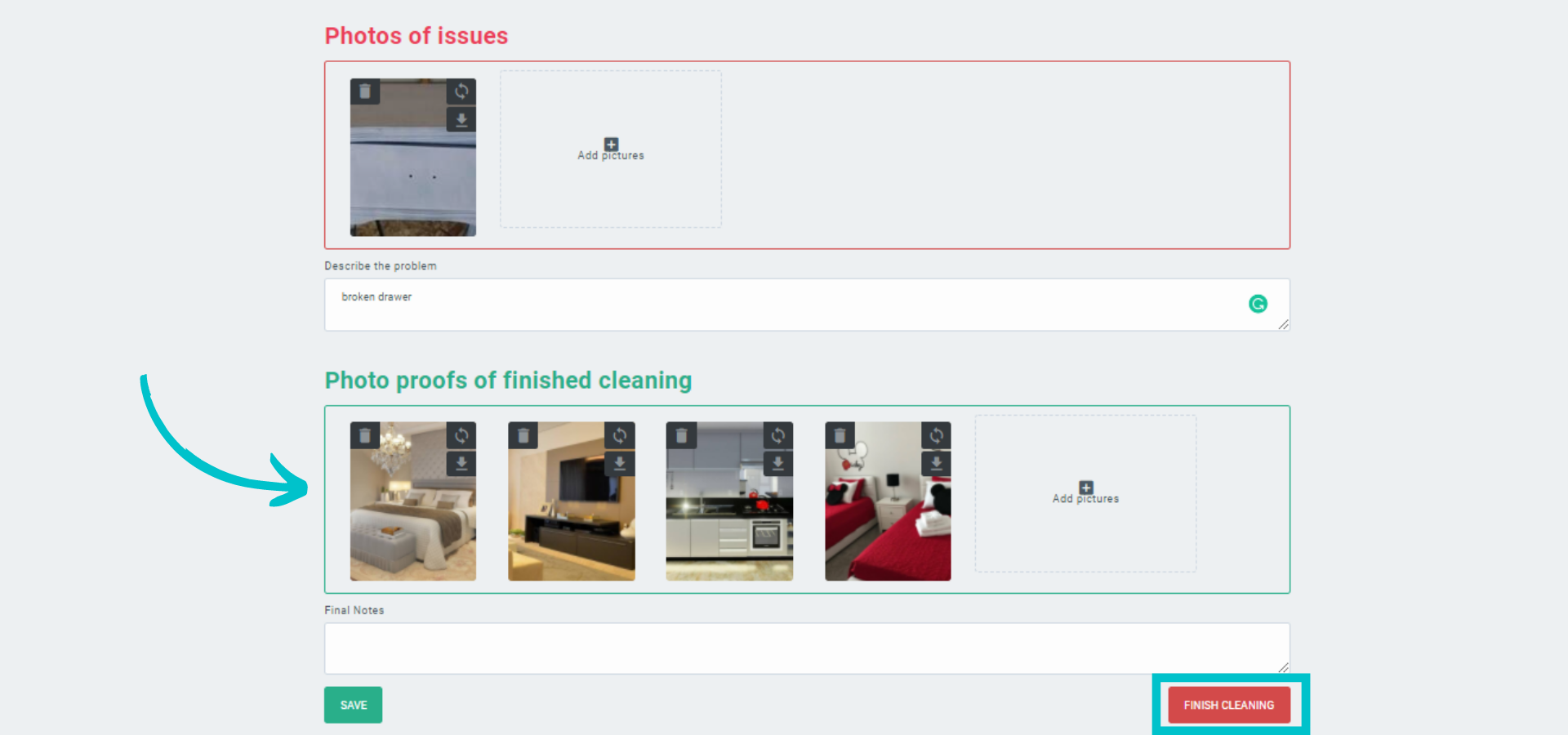
To upload the pictures after cleaning, the user should click on the “View final notes” button, then attach the “Photos of issues” if there was a problem found, and the “Photo proof of finished cleaning.” It is also possible to add notes to both fields.
After adding the information, the user should click on “Finish Cleaning.”
Obs: it is not necessary to have more than one user adding information to MAPRO - the same staff member can do everything.
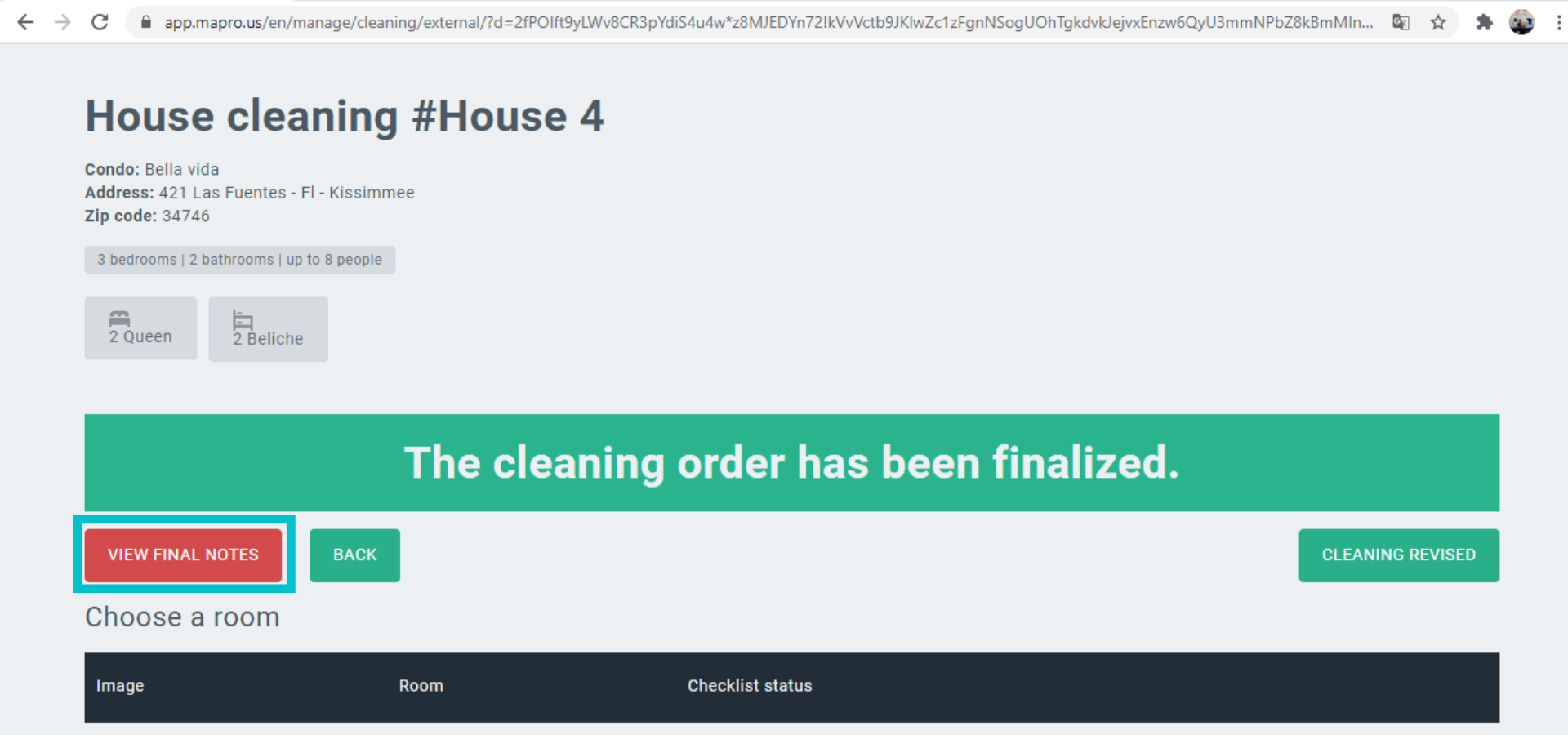
When the staff finishes the cleaning at MAPRO, the notification “The cleaning order has been finalized” is displayed on the details page. Click on “View final notes” to review the service.
Possible issues found will be solved by the manager. You should check the photos of the cleaning - if everything is clean and neat as expected, click on “Finish Cleaning” to go back to the previous page.
The last step is to click on “Cleaning revised,” so MAPRO can inform the property manager that the cleaning order has been finished and checked. The property manager will check the service as well through the photos, and if everything is as expected, approve the payment.
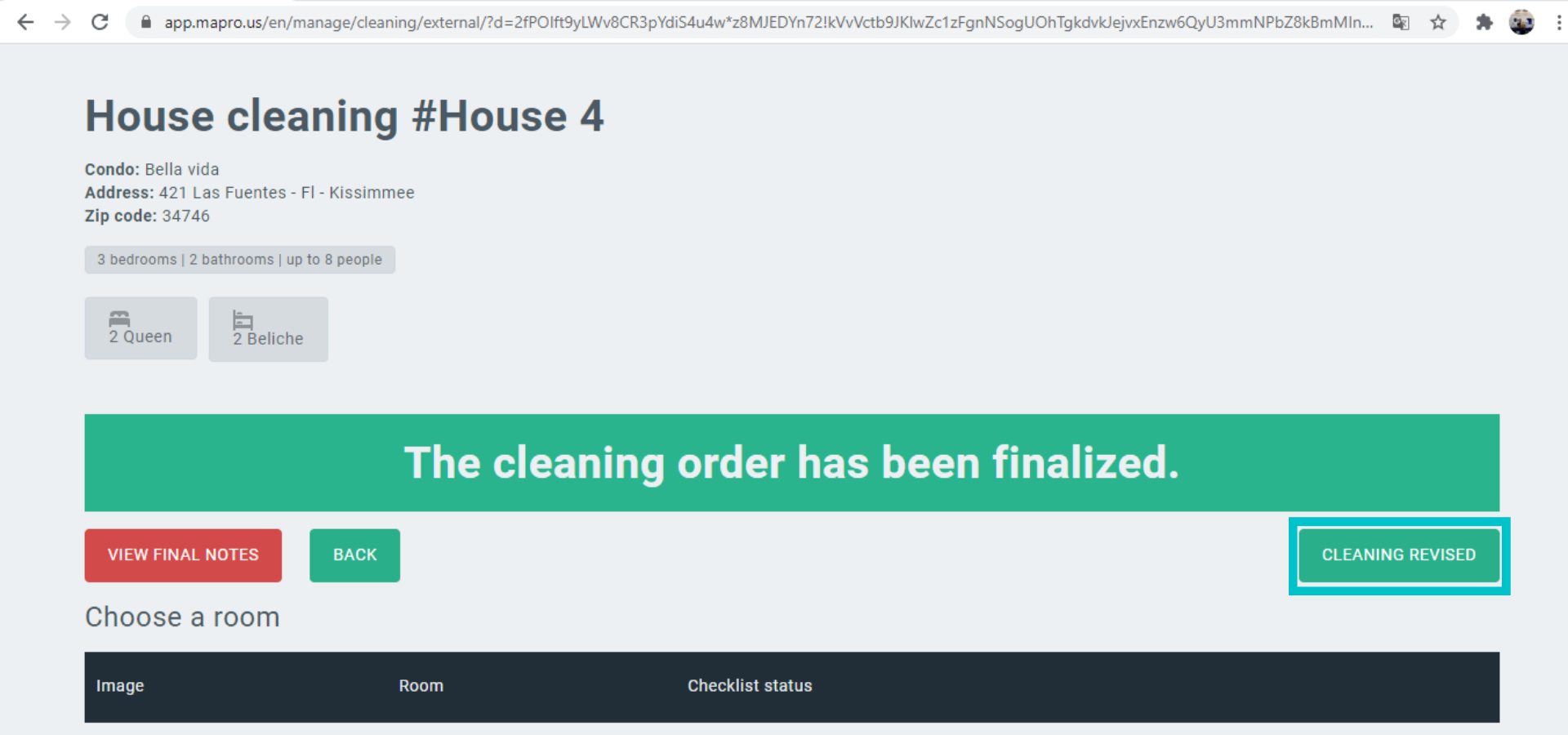
After all these steps, when you access MENU > SETTINGS > YOUR AGENDA, the cleaning order status will be “Revised.”
When the Cleaning Company assigns staff members to a cleaning order, each member receives an automatic email from MAPRO with a link - by opening that link, it is possible to see the property’s address, number of rooms, date of cleaning, etc.
On the cleaning date, on the same page, there will be the option “Start Cleaning” as well.
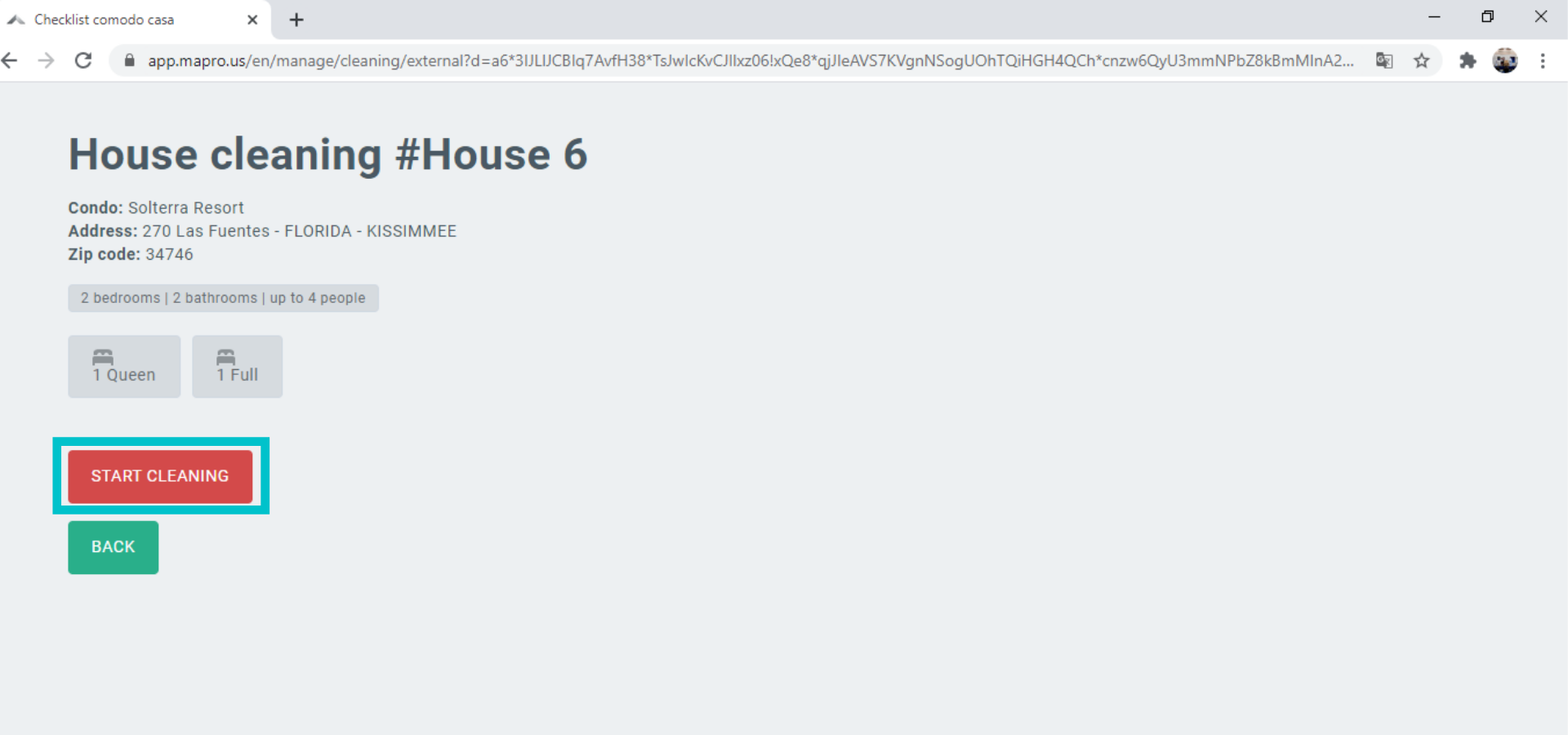
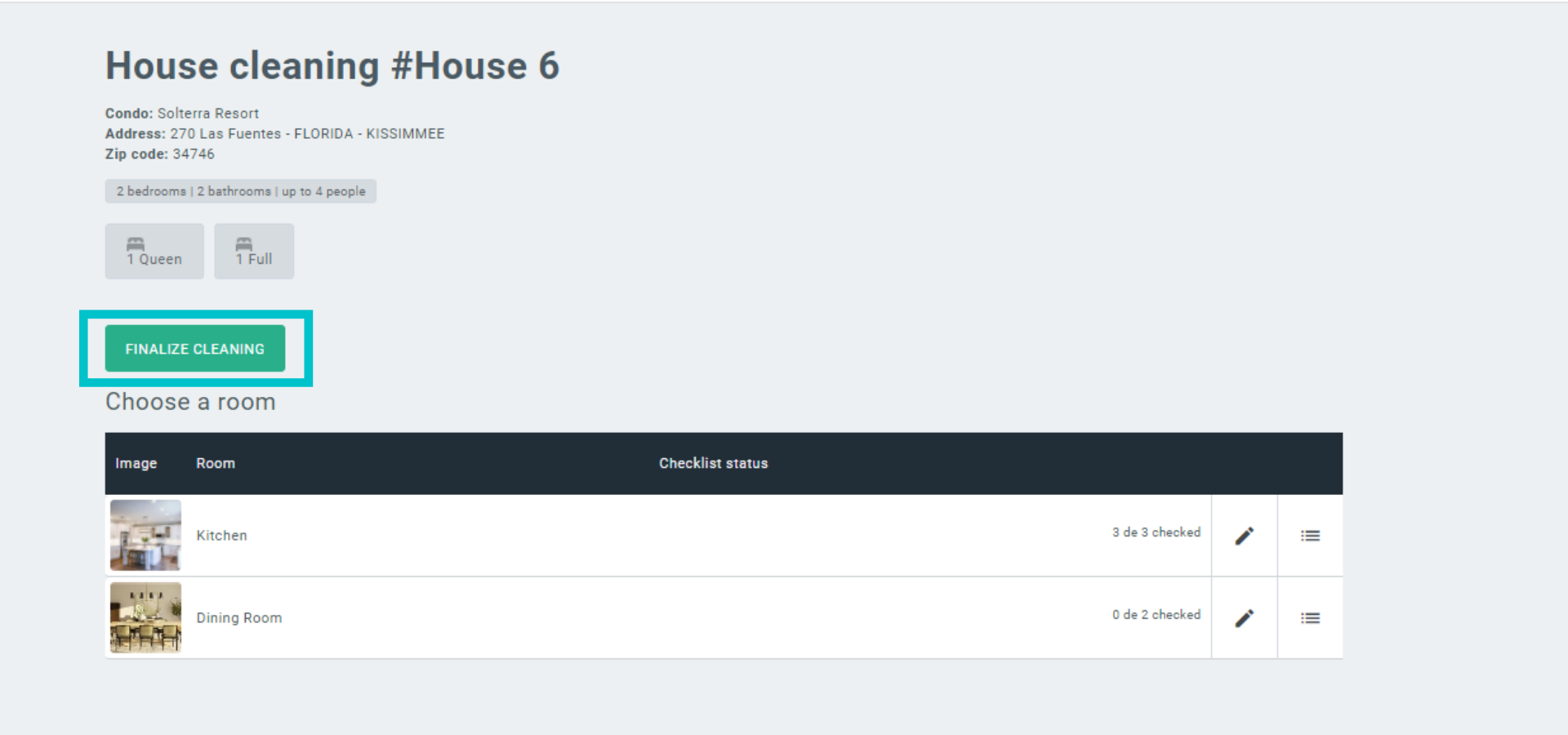
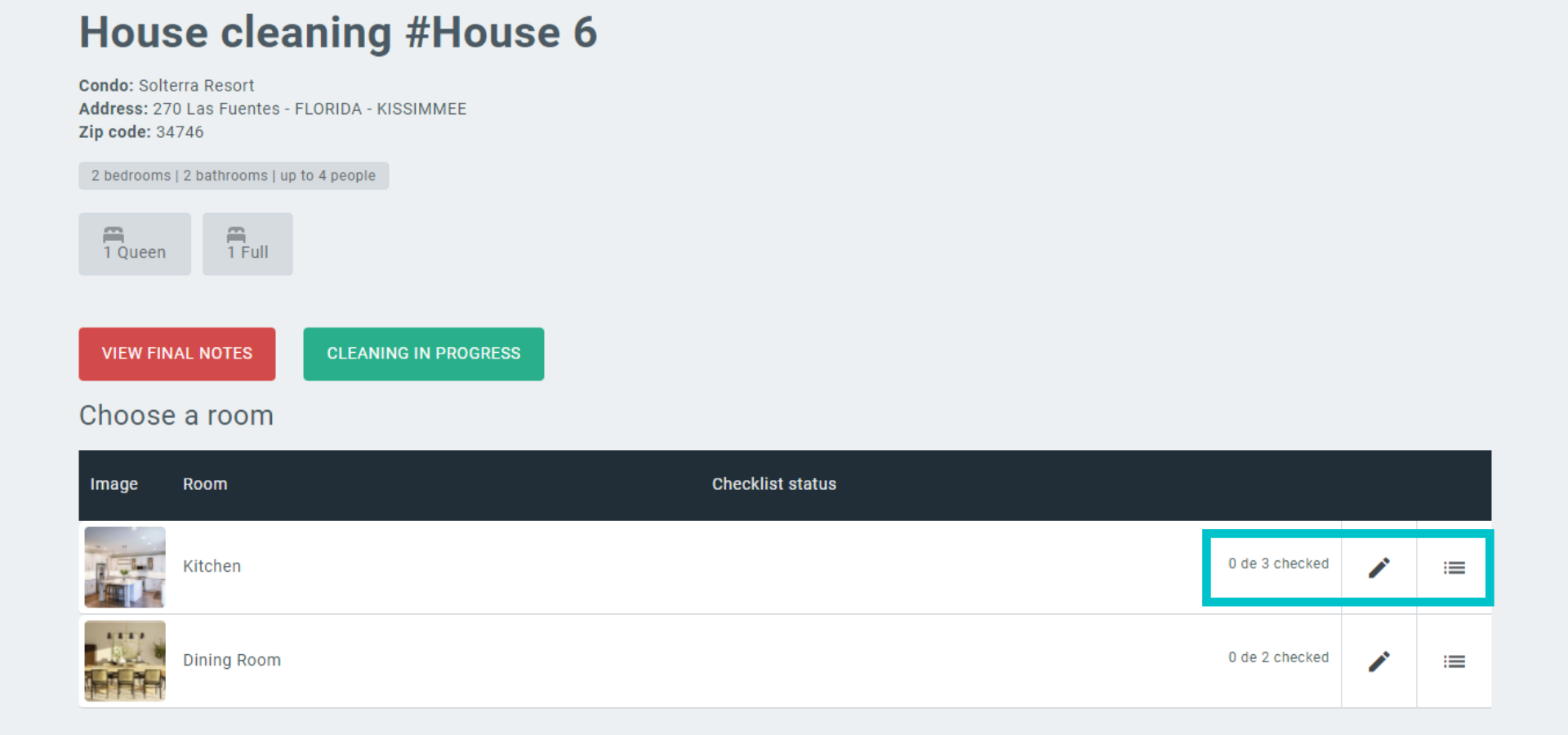
When the cleaning is started, a list of all rooms in the house will be available, and inside each room, a list of all items to be checked by the cleaning team in that room. The user must click the pencil icon to open the inventory.
Property managers use the inventory in different ways - some might register the exact number of mugs to be counted at the check-out cleaning; others prefer a less detailed approach. It is necessary to open each room (if there are any registered) and read the instructions at the items’ descriptions (if there are any).
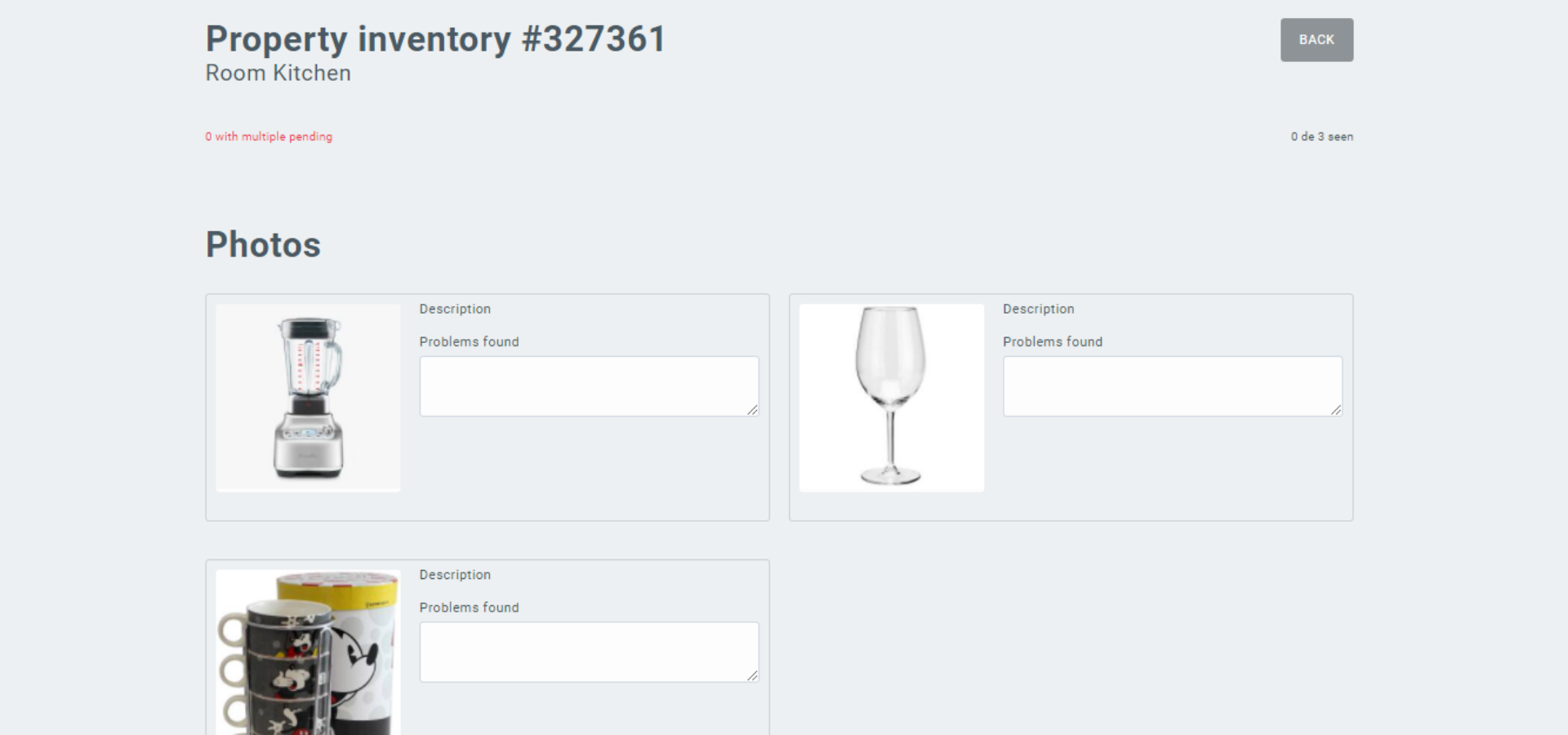
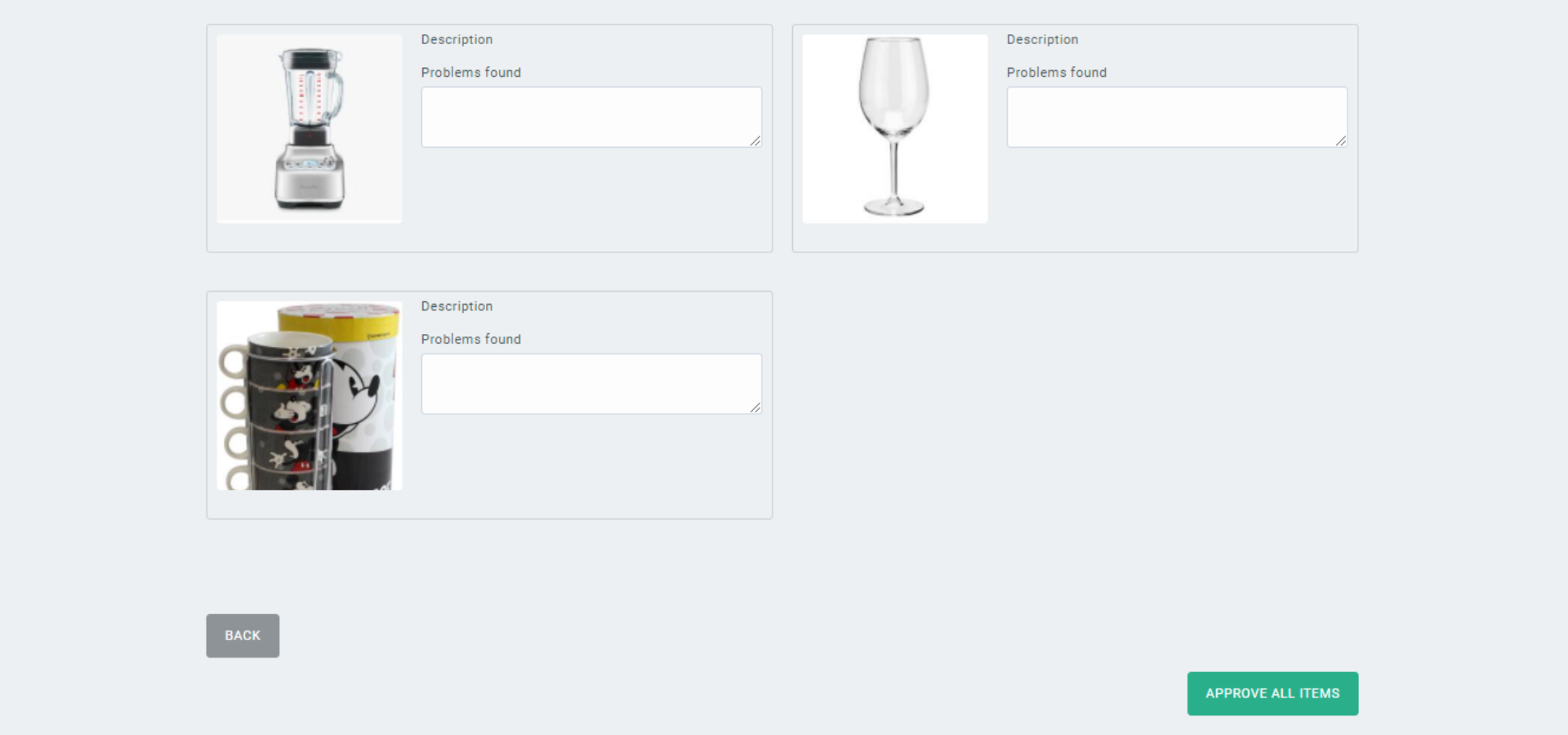
After checking each item listed in every room’s inventory, the user must click on the “approve all items” button at the bottom of the page. When there are problems to report, this information is added to the “view final notes” page.
After every item in every room has been checked, the user must click on “View final notes” to attach the photos.
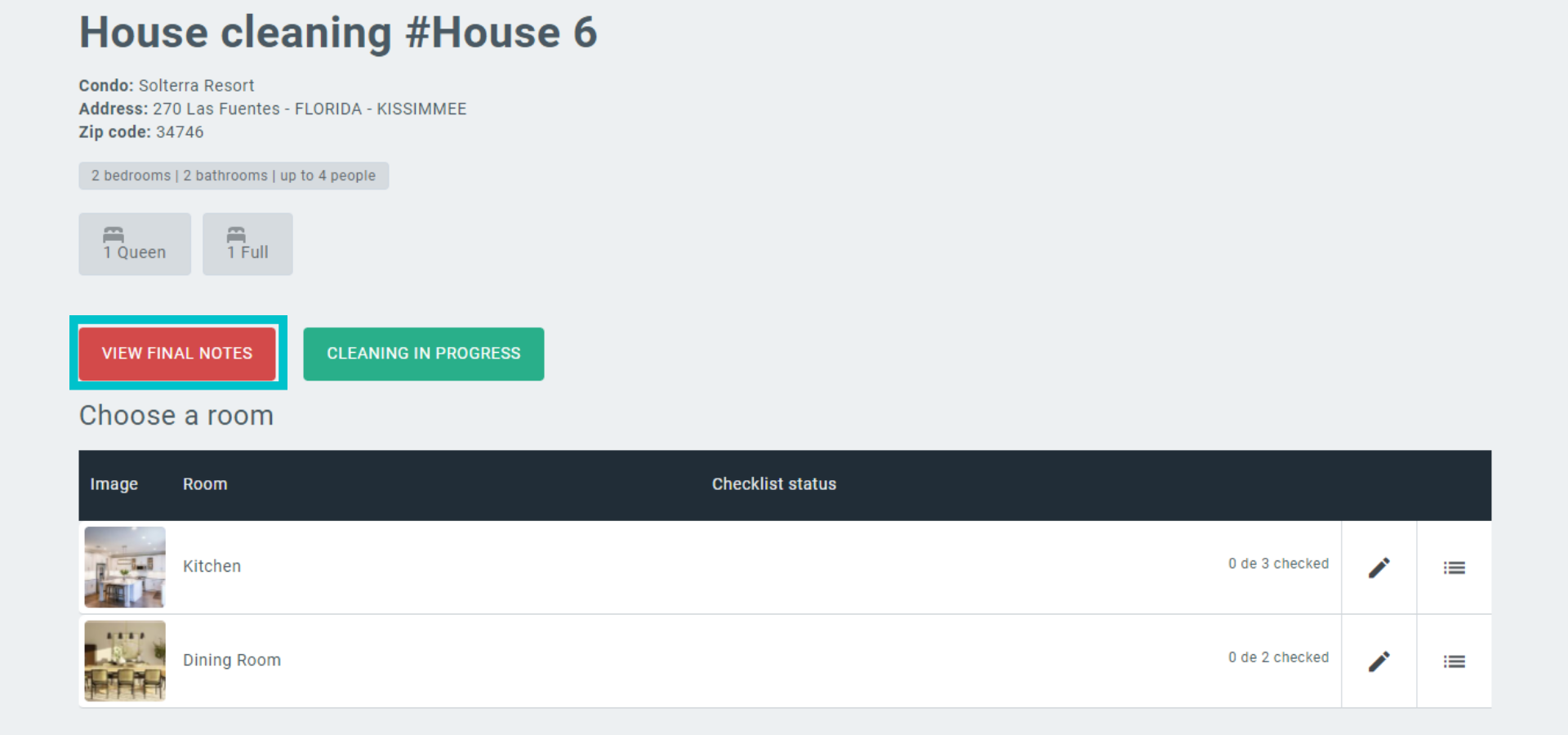
On the “View final notes” page, the cleaning staff must upload photos of any problems that they might have found, as well as photos of the property after the cleaning. These images are available for the cleaning company and the property manager to assess and approve the service. Click on “Finish Cleaning.”
Obs: it is not necessary to have more than one user adding information to MAPRO - the same staff member can do everything.
Back to the main page, click on “Finish Cleaning,” and all data will be available for approval.