loading.. Please Wait
Setting prices is one of the most important steps of registering and managing properties. The three main pricing settings are:
Learn more about standard prices/individual rates in "How to register a property"
Learn more about "How to create promotions"
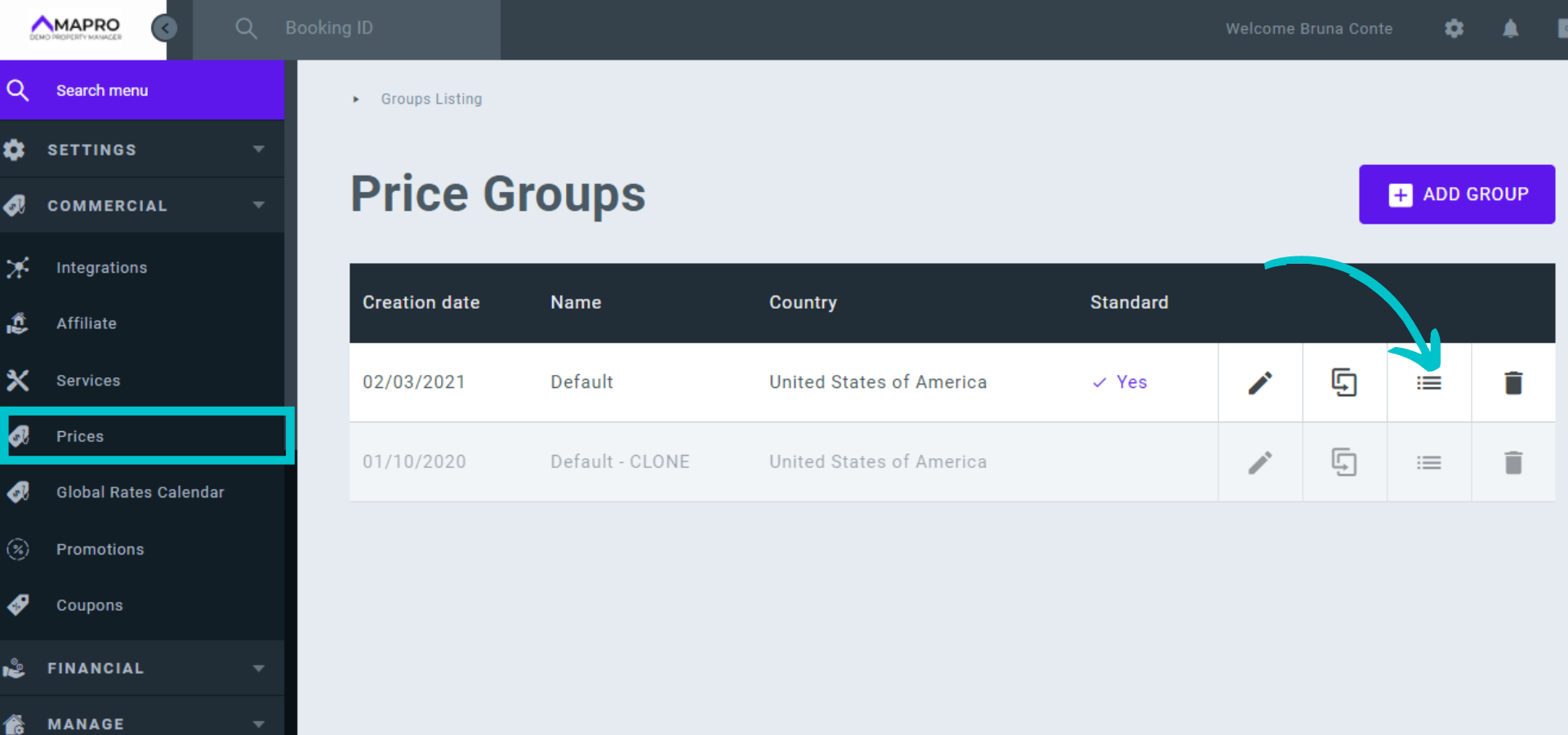
To create a pricing season, go to MENU > COMMERCIAL > PRICES, and see the list with the price groups. Click the list icon to view the seasons within this price Group.
Note: you can create price groups for different regions, adapting prices, holidays, rules, etc. If your company does not use other groups, register all seasons within the same one.
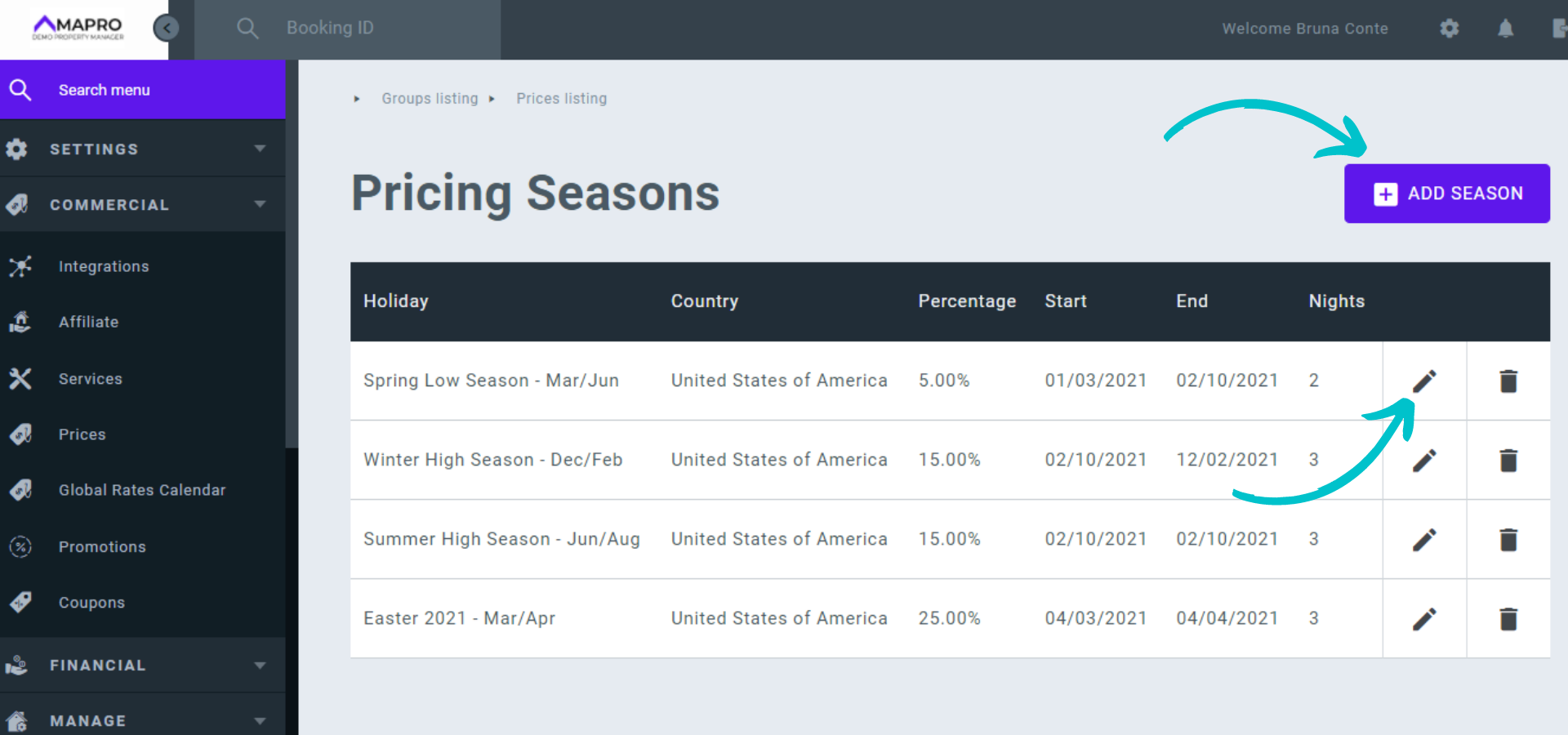
When accessing the list of seasons, click on the pencil icon to edit an existing one or on "Add Season" to add a new one.
Fill in the fields as per the instructions below:
Important: there can be no gaps between one season and another, or the booking calendar will be closed during these days, making reservations unavailable. If "season A" ends on 02/20, "season B" should start on 02/21.
Click "Save" at the bottom of the page.
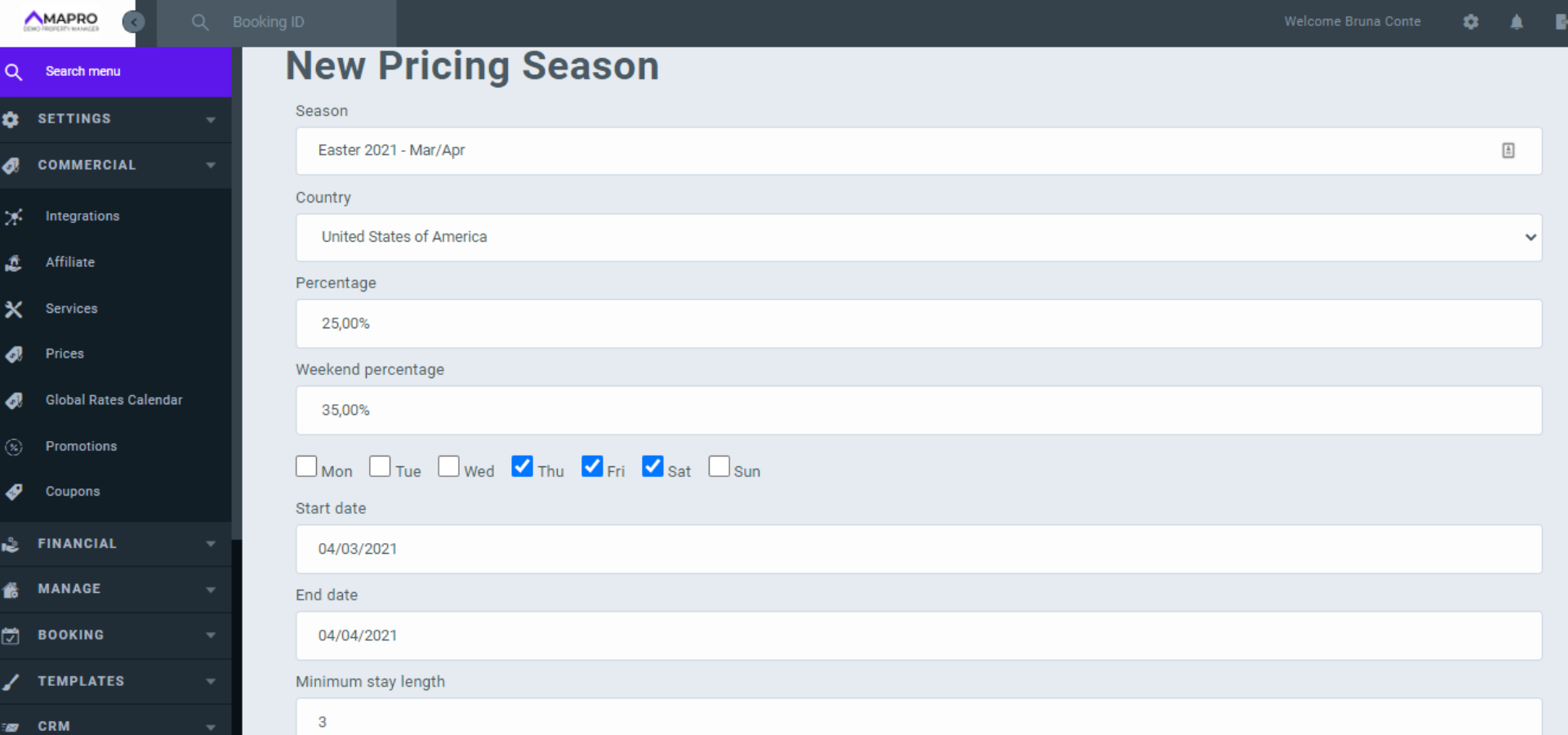
Example:
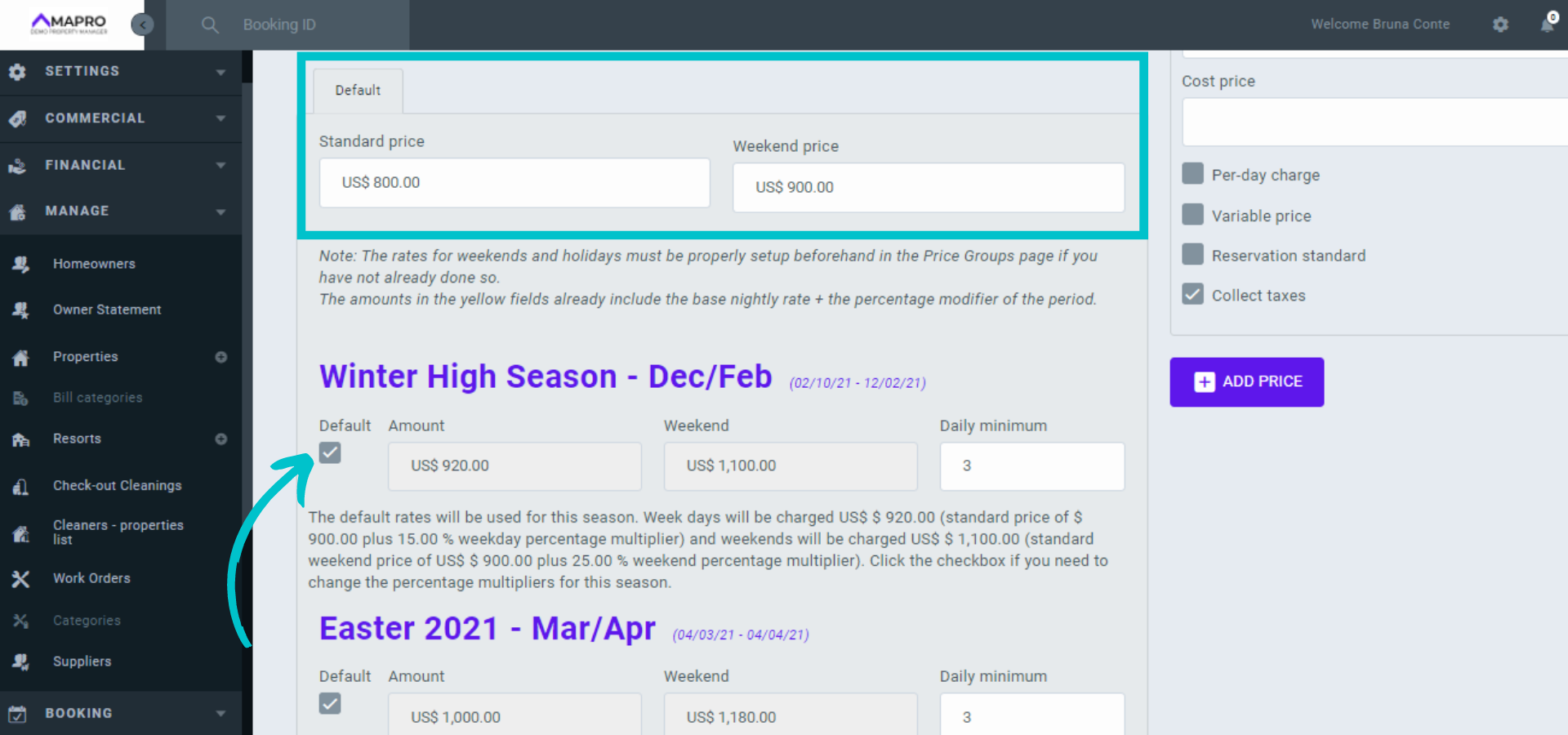
In the image above, we have created the pricing season for Easter.
We set the percentage added to the standard property price to be 25% on Sunday, Monday, Tuesday, and Wednesday nights (week prices), and 35% on Thursday, Friday, and Saturday nights (weekend prices).
The guest needs to book a minimum of three nights to secure their stay.
These rules start operating on March 04, 2021 and run until April 04, 2021.
The prices would look like this:
| Default week price | Default weekend price | Easter week price (default + 25%) | Easter weekend price (default + 35%) | |
| Property A | $ 280.00 | $ 320.00 | $ 350,00 | $ 432.00 |
| Property B | $ 150.00 | $ 200.00 | $ 187.50 | $ 270.00 |
If the guest books "property A" for the nights of March 10, 11, and 12, they will pay $ 350.00 on 10th (Wednesday), $ 432.00 on 11th (Thursday), and $ 432.00 on 12th (Friday) = $ 1214.00 + fees and services.
Important: if you have checked the "default" check box when registering the standard price for each property, the prices will change automatically in all properties.
If you want to manually change the price of some properties after setting up the season, go to MENU > MANAGE > PROPERTIES, find them on the list and open each of them. On the "price" tab, uncheck the "default" check box and change the prices.
If you did not select the default option when registering the properties, you need to open all of them and change the price manually each time you create a season.
Another essential tool for price management is the calendar. It allows you to identify each property's specific needs and take personalized action, such as permitting reservations with a different minimum number of nights than the season settings to fill a gap between one stay and another.
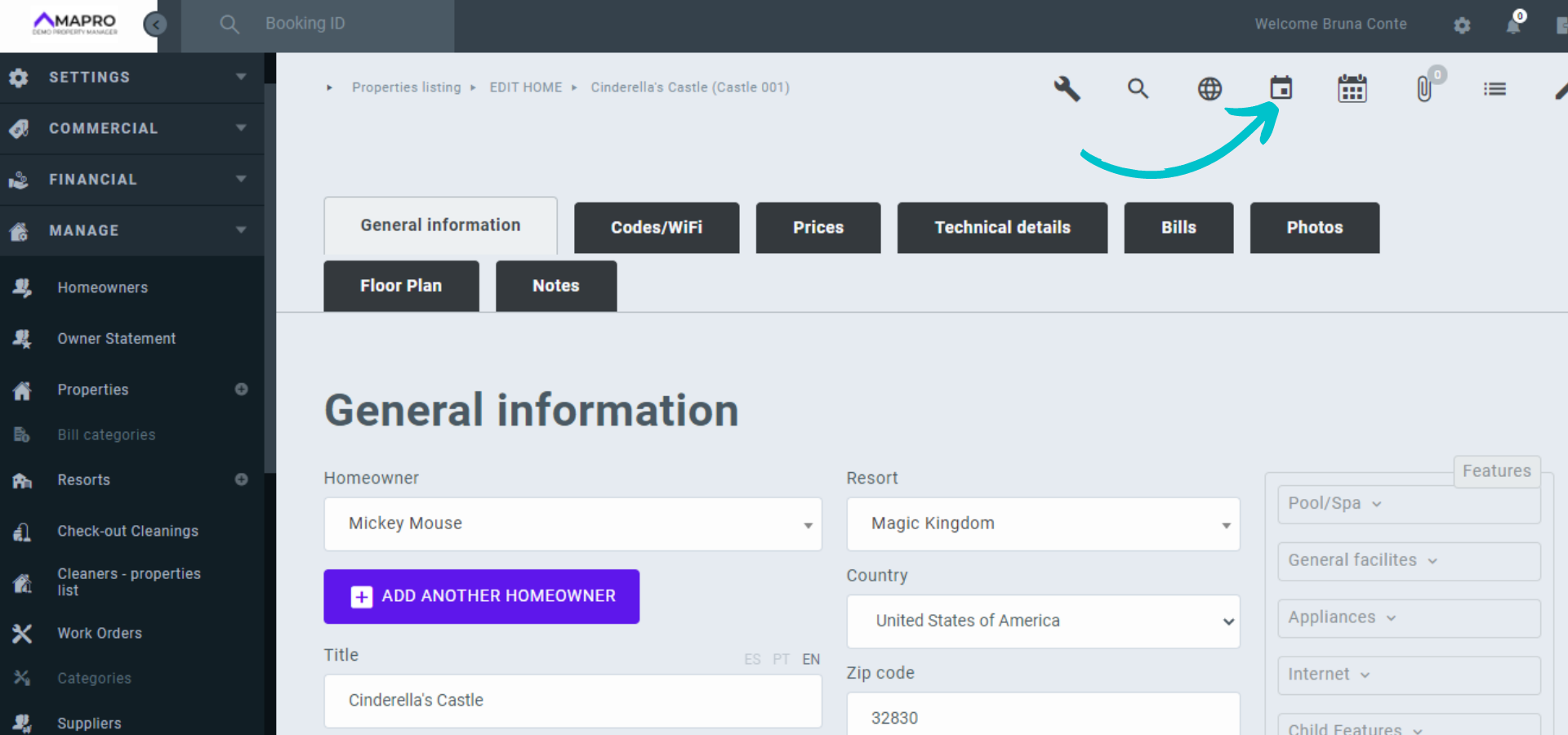
To open the pricing calendar, go to MENU > MANAGE > PROPERTIES, and click the pencil icon to edit the property. Notice the icons at the top of the page, and click on the "calendar" option (the option next to it opens the property calendar, which allows you to make reservations but not to edit prices). Access the calendar also through the reservation grid.
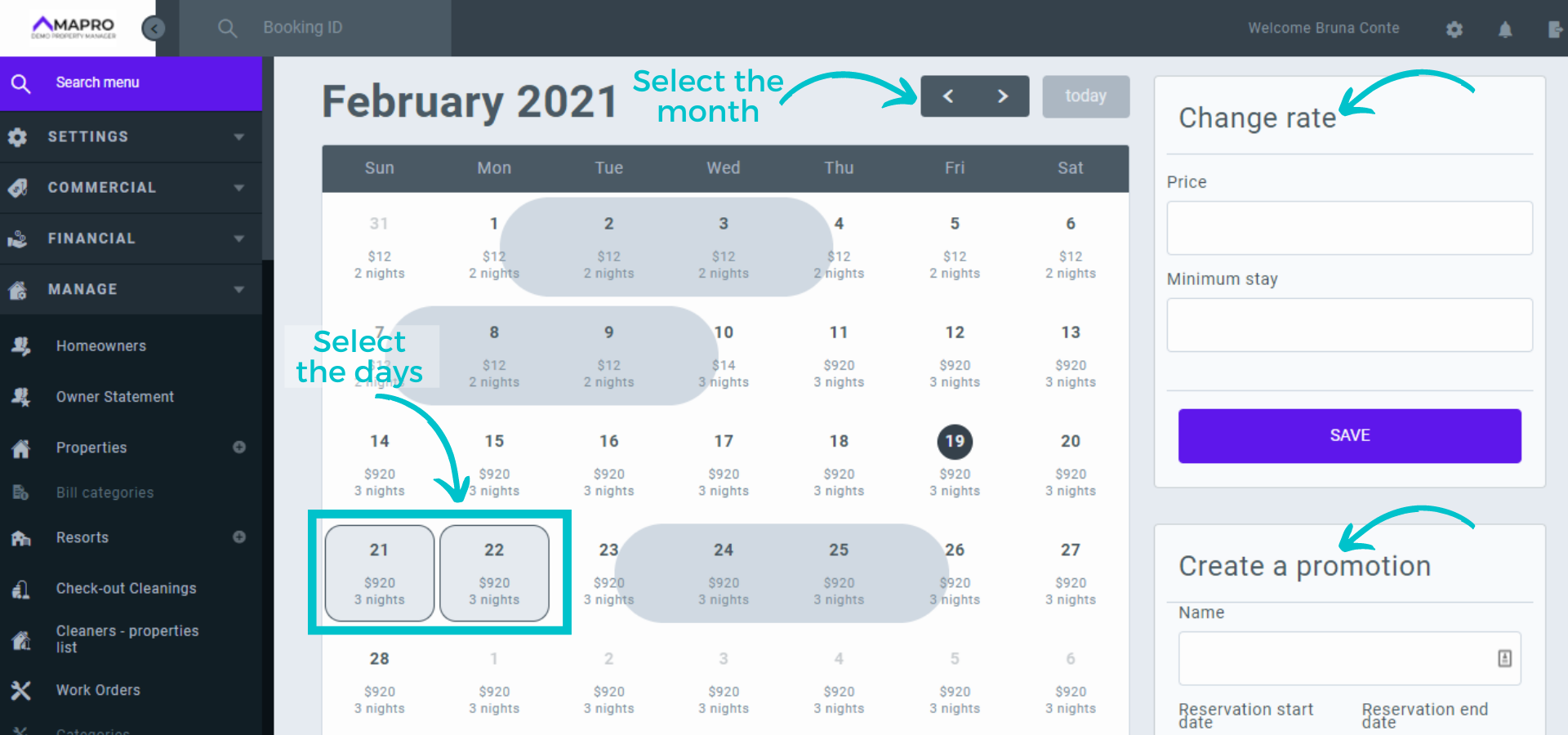
With the calendar open, select the dates you want to change, and then choose between the two options on the right: "change rate" or "create a promotion".
The changes you make will apply only to the selected days and will override any previously configured pricing rules.
The promotion works like all those created through the commercial menu - to learn more, see "How to create a promotion."
After entering the rate or promotion information, click "Save".
Click on "Show general promotions" to see in the calendar prices applied for that period, whether they are the default, season, or promotion prices.