
loading.. Please Wait
You can use MAPRO Unified Inbox to chat with guests from Airbnb, VRBO, Booking.com, and your direct bookings.
You can save messages to answer frequently asked questions and use our AI-powered generator to accelerate your response time to messages.
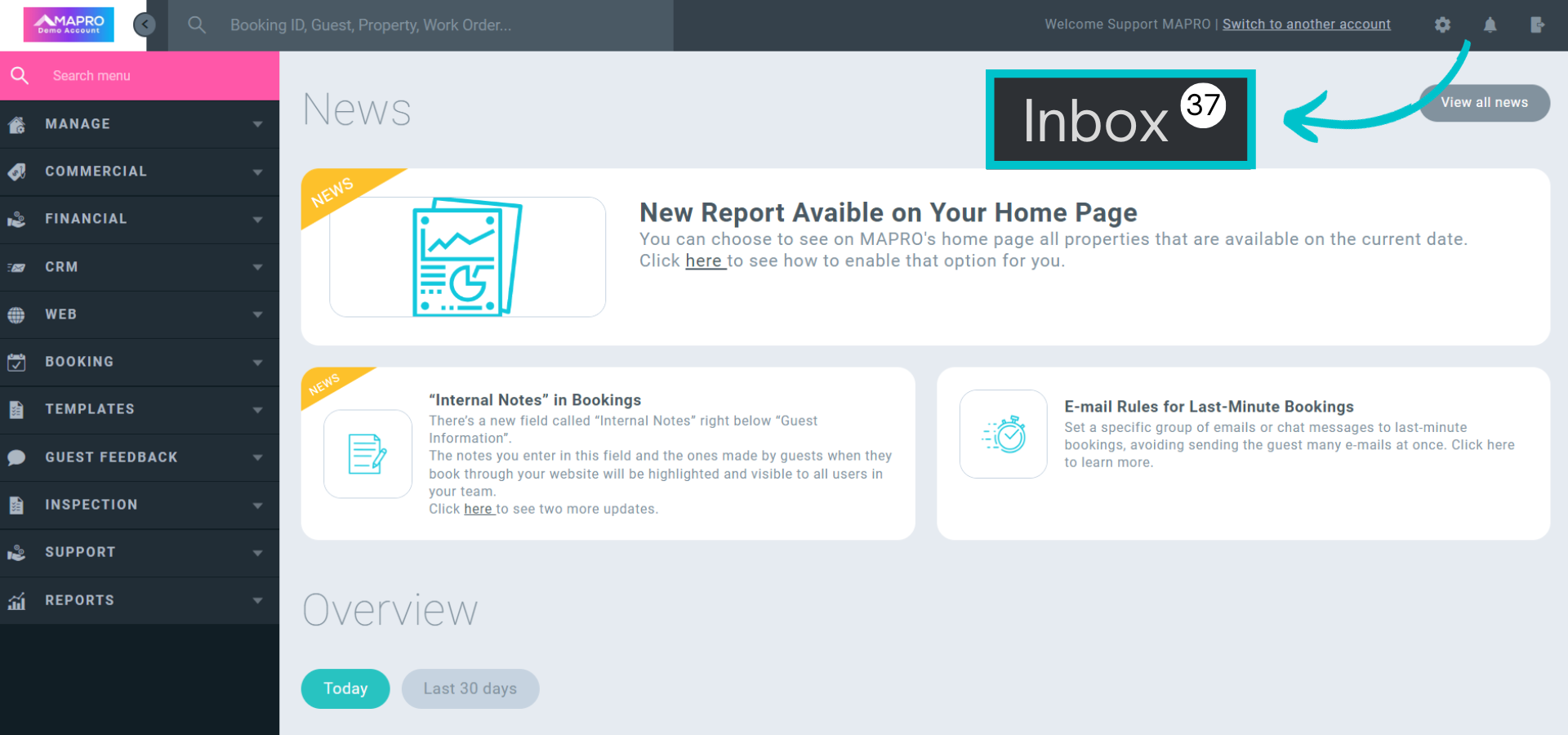
Look for the “Inbox” button on the right of the toolbar, and click to see all conversations.
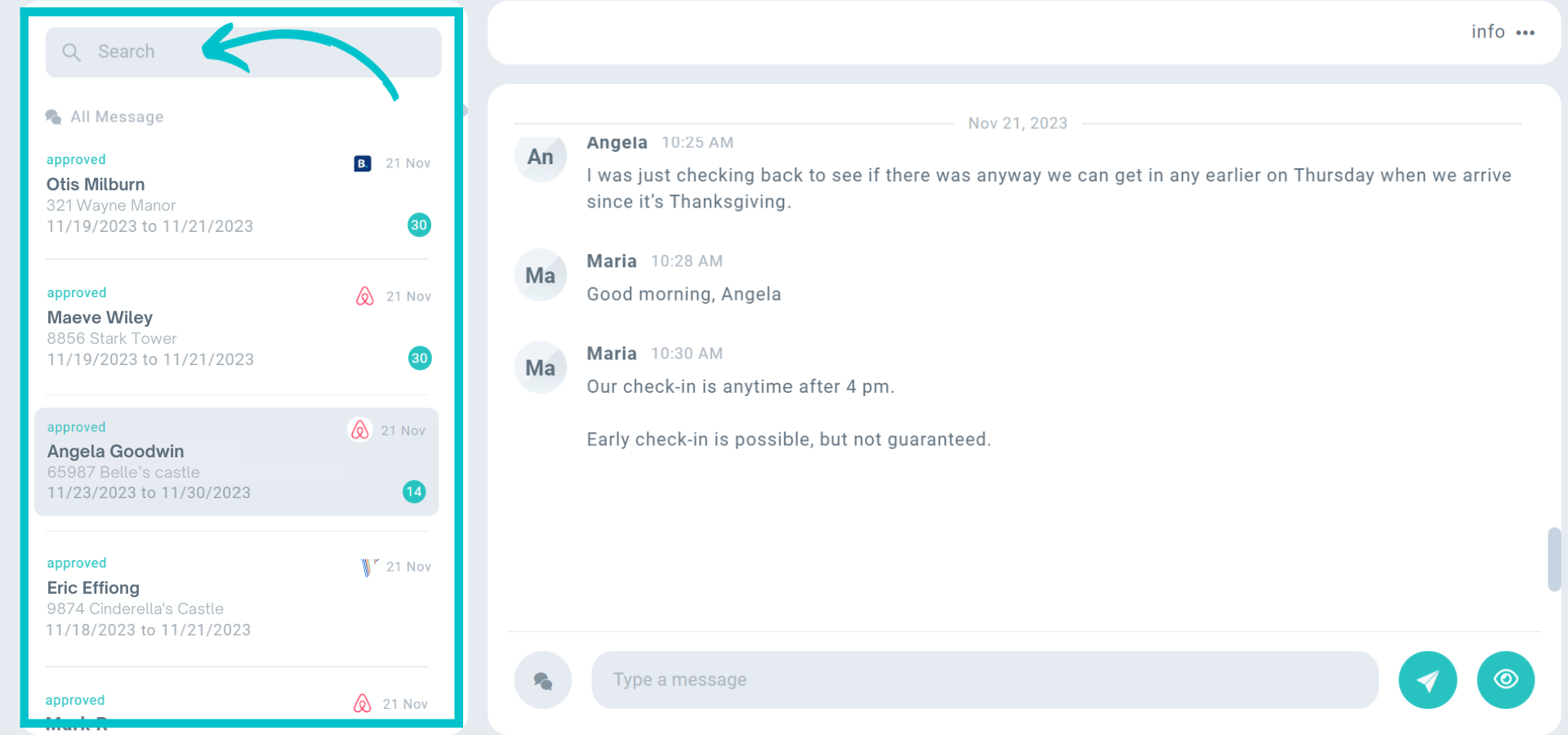
On the left, you have the “search bar” and a list of all conversations. You can see the guest’s name and the channel where the booking came from.
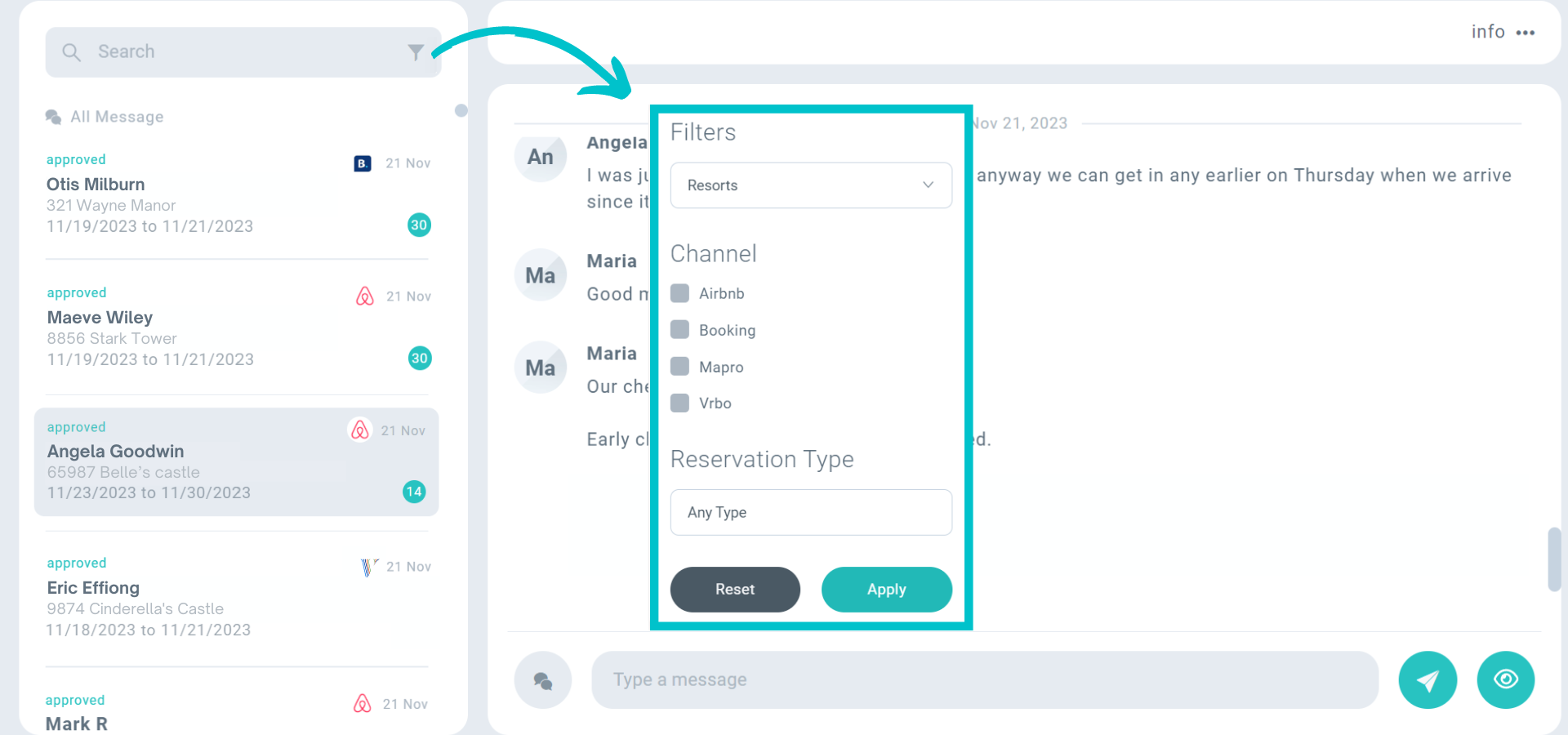
Click the filter icon to narrow down your search to specific integrators.
Remember to "reset" them later so you see all the messages.
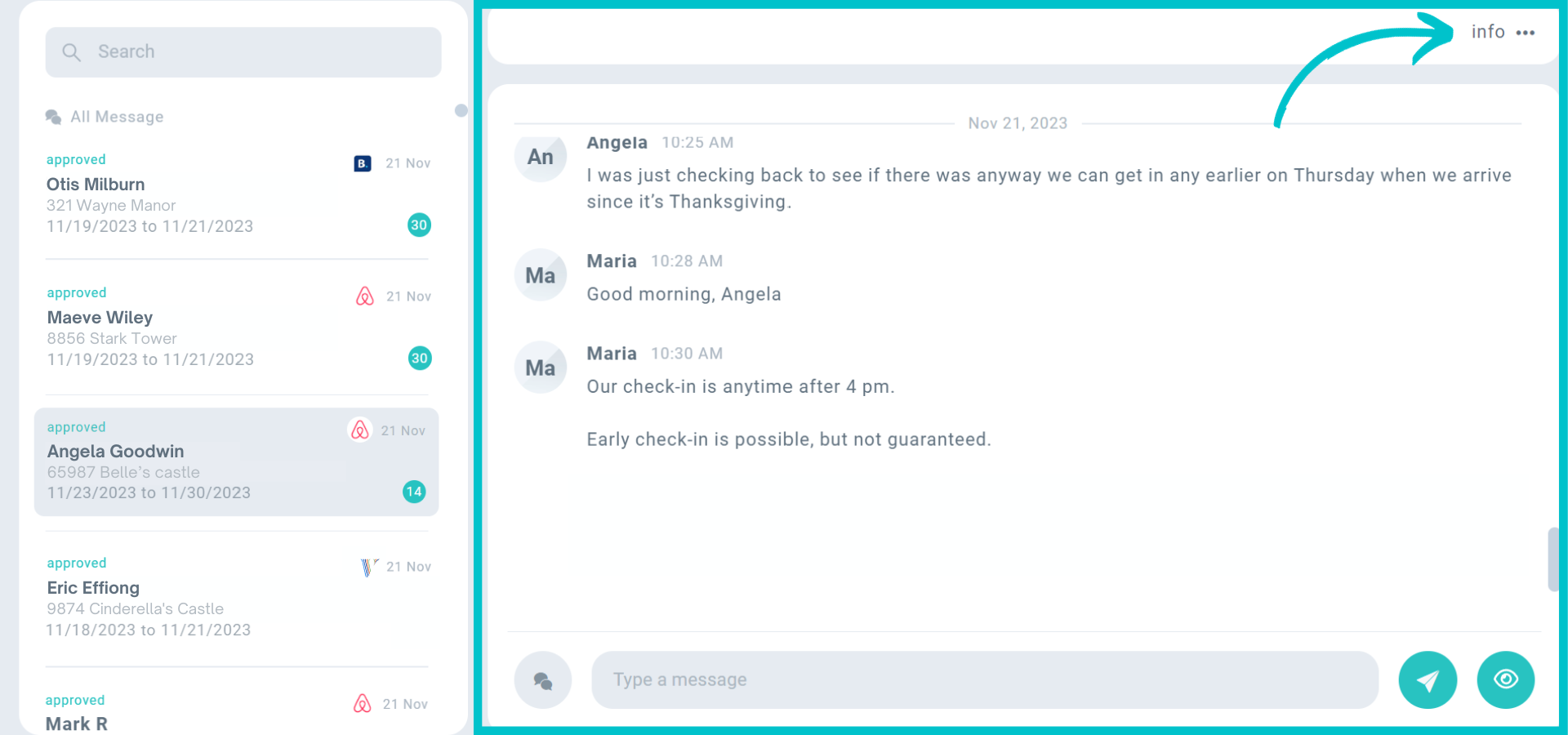
On the right, you see all messages automatically sent by MAPRO or the channel, the ones you typed in the chat, and the guest’s answers.
You can also click on “info” to see the booking details.
New conversations will show when:
When there are new messages, you’ll see the notification on the right of the “Inbox” button.
The notification will be enabled until someone marks the message as “read” by clicking the "eye" icon.
This prevents messages from being read and not answered when someone unintentionally clicks a conversation.
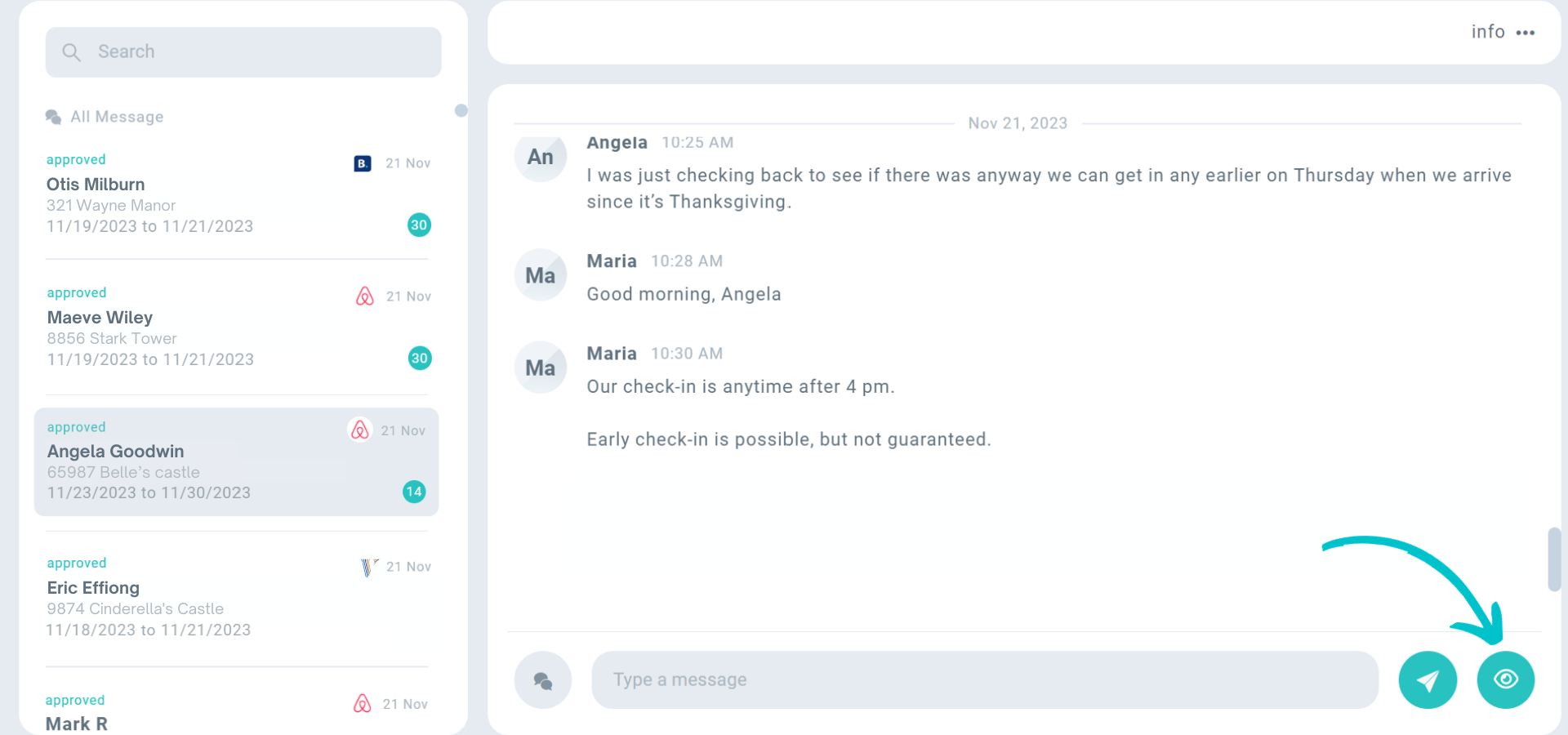
To write a message, type in the field at the bottom of the page and then hit “send”.
All messages sent are identified, so you know which member of your team replied.
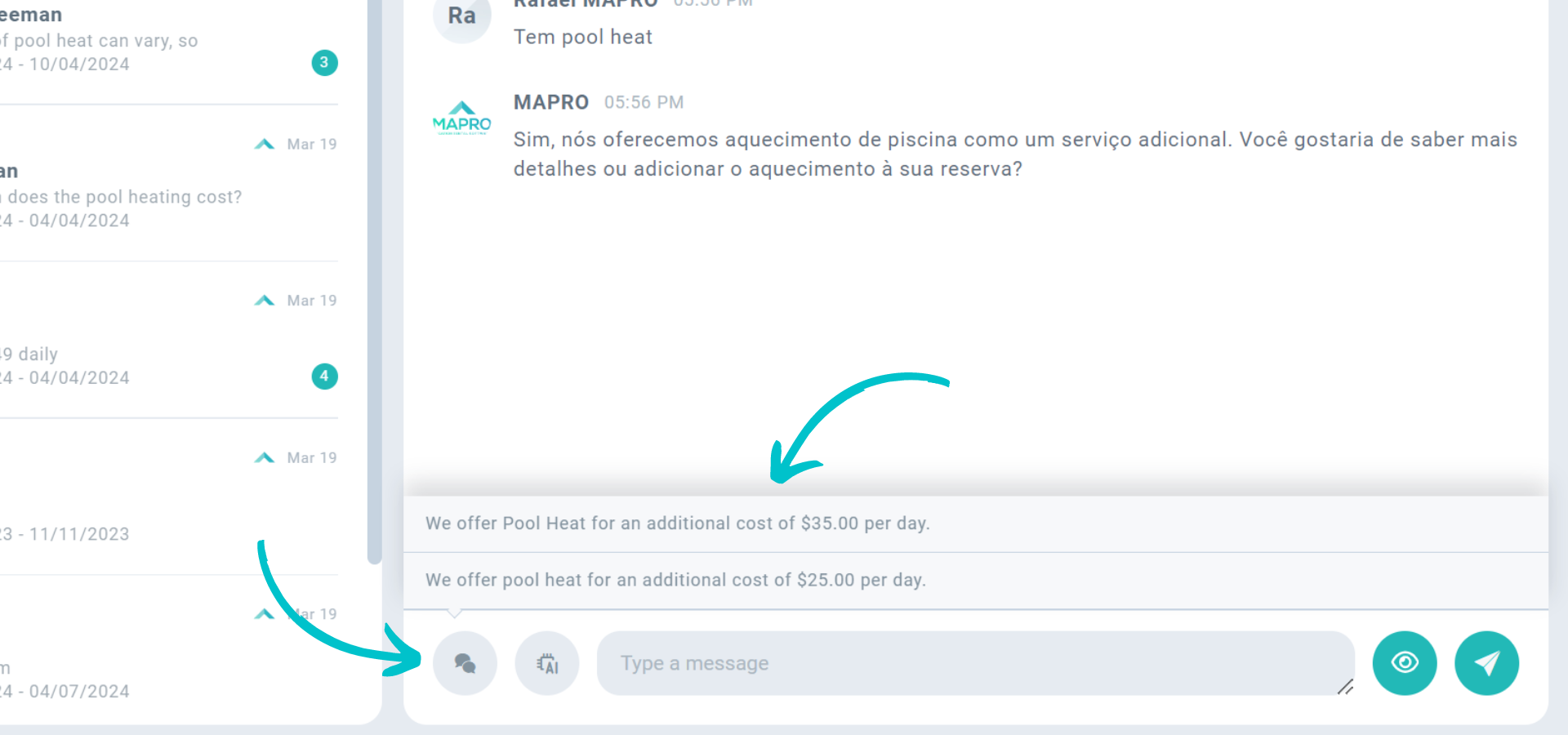
You can also save “quick messages” to answer frequently asked questions, like pool heating prices. Click the speech bubbles on the left, choose the message you saved, make any necessary changes, and send.
Click here to see how to set automatic chat messages or save quick messages.
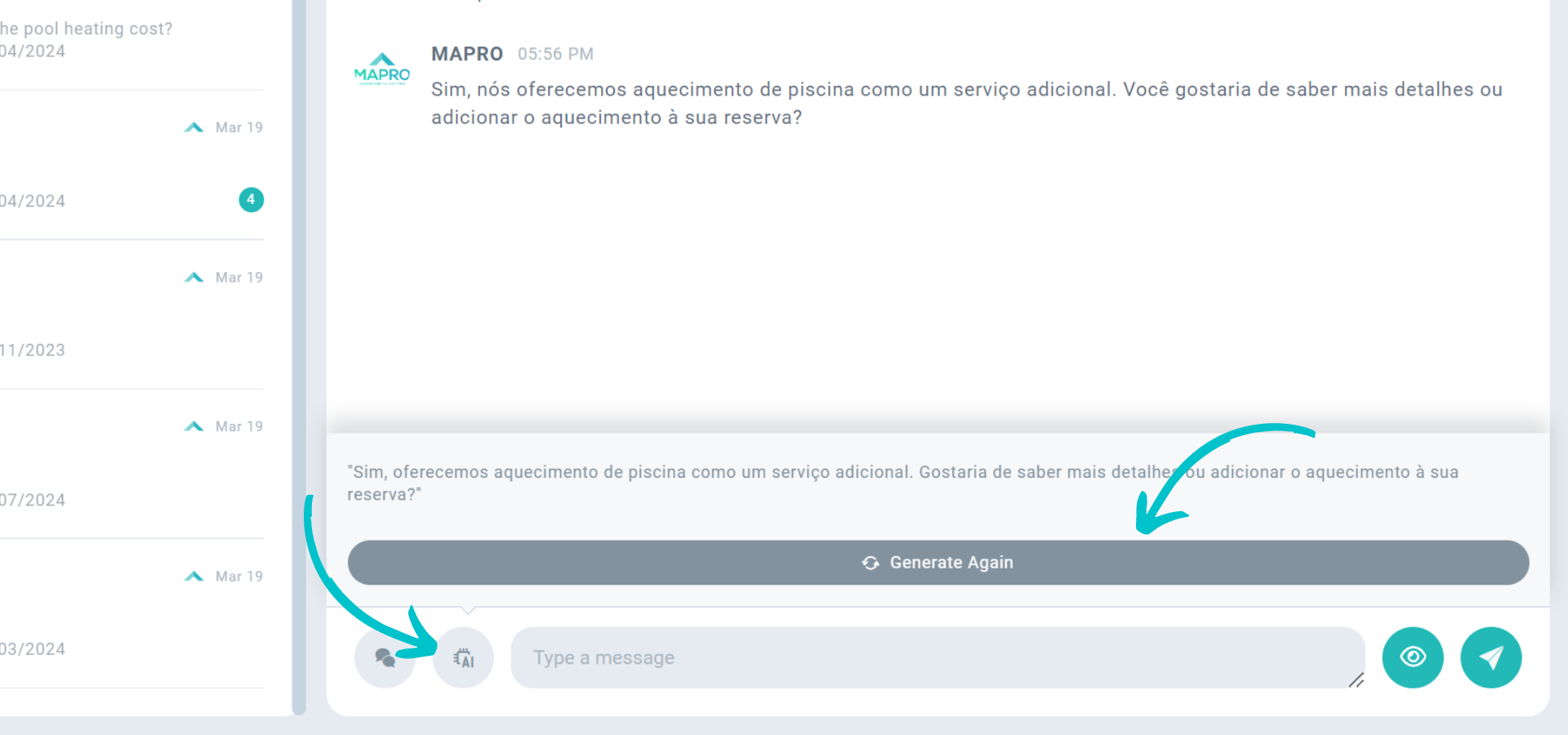
Click the "AI" button to see an answer generated by the artificial intelligence integration.*
Click the generated answer to transfer it to the field below, make any necessary changes, and hit "send".
You can also click "generate again" if you wish to see a second (or third) option.
*Experience this tool at no cost with our two-month trial offer.
Check our AI tool in action:
Click here to see how to enable the chat for your direct bookings.
This feature works with chat messages only, not with communications sent via e-mail.
It is NOT available to listings connected to MAPRO via iCal links.



