There are two kinds of charges in MAPRO: the recurring charges, which are automatically processed by MAPRO on the date and month previously set, and the non-recurring charges, which need to be registered and then processed manually because they have variable due dates and amounts.
Single charges are also non-recurring, but they are immediately processed at the moment they are registered.
MAPRO does NOT pay bills - they are registered and processed by the system for the property manager's financial organization and accountability.
Learn more about how to process payments of non-recurring charges
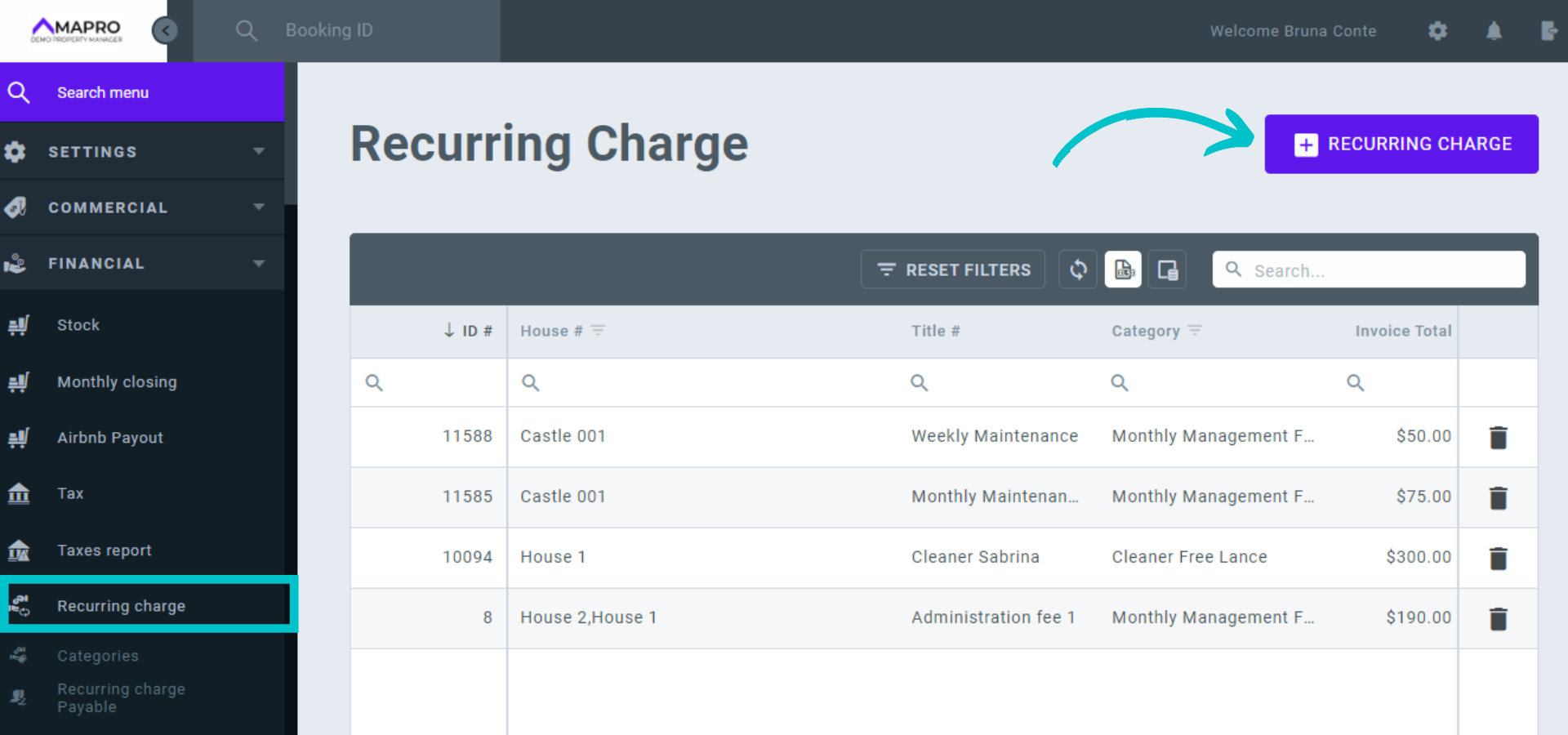
To register recurring charges, with a fixed amount and due date, go to MENU > FINANCIAL > RECURRING CHARGES, and click on "Add Recurring Charge."
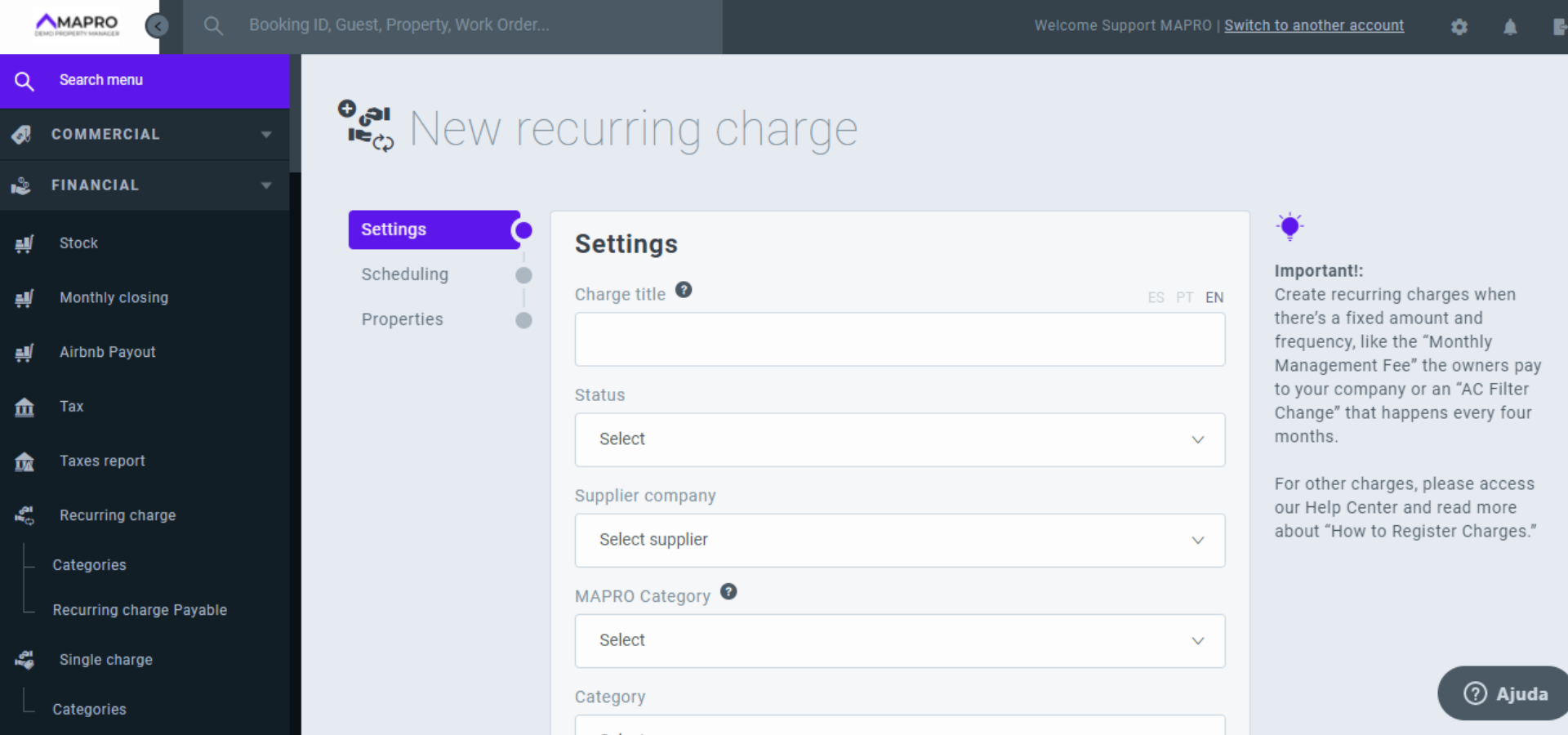
Fill out the new screen following the instructions below:
-
Supplier Company: select the company that issued the charge. It must be previously registered at MENU > MANAGE > SUPPLIERS. Ex: Royal Gardens - gardening and landscaping. Learn more about registering suppliers.
- Category MAPRO: choose from the list the category that matches the bill you are registering. These categories are pre-set and used by MAPRO to organize the payments and create reports. You will not be able to edit these names.
- Category: select a charging category previously registered at MENU > FINANCIAL > CATEGORIES. You can create new categories and choose their names, these are used by your company for internal organization. Ex: monthly maintenance.
- Charge Title: this information goes to the homeowner statement, and it can be registered in English, Portuguese, and Spanish. Note the ES/PT/EN icons above the field, and type the description in each. The homeowner will see the information in the language they set as the main language Ex: garden monthly maintenance.
- Debit or credit: choose whether the bill should be on the homeowner's statement as a credit or a debt.
- Amount: enter the amount to be paid. Remember the amount on recurrent charges is NOT variable - to register bills with variable amounts, check "non-recurring charges."
- Cost amount: if the price your company pays for a service like "Pool Maintenance" is, for example, $70.00, but you charge $ 90.00 from the owner or the guest, type $90.00 in the field "Amount," and "$70.00" in the field "Cost amount." This way, MAPRO can calculate your profit on all services you sell.
- Day of the month: when the bill is charged more than once a month, type the days of the month separated by commas. Ex: 10, 20.
- Months: you may choose the months in which the bill is charged or click on "all" to select the 12 months.
- Day of the week (optional): select the day of the week the bill should be paid.
- Years: choose the years in which the bill should be charged. If you do not select the years, the bill will be charged repeatedly until reset.
- Property: select the property or properties to which the charge is issued. Use the search fields to filter by condo or property code.
Click on "Save Property" at the bottom of the page.
This charge will be processed automatically and on the homeowner statement according to your default configurations to the statement (view immediately, view after the month is closed, etc. Edit these configurations in USER'S MENU > SYSTEM SETTINGS).
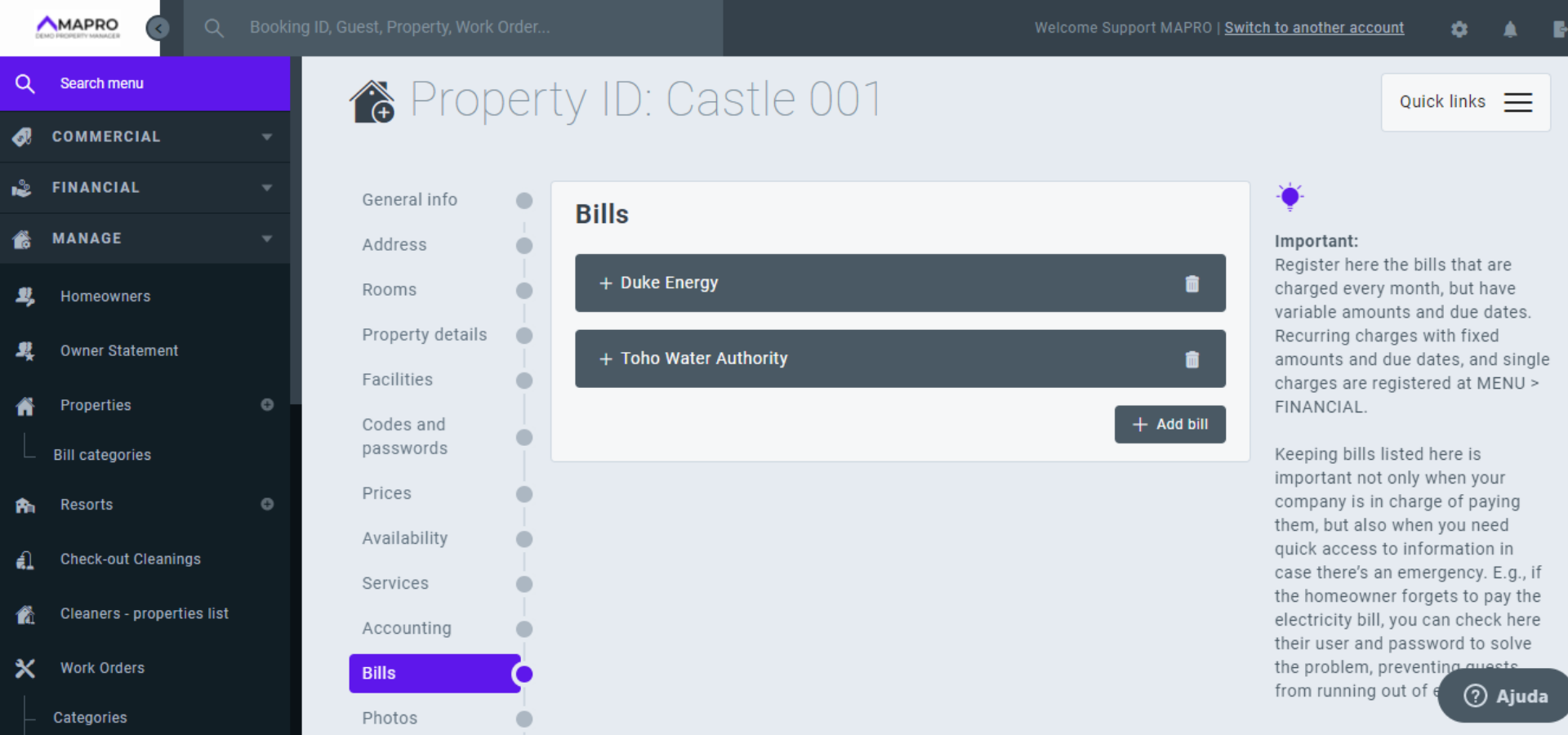
To register non-recurring charges, with a variable amount and due date, go to MENU > MANAGE > PROPERTIES, find the property on the list, and click on to edit it.
Once the register is open, find the tab "Bills," and then click on "Add Bill." If there are other bills already registered in this property, you may need to scroll down to find the button.
Enter the charge information:
-
Company: select the company that issued the charge. If not previously registered at MENU > MANAGE > SUPPLIERS, click on the empty field and type the company's name. Learn more about registering suppliers.
- Category: select the charging category - utility or service.
- Invoice number: optional, for the propriety manager's organization.
- Due date: the due date is variable, but the system asks for an approximate due date to add the charge to the list of bills to pay.
- Login/user: optional, for the propriety manager's organization.
- Password: optional, for the propriety manager's organization.
- Contact number: optional, for the propriety manager's organization.
- Contact e-mail address: optional, for the propriety manager's organization.
- Website: optional, for the propriety manager's organization.
- Reference amount: inform the average amount.
- Comments: optional, for the propriety manager's organization.
- YOUR COMPANY Paid / Auto pay: you will see here the name of your company (MAPRO Paid) - select this if your property manager pays the bill. The charge will be on the accounts payable list and the homeowner statement after it is processed. Select "auto pay" if the bill is paid any other way that does not require the property manager's action.
- Charge months: if the bill is not charged monthly, select the months in which it should be paid. If it is charged every month, do NOT select any.
Click on "Save Property," and the bill will be processed according to your settings.
Learn more about processing payments of non-recurring charges
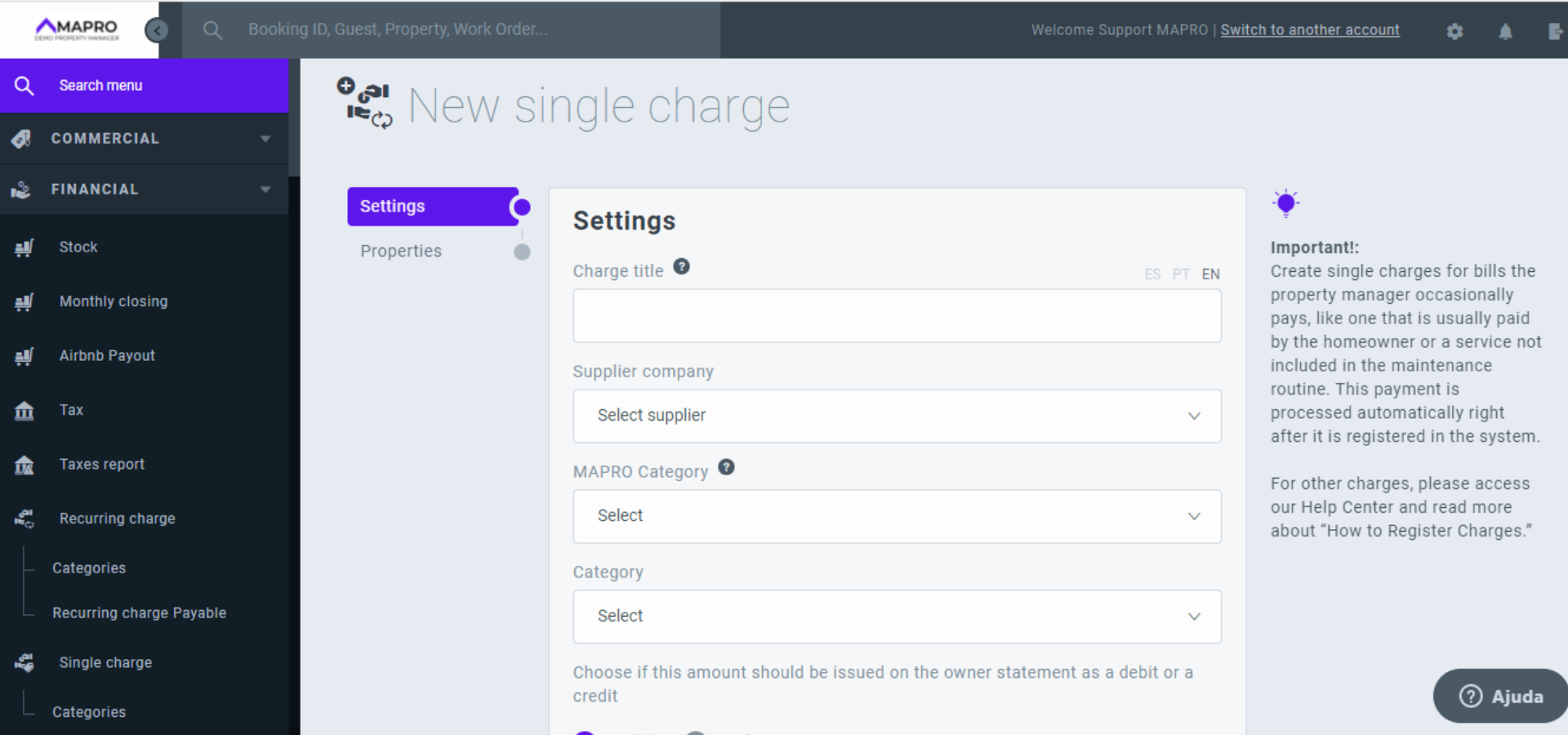
Single charges are bills the property manager occasionally pays, like one that is usually paid by the homeowner or a task not included in the maintenance routine. This payment is processed automatically right after it is registered in the system.
To register and process a single charge, go to MENU > FINANCIAL > SINGLE CHARGE, and click on “Add One Time Charge.”
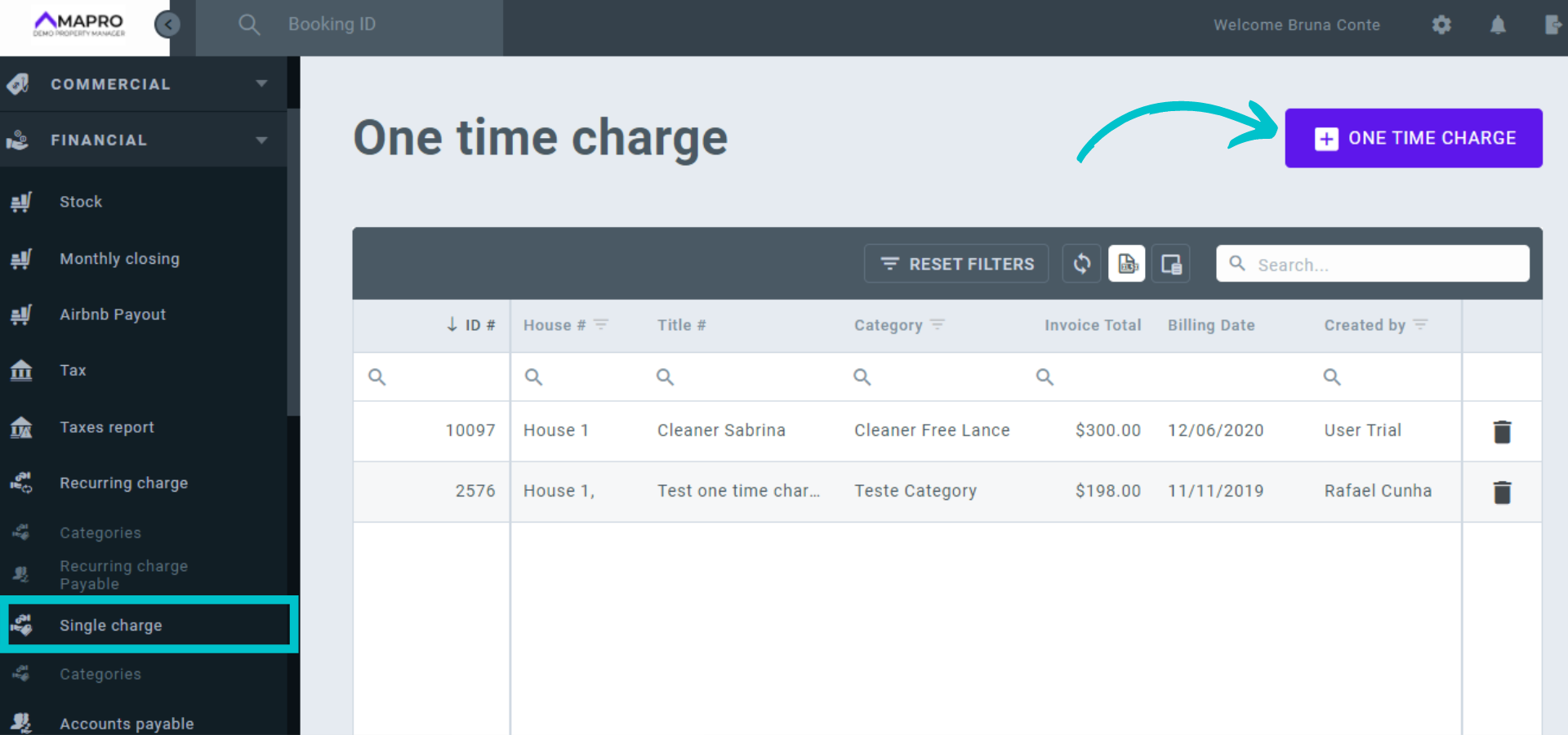
Fill out the new screen following the instructions below:
-
Supplier Company: select the company that issued the charge. It must be previously registered at MENU > MANAGE > SUPPLIERS. Ex: Royal Gardens - gardening and landscaping. Learn more about registering suppliers.
- Category MAPRO: choose from the list the category that matches the bill you are registering. These categories are pre-set and used by MAPRO to organize the payments and create reports. You will not be able to edit these names.
- Category: select a charging category previously registered at MENU > FINANCIAL > CATEGORIES. You can create new categories and choose their names, these are used by your company for internal organization. Ex: monthly maintenance.
- Title: this information goes to the homeowner statement, and it can be registered in English, Portuguese, and Spanish. Note the ES/PT/EN icons above the field, and type the description in each. The homeowner will see the information in the language they set as the main language Ex: garden monthly maintenance.
- Debit or credit: choose whether the bill should be on the homeowner's statement as a credit or a debt.
- Amount: enter the amount to be paid. Remember the amount on recurrent charges is NOT variable - to register bills with variable amounts, check "non-recurring charges".
- Cost amount: if the price your company pays for a service like "Pool Maintenance" is, for example, $70.00, but you charge $ 90.00 from the owner or the guest, type $90.00 in the field "Amount," and "$70.00" in the field "Cost amount." This way MAPRO can calculate your profit on all services you sell.
- Now/schedule: choose "now" if the amount should be informed on the homeowner statement when you are registering the bill; choose "schedule" to set another day - when you select this option, the system opens a field for you to define the date.
- Property: select the property/properties to which the charge is issued. Use the search fields to filter by condo or property code.
- Image: click on this area to upload the image of the bill from the files available on your device, or click on the file and drag it to this screen.
Click on "Save" at the bottom of the page.