
loading.. Please Wait
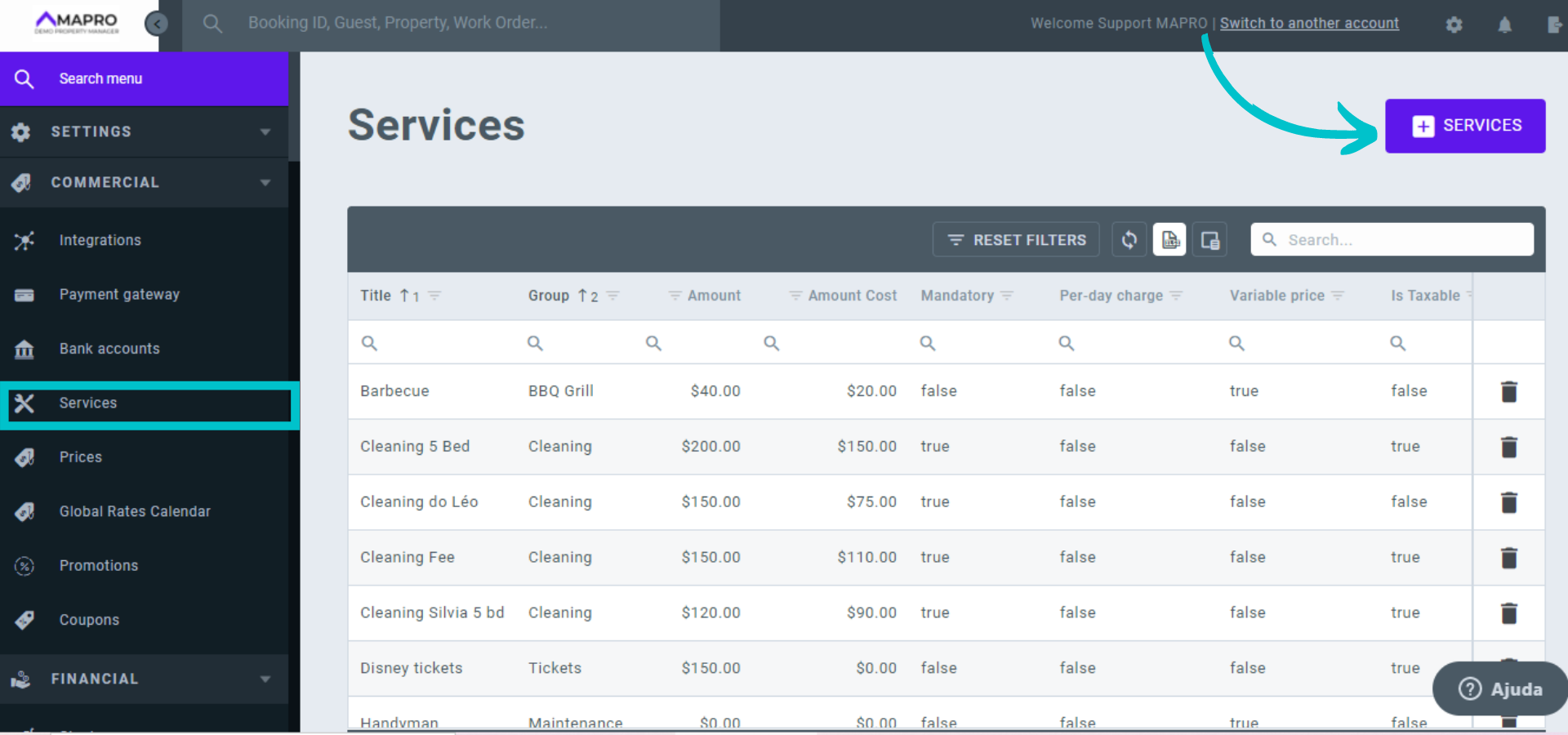
To register a service, go to MENU > COMMERCIAL > SERVICES and click on "Add Service."
Go through the tabs to add all the information about the service, hovering your mouse over the question mark icon to see tips on how to fill out all fields. You can find more clarifications on the right of the screen.
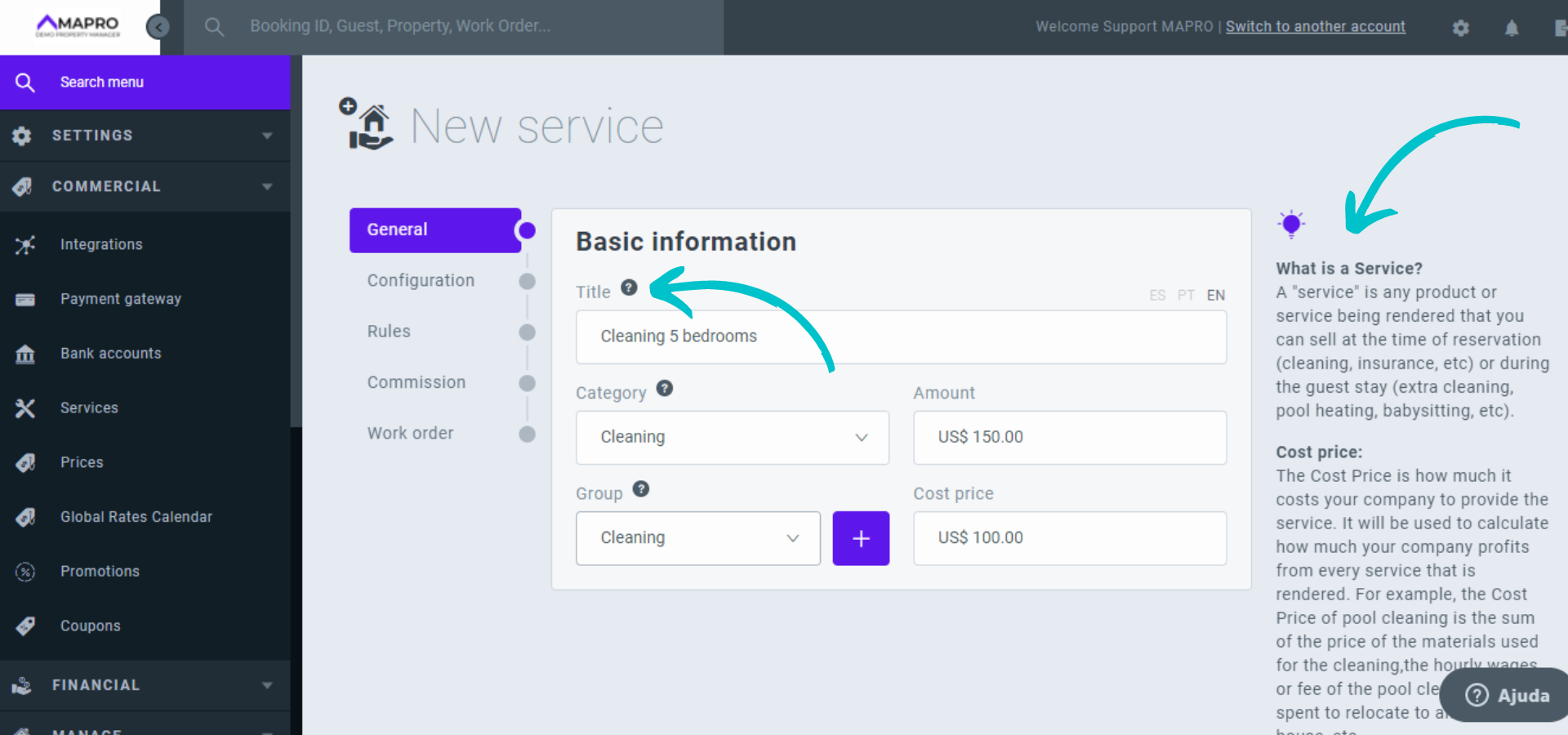
Obs.: "Amount" is the value the guest pays, and "Cost" is what is paid to the supplier. The system considers the difference as profit.
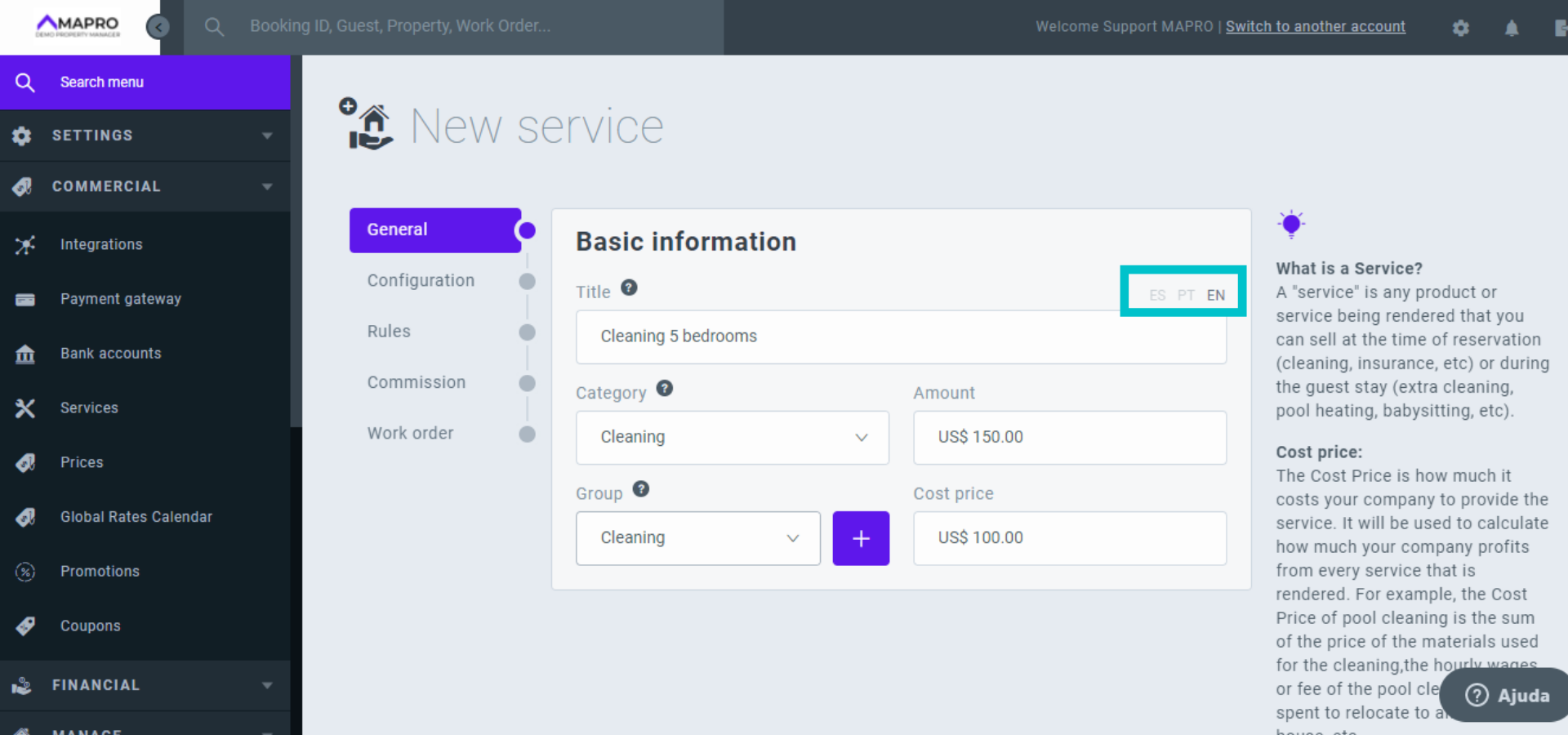
Click on the language button/icon to add the information in Spanish and Portuguese, besides English.
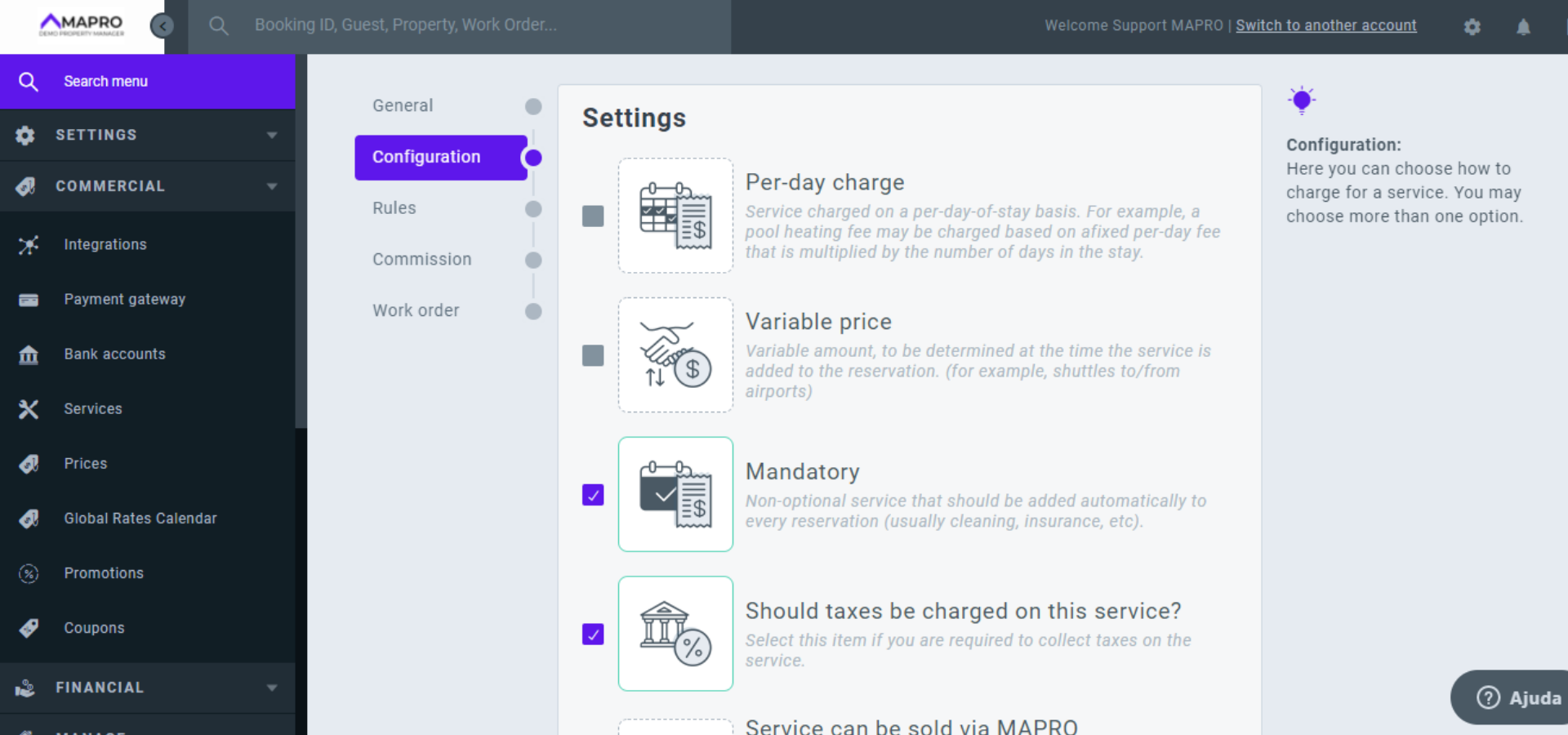
On the configuration tab, you select if this is a mandatory service, if taxes should be charged on it, among other settings. Services as "BBQ" and "Pool heating," if charged per day, must have the "Per-day charge" option selected. If you choose the option "Variable price," you can enter the value when adding the service to the reservation.
On the rules tab, you select to which properties or integrators you wish to assign the service.
Important: you can either set the service to all properties with a certain number of bedrooms, OR manually select the properties from the list, never both.
E.g., If you have six 5-bedroom properties and create a cleaning service that is the same for all six, you can enter "5" in the "number of bedrooms" field. Then, this service is automatically added to all six 5-bedroom properties.
If you would like to have two 5-bedroom cleaning services with different prices, leave the "number of bedrooms" field blank, and manually assign the properties 1, 2, and 3 to "5-bedroom cleaning $ 150.00" and the properties 4, 5, and 6 to "5-bedroom cleaning $ 175.00."
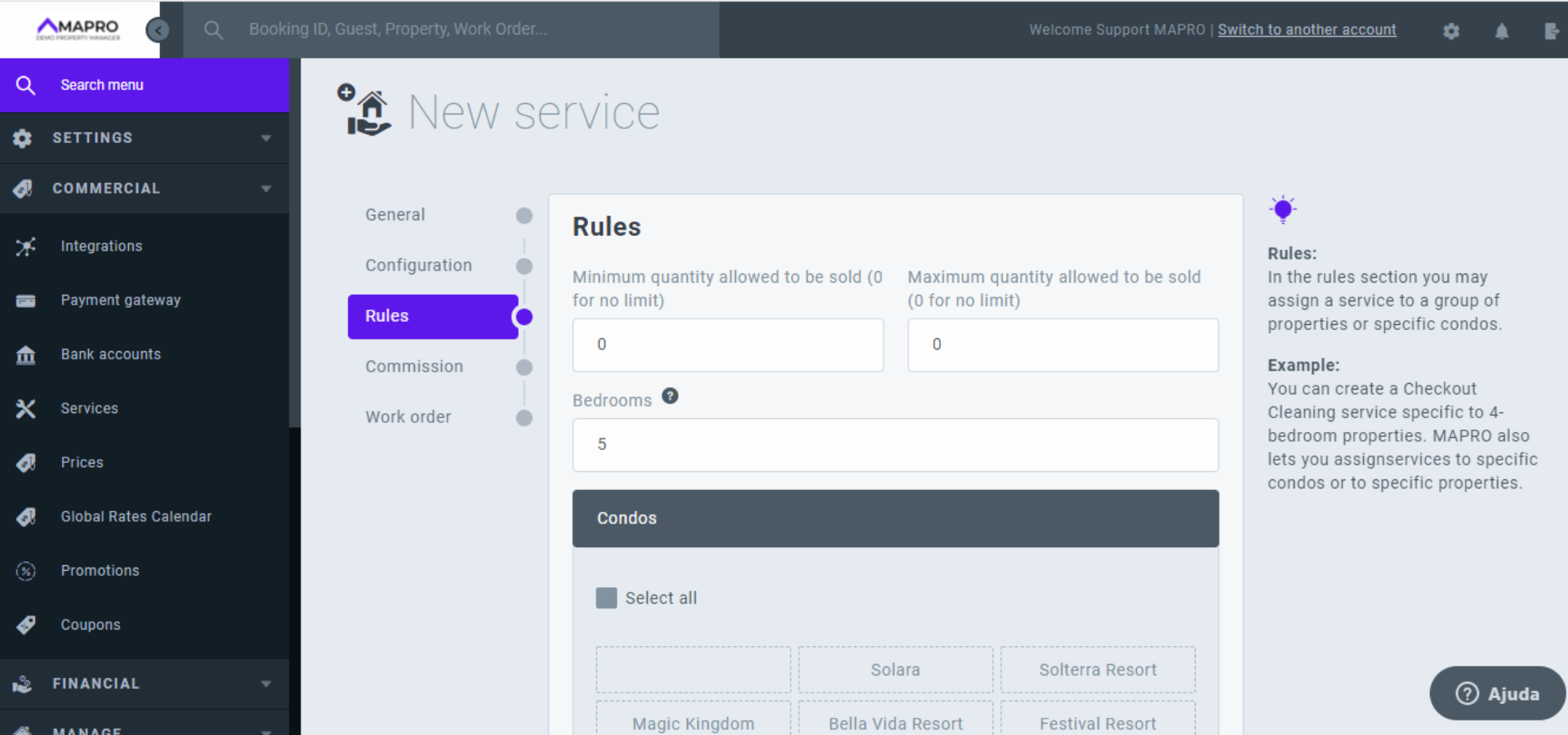
Be careful when registering and editing mandatory services: if you do not select any rule (number of rooms OR properties/integrators), the system will understand that the service is mandatory for all properties.
If the service is no longer in use, please delete it! This way, you avoid, for example, that more than one cleaning is registered in the same property. This can influence sales (when cleaning is priced too high) or even prevent your ad from being published in channels (when the cleaning value is higher than the daily rate).
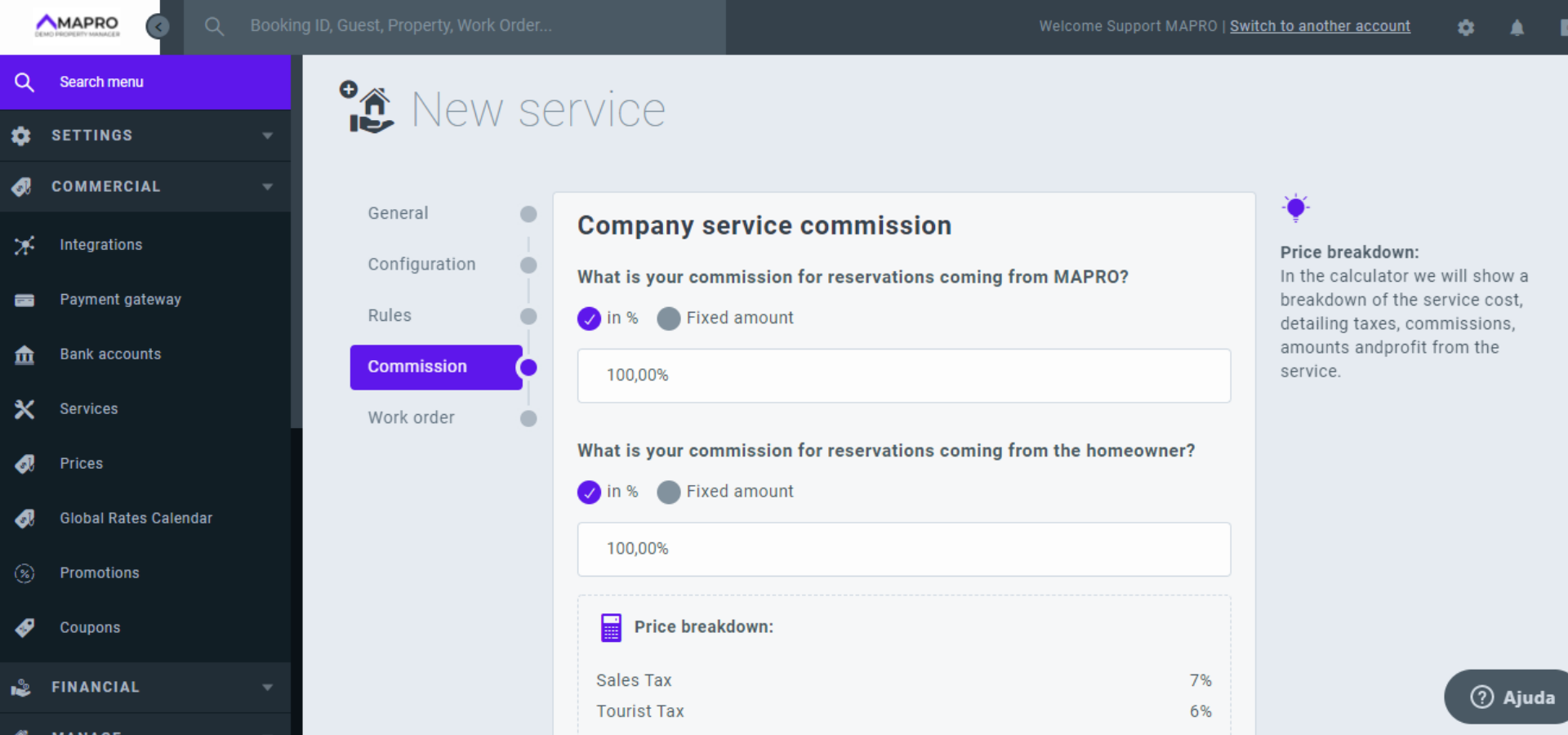
On the commissions' tab, you inform the percentage your company receives from the service.
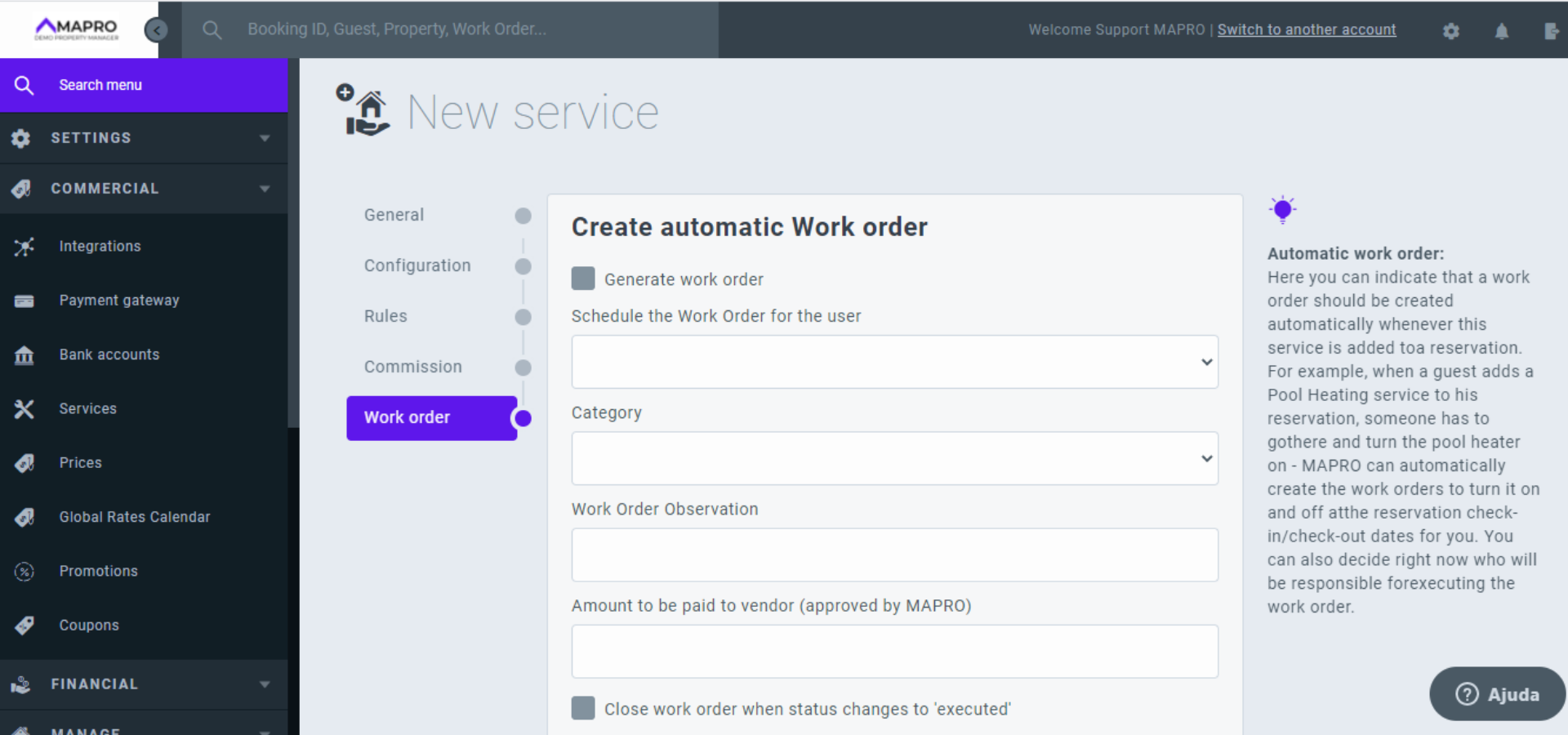
On the work order tab, you indicate if you want a work order to be automatically created every time this service is added to a reservation.
This step is not necessary for check-out cleanings, because every checkout creates a cleaning order.
If you need the work order to be scheduled for some hours or days prior to the check in, specify how many hours or days before in the indicated field.
If you want the work order to be automatically closed once its status changes to "executed", check the box.
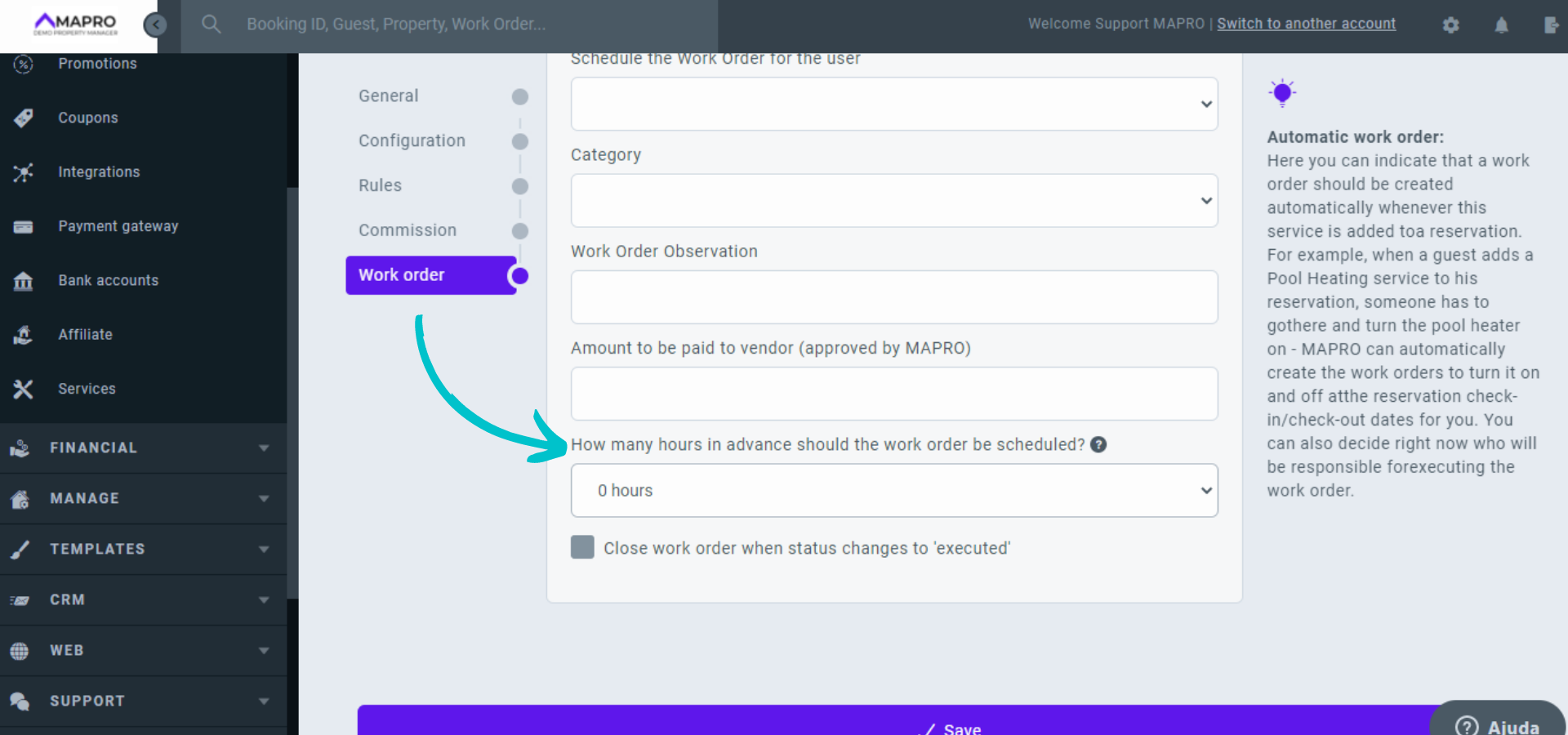
After filling out all the fields, click "Save."



