
loading.. Please Wait
The financial closing must be done EVERY MONTH for accountability and the financial organization of your company.
It is a simple process, but it depends on the completion of other tasks throughout the month. Click here to check the list of tasks to complete before closing the month.
To do the monthly closing, once you have ensured there is nothing pending due to that month (all reservations and work orders are closed, and all payments are processed), go to MENU > FINANCIAL > MONTHLY CLOSING.
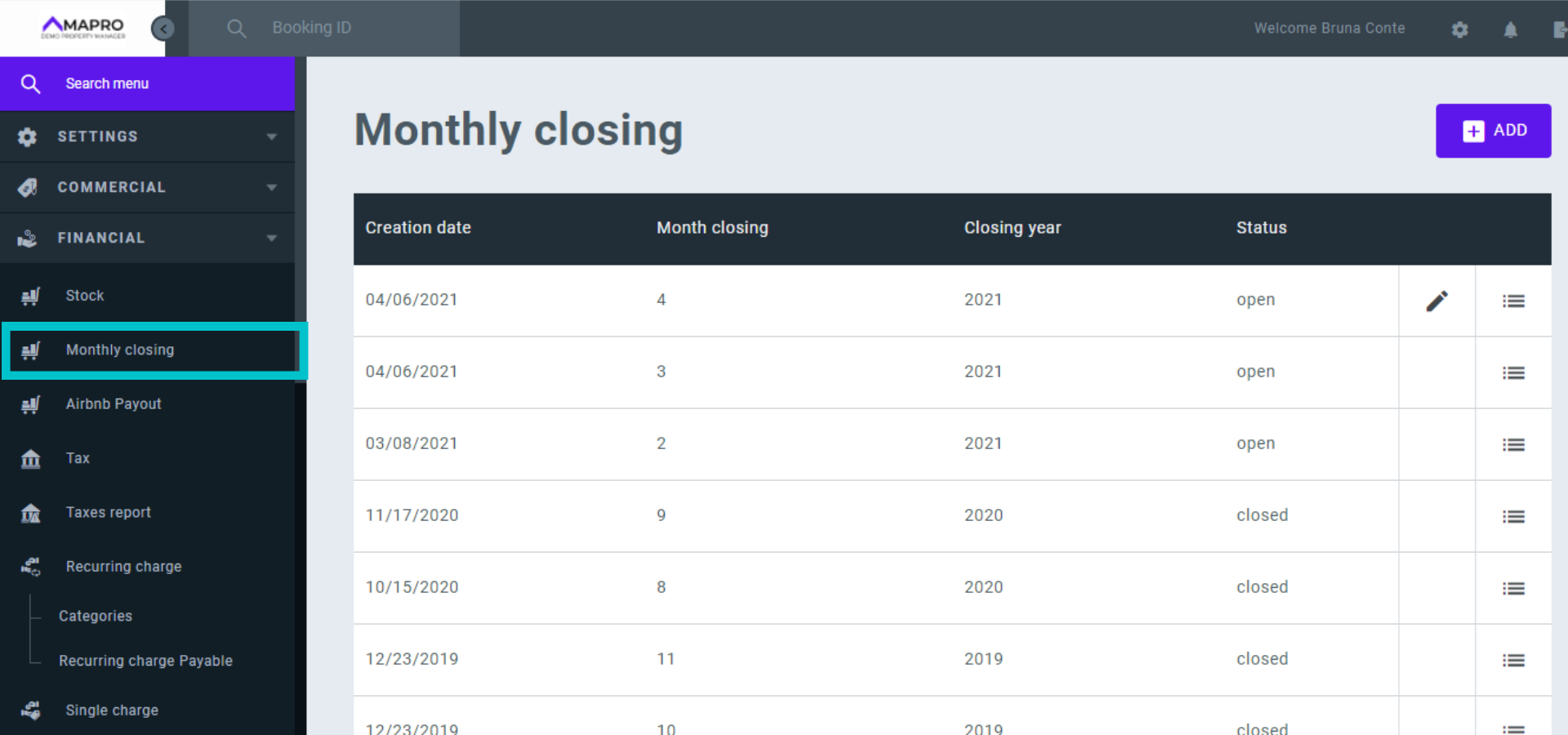
Scroll down to access the fields at the bottom of the page and fill them out as follows:
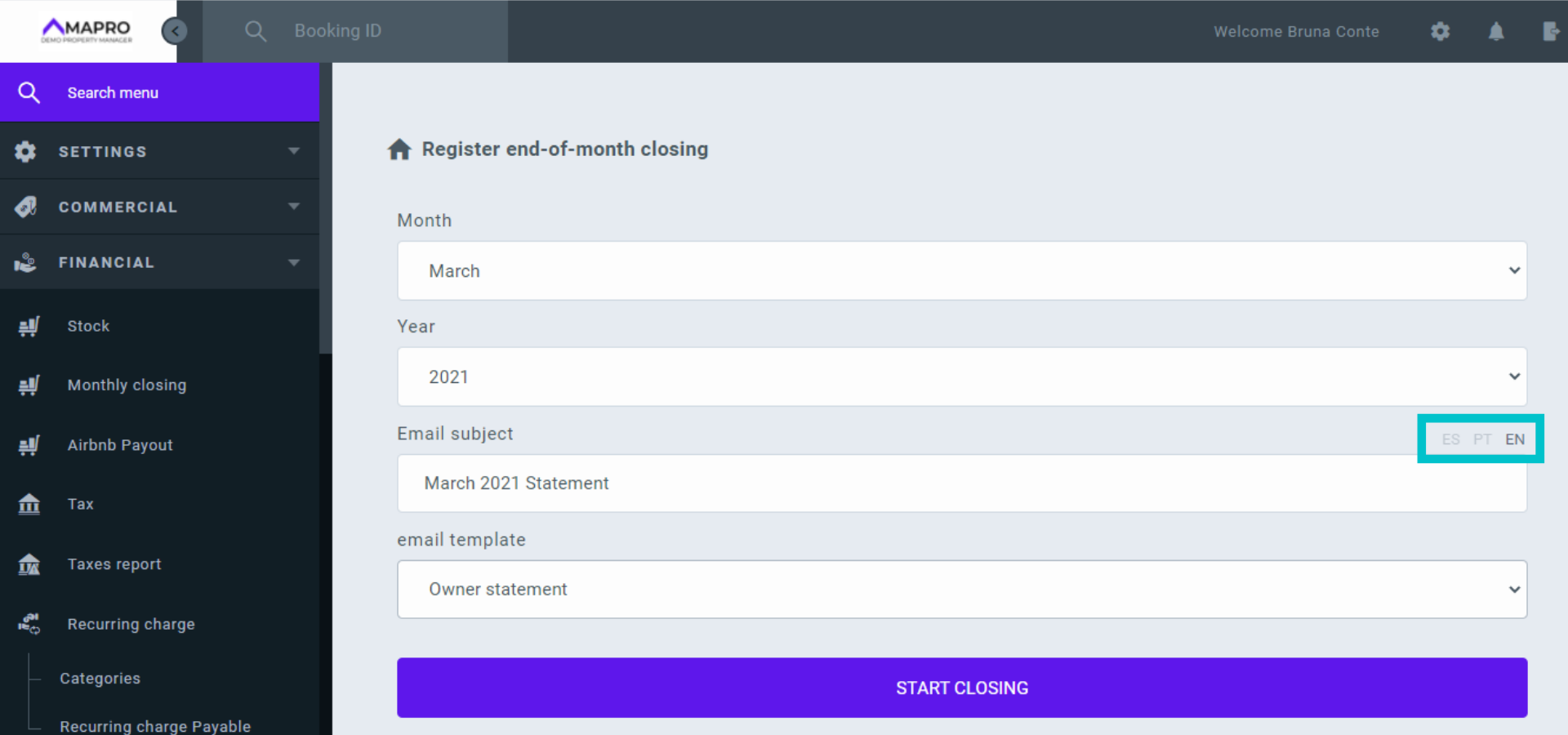
Important: the templates of e-mails sent after the monthly closing must be registered in the category "financial," or they will not be listed among the template options on this page. Set this at MENU > TEMPLATES > E-MAILS.
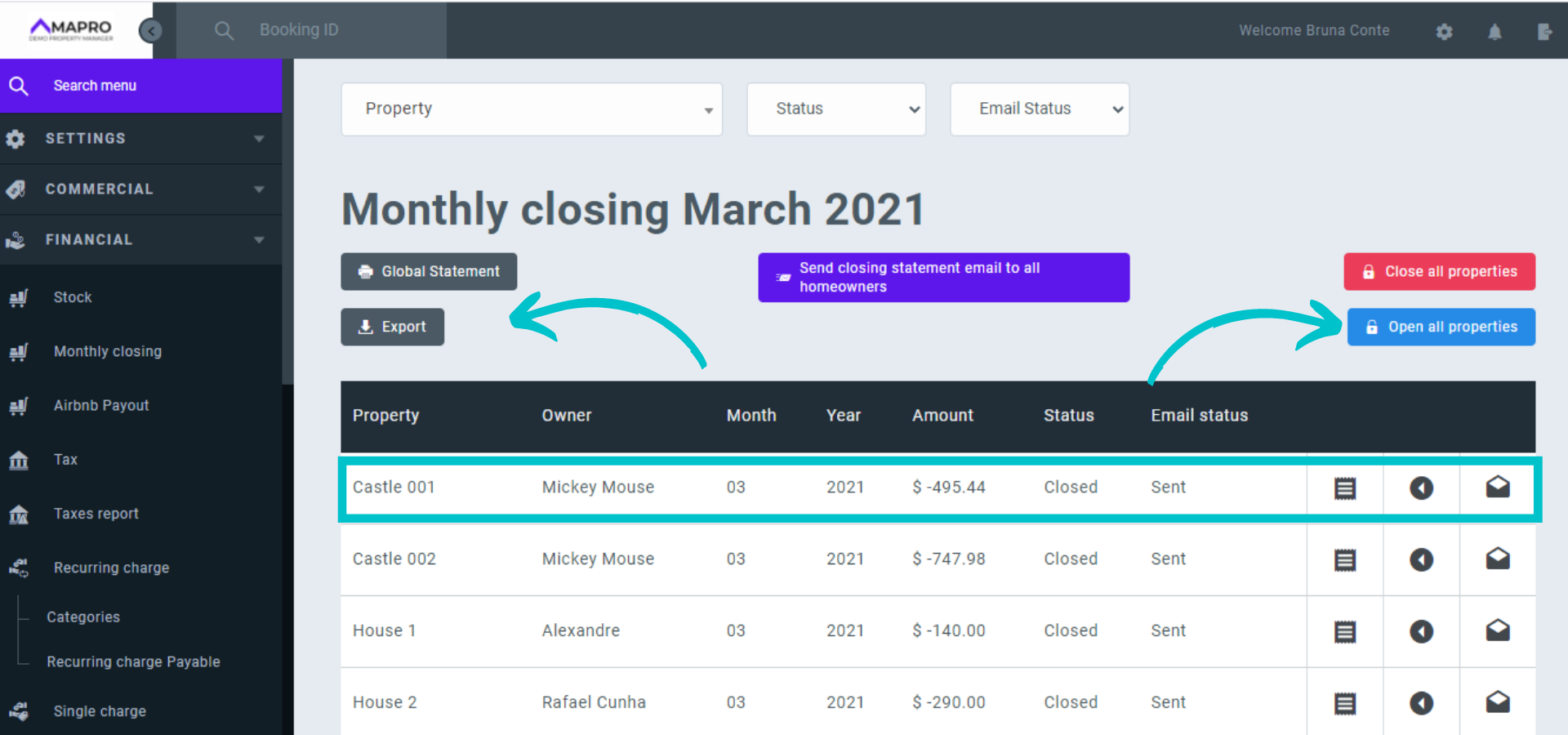
Click “Start closing.” On the new screen, you will see all properties registered, and next to each property, there are three icons on the right:
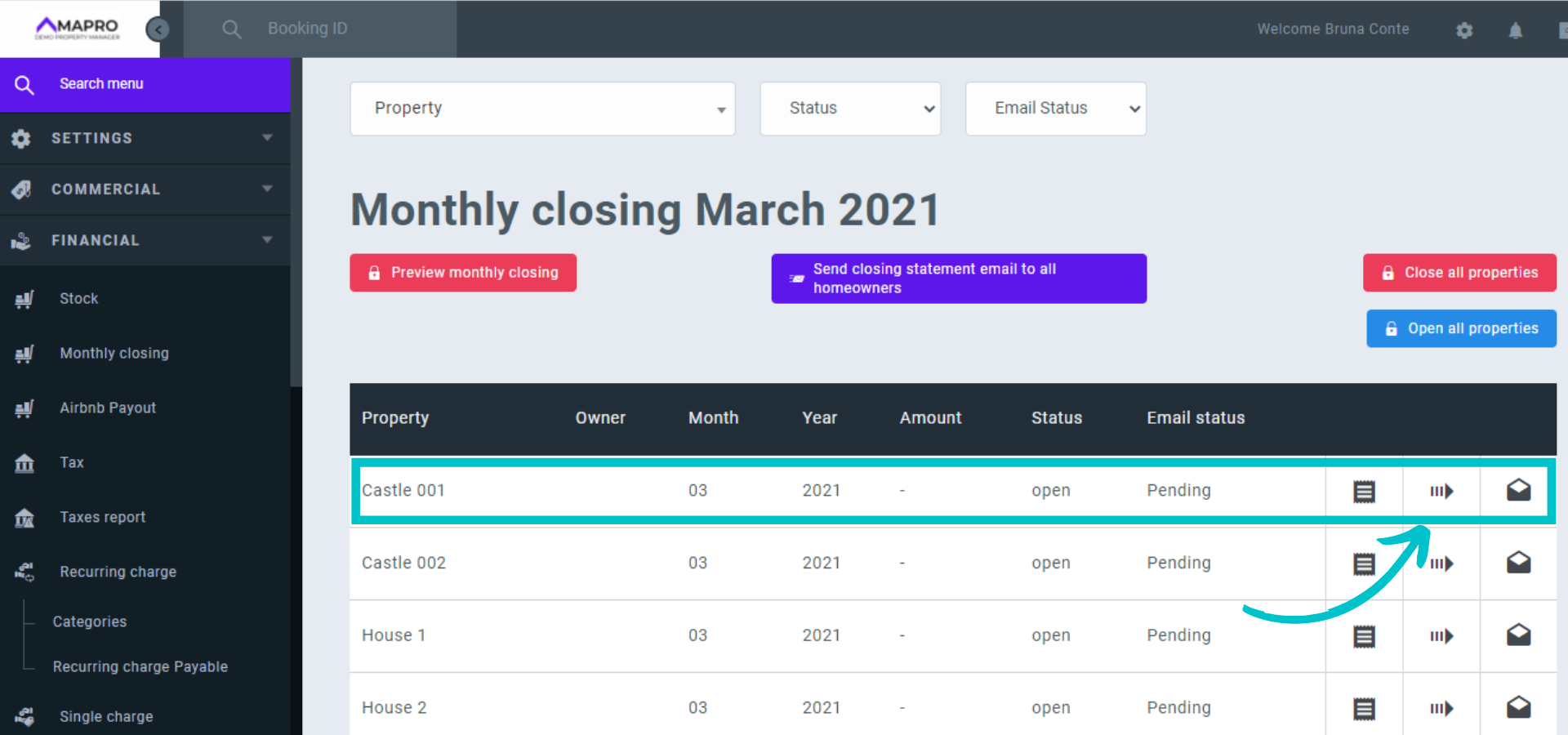
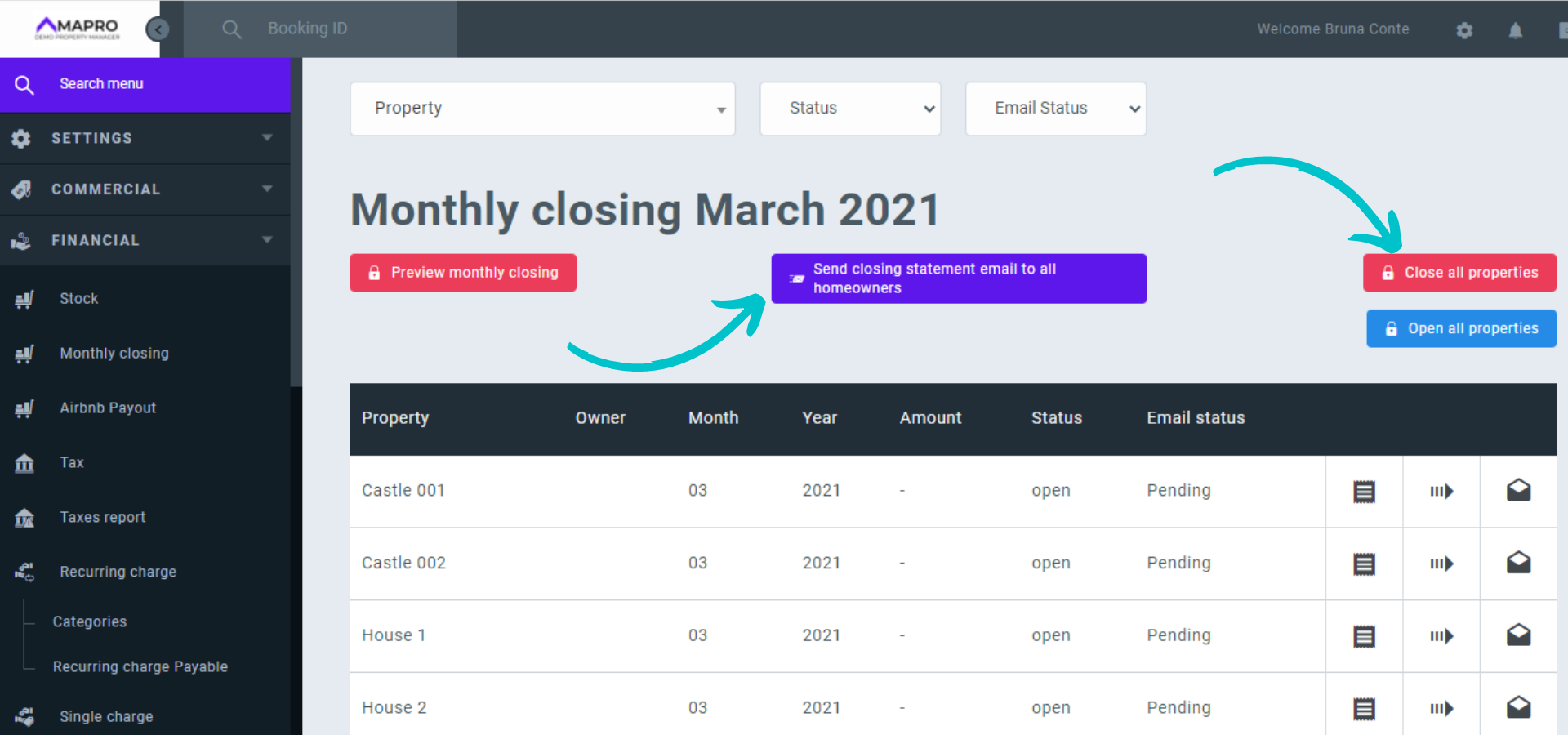
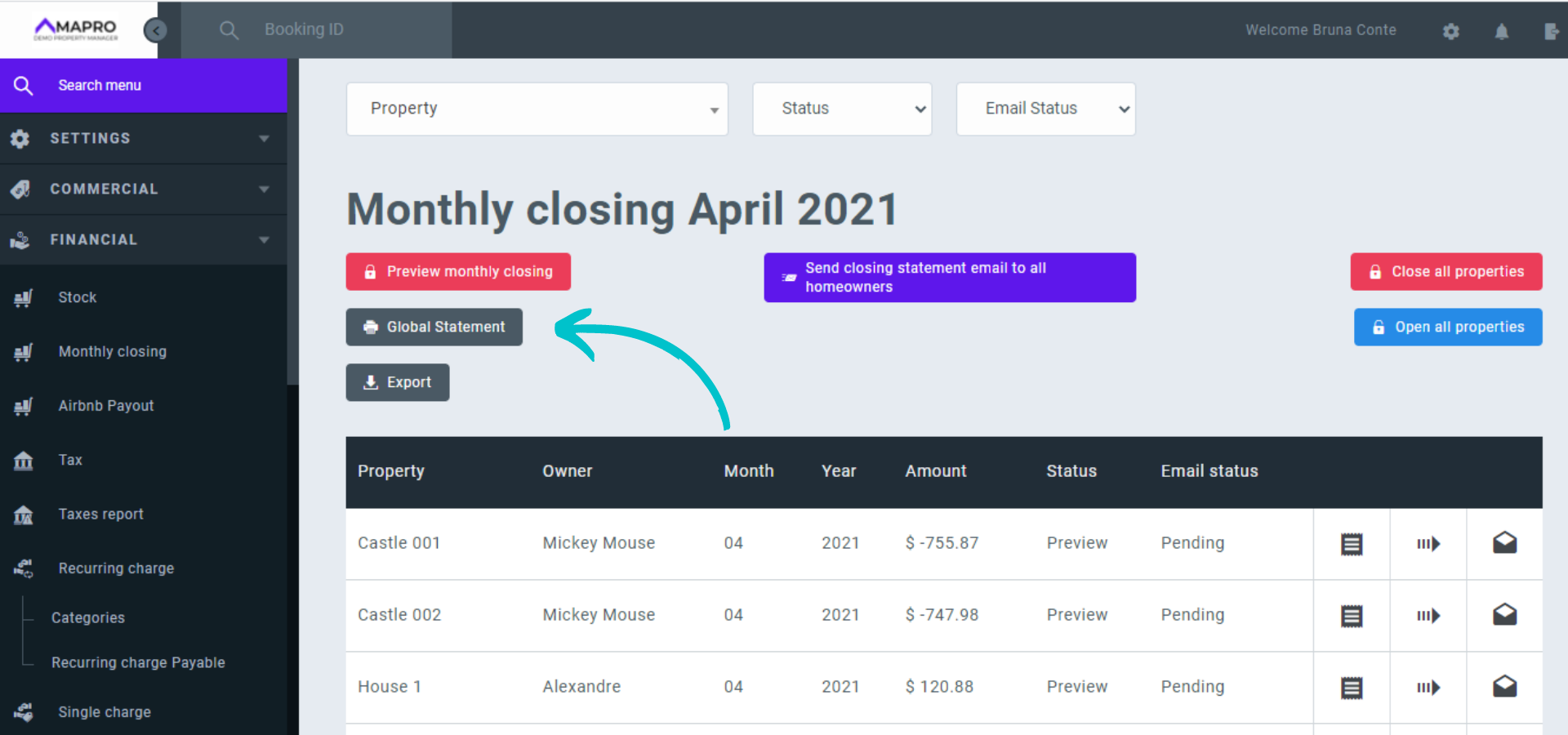
You can also check the statements on each property by clicking the statement icon, and then close all properties and send all e-mails at once using the two buttons above the table: "Close all properties" and "Send closing statement email to all homeowners."
After closing, the house status change from "open" to "closed," and the e-mail status change from "Pending" to "Sent." The arrow icon, previously used to close a property individually, is now used to open it instead. Another option available is the button "Open all properties."
On the left, you find the "Global Statement," which is a page that shows all homeowners' statements. There is also the "Export" option, where you can download an xlsx file (a spreadsheet) with the monthly closing information.
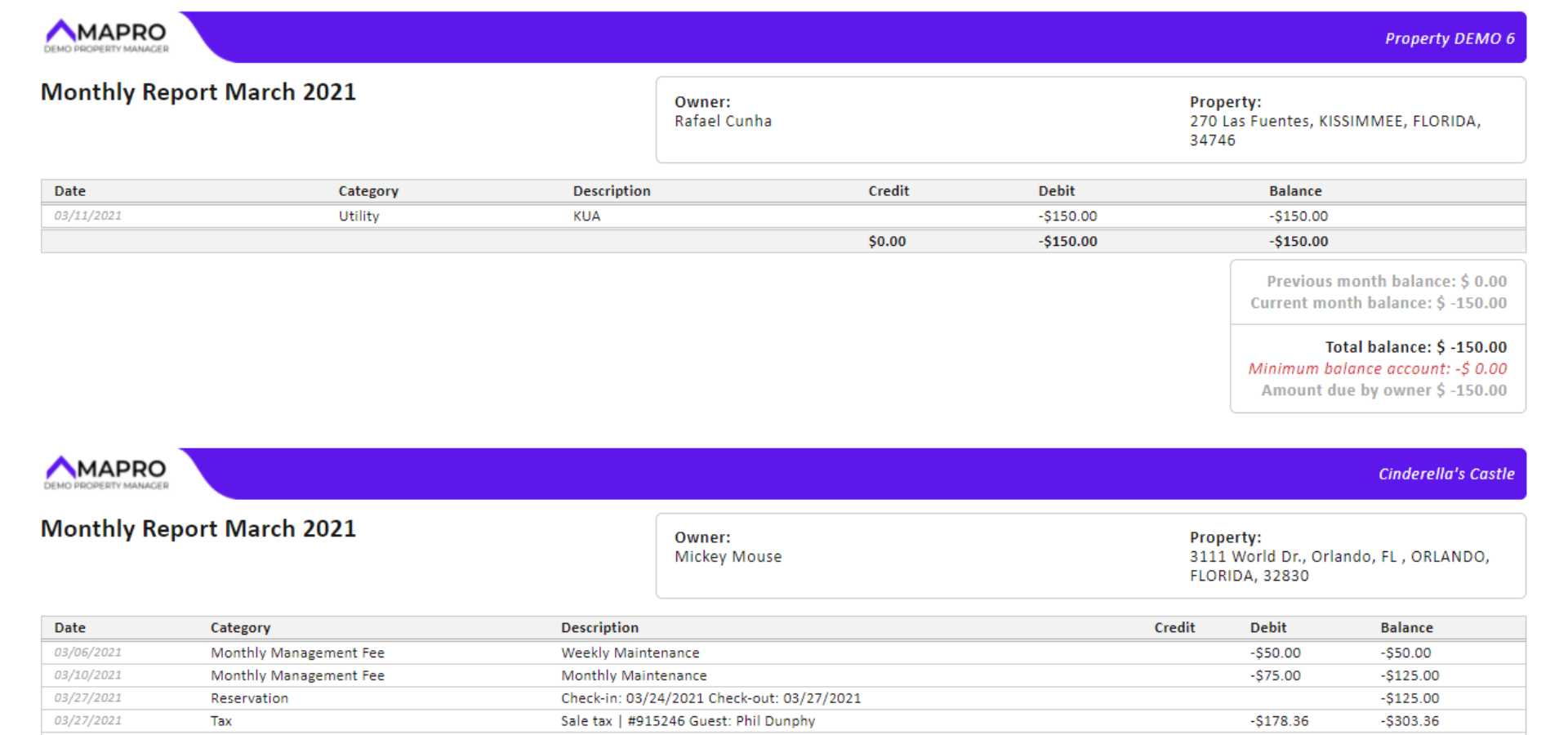
The "Global Statement" opens a new page with a summary of all homeowners and all properties' statements on the same screen, as shown in the image below. To print this file, click any area on the screen with the right button of the mouse and select "Print."
You can access the "Global statement" before you close the month as well. If you want to see all the financial data of the current month, go through the first steps of the monthly closing at MENU > FINANCIAL > MONTHLY CLOSING, entering month and year. It is not necessary to fill out the email fields.
Click "Start closing." On the next page, click "Preview monthly closing."
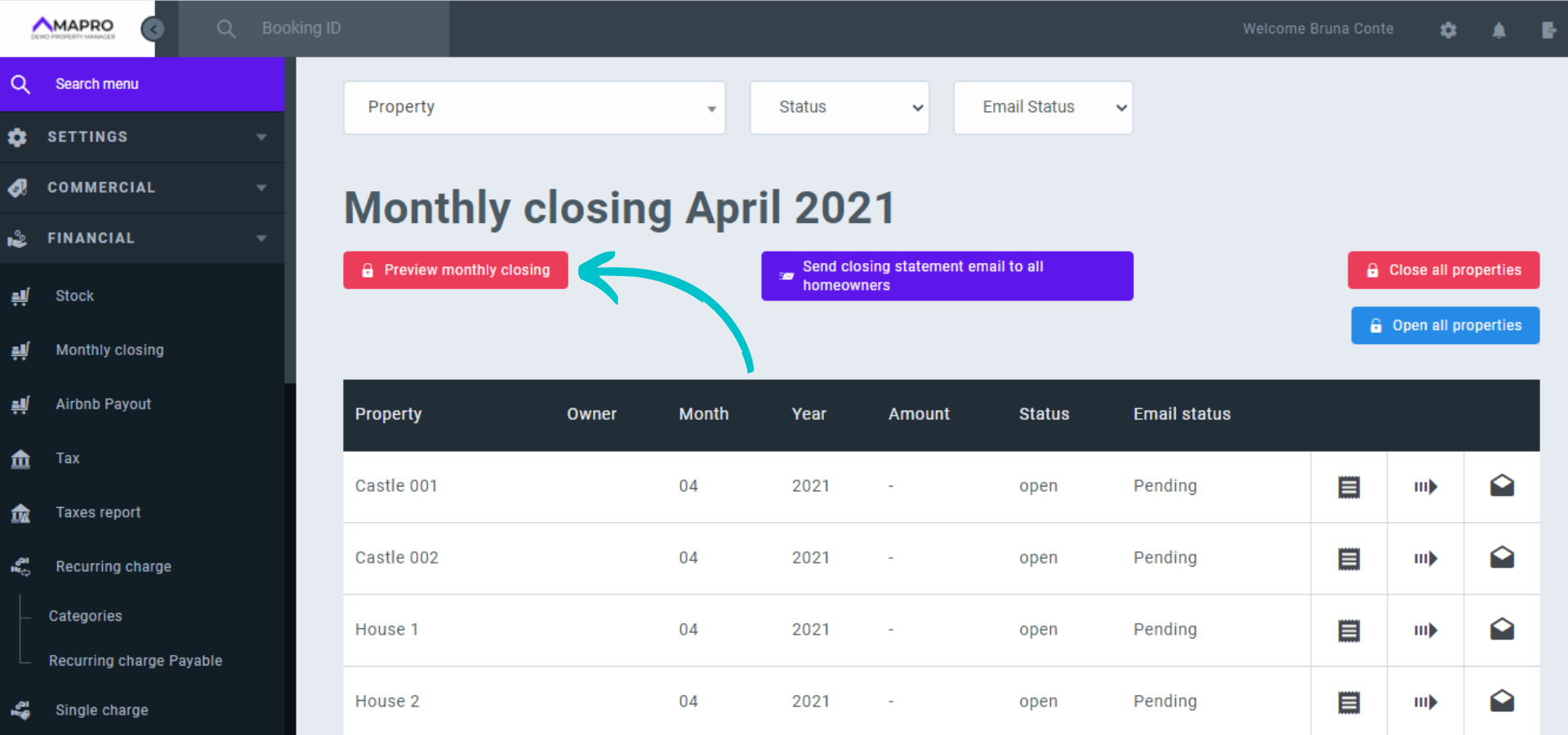
The system creates a closing preview and shows the "Monthly closing" screen. The month status changes from "Open" to "Preview." Click the list icon to see the details.
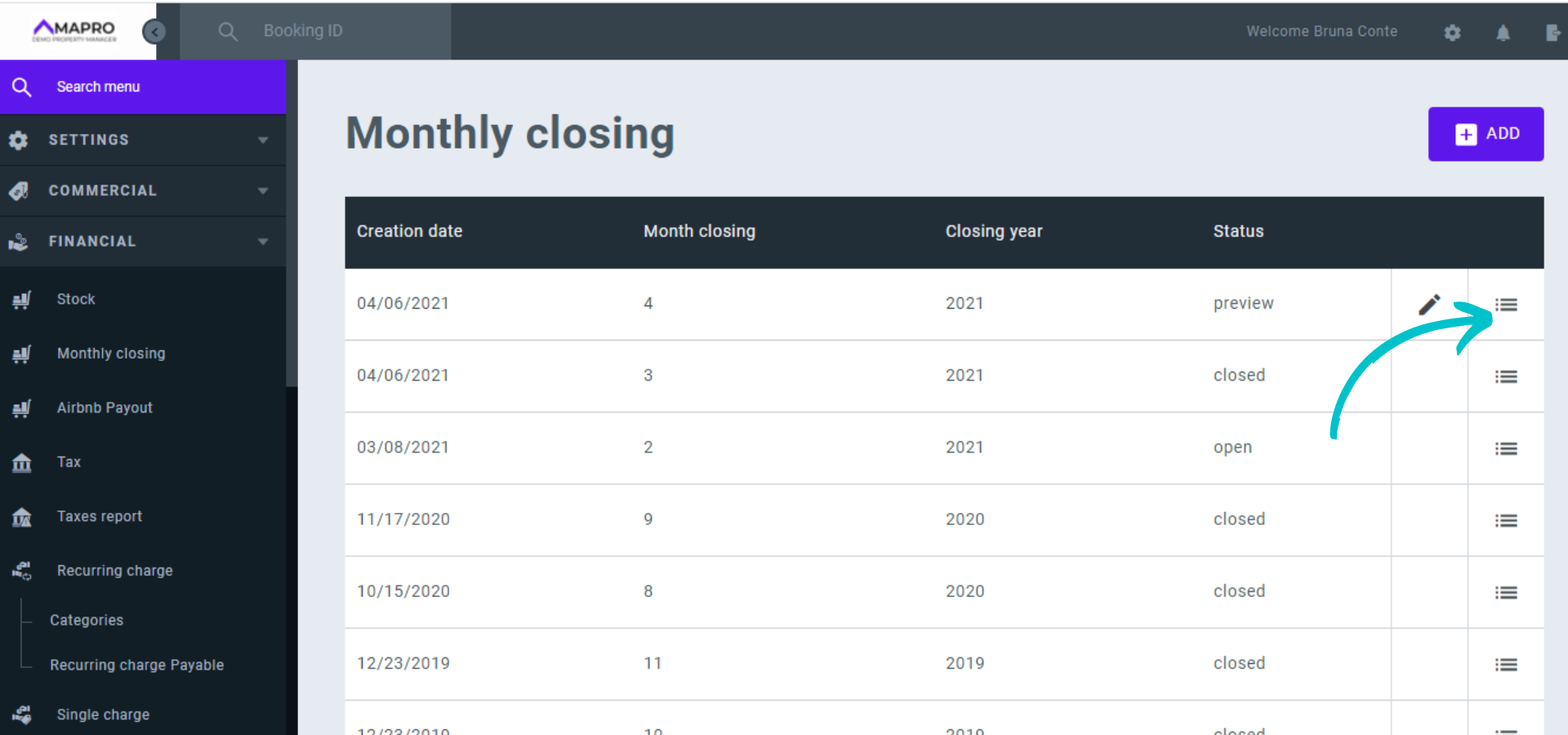
You will find the “Global Statement” on the left, available for checking and printing.
After closing the month, it is time to pay the homeowners.
Important: to inform debts and credits on the homeowner's statements after you close the month, go to MENU > FINANCIAL > ACCOUNTS PAYABLE > HOMEOWNERS, and follow the instructions in the article How to Process Payments to the Homeowner. Do NOT use the "Single charge" option for this purpose.



