
loading.. Please Wait
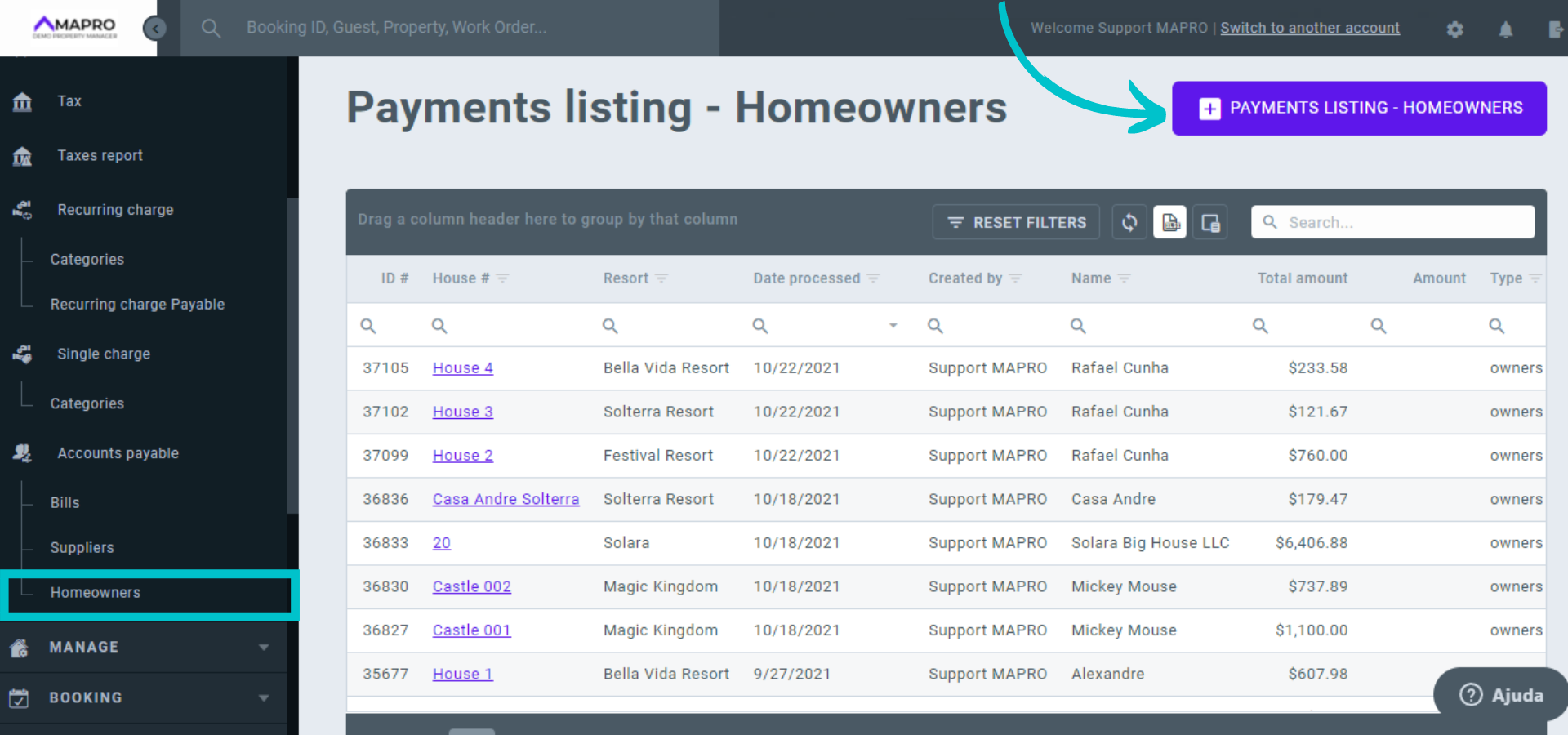
To process payments to the homeowner, go to MENU > FINANCIAL > ACCOUNTS PAYABLE > HOMEOWNERS and click "Add Payments Listing - Homeowners."
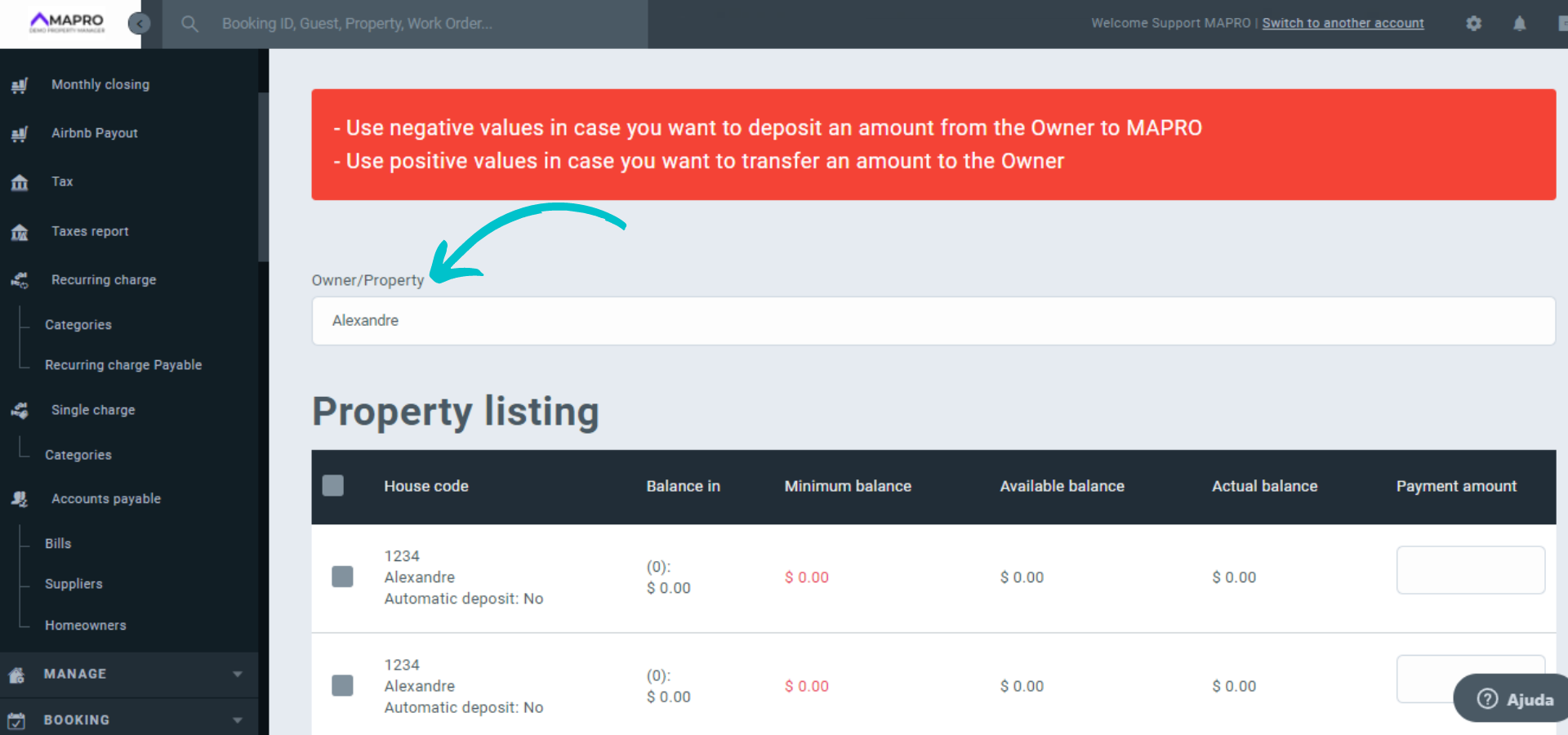
Use the field "Owner/Property" to filter the one you want to process payments to.
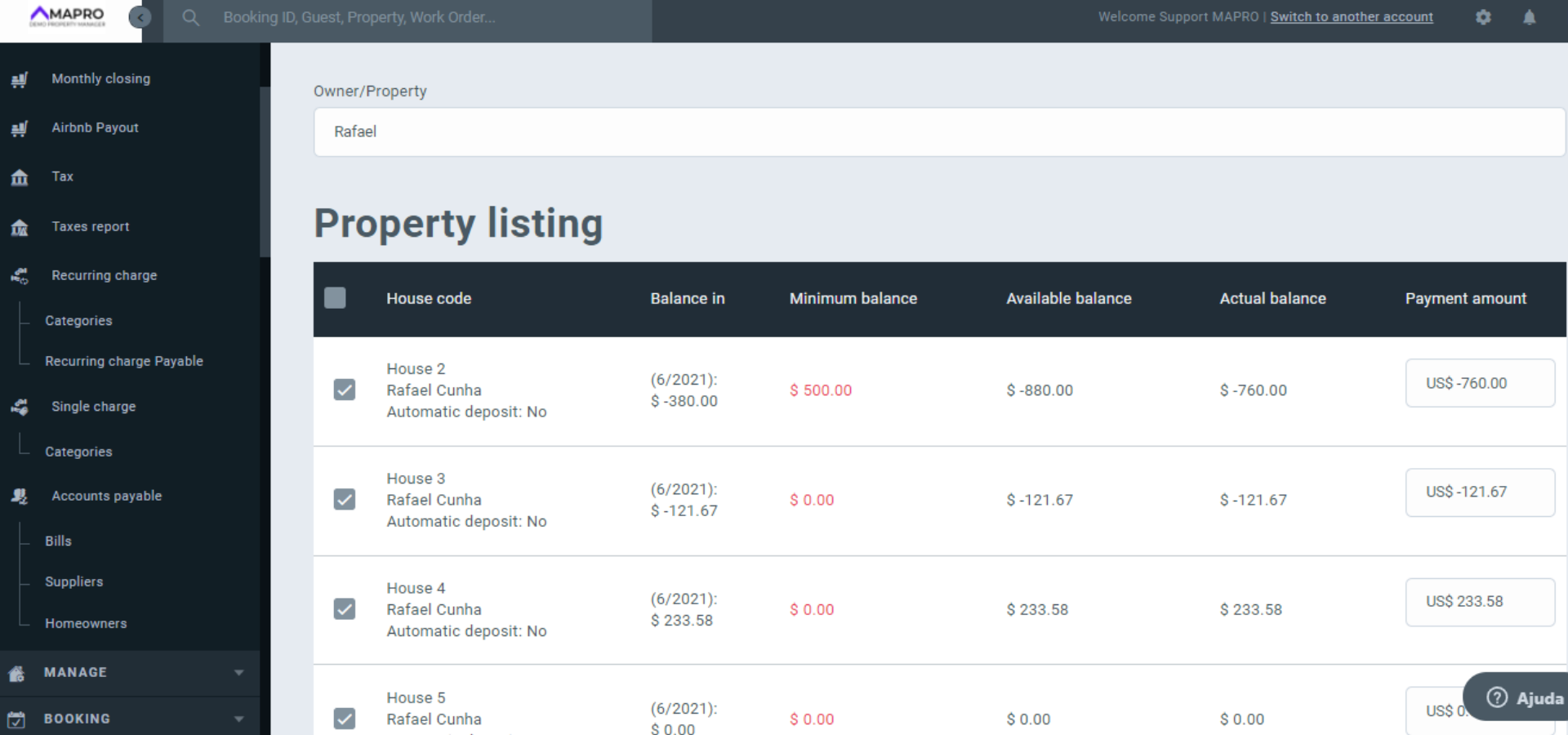
In the new screen, you will find in the "Balance" column the following information: Balance, which is the amount from the previous month; Minimum Balance, which is the minimum amount required in the homeowner's account at the property manager; and Available Balance, which is the previous month minus the minimum balance.
The balance information is available on the homeowner's statement.
In the "Actual Balance" column, you find the result of the Available Balance + possible credits or debts due the current month, such as Minimum Balance and recurring bills. These figures will not be available to the homeowner if you have set the system to show only closed months.
You can process more than one payment at the same time. Select the houses you wish to process payments and click on the value you want to pay so it will go to the "Payment amount" where you can edit it. Use negative values if you want to deposit an amount from the Owner to the Company and positive values if you want to deposit an amount from the Company to the Owner.
Scroll down the page to complete the payment information:
*These fields will be hidden when processing more than one payment at the same time. If you want them to appear, then you will need to process one paymet at a time.
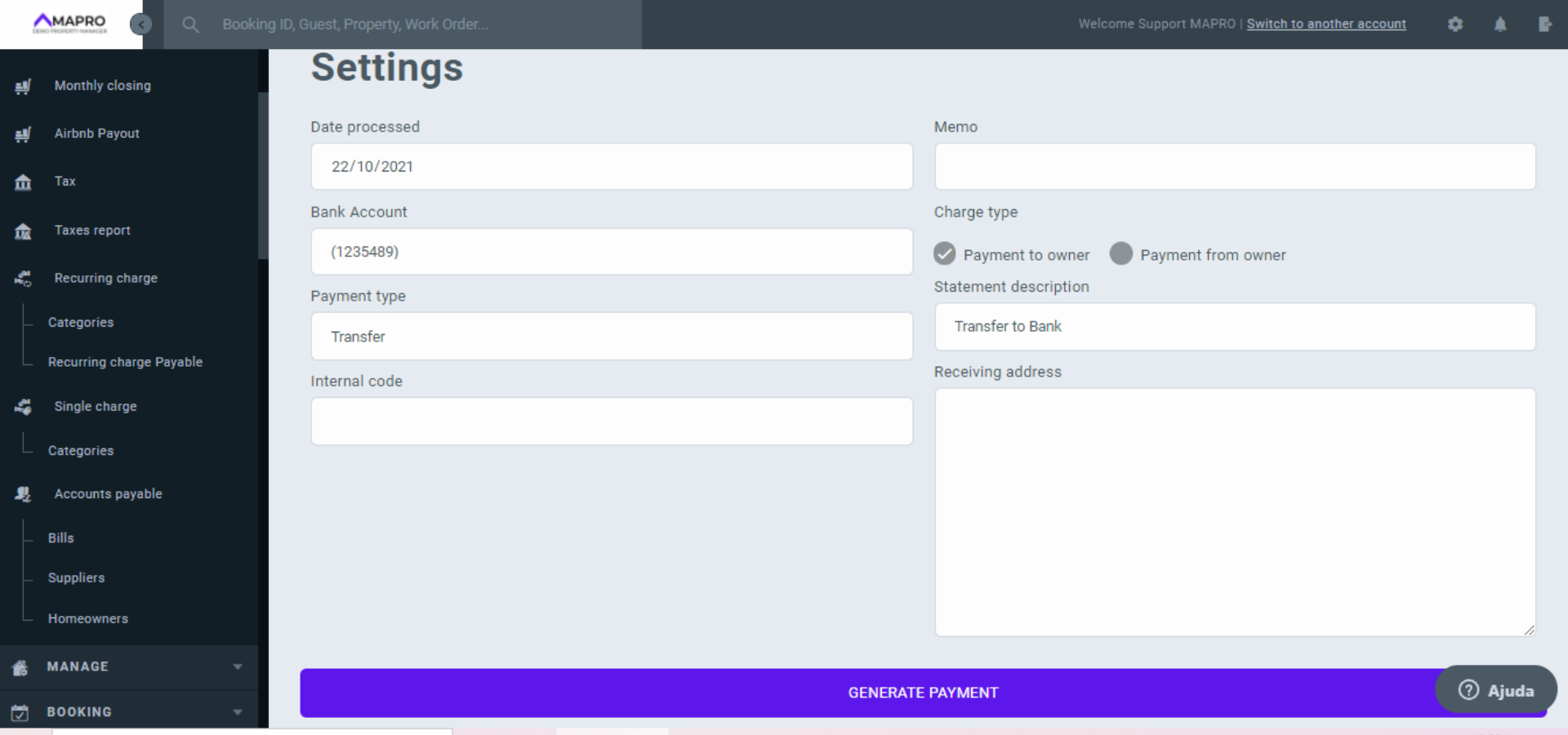
After filling the information, click "Generate Payment."



