loading.. Please Wait

How to add a new affiliate to MAPRO

  • Last Created On Dec 22, 2025
  • 37

Affiliates are the commercial partners of your manager. Through MAPRO, they can access all the information they need to sell your properties: they can see the properties list, check availability and prices, make reservations, and block dates.

To create an affiliate in MAPRO, you should first create an Integrator. The integrator allows the information exchange and identification of your affiliate as the source of the reservations and date blocks.

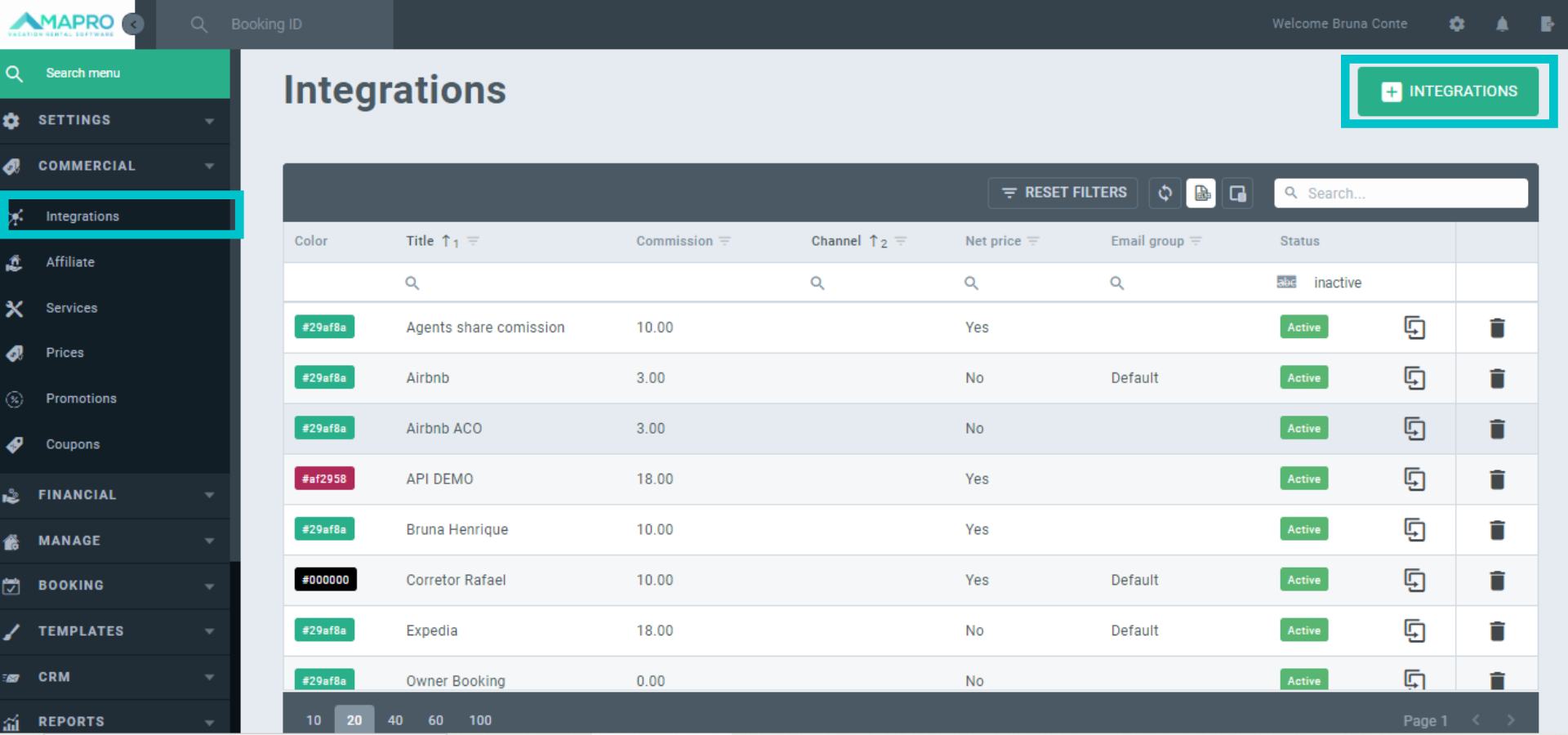
To create an integrator, go to MENU > COMMERCIAL > INTEGRATIONS, and then click on “Add Integration.”
MAPRO_-_add_afilliate_en__1_.png


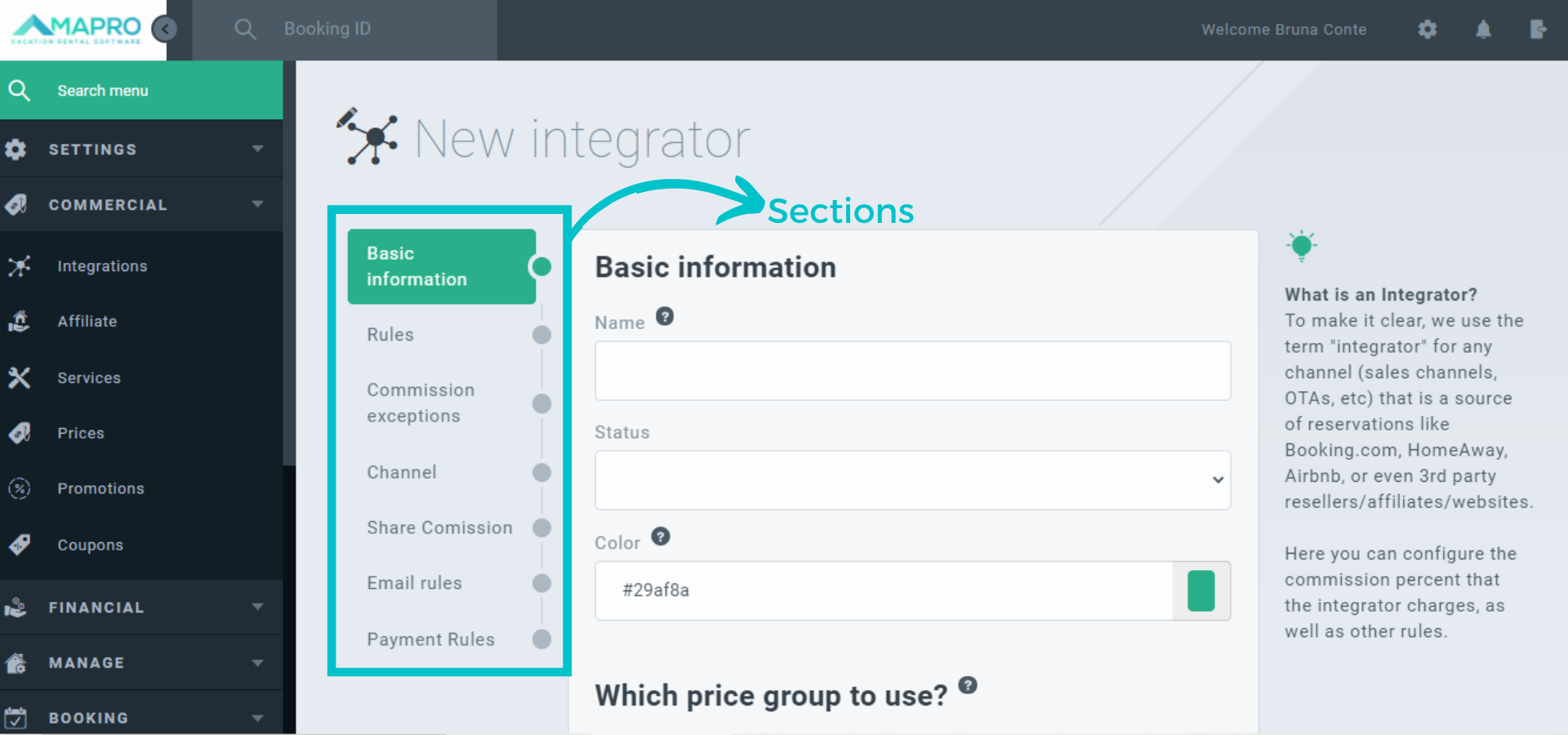
Please fill out all sections, and hover the mouse over the question mark icons next to each field to see tips about it. Choose a name that is easy to remember, once it will be in all reports (Ex. Dream Agency).
MAPRO_-_add_afilliate_en__2_.png


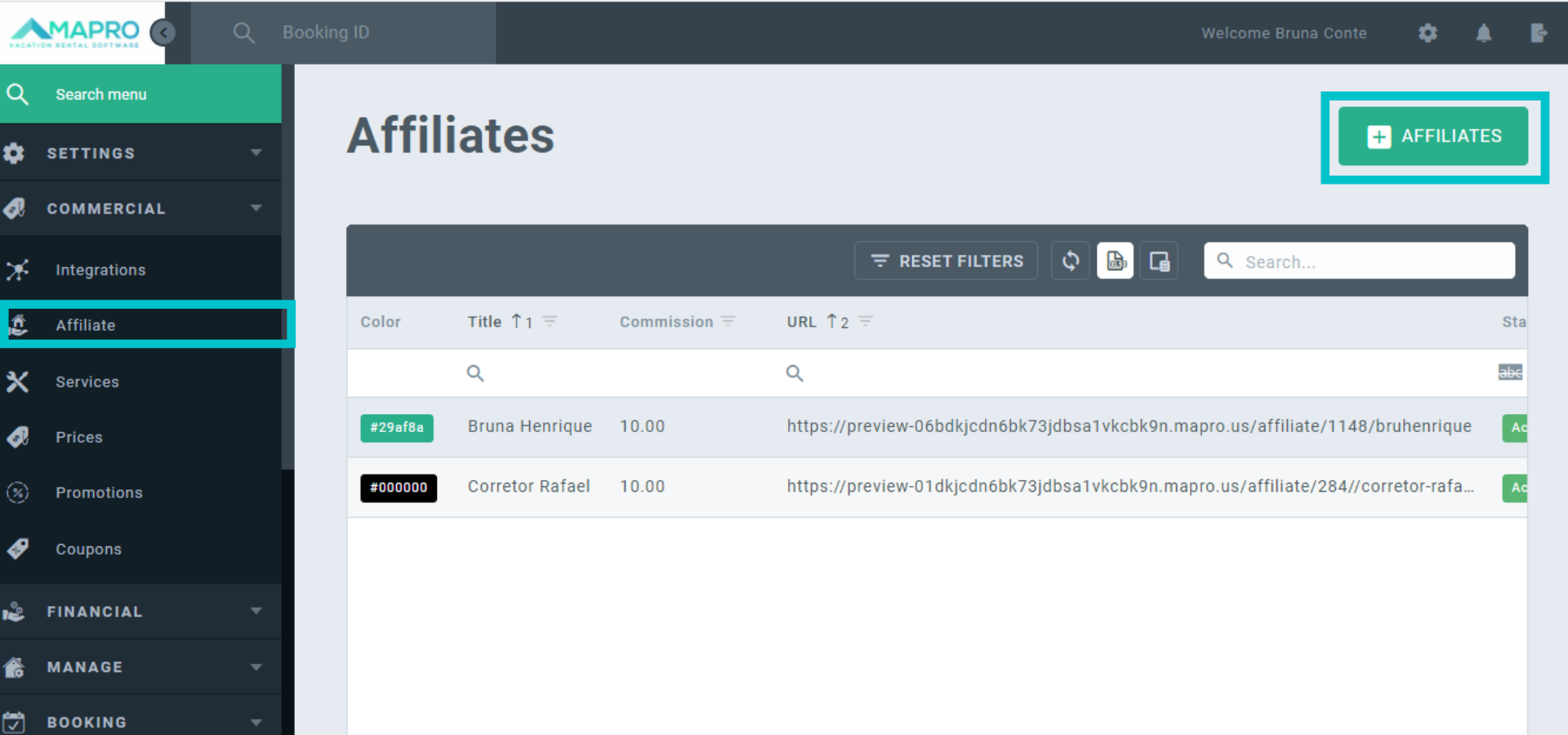
When the integrator is created, go to MENU > COMMERCIAL > AFFILIATES, and click on “Add Affiliate” in the upper right corner.
MAPRO_-_add_afilliate_en__3_.png


When filling out the information about the new affiliate, please observe the following:

  • Site: This is the website to which the integrator will be linked, in order to allow the affiliate to access the necessary data to sell your properties - it is usually your company’s website (e.g., www.minniehouse.com)
  •  Name, email address, phone number: your affiliate’s data
  • Language: select the language in which your affiliate prefers to access MAPRO
  • Url (/affiliate/): Inform the last part of your affiliate’s URL (website); DO NOT use spaces or special characters (e.g., if you chose the URL /dream-agency/, the website used by your affiliate would be www.minniehouse.com/dream-agency/).
  • Level: Always choose “Affiliate”.
  • Select integrator: Select the integrator you created for your affiliate - all reservations made by them will be identified with the integrator’s name.
  • Password: mark the check box at the end of the page to send the affiliate an email with instructions to set a password.
  • Save: click “Save” to finish the process.


To see your affiliate’s URL, go to COMMERCIAL > AFFILIATES, and check the URL column in the grid. This is the URL (website) your affiliate must use to sell your properties.




Views: 37

Recent Articles

  • How to Save the Guest's E-mail Address i...
    42
  • How to Register an External iCal in MAPR...
    37
  • How to Migrate Payments from One Reserva...
    45
  • How to Find the iCal of a Property Regis...
    40
  • How to Set Early Check-in and Late Check...
    52

Popular Articles

  • How to Upload the Airbnb Payout Spreadsh...
    160
  • How to Process Payments of Non-recurring...
    82
  • How to Cancel VRBO Reservations
    78
  • How to Configure your Airbnb Listing to...
    73
  • Short-Term Rental Agreement
    55